
Clonex Pro keeps operational problems visible in the Debug Console. Both editions let an administrator decide whether plugin data is removed when the plugin is deleted.
Debug Console (Pro)
Where to find it: ARN Clonex → Debug Console, or Settings → Debug Console in the Clonex navigation. Only administrators can open it.
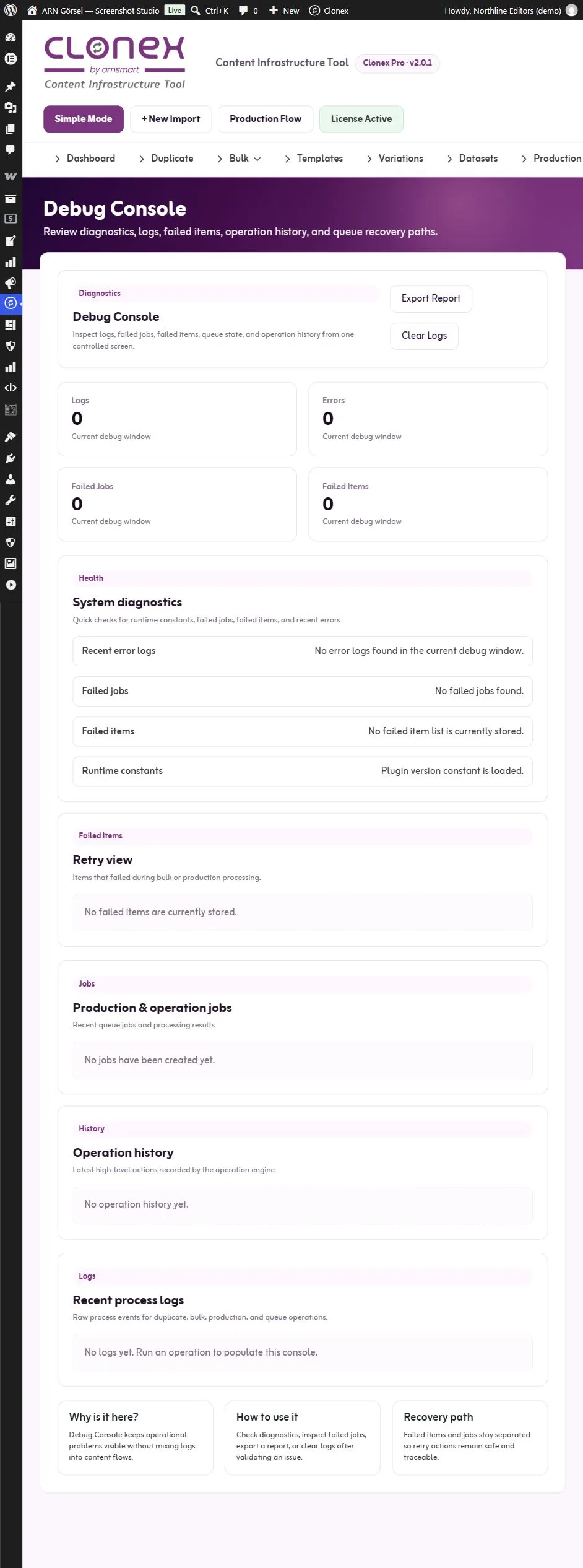
| Section | What it shows |
|---|---|
| Logs, Errors, Failed Jobs, Failed Items | Counts for the current debug window |
| System diagnostics | Quick checks: recent error logs, failed jobs, failed items and whether the plugin's runtime constants are loaded |
| Failed Items · Retry view | Items that failed in bulk, Production or Bulk URL Import jobs, with the error and a Retry button |
| Production & operation jobs | Recent jobs with their type, status and progress |
| Operation history | The latest high-level actions recorded by Clonex |
| Recent process logs | Raw process events of duplicate, bulk, production and queue operations, marked for example [SUCCESS], [WARNING] or [ERROR] |
Clonex keeps the last 200 log entries; the console shows the newest 150.
Retry failed items
Click Retry next to a failed item. Clonex moves the failed items of that job to a new job and processes its first batch at once. See Process jobs and retry failed items.
Export a report
Click Export Report to download a text file (arn-clonex-debug-report-….txt). It contains the Clonex version, the summary counts, the diagnostics, the recent jobs with their errors and the recent logs with their details, such as the score of each copy check. Attach it to a support request.
Clear the logs
Clear Logs empties the process log. Keep the logs until you have understood a problem; after clearing, the history of earlier events is gone.
Plugin data when you delete Clonex
By default, deleting the plugin leaves its data in place, so a later reinstall continues where you left off. Posts, pages, products and images you created with Clonex are never deleted, and neither edition removes the other edition's data.
| Item | Clonex Pro | Clonex Free |
|---|---|---|
| Setting | Delete all Clonex data when the plugin is deleted in Settings → Integrity | Delete all Content Toolkit data when the plugin is deleted under Plugin data at the bottom of the ARN Clonex screen |
| Who can change it | Administrators | Administrators |
| Default | Off | Off |
| Removed when on | Clonex settings, templates, datasets, variation profiles, jobs, history, logs and the Clonex tracking fields on posts | The Toolkit's settings, action history, process log, temporary Similar Draft data and the tracking fields it added to posts and images |
In Clonex Free, click Save after you change the setting. With the setting on, the shared ARN Free AI settings, saved API keys and usage history are removed too, but only when no other installed ARN Free plugin still uses them.
On a multisite network, each site follows its own setting.
Note: Staging copies, single sites taken out of a network and the undo copy of a push are sites and saved data, not settings. Deleting Clonex Pro never deletes them, their folders or their database tables. With Delete all Clonex data when the plugin is deleted on, the list of these copies and the site copy tasks are removed, so a reinstalled Clonex no longer shows the copies and their folders and tables have to be removed on the server. Delete the staging copies you no longer need, and remove undo copies you no longer need, under ARN Smart → ARN Clonex → Staging before you delete the plugin.
Note: From Clonex Pro 2.0.3, the licence follows the same setting. With the setting off, deleting Clonex Pro keeps its licence data on the site, so a reinstall on the same site needs no new activation code. With the setting on (on a multisite network: on any site), the licence data is removed too, while the licence stays bound to the site address on the licence server; to install Clonex again on the same site, request a new activation code through the link in your licence email and activate it in ARN Smart → ARN Center → Licences. Clonex Pro 2.0.2 and earlier always removed the licence data. To use the licence on another site, ARN Smart support moves it; see Activate your Clonex Pro licence.
Get help
Open a ticket at support.arnsmart.com. Include:
- the Clonex edition and version, and your WordPress and PHP versions;
- the screen and action you used, the content type of the source and the steps you took;
- what you expected and what happened, with the exact error message and a screenshot;
- with Clonex Pro, the report from Debug Console → Export Report.
Hide private content in screenshots. Never send your activation code or licence key.