
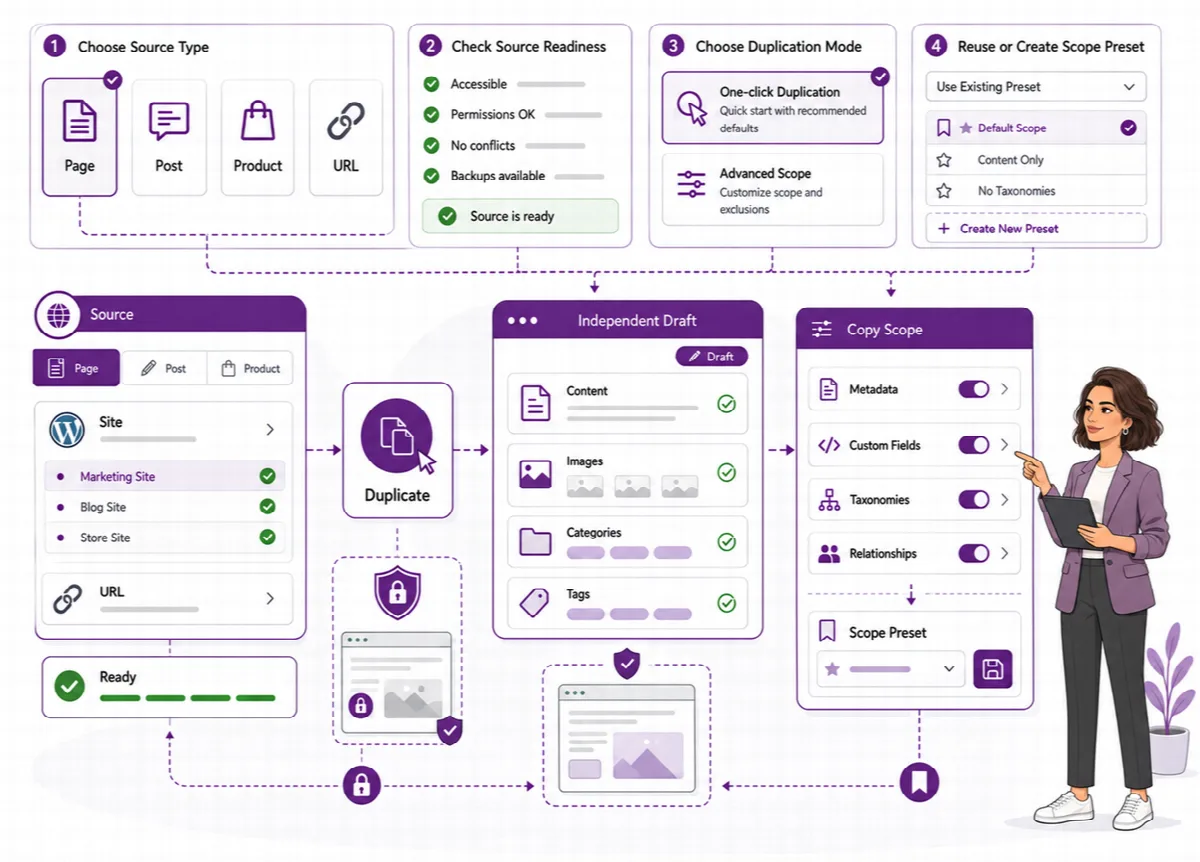
The Duplicate screen is the Clonex Pro flow for one copy with full control. It works in five steps: Input, Configure, Preview, Process and Result.
Where to find it: ARN Clonex → Duplicate, Duplicate in the Clonex navigation, Duplicate Content on the Dashboard, or Advanced Duplicate on the Simple Mode screen.
Before you start
- Make sure your account can edit the source and create content of that type.
- For a first trial, plan to create the copy as a Draft.
Step 1 · Input
- Choose the Content Type, for example Pages or Products.
- Type in Search Title to filter the Filtered Source List. For content types with categories or other taxonomies, you can also filter by Taxonomy and Term.
- Select one item in the list.
- Under Clone Controls, choose what the copy keeps. All parts are on by default.
| Clone control | What it copies |
|---|---|
| Title | The title of the source (or the new title from step 2) |
| Content | The editor content, including blocks |
| Excerpt | The excerpt |
| Featured Image | The featured image |
| Terms | Categories, tags and custom taxonomy terms |
| Meta | Custom fields stored with the record |
| SEO Meta | Fields of SEO plugins such as Yoast SEO, Rank Math and All in One SEO |
| Builder Data | Page builder data, such as the Elementor layout and page settings |
| ACF References | The hidden references that connect ACF values to their field definitions |
Keep Builder Data on for builder pages, and Meta and ACF References on when the page depends on field values.
Click Next: Configure.
Step 2 · Configure
Under Output Settings:
- New Title: the title of the copy. Leave it empty to use the title pattern from Settings ("{title} (Copy)" by default).
- New Slug: an optional address for the copy. Clonex keeps it unique.
- Status: Same as original, Draft, Pending, Publish or Private. The default comes from Settings → General. A published or private copy needs permission to publish that content type.
- Slug Mode and Slug Pattern: how the address is built when you leave New Slug empty.
| Slug Mode | Result |
|---|---|
| Auto | Built from the title of the copy, with "-copy" at the end |
| Keep Source Slug | Starts from the slug of the source; because that slug is taken, a number is added |
| Pattern | Built from the Slug Pattern, for example {title}-copy |
| SEO Friendly | Built from the title, preceded by values such as service, product or city when your placeholders supply them |
In Slug Pattern you can use {title}, {slug}, {id}, {year}, {month}, {day}, {post_type} and {author}. Placeholders without a value are left out of the address.
Then choose the relationship options:
- Rewrite Internal Links: links and references that point to an item copied in the same operation point to its copy.
- Rebuild Parent / Child: a child page copied with its parent is placed under the parent's copy.
- Fix Woo Relations: upsells, cross-sells, grouped products and gallery images that point to items copied in the same operation point to the copies.
Their defaults come from Settings → Integrity. See Layouts, fields, terms and links in a copy.
Click Next: Preview.
Step 3 · Preview
Preview Before Duplication shows the Selected Source and the Title Pattern Preview. Check them, and go back with Back if something is wrong. The preview reflects your settings; it is not a rendered view of the finished page.
Click Next: Process.
Step 4 · Process
Click Duplicate Content. Clonex creates the copy.
Step 5 · Result
The Result step opens only after the copy has been created or has failed.
- On success, you see Duplicate completed successfully. and the new content ID. Click Open Cloned Content to open the copy in the editor, Start Another Duplicate for the next copy, or Open Simple Mode.
- On failure, you see Duplication failed. with the reason, for example a missing permission. Click Back to Process after you have fixed the cause.
Start from a saved template
In ARN Clonex → Templates, click Use on a saved template. The Duplicate screen opens with the template's source item. See Save a page as a reusable template.