
A page is more than its visible text. Its layout, field values and terms decide how it looks and behaves. This guide explains what Clonex carries into a copy, how it handles links between copied items and what it checks after each copy.
Elementor layouts
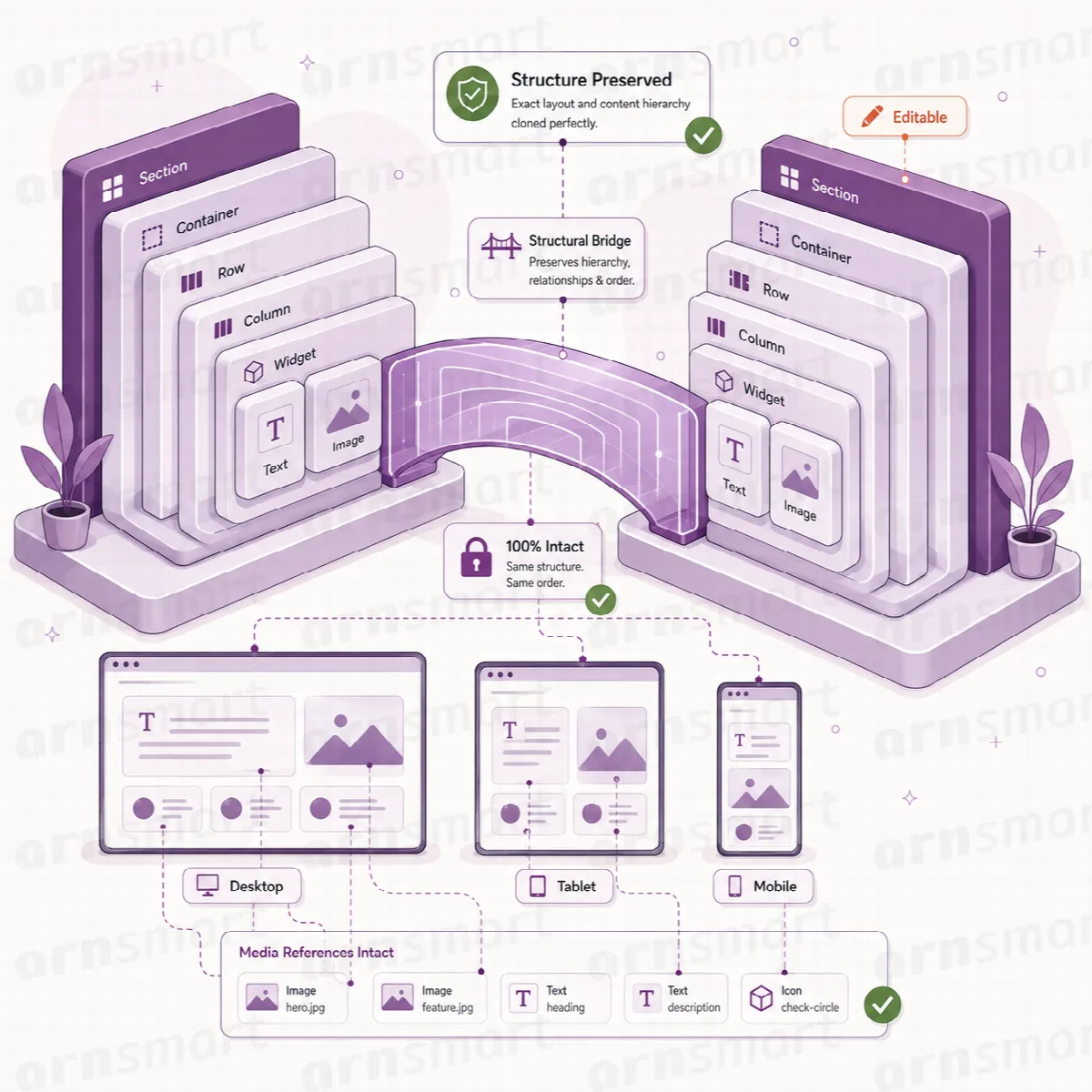
Clonex keeps the Elementor layout when it duplicates a page. Elementor stores the layout as builder data attached to the page, not as plain editor text. Clonex copies that data as stored, so the copy opens in Elementor with the same layout as the source and stays fully editable. Both editions do this.
- Layout data and page settings are copied as stored, not rebuilt from the rendered page.
- Fresh page styles: when the Copy action makes an exact copy, Clonex clears the generated styles of the copy, so Elementor builds new styles for the new page.
- Editable result: change sections, text and images in the copy without touching the source.
Gutenberg blocks
The block markup is copied as stored, so the copy opens in the block editor with the same blocks, in the same order. Paragraphs, headings, images, groups and other blocks arrive as blocks, not as flattened HTML. Replace Text works on the stored block content.
Content from third-party block libraries depends on how those blocks store their data. Review the copy in the editor after duplication.
Other page builders
Data stored by other page builders, such as Beaver Builder, Divi, WPBakery, Avada, Oxygen, Bricks, GenerateBlocks, Kadence and Stackable, is copied with the record as well. The verified scope is Elementor and the block editor. Results can vary with the builder version, your theme, third-party widgets and how a project stores its content, so always open a copy of a builder page in its builder and check it.
Custom fields, ACF and SEO fields
Clonex copies the custom fields stored with a record:
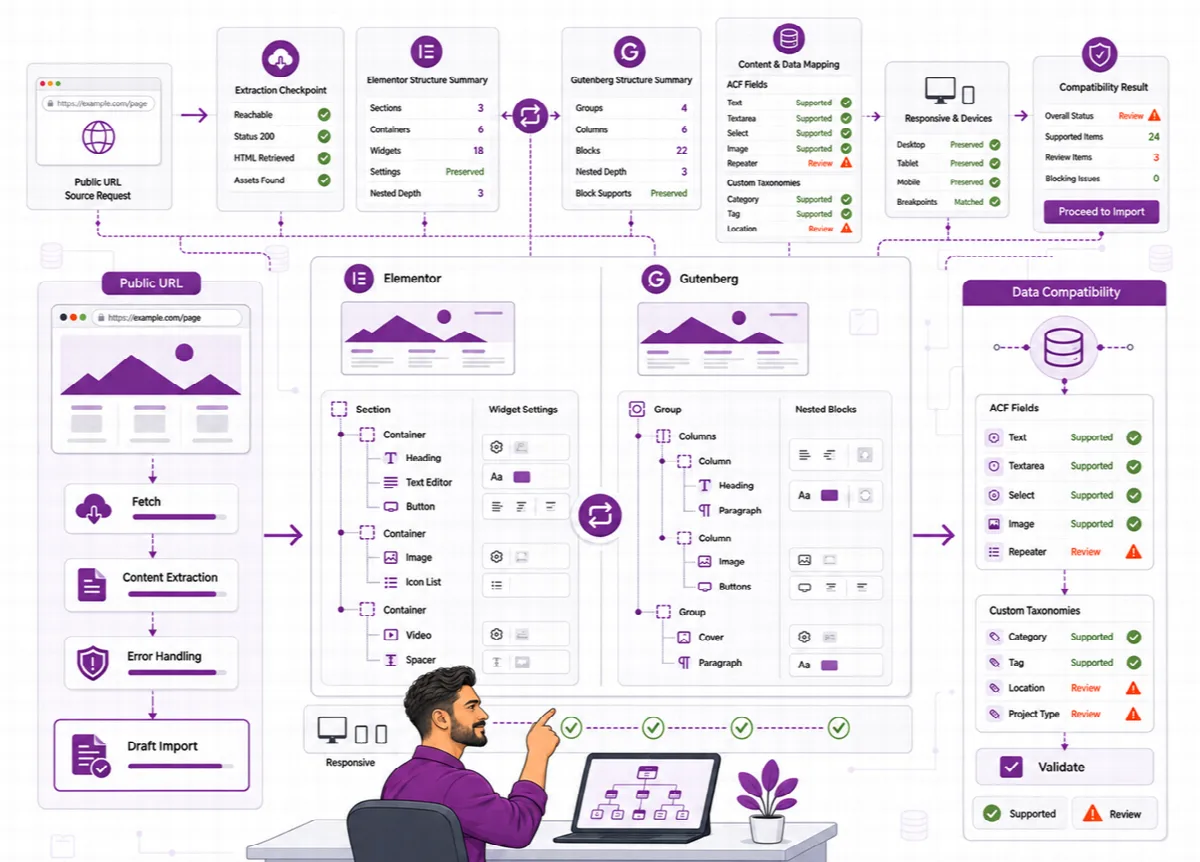
- ACF fields: Advanced Custom Fields stores each value together with a hidden reference to its field definition. Clonex copies both, so ACF recognises the fields in the copy.
- SEO fields: titles, descriptions and other values stored by Yoast SEO, Rank Math and All in One SEO.
- Other custom fields: values stored by your theme and plugins, such as a price, an address or a rating.
Clonex does not copy edit locks, old slugs or its own tracking fields. It copies the stored values whether or not the related plugin is active; showing and editing ACF or SEO fields still needs that plugin. In Clonex Pro you can switch Meta, SEO Meta, Builder Data and ACF References on or off on the Duplicate screen, in templates and in Bulk Duplicate.
Categories, tags and custom taxonomies
The copy is assigned the same terms as the source, so it appears in the same archives and filters once it is published. This covers categories, tags and terms of custom taxonomies, such as a location or product type. Clonex does not create new terms when it duplicates.
In Clonex Pro, switch off Terms on the Duplicate screen or in a template when the copy should start without terms. To move existing content from one term to another, use Simple Mode or (Pro) Taxonomy Edit and Category Move.
Links between copied items
When connected items are copied in the same operation, Clonex points the copies at each other instead of back to the originals:
| Relationship | What Clonex does |
|---|---|
| Parent and child pages | A child page copied with its parent is placed under the parent's copy. In bulk runs, parents are copied first. |
| Internal links | Links and references in the content, excerpt, fields and builder data that point to an item copied in the same operation point to its copy. |
| WooCommerce relations | Upsells, cross-sells, grouped products and gallery images that point to items copied in the same operation point to the copies. |
- Simple Mode applies all three in both editions.
- Clonex Pro lets you switch Rewrite Internal Links, Rebuild Parent / Child and Fix Woo Relations per run, with defaults in Settings → Integrity.
- The Copy action makes an exact copy and keeps the parent and the references of the source as they are.
- A child page copied without its parent keeps its original parent only with the Copy action. Elsewhere, with Rebuild Parent / Child on, Clonex places it under the most recent Clonex copy of that parent, or at the top level when there is none; with the option off, at the top level.
This covers relationships that Clonex recognises between the items it copies. When your content uses relationships stored by third-party plugins, review the copies.
The check after each copy
Clonex checks each copy as soon as it exists and stores the result with the copy. Clonex Free runs a lighter version of the check and keeps its result in a hidden field of the copy, without showing it on screen; Clonex Pro runs the full check and writes its result to the Debug Console log.
| Finding | Clonex Free | Clonex Pro |
|---|---|---|
| Empty title | Checked | Reported |
| Featured image that no longer exists in the Media Library | Checked | Reported |
Unfilled placeholder such as {city} | In the title and content | In the title, slug, content and excerpt |
| Links and IDs that still point to a source copied in the same operation | Not checked | Reported |
| Product gallery images and images in the content that no longer exist | Not checked | Reported |
| Empty slug, empty Elementor data or empty page template value | Not checked | Reported |
| Terms of the copy that differ from the source | Not checked | Reported, and the source terms are assigned again |
| Score from 0 to 100 for each copy | Not shown | In the Debug Console report |
In Clonex Pro, every check appears under Recent process logs in the Debug Console as "Content integrity validation completed.", marked [SUCCESS], or [WARNING] when it found issues. The score and the number of issues and warnings are in the text report you download with Export Report. See Debug Console, plugin data and support.
Apart from assigning the source terms again (Pro), the check only reports; it does not change the copy. It does not replace a visual review of the copy in its editor or builder.