
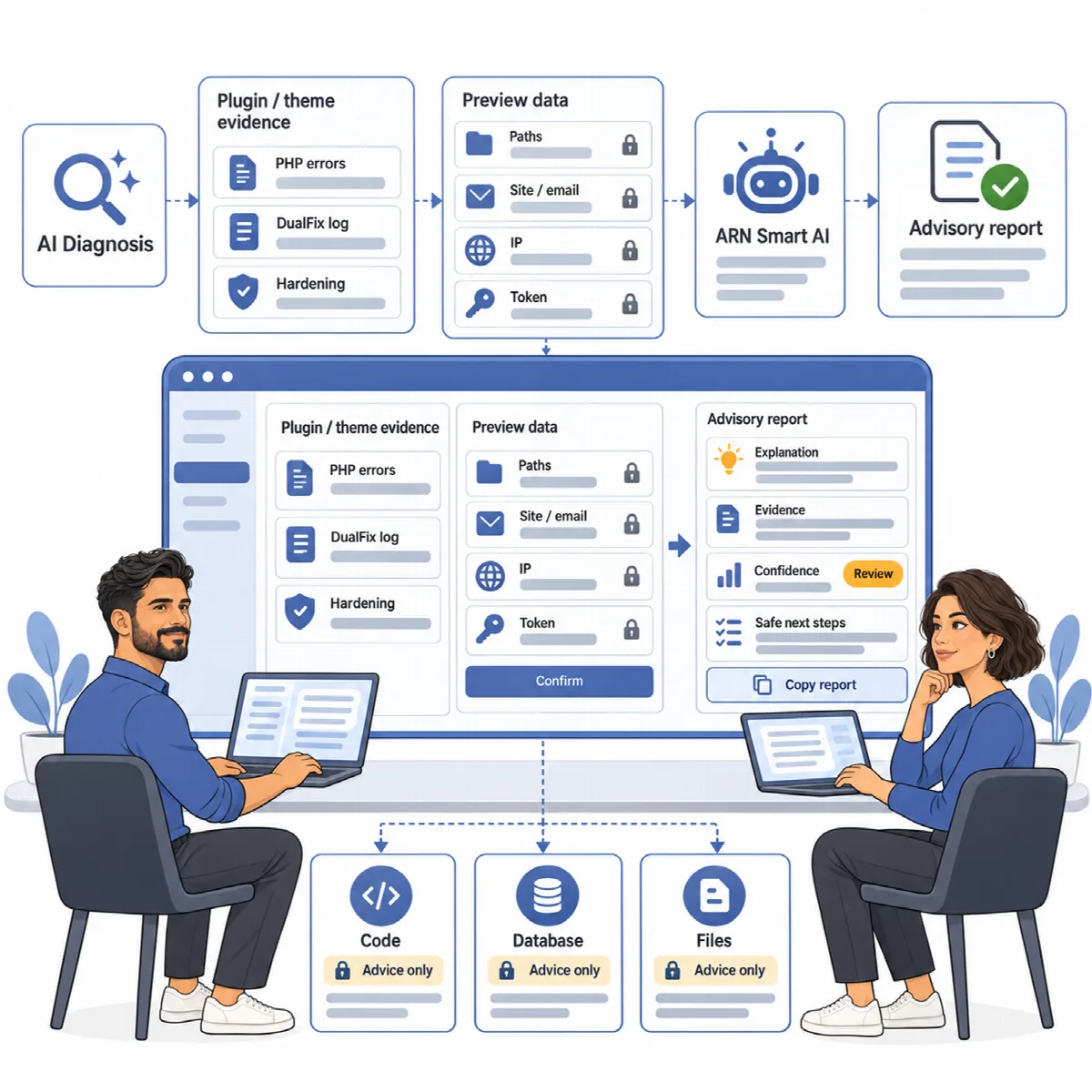
When a site breaks, the cause is usually buried in the PHP error log. AI Diagnosis reads the recent PHP errors, DualFix's own log entries and the hardening results and explains them in plain language. It points to the plugin or theme they most likely come from and suggests safe next steps you can take yourself.
AI Diagnosis only advises. It never changes your site and never suggests code or database edits.
Where to find it: ARN DualFix → Tools → AI Diagnosis (Pro).
Before you start
AI Diagnosis uses the shared ARN Smart AI connection in Settings → ARN Center. The AI provider and your keys are configured there once for every ARN Smart product; DualFix has no AI settings of its own. Until a connection is ready, the tab shows No AI connection is ready yet. with a link: Set up the ARN Smart AI connection. The local analysis works without a connection.
1. Read the local analysis
1. Local analysis (nothing is sent) reads the last part of the PHP error log on your server. It lists each plugin or theme that appears in the recent errors as a Likely source, with its number of error lines. If no log can be read, it says so. No AI request is made in this step.
2. Review what would be sent
Under 2. Review what would be sent, click Preview data. You see exactly what would leave the site.
- File paths, the site address, e-mail addresses, IP addresses and long tokens are replaced before sending.
- Passwords, API keys, posts, users and customer data are never collected.
- The data contains versions, active plugin names and the recent PHP and DualFix errors.
3. Ask the AI
Under 3. Ask the AI, tick I reviewed the data and agree to send it to my AI connection. and click Run AI Diagnosis. Nothing is sent before this confirmation.
Read the diagnosis
Latest diagnosis shows:
- the severity and a short summary;
- each finding with its likely source, explanation, evidence and safe next steps, such as deactivating a named plugin;
- Not enough data for: what the AI could not judge.
Copy report copies the Shareable report for a developer or hosting support. AI connection and usage opens the shared AI page, where you also see the usage and any limits.
Note: AI Diagnosis sends the confirmed, masked data to the AI provider of your own connection, and that provider's terms and privacy policy apply. Check the explanation against the actual site before you act on it.
In DualFix Free
DualFix Free adds Settings → ARN Free AI, the shared AI settings screen of ARN Free plugins. DualFix Free itself sends no AI requests and has no AI Diagnosis.