
A cleanup tool that knows nothing about the site treats every row the same. The Setup Wizard starts from the environment instead: the hosting account, the installed plugins, the media library and whether WooCommerce is active. The profile you confirm decides how cautious later stages are and which data stays protected. Preview and cleanup are not available until a profile is confirmed.
Where to find it: Setup Wizard in both editions.
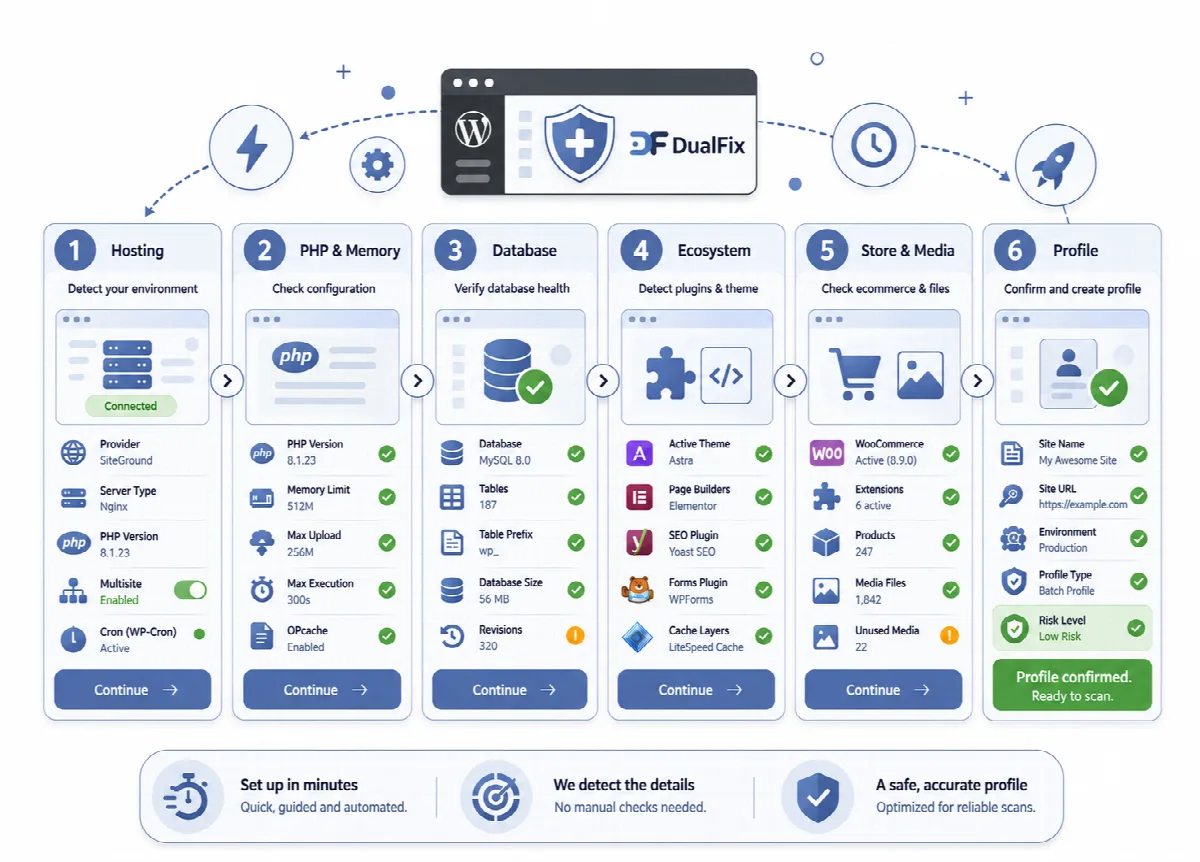
The steps
| DualFix Pro | DualFix Free | What happens |
|---|---|---|
| 1. Environment | 1. Environment | Live detection of WordPress, PHP, database, WooCommerce, uploads size, active plugins and active theme. Click Run Environment Scan (later Re-run Environment Scan). |
| 2. Media | Not included | Scan Media runs a Media Hygiene scan and estimates the recoverable size. |
| 3. Ecosystem | 2. Ecosystem | SEO, page builder, custom field, language and ARN plugins and the plugin registry signals. In Pro, Scan Residue runs a Residue Cleaner scan. |
| 4. Store | Not included | When WooCommerce is active, the step shows products, variations and orders, read-only, and Scan Store runs a WooCleaner scan. |
| 5. Config | 3. Config | Site type, cleanup policy, automation preference and protected data, saved with Save Setup. |
| 6. Policy & Runtime | 4. Policy & Runtime | The proposed policy, the batch profile for your hosting, the risk level and memory. |
| 7. Results | 5. Results | The profile, confirmed with Confirm Detected Profile or, when one is already in effect, Confirm New Profile. |
Use Next and Back to move between the steps.
Configure the profile
In the Config step:
- Site Type: Blog, Corporate, WooCommerce, Membership, LMS, Marketplace, Portfolio or Mixed (the default).
- Cleanup Policy: Conservative, Balanced (the default), Advanced or Manual only. In DualFix Pro, it sets the automatic confidence threshold: 95%, 85%, 75% or 100%.
- Automation Preference: Manual only, Preview required (the default), Safe items only or Approval required.
- Protected data: the kinds of data that are never a cleanup target unless a registry adapter allows it, such as SEO, builder, custom field, order, customer and analytics data. Keep the protection your theme and plugins need.
Click Save Setup, then run the environment scan again so the profile reflects these choices.
Confirm the profile
- Open Results. Before confirmation it shows a live preview of the profile that confirming would lock in.
- Check that it matches your site.
- Click Confirm Detected Profile.
The confirmed profile is what later stages use:
- Its hosting profile sets the automatic batch size (100 before any profile is confirmed, 50 for normal or limited hosting, 200 for a high-capacity server, 40 for multisite and, in Pro, for a large store or media library).
- In DualFix Pro, its cleanup policy sets the automatic confidence threshold.
- Its protected data and plugin registry signals keep the data of your active plugins out of reach.
Re-running the environment scan does not change the confirmed profile until you confirm a new one.
When to run it again
Run the Setup Wizard again after a major change, such as a new page builder, a new theme, a store launch or a move to another hosting account, and confirm the new profile before the next cleanup.