
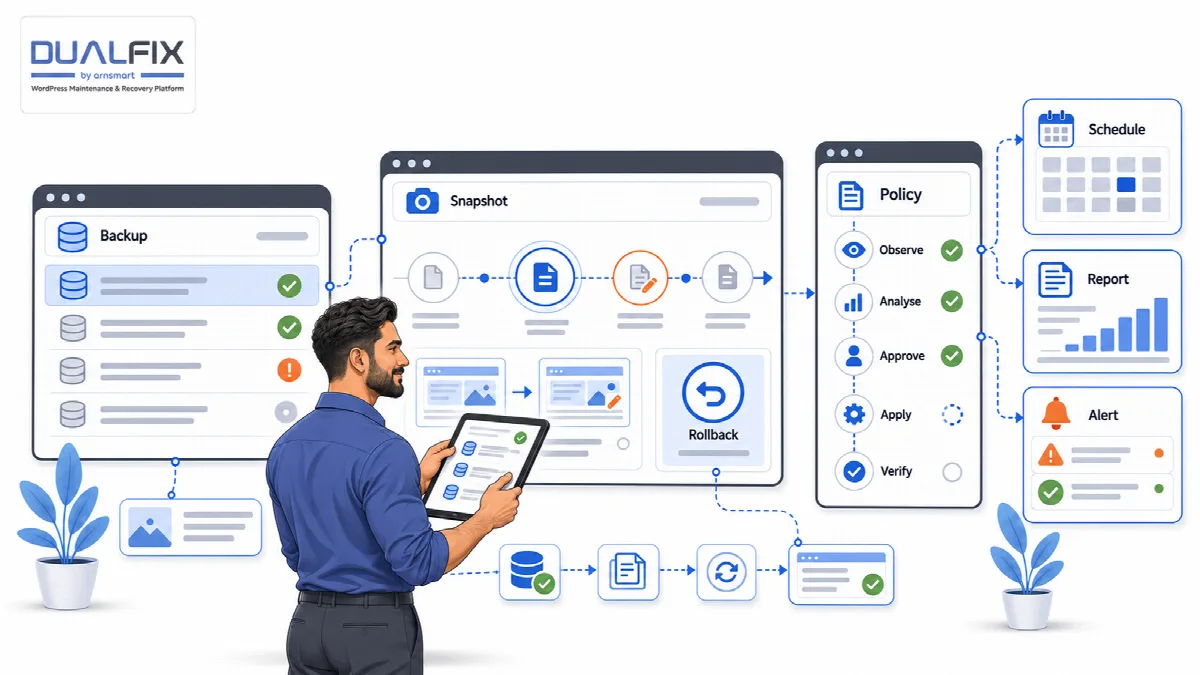
Auto Mode repeats the guarded cleanup on a schedule. A scheduled run uses the same stages as a manual one: scan, classify, verify, Safety Snapshot, cleanup and audit. Automation changes when the pipeline runs, not how careful it is. Auto Mode is included in both editions.
Where to find it: Settings → Automation.
Nothing runs until you turn it on
Auto Mode is Disabled after installation. Installing DualFix does not start any scheduled cleanup; the first automated run happens only after you choose an Auto mode level and save it. Turning it off again stops future runs; completed runs and their snapshots stay available.
Run several manual cleanups first, until you trust the classifications for your site.
Auto mode levels
| Auto mode | What a scheduled run does |
|---|---|
| Disabled (default) | Nothing is scheduled |
| Suggest only | Scans every scope and reports what is accumulating; nothing is previewed, verified or cleaned |
| Approval required | Also runs Preview and Verify, then stops; cleanup waits until you click Confirm Cleanup |
| Safe auto / Scheduled safe auto | Runs the full guarded pipeline and cleans only the scopes whose verification gate opened, after a Safety Snapshot |
Set up Auto Mode
- Open Settings → Automation.
- Under Configuration, choose the Auto mode level and the Auto mode frequency: Daily, Weekly (default) or Monthly.
- DualFix Pro only: keep Require a Safety Snapshot before automatic cleanup on.
- Click Save Automation Settings.
- Check the status cards: Status, Next run, Last run and Last run cleaned. After the first runs, read Last run — per scope and Recent runs.
| Schedule | Fits |
|---|---|
| Daily | Busy sites where transients and revisions accumulate quickly |
| Weekly | Most business sites and stores |
| Monthly | Low-traffic sites that change rarely |
In DualFix Pro, monthly Auto Mode runs from version 2.0.1.
Extra safeguards for unattended runs (Pro)
- Safe mode. With Safe mode (conservative defaults everywhere) on in Settings → General, the default, automatic cleanup deletes only the items Smart Auto Review approves for automatic runs. The others, WooCommerce residue included, wait for your confirmation.
- Snapshot required. With Require a Safety Snapshot before automatic cleanup on, the default, a file the snapshot could not keep a copy of, such as a file over 5 MB, is not deleted. It waits for your confirmation, the reason is logged and the other items are cleaned. A snapshot that cannot be created at all stops the automatic cleanup.
Scheduled scans (Pro)
Scheduled scans in Settings → Automation scans every area on its own Scan schedule frequency and only stores the results, like a scan from the screens. It never previews or cleans anything. Use it to keep the findings and the health score current without automatic cleanup.
- It is off by default.
- It is skipped while Auto Mode runs as often or more often, and it never runs at the same time as an Auto Mode run.
(After an update from 2.0.0, Scheduled scans is off; turn it on again if you want it.)
How scheduled runs work
- A scheduled run takes new steps for up to 20 seconds per request, or half of PHP's
max_execution_timeif that is lower, then saves its progress and continues in the next request. - If a request stops unexpectedly, that scope is reported as interrupted and the run continues with the next scope.
- While Backup before cleanup is on (the default, Backup & Restore → Storage & Retention), a run takes a database backup before it cleans a scope. If the backup cannot be made, that scope is not cleaned and the reason is shown with the scope and in the log.
- A run that cleans ends with an audit and a health score update. Last run cleaned, the per-scope rows, Recent runs and the alert give the number of items removed. (In DualFix Pro, the count is right from version 2.0.1; earlier versions showed 0.)
- Scheduled runs depend on WordPress scheduled tasks. A site that receives no visits may run its schedule later than planned.
If runs hit hosting limits, confirm the hosting profile that fits your server in the Setup Wizard, or set a smaller Batch size in Settings → General. See Set Safe mode, confidence threshold and batch size.
A practical rollout
- Run manual scans and cleanups until you trust the results.
- Choose Approval required with a weekly schedule, and confirm the cleanups yourself for a few weeks.
- Connect a notification channel, turn on Auto Mode runs under Events and send a test alert.
- Move to Safe auto when the approved cleanups match what you expect.
- Read the audit and health score after the first scheduled runs and adjust the schedule.