
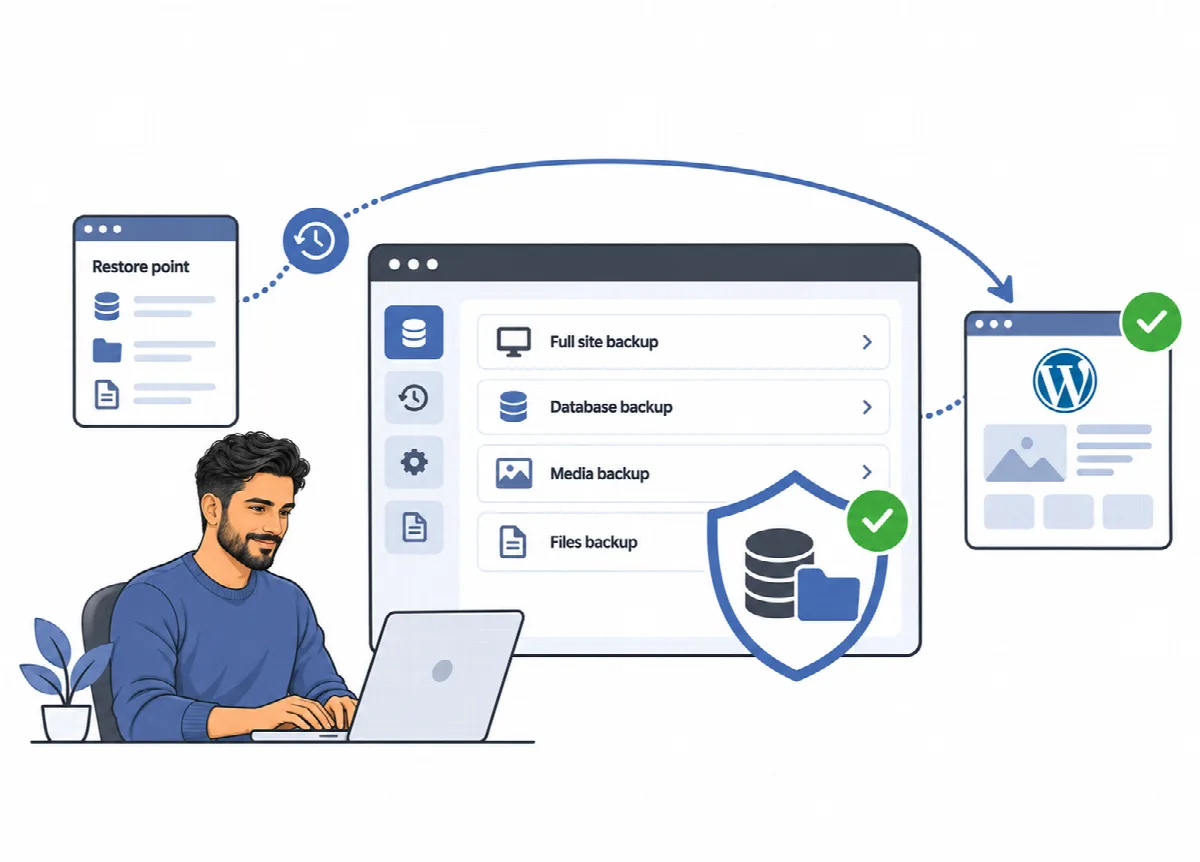
DualFix backs up the full site or only the part you are about to change, on demand or on a schedule. Every archive is checked before it counts as restore-ready, and backups are kept where the web server cannot hand them out. Backups are included in both editions.
Where to find it: Backup & Restore, with the tabs Backup Center, Snapshots & Rollback, Restore Wizard and Storage & Retention. Where backups are stored is set in Settings → Backup.
Backup types
| Button | Contents | Typical use |
|---|---|---|
| Full Backup | The database and the uploads, plugins, themes and must-use plugins folders; WordPress core files and wp-config.php are not included | Before major changes or migrations |
| Database Only | The database | Before a database cleanup |
| Media Only (Pro) / Uploads Only (Free) | The uploads folder | Before a media cleanup |
| Plugins/Themes Only | The plugins, themes and must-use plugins folders | Before plugin or theme updates, removal or switching |
Create and verify a backup
- Open Backup & Restore and click the backup button you need.
- Wait for the backup to finish. It appears under Recent Backups on the Backup Center tab with its type, time and state.
- Check that it shows Restore-ready. Only restore-ready backups are offered for restore.
- Click Verify whenever you want to check the archive again, and Download to keep a copy on your computer.
Every backup carries a manifest with checksums, signed with a key derived from your site's own keys. A manifest that was edited outside DualFix fails the check before a restore. A clicked button is not proof of a usable backup: always look for the restore-ready state.
The Backup Center tab also shows the backup health score, the number of backups, the age of the latest backup and the storage the backups use, together with Recommendations. When Backup before cleanup is off and safe cleanup candidates are waiting, it recommends a backup before you run the cleanup.
Backup before cleanup
While Backup before cleanup is on (the default, on the Storage & Retention tab), DualFix takes a database backup right before each cleanup, whether you click Confirm Cleanup or Auto Mode runs it, and before the Safety Snapshot. If that backup cannot be made, the cleanup does not run and DualFix shows the reason. Turn the setting off only if you want to clean without this backup.
The latest three of these backups are kept on their own. They do not count toward Retention count, and they never push your full, scheduled or manual backups out.
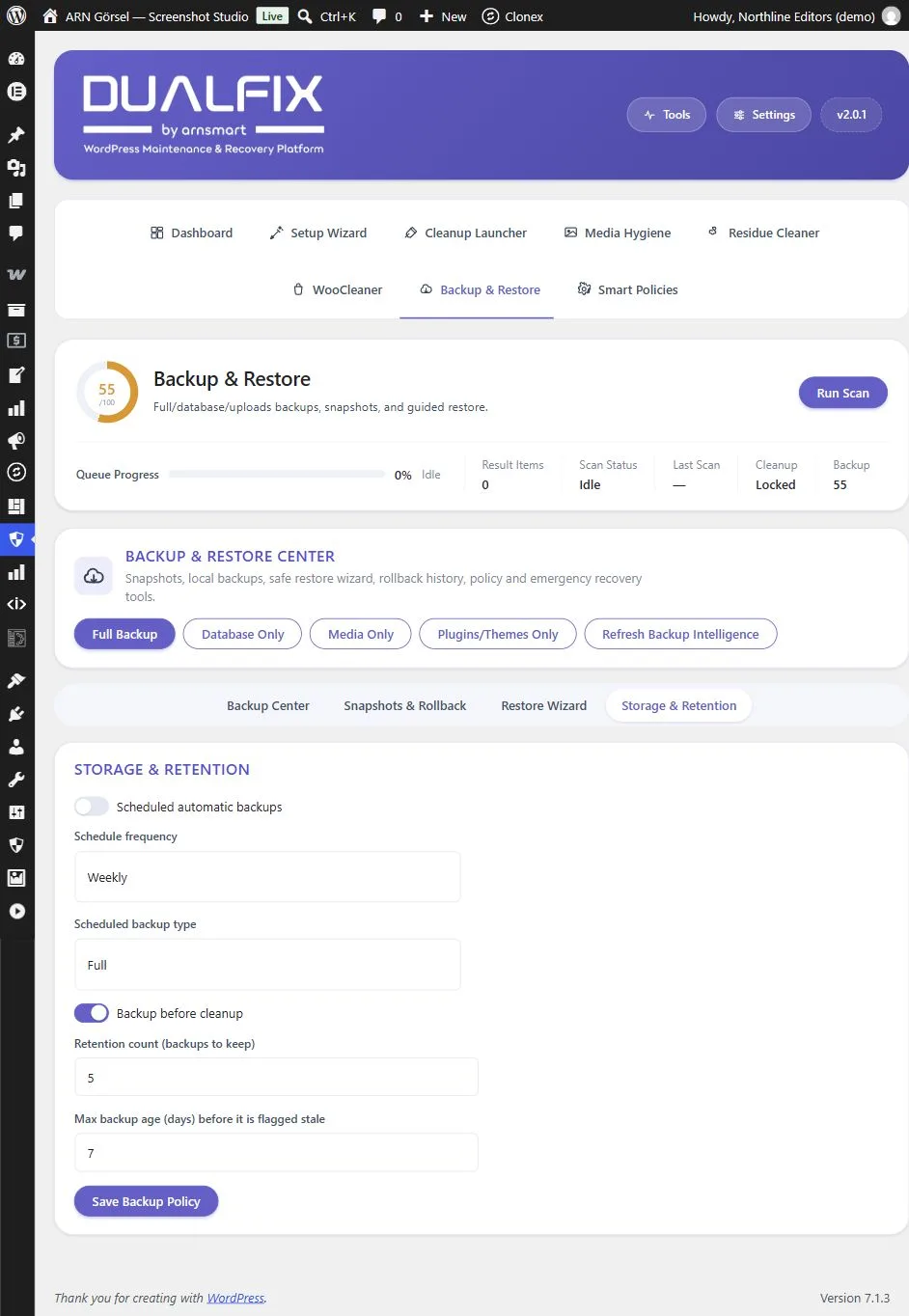
Schedule backups and set retention
Open the Storage & Retention tab:
| Setting | Default | What it does |
|---|---|---|
| Scheduled automatic backups | Off | Turns scheduled backups on |
| Schedule frequency | Weekly | Daily, Weekly or Monthly |
| Scheduled backup type | Full | Full, database, uploads or plugins and themes |
| Backup before cleanup | On | Takes a database backup right before each cleanup; the latest three are kept on their own |
| Retention count (backups to keep) | 5 | 1 to 50; older backups beyond this number are deleted, not counting the backups taken before cleanup |
| Max backup age (days) before it is flagged stale | 7 | 1 to 90; older backups are flagged as stale |
Click Save Backup Policy. Scheduled backups run in time-limited steps through WordPress scheduled tasks: each request saves its progress and the next one continues, so large sites do not hit the hosting time limit. A run that stops unexpectedly is marked failed and reported. In DualFix Pro, "Monthly" schedules run from version 2.0.1.
Check that the retention count will not delete the only backup you rely on, and that the server has room for the backups you keep.
Where backups are stored
Backups are kept on your own server, in a folder with a random name protected by .htaccess: under uploads/dualfix/ in DualFix Pro and under uploads/arnsmtclarc/ in DualFix Free.
Folder access check. Servers that ignore .htaccess, such as Nginx and IIS, can serve that folder to anyone who knows its name. Once a day, when you open Backup & Restore or start a backup, DualFix requests a test file from your own site. If the folder can be opened from the web, the Backup Center shows a warning with Check again and Open Settings > Backup.
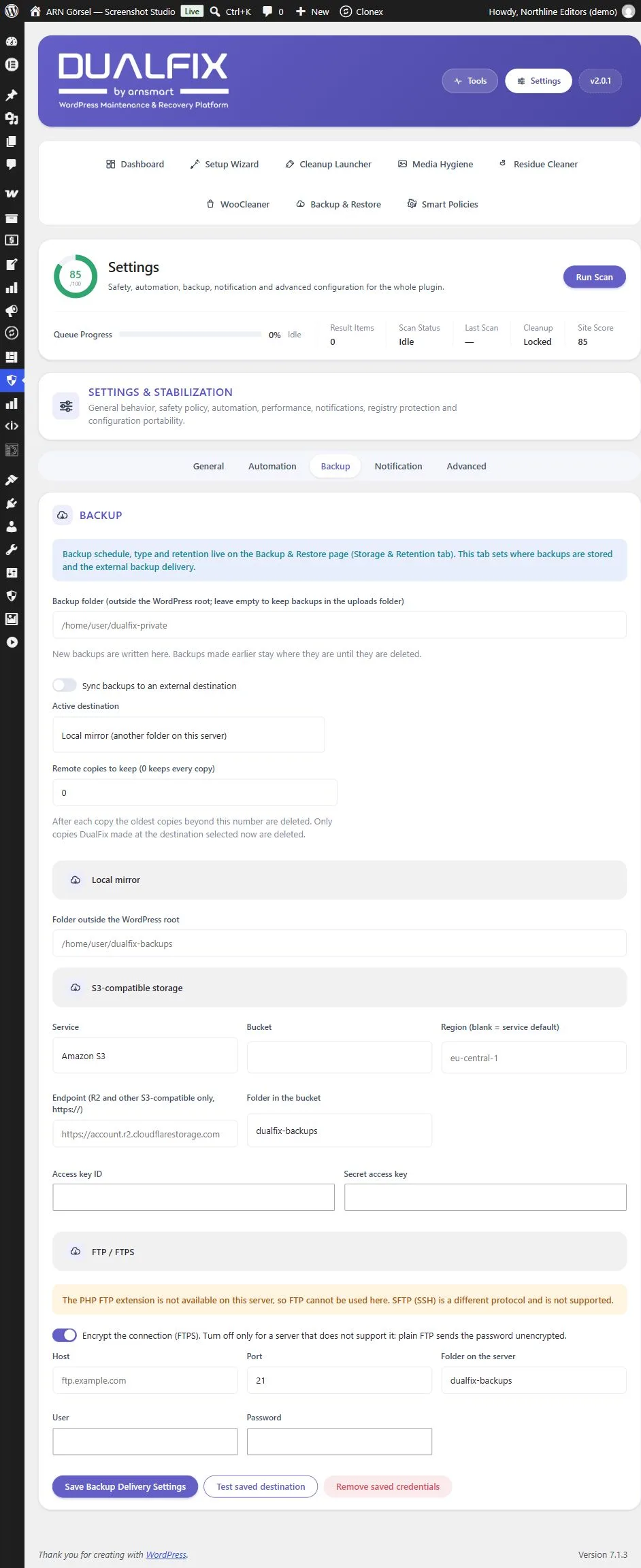
Backup folder outside the web root. In Settings → Backup, set Backup folder to a folder outside the WordPress root, wp-content and the document root, and click Save Backup Delivery Settings. The folder is checked before it is saved. New backups are written there; backups made earlier stay where they are until you delete them. Leave the field empty to keep backups in the uploads folder. Instead of moving the folder, you can also add a server rule that denies access to the backup folder.
Mirror folder. DualFix can copy each finished backup to a second folder on the same server, which must also be outside the web root:
- DualFix Free: in Settings → Backup, turn on Copy each finished backup to a mirror folder on this server and set Local mirror path (outside the WordPress root).
- DualFix Pro: in Settings → Backup, turn on Sync backups to an external destination and choose Local mirror (another folder on this server). DualFix Pro can also send copies to S3-compatible storage or an FTP server. See Send backup copies off-site (Pro).
Database backups and the % sign
From DualFix Pro 2.0.1, the database part of a backup keeps every % sign exactly as stored, such as "50%" in a post or a saved setting. A database backup made by an earlier Pro version is repaired while it is restored. Take a new backup after updating.
On a multisite network
Full, plugin and theme backups and the backups of the main site affect the whole network, so only a Super Admin creates, downloads, verifies, restores or deletes them, and only a Super Admin sets the backup folder and the mirror folder. A site administrator backs up and restores only the database and uploads of their own site, under that site's own uploads/sites/<n> folder.