
Every DualFix cleanup moves through the same guarded flow: scan, review and preview, verify, clean and audit. A later stage unlocks only when the earlier one is complete, and nothing is deleted before verification has passed and a Safety Snapshot has been taken.
Where to find it: Cleanup Launcher in both editions. In DualFix Pro, Media Hygiene, Residue Cleaner and WooCleaner each have their own page with the same flow.
Choose what to clean
DualFix scans each area of the site on its own instead of running one blind global scan. Each area, called a scope, keeps its own findings and its own cleanup decision.
| Scope | Where | What it covers |
|---|---|---|
| Full Cleanup | Cleanup Launcher → Cleanup Flow | DualFix Free: the WordPress database scanners. DualFix Pro: one guarded flow across all active modules. |
| WordPress Cleanup | Part of Full Cleanup | Revisions, autosaves, trash, expired transients, orphaned meta, cron, widgets and autoload |
| Media Hygiene (Pro) | Media Hygiene page | Missing files and thumbnails, unlinked and old generated sizes, possible duplicates |
| Residue Cleaner (Pro) | Residue Cleaner page | Leftovers of removed plugins, themes, page builders and shortcodes |
| WooCleaner (Pro) | WooCleaner page | Expired sessions and transients, orphaned product meta and lookup rows, abandoned carts, leftovers of deleted orders, orphaned variations and old Action Scheduler history |
In DualFix Pro, the What do you want to clean? cards on the Cleanup Launcher take you to each scope. The WordPress Cleanup card has no flow of its own: the database cleanup runs inside Full Cleanup, and the card says so. Full Cleanup scans every DualFix module. A Media Hygiene scan does not mean that the other areas have been scanned.
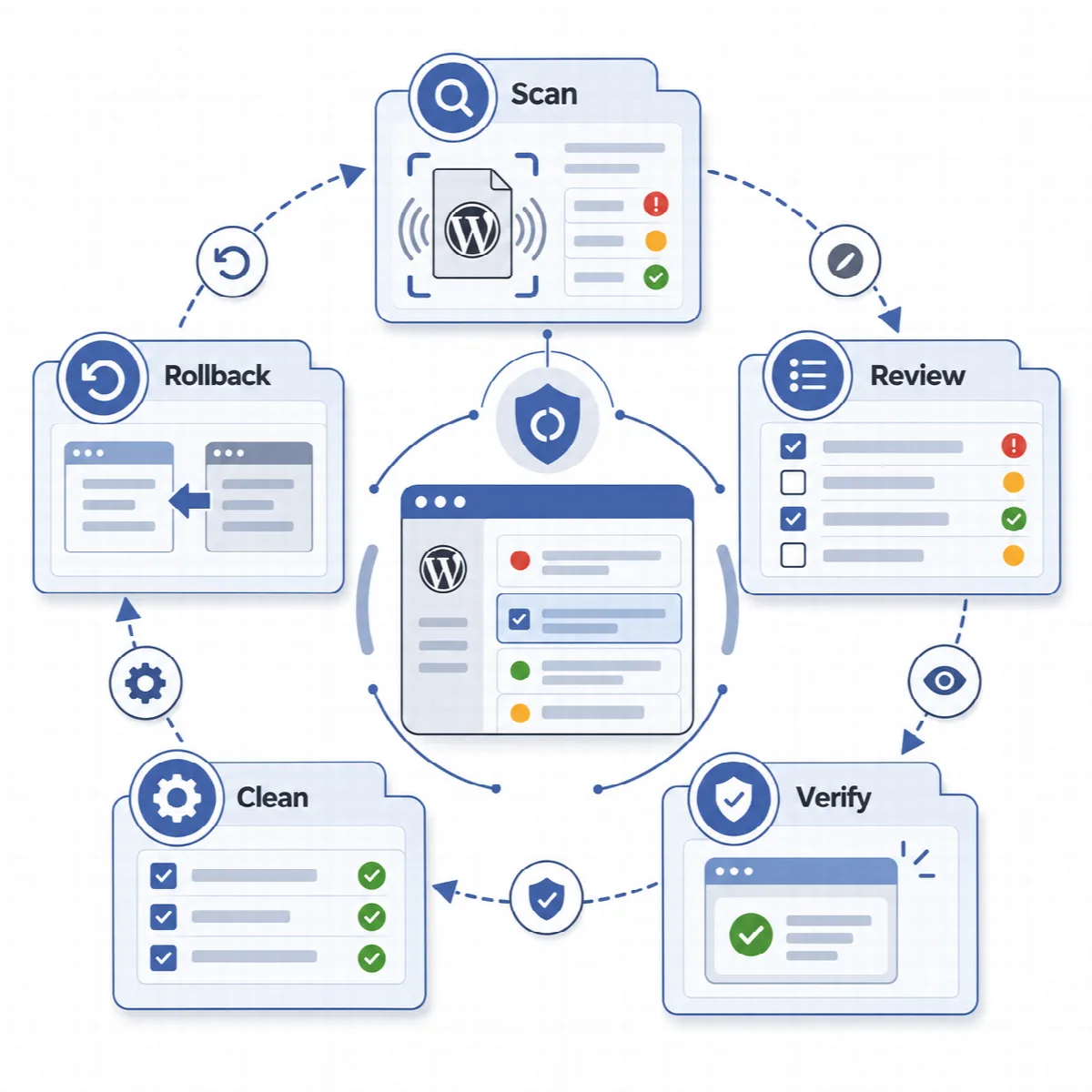
Follow the operation flow
| Stage | Button | What happens |
|---|---|---|
| Scan | Run First Scan or Run Scan | DualFix reads the scope and stores the findings. A scan never deletes anything. |
| Review + Preview | Create Preview (later Rebuild Preview) | The findings become a dry-run preview, classified by risk. |
| Verify | Run Verify (later Re-run Verify) | Dependency, registry and relation checks run. Approval unlocks Cleanup. |
| Cleanup | Confirm Cleanup | DualFix takes a database backup (while Backup before cleanup is on, the default) and a Safety Snapshot, then deletes only the items Verify approved as safe. |
| Audit | Runs automatically (Run Audit or Re-run Audit when offered) | The final state is confirmed and the health score is updated. |
Each button stays unavailable until its prerequisite is complete: Preview needs a completed scan, Verify needs a preview, Cleanup needs an approved verification and Audit needs a completed cleanup. Preview also needs a confirmed Setup Wizard profile; without one, DualFix asks you to run the Setup Wizard first.
Confirm Cleanup is a deletion. Read the confirmation message, check the scope and keep a verified backup before you confirm.
Read the risk classes
Every finding is classified the moment it is found, so you know why it is on the list.
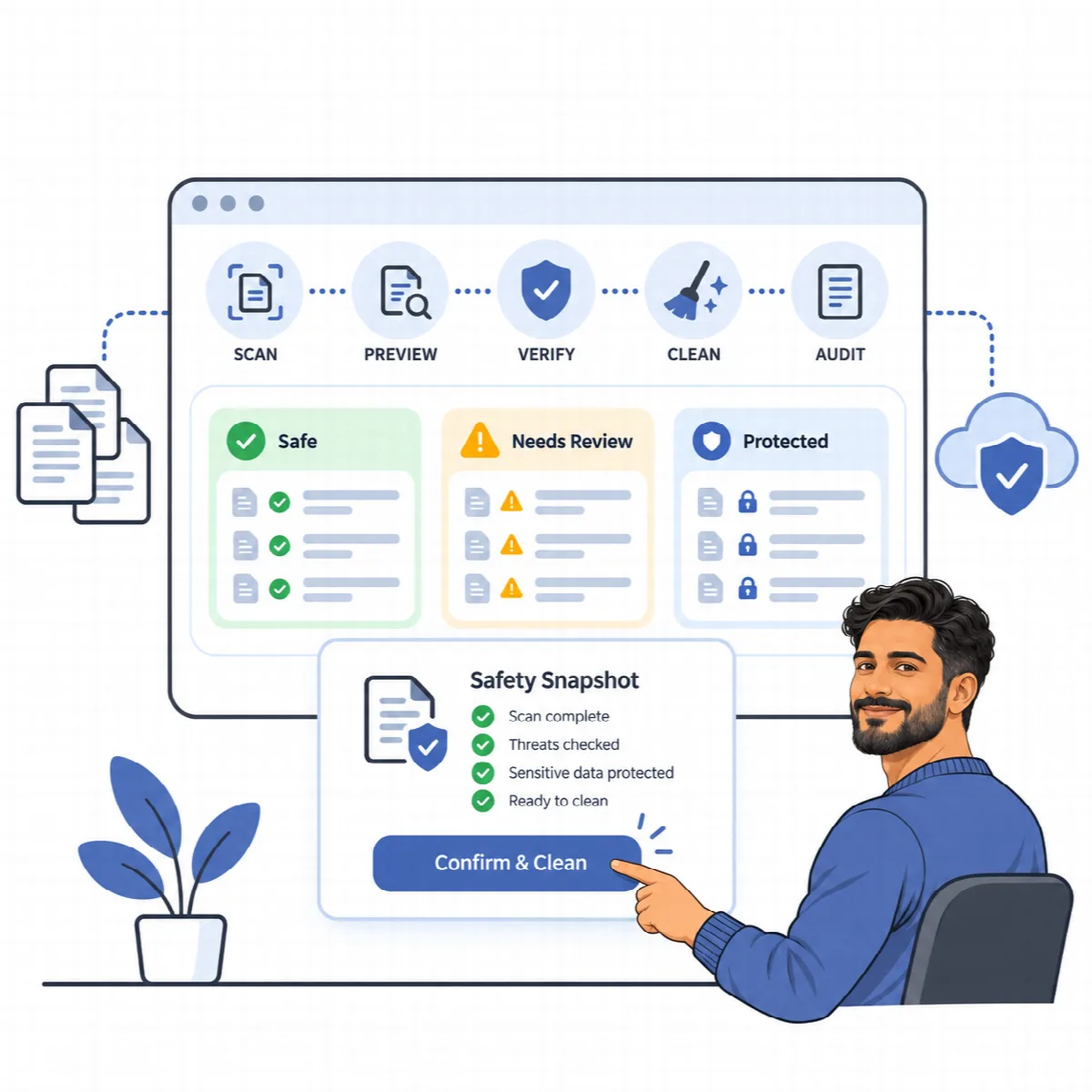
| Class | Meaning | What happens next |
|---|---|---|
| Safe | No active owner or dependency was found | Eligible for cleanup after verification |
| Needs review | Ownership or use is uncertain | Waits for your decision |
| Dangerous | Removal is likely to affect something in use | Not cleaned |
| Protected | Owned by an active plugin or by core data | Kept out of reach |
Data owned by active plugins such as Elementor, WooCommerce and ACF is protected through the plugin registry. In DualFix Pro, a finding whose confidence is below the confidence threshold goes to needs review instead of safe; see Set Safe mode, confidence threshold and batch size. Protected data, the false-positive guard and the plugin registry always decide first.
Let the verification gate decide
The Verify stage checks what depends on each item, confirms that protected data is excluded and decides whether cleanup is allowed for that scope at all.
- Dependency check. Items related to something active are held back.
- Reasons shown. When the gate blocks an item, the reason is shown with the finding. Resolve the dependency or leave the item in place.
- Manual review. If Verify does not approve the scope, the flow says that the items need manual review, and Confirm Cleanup stays locked.
- Re-check at deletion time. Each item passes the cleanup gate and the plugin-registry guard again at the moment it is removed, and its live state is read once more. A post that left the trash or a transient that is no longer expired is skipped.
Do not turn off protection only to unlock a button. Correct the reason the gate shows instead.
The Safety Snapshot
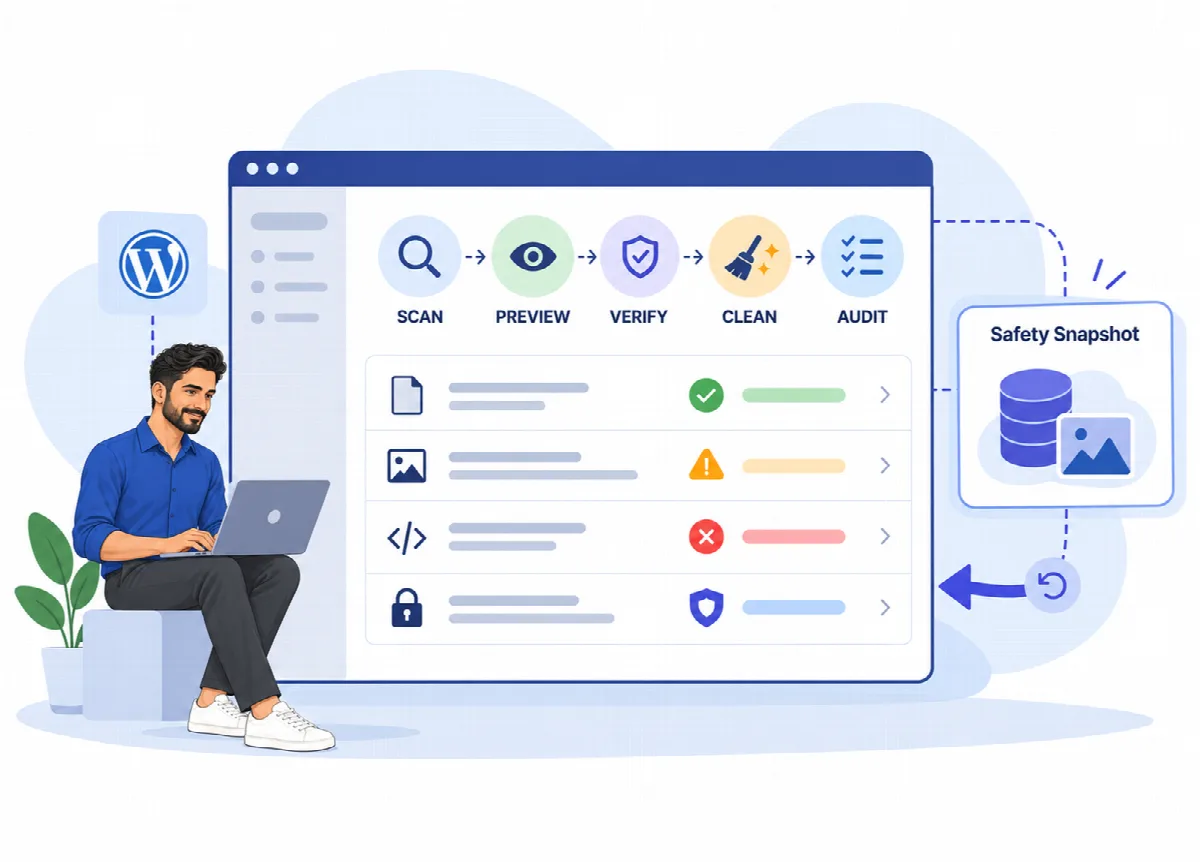
DualFix takes a Safety Snapshot before every cleanup. You do not choose whether to take one; cleanup does not start without it.
- It is taken for every scope and for scheduled Auto Mode runs too.
- It records the database rows the cleanup changes and is stored on your own server with the cleanup record for 30 days.
- In DualFix Pro, it also keeps copies of the generated image files a media cleanup deletes (files up to 5 MB), so rollback can put them back.
- It is listed under Backup & Restore → Snapshots & Rollback, where Restore Snapshot rolls the cleanup back. Tools → Snapshots shows a read-only overview.
A snapshot covers the items of one cleanup. It is not a substitute for a full backup of the site.
The cleanup audit
The audit runs automatically right after the cleanup. It compares the cleanup plan with what actually happened, confirms the removed items, updates the site health score and writes the run to the activity log. If the audit has not appeared yet, refresh the page.
A practical cleanup routine
- Run the Setup Wizard so DualFix knows your hosting, plugins and store.
- Create a backup and check that it is restore-ready.
- Scan one scope and read the findings by class.
- Create the preview, run Verify and read the reason for every blocked item.
- Confirm the cleanup and read the audit.
- Check the pages and flows that matter, and keep the snapshot until you are sure.