
WordPress generates several copies of every uploaded image. When a theme or plugin changes its registered sizes, the older copies stay on disk without being used. Media Hygiene finds them, together with broken metadata and other media problems, and cleans generated files through the guarded flow. Original uploads are never treated as clutter.
Where to find it: ARN DualFix → Media Hygiene (Pro). The page has the Media Hygiene Operation Flow and the tabs Media Profile, Breakdown, Scan Results, Cleanup Preview and Rebuild Tools.
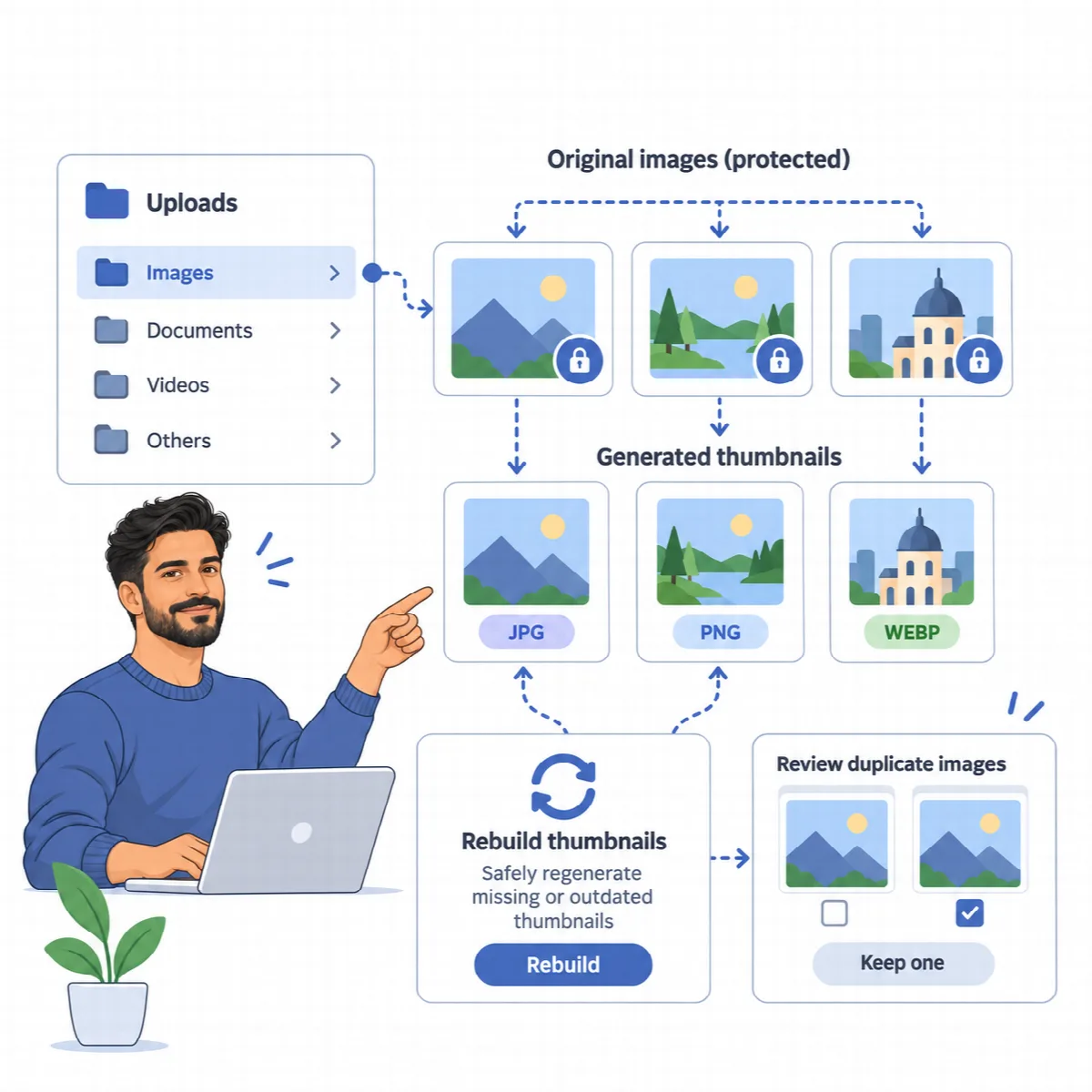
What Media Hygiene finds
| Finding | What happens |
|---|---|
| Old generated sizes: generated files that no longer match the sizes your site registers | Cleaned after verification only with the Aggressive cleanup profile (a confidence threshold of 72% or lower); otherwise listed for review. The files are kept in the Safety Snapshot |
| Broken media: attachments whose original file or generated thumbnail is missing on disk | Listed for review |
| Generated-looking files that no attachment record links to | Listed for review |
| Possible duplicate uploads | Listed for review |
Old generated image sizes are the only media files DualFix deletes. DualFix gives them a confidence of 72%. Safe mode, which is on by default, and the Safe and Balanced profiles require more, so with those settings the findings wait for review and nothing is deleted. The Aggressive Profile on the Cleanup Launcher sets a confidence threshold of 70% and turns Safe mode off; see Set Safe mode, confidence threshold and batch size.
1. Set up the media profile
The media profile tells DualFix which generated sizes are still in use, so custom sizes are never treated as unused.
- Open the Media Profile tab.
- Under Profile mode, choose Auto-detect active theme or Manual preset selection. With a manual preset, pick it under Theme / plugin preset. The tab shows the detected theme and the matched preset.
- Under Protected dimensions, list any custom sizes your theme, plugins or layouts use, one per line, for example
800x600. - Under Protected filename patterns, list file name patterns that must never be cleaned, one per line.
- Click Save Media Profile.
2. Scan and clean
- Click Run Scan in the Media Hygiene Operation Flow. The Breakdown tab then shows the media footprint by classification, and Scan Results lists the findings.
- Click Create Preview and Run Verify. Read the reason for any blocked item.
- Click Confirm Cleanup. DualFix takes a Safety Snapshot that keeps the generated files it deletes (up to 5 MB each), then removes only the approved items.
- Read the audit, then check galleries, product images and responsive layouts.
A thumbnail can still be needed by a theme or layout even if you do not recognise its size. Keep uncertain findings until you know they are unused.
Original uploads stay protected
Protect original (non-generated) uploads in Settings → General is on by default. While it is on, the original that WordPress keeps next to a "-scaled" copy also counts as an original, and every media file is checked again right before it is deleted, so an attachment's original file is never removed.
Review possible duplicates
Repeated uploads of the same asset are common on sites with several editors. Media Hygiene lists a file as a possible duplicate when it has the same file name pattern and the exact byte size of another upload.
Duplicates are review-only. DualFix does not decide which copy your pages use and never deletes an original upload, so you remove the copy you do not need yourself, in the WordPress media library.
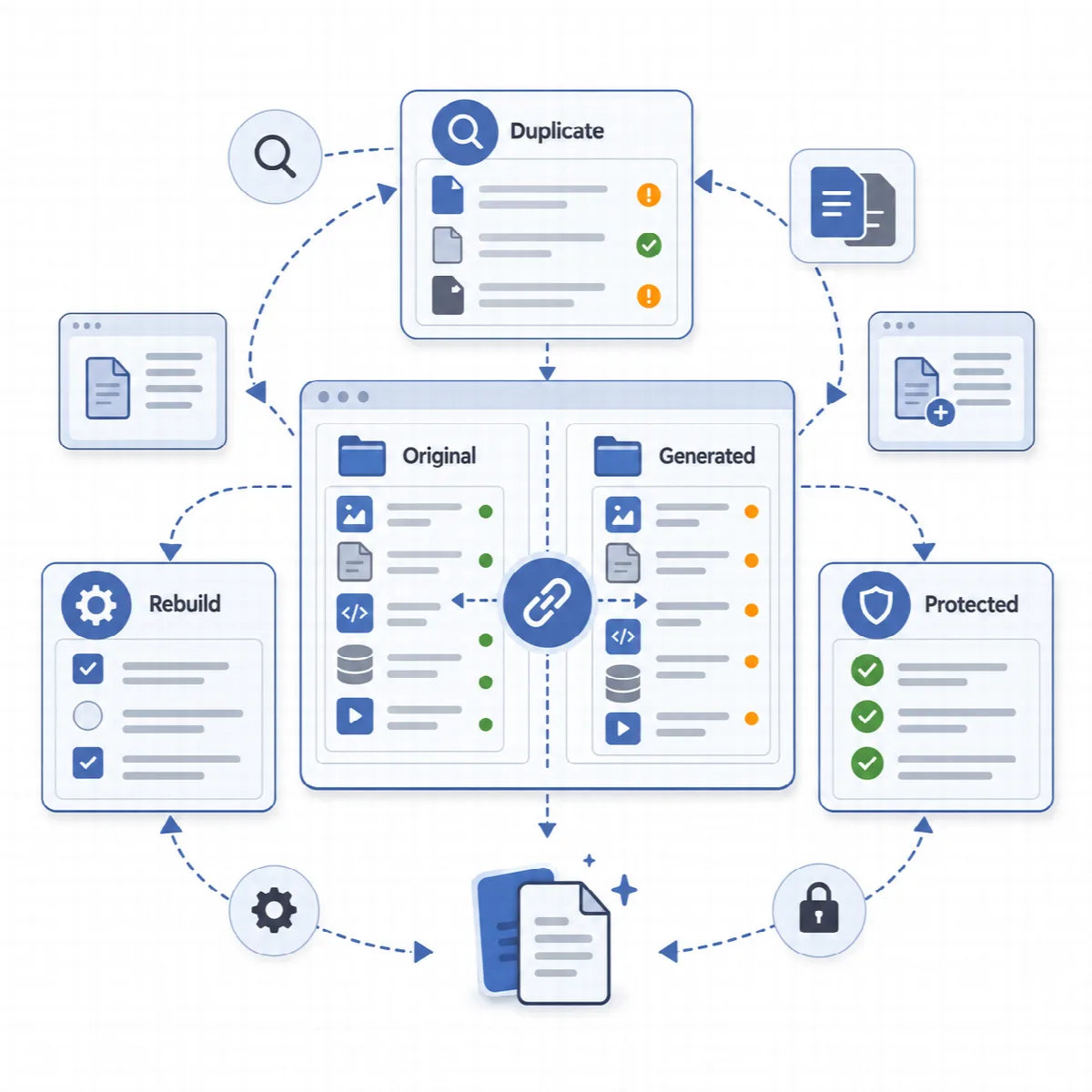
Rebuild thumbnails
On the Rebuild Tools tab, Thumbnail / Variant Rebuild regenerates the thumbnails of a batch of attachments from their originals.
- Set Attachments to process this run.
- Click Regenerate Thumbnails From Originals and confirm.
Originals are never touched; only generated sizes are removed and rebuilt.
When ARN WebPix is active
When ARN WebPix is active, it manages generated image sizes: unused sizes, missing sizes and rebuilds move to the WebPix Library, and WebPix keeps its WebP and AVIF copies in step. Media Hygiene then shows Open WebPix Library instead of its own rebuild tools and keeps finding missing original files, unlinked generated-looking files and possible duplicates.