
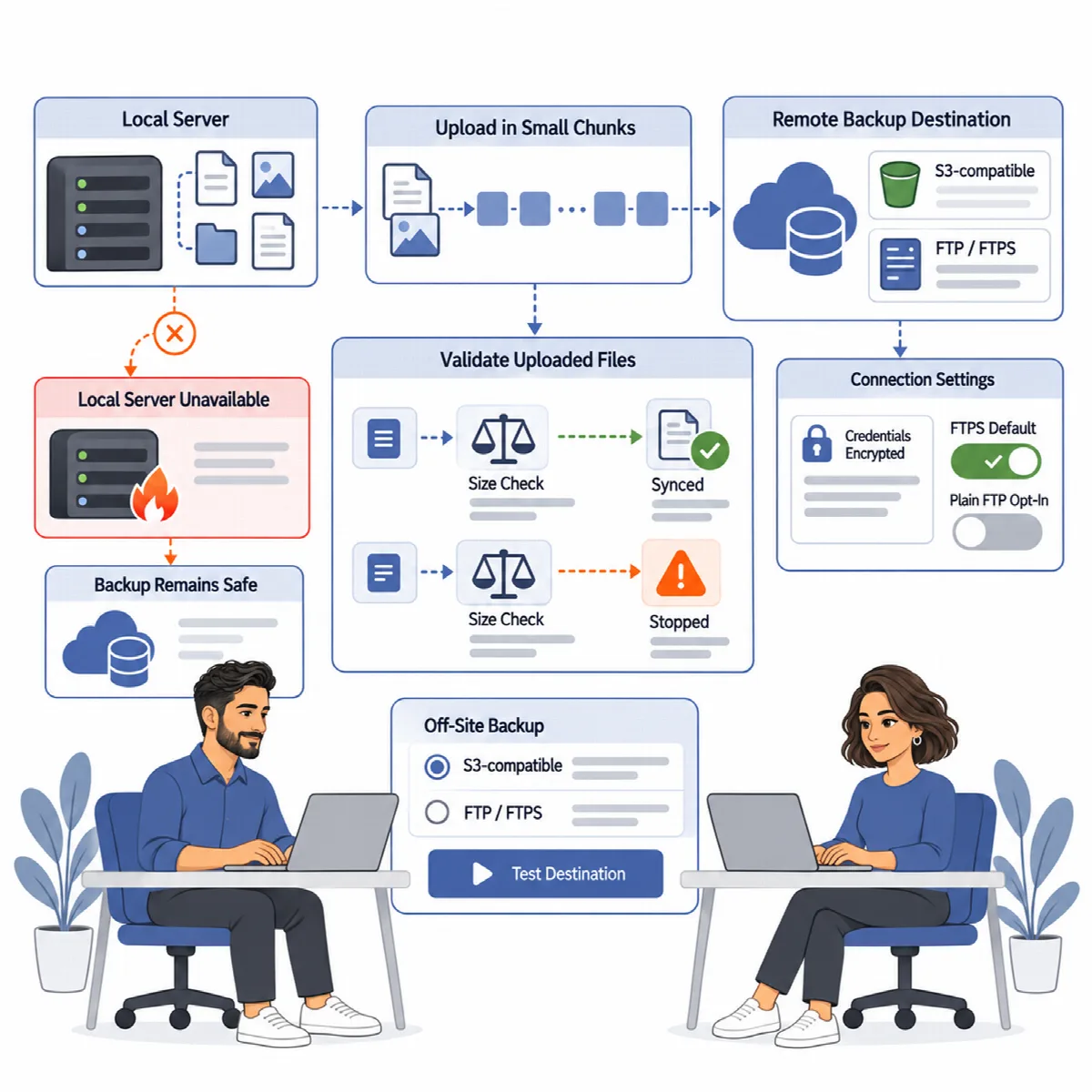
A backup that exists only on the site's server is lost together with that server. DualFix Pro sends a copy of every finished backup to a destination you choose. The upload runs in the background, continues where it stopped and is size-checked before it counts as synced.
Where to find it: ARN DualFix → Settings → Backup (Pro). DualFix Free can copy backups only to a mirror folder on the same server; see Create, verify and schedule backups.
Before you start
- Have a bucket at an S3-compatible service or an FTP account ready, with credentials that may write to it. Storage and transfer charges come from that provider.
- For FTP, the server needs the PHP FTP extension. SFTP (SSH) is a different protocol and is not supported.
- On a multisite network, only a Super Admin sets and tests the destination.
Set up the destination
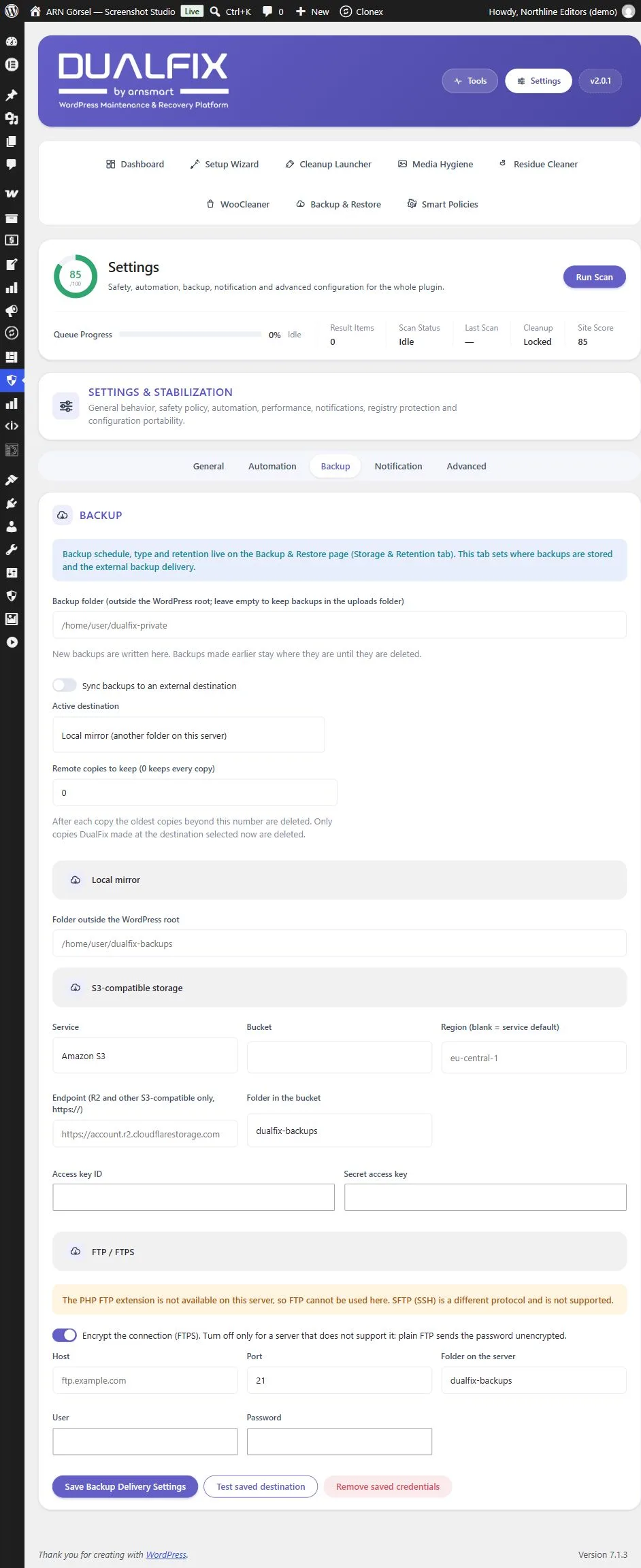
- Open Settings → Backup and turn on Sync backups to an external destination.
- Under Active destination, choose Local mirror (another folder on this server), S3-compatible storage (Amazon S3, Wasabi, R2, Spaces, ...) or FTP / FTPS server.
- Fill in the fields of that destination. For the local mirror, set Folder outside the WordPress root. The S3 and FTP fields are listed below.
- Click Save Backup Delivery Settings.
- Click Test saved destination and read the result before you rely on the copies.
S3-compatible storage fields
| Field | What to enter |
|---|---|
| Service | Amazon S3, Wasabi, DigitalOcean Spaces, Cloudflare R2 or Other S3-compatible |
| Bucket | The name of your bucket |
| Region (blank = service default) | The bucket's region, or leave it empty |
| Endpoint (R2 and other S3-compatible only, https://) | The endpoint address, only for Cloudflare R2 and other S3-compatible services |
| Folder in the bucket | The folder for the copies; dualfix-backups by default |
| Access key ID and Secret access key | The access keys of your storage account |
FTP / FTPS fields
| Field | What to enter |
|---|---|
| Encrypt the connection (FTPS) | On by default. Turn it off only for a server that does not support FTPS: plain FTP sends the password unencrypted. |
| Host | The FTP server address |
| Port | 21 by default |
| Folder on the server | The folder for the copies; dualfix-backups by default |
| User and Password | Your FTP login |
How credentials are stored
- Access keys and passwords are stored encrypted on your site and are never shown again. A saved field shows Saved. Leave blank to keep.; leave it empty to keep the saved value.
- Remove saved credentials deletes every saved S3 and FTP credential. Backups that were already copied stay where they are.
- Credentials are never written to configuration exports.
- If the server cannot encrypt credentials (OpenSSL AES-256-GCM is missing), the tab says so. Define them as constants in
wp-config.phpinstead:ARNDUALFIX_S3_KEY,ARNDUALFIX_S3_SECRET,ARNDUALFIX_FTP_USERandARNDUALFIX_FTP_PASSWORD.
Keep a set number of remote copies
Remote copies to keep (0 keeps every copy) decides retention at the destination. After each copy, the oldest copies DualFix made at the selected destination beyond that number are deleted. The default, 0, keeps every copy. Copies at other destinations, and files DualFix did not make, are never touched.
How the upload works
- Copies run in time-limited background steps through WordPress scheduled tasks.
- A large upload continues where it stopped: S3-compatible storage continues the same multipart upload, and FTP continues from the size the server reports.
- A failed copy is retried three times, five minutes apart, before it is reported as failed. A copy whose request stopped unexpectedly is picked up again after 20 minutes.
- Every uploaded file is size-checked before it counts as synced.
- When a backup is deleted, by you or by Retention count, a copy of it that is still waiting to be uploaded is cancelled.
Note: The size check confirms that the remote file has the expected size. It is not a content checksum of the remote copy, so check the copies at the destination from time to time.
If a copy fails
- Click Test saved destination and read the result.
- Check the bucket or folder name, the credentials and, for FTP, whether the server supports FTPS.
- Read the log entries under Tools → Activity. A failed copy is retried three times before it is reported as failed.