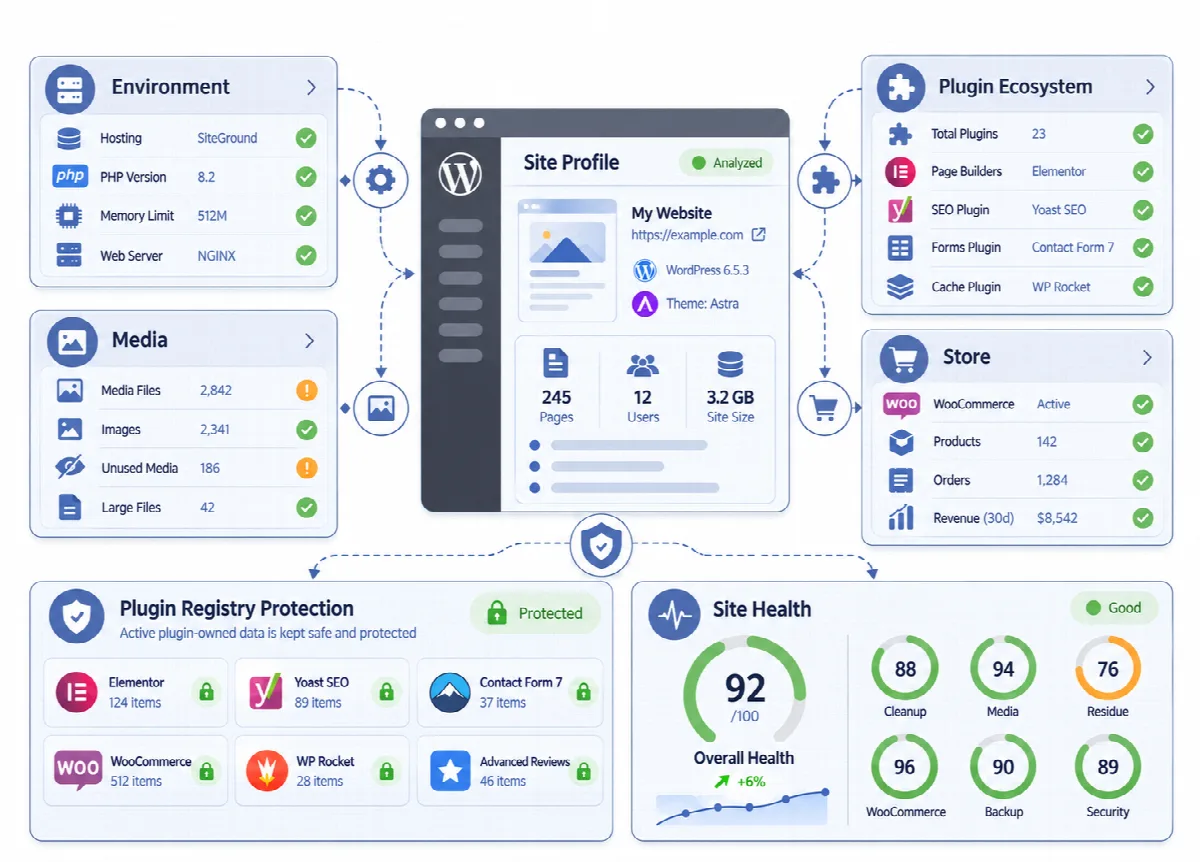
Uninstalling a plugin rarely removes everything it created. Custom tables, settings rows, scheduled hooks and user capabilities often stay long after the plugin is gone, and a replaced page builder or theme leaves data in posts, options and meta. Residue Cleaner finds these leftovers and shows who owned them.
Where to find it: ARN DualFix → Residue Cleaner (Pro). The page has the Residue Cleaner Operation Flow and the tabs Plugin Registry, Options & Meta, Shortcodes, Scan Results and History.

What Residue Cleaner finds
| Leftover | Example | Handling |
|---|---|---|
| Database tables | A custom table created by an uninstalled plugin | Reported with its former owner |
| Abandoned options | Settings rows of a plugin that is gone | Reported with its former owner |
| Cron jobs | A scheduled hook whose callback no longer exists | Reported for review |
| Capabilities | A role capability registered by removed code | Reported for review |
| Builder leftovers | Data written by a page builder that is no longer in use | Reported for review |
| Dead shortcodes | Shortcodes still in your content whose plugin was removed | Reported for review |
| Theme residue | Theme modifications, custom CSS, options and old widgets of inactive themes | Reported for review |
Residue Cleaner is a review tool. DualFix does not drop tables, unschedule hooks, remove capabilities or strip shortcode text from posts and pages. You decide how each leftover is removed, for example with the plugin's own uninstall option or with your developer.
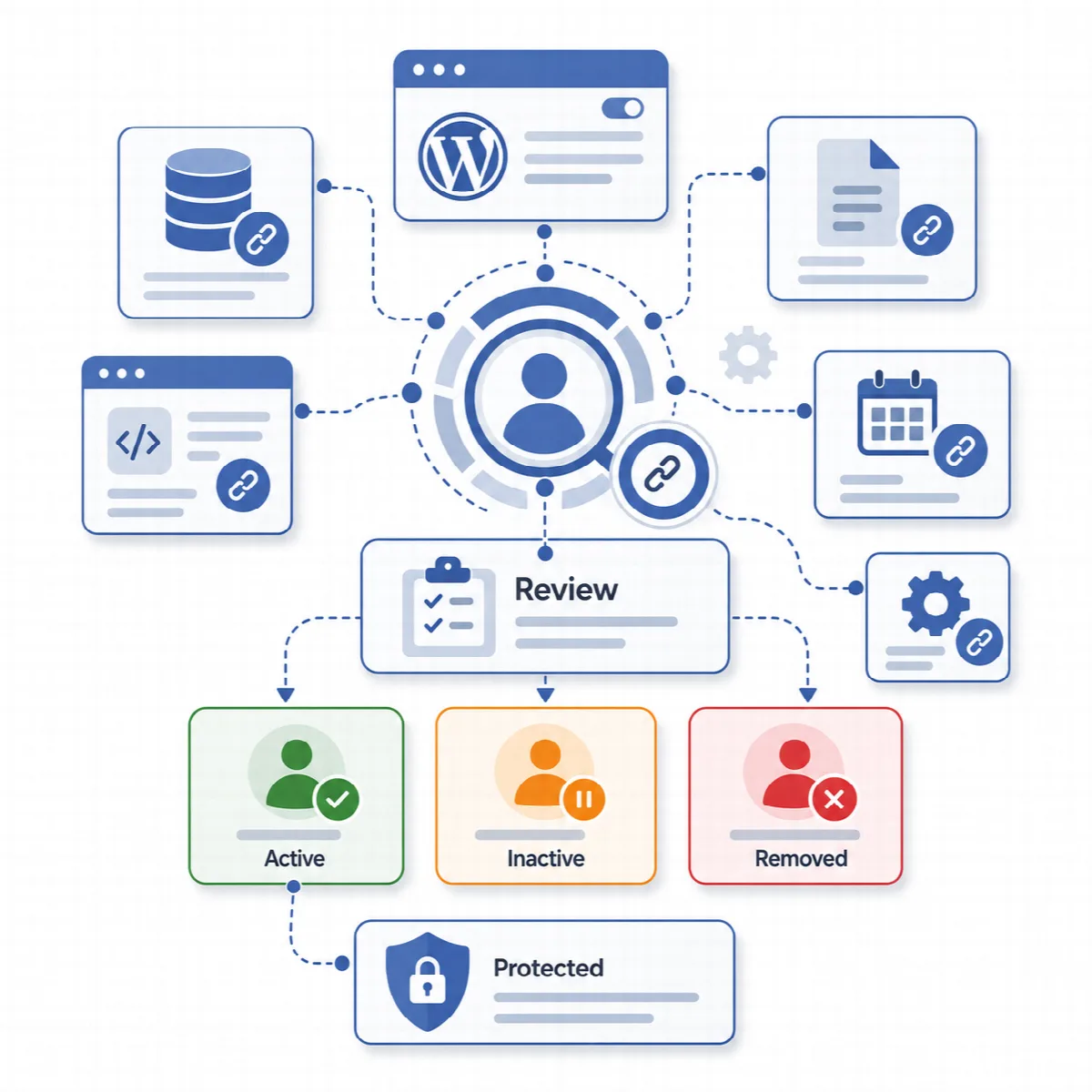
Review the residue
- Open the Plugin Registry tab and check the active adapters and the protected keys. Click Refresh Registry after you install or remove plugins.
- Click Run Scan in the Residue Cleaner Operation Flow.
- Open Scan Results and read the owner of each finding. A finding of an active owner is protected; a finding of an inactive or removed owner goes to review with the former owner shown.
- Remember that an inactive plugin may still have data you want to keep for when you reactivate it.
- The History tab lists the activity of the whole plugin, newest first: the scans, previews, Verify results (with their counts and whether cleanup was approved), cleanups and audits you run from any DualFix screen, registry refreshes, backups and restores, reports, AI Diagnosis, hardening audits and Auto Mode runs. A scan is one entry, also when a large scan runs in steps. Entries older than 180 days are removed in the background.
How the plugin registry protects active plugins
A plugin registry records which meta keys, options, tables and generated files belong to which plugin, so a scan can tell residue apart from data that is in use. It is the reason an orphan-looking row of an active plugin is marked protected instead of safe.
- The registry has adapters for WordPress core, the block editor, Elementor, Divi, WPBakery, WooCommerce (with WooCommerce Subscriptions and marketplace plugins), ACF, Meta Box, Pods, Yoast SEO, Rank Math, WPML, Polylang and the ARN Smart plugins WebPix, Linkix and Clonex.
- The Plugin Registry tab shows the active adapters, the protected meta keys, the protected option keys, the generated file patterns and which known adapters are detected.
- Data of active owners is protected and excluded from cleanup in every scope, including the database cleanup of DualFix Free.
- Data of plugins the registry does not know still goes through the dependency checks of the verification stage.