
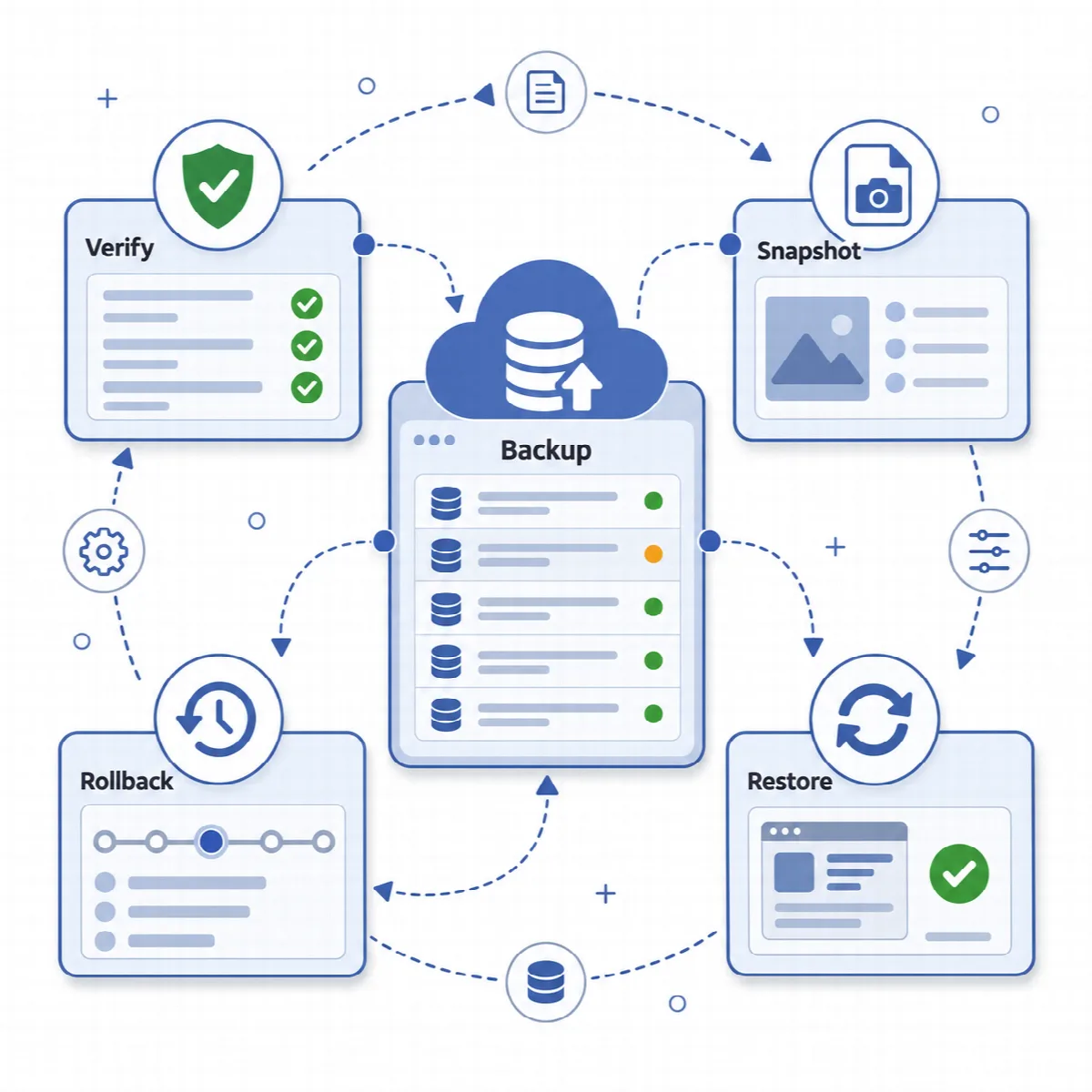
DualFix has two ways back. A rollback undoes one cleanup from its Safety Snapshot. A restore replaces current data with the content of a backup archive. Both are included in both editions.
Where to find it: Backup & Restore → Snapshots & Rollback and Backup & Restore → Restore Wizard.
| Question | Rollback | Restore |
|---|---|---|
| Source | The Safety Snapshot of one cleanup | A restore-ready backup archive |
| What it changes | Only the items that cleanup removed | The database or files the restore mode covers |
| When to use it | A page or flow broke after a specific cleanup | A larger change went wrong, or you need an earlier state of the site |
| Available for | 30 days after the cleanup | As long as you keep the backup |
Identify the exact cleanup run or backup first.
Roll back a cleanup
- Open Backup & Restore → Snapshots & Rollback.
- Under Recent Snapshots, find the snapshot of the cleanup. Each snapshot shows how many records and files it holds and when it expires.
- Click Restore Snapshot and confirm. DualFix restores every database row that cleanup changed back to its value before the cleanup. In DualFix Pro, the generated image files kept in the snapshot are put back too.
A rollback returns the items of one cleanup run only; it does not replace the database or files with an older archive. If more than one cleanup must be undone, or files were removed that the snapshot did not keep, restore a full backup instead.
Restore a backup
- Open Backup & Restore → Restore Wizard. Only restore-ready backups are listed.
- Under Backup, choose the backup.
- Under Restore mode, choose what to restore: Safe full restore, Database only, Options table only, Uploads only or Plugins/themes files only.
- Turn on Enable emergency maintenance mode during restore if visitors should see a maintenance page while the restore runs. Logged-in administrators still reach the site.
- Click Preview Restore Plan and read what the restore will overwrite.
- Click Restore Now and confirm the message.
The restore plan lists the checks that run: the backup is selected, its manifest integrity is checked, a restore lock is acquired, a pre-restore database safety backup is created, maintenance mode is enabled if you chose it, and a post-restore verification runs.
You can also start a restore from the Restore button next to a backup under Snapshots & Rollback → Recent Backups.
Warning: A restore overwrites live data. Restoring an older database can replace newer posts, settings or orders. DualFix takes a fresh database safety backup right before the restore, so the state you are replacing can still be recovered, but review the mode and the plan carefully first.
A database restore leaves DualFix's own backup list, background jobs and locks as they are. The safety backup taken right before the restore and the backups made after the restored one stay in the list, and backups you deleted do not come back.
After the restore, check the logs and test the restored site.
Backups made by earlier versions
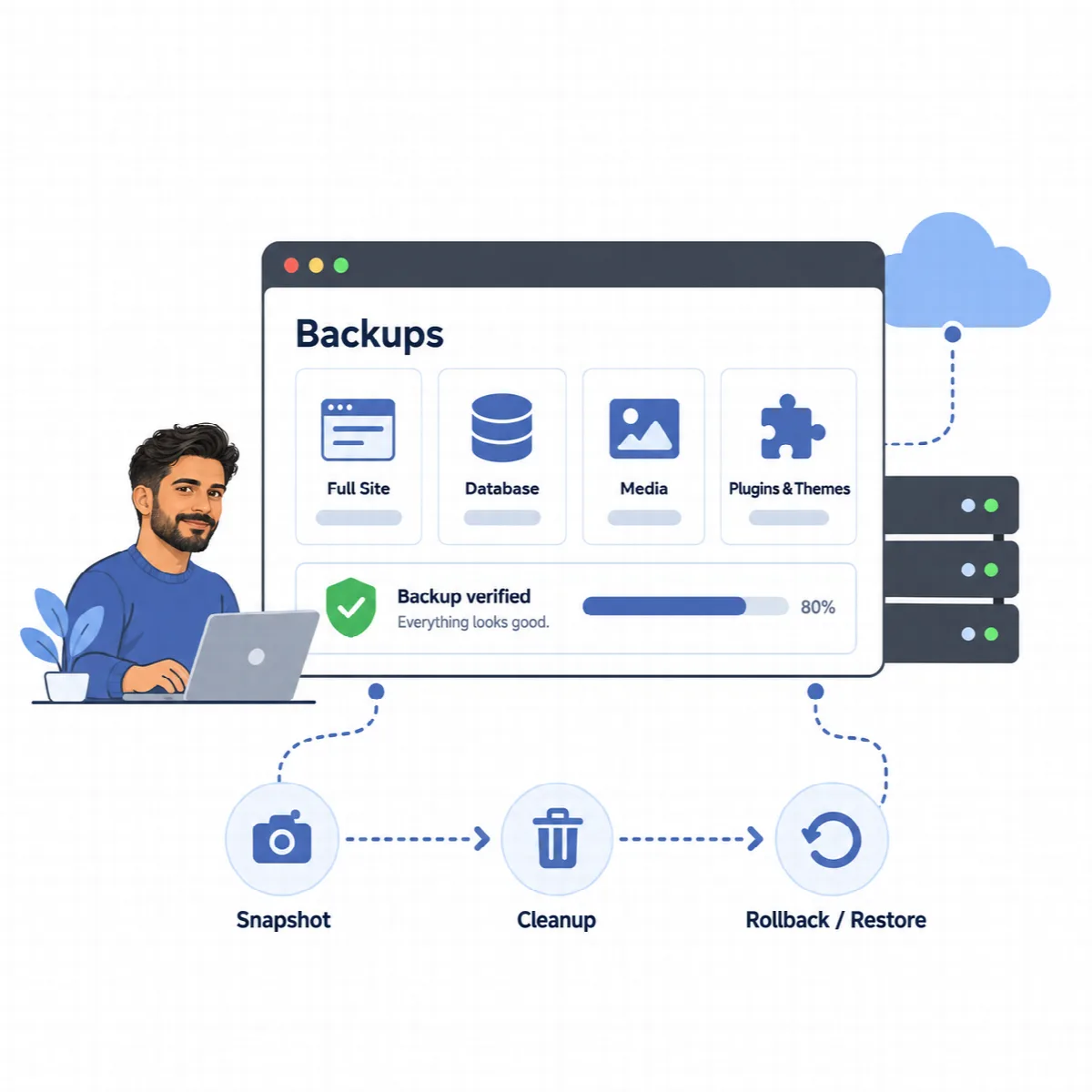
From DualFix Pro 2.0.1, database backups keep every % sign exactly as stored. A database backup made by an earlier Pro version is repaired while it is restored, so values such as "50%" in posts and saved settings come back correctly. Take a new backup after updating.
If the site cannot open WordPress
DualFix restores from inside WordPress. Keep access to your hosting control panel and its own backups, so you can recover a site that no longer opens the WordPress admin.