
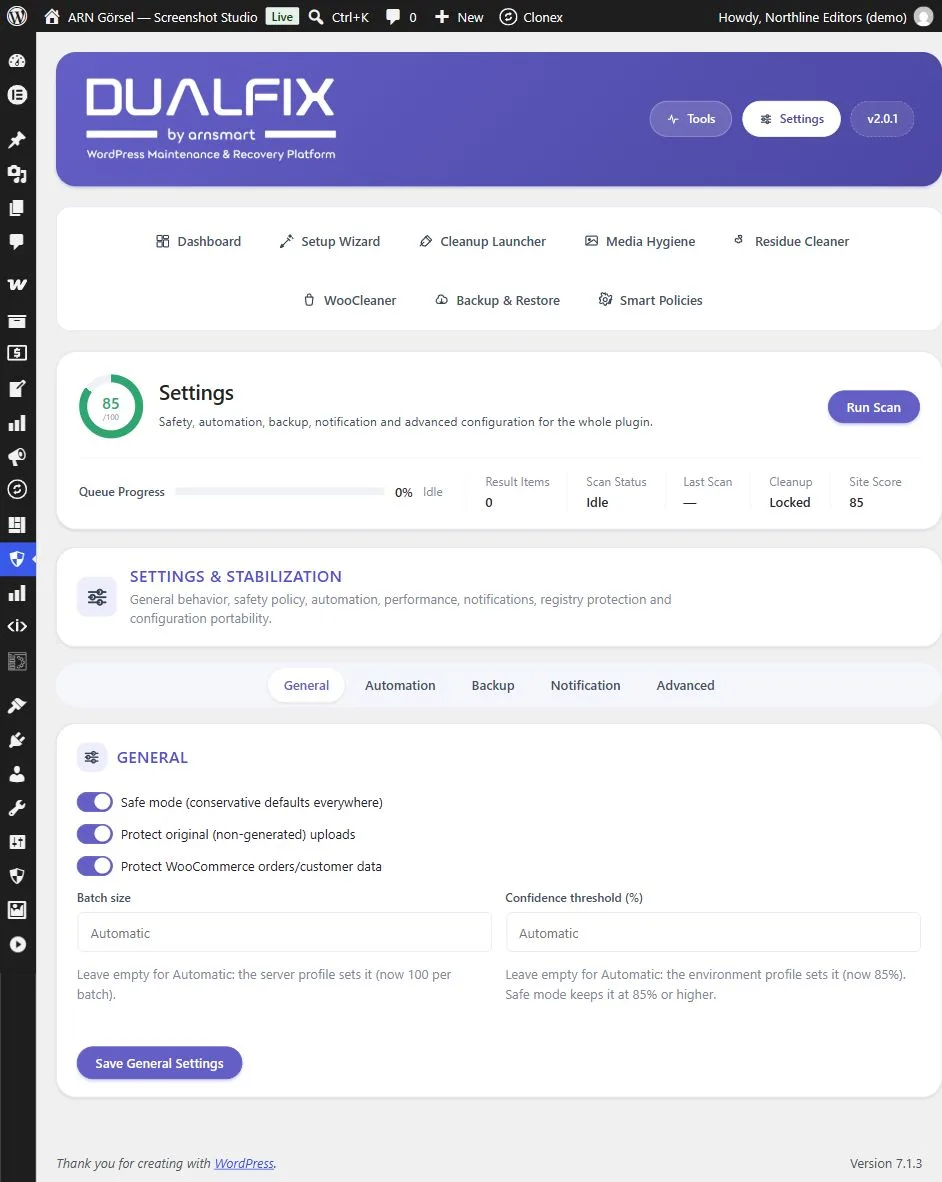
The fields of Settings → General decide how cautiously DualFix treats borderline findings and how much work it does per step. The defaults are the cautious choice: the protections are on, and the two numbers are Automatic.
Where to find it: Settings → General in both editions. DualFix Free has only the Batch size field. DualFix Pro has all the fields below and the Cleanup Profile cards on the Cleanup Launcher.
The General settings
In DualFix Free, the Batch size field works as described.
| Setting | Default | What it does |
|---|---|---|
| Safe mode (conservative defaults everywhere) (Pro) | On | Keeps the confidence threshold at 85% or higher. In automatic runs, cleanup deletes only the items Smart Auto Review approves for automatic runs; the others, WooCommerce residue included, wait for your confirmation. |
| Protect original (non-generated) uploads (Pro) | On | Also counts the original that WordPress keeps next to a "-scaled" image as an original, and checks every media file again right before it is deleted, so an attachment's original is never removed. |
| Protect WooCommerce orders/customer data (Pro) | On | Keeps orders, customers and payments in the protected data of every preview, also when WooCommerce was installed after the Setup Wizard profile was confirmed. Existing orders are never cleaned; WooCleaner removes the leftovers of orders that no longer exist also while this is on. |
| Batch size | Empty (Automatic) | How many scan results one step stores, in scans started from the screens and in Auto Mode. A value from 10 to 250 replaces the automatic size. |
| Confidence threshold (%) (Pro) | Empty (Automatic) | A finding whose confidence is below the threshold needs review instead of being safe. A value from 50 to 100 replaces the automatic threshold. |
| Abandoned cart age (days) (Pro) | 30 | WooCleaner cleans the saved cart of a customer who has not been active for this many days and has no open session. From 7 to 365. See Clean WooCommerce data with WooCleaner (Pro). |
Click Save General Settings after a change. The other tabs (Automation, Backup, Notification and Advanced) have their own save buttons.
Automatic values
Leave a number field empty to keep it Automatic. The hint under each field shows the value in use right now.
Batch size. Automatic takes the size from the hosting profile you confirmed in the Setup Wizard:
| Confirmed hosting profile | Results per batch |
|---|---|
| No profile confirmed yet | 100 |
| Normal or limited hosting | 50 |
| High-capacity server | 200 |
| Multisite, or a large store or large media library (Pro) | 40 |
The memory guard and the ability to continue where a step stopped stay the same whatever batch size you set. If scans or Auto Mode runs time out on your hosting, enter a smaller value. Scheduled runs also take new steps for up to 20 seconds per request, or half of PHP's max_execution_time if that is lower.
Confidence threshold (Pro). Automatic follows the Cleanup Policy you confirmed in the Setup Wizard:
| Cleanup Policy | Automatic threshold |
|---|---|
| Conservative | 95% |
| Balanced (default) | 85% |
| Advanced | 75% |
| Manual only | 100% |
A lower value lets more findings qualify as safe. Values below 85% apply only while Safe mode is off. Protected data, the false-positive guard and the plugin registry decide first, whatever the threshold.
Cleanup profiles (Pro)
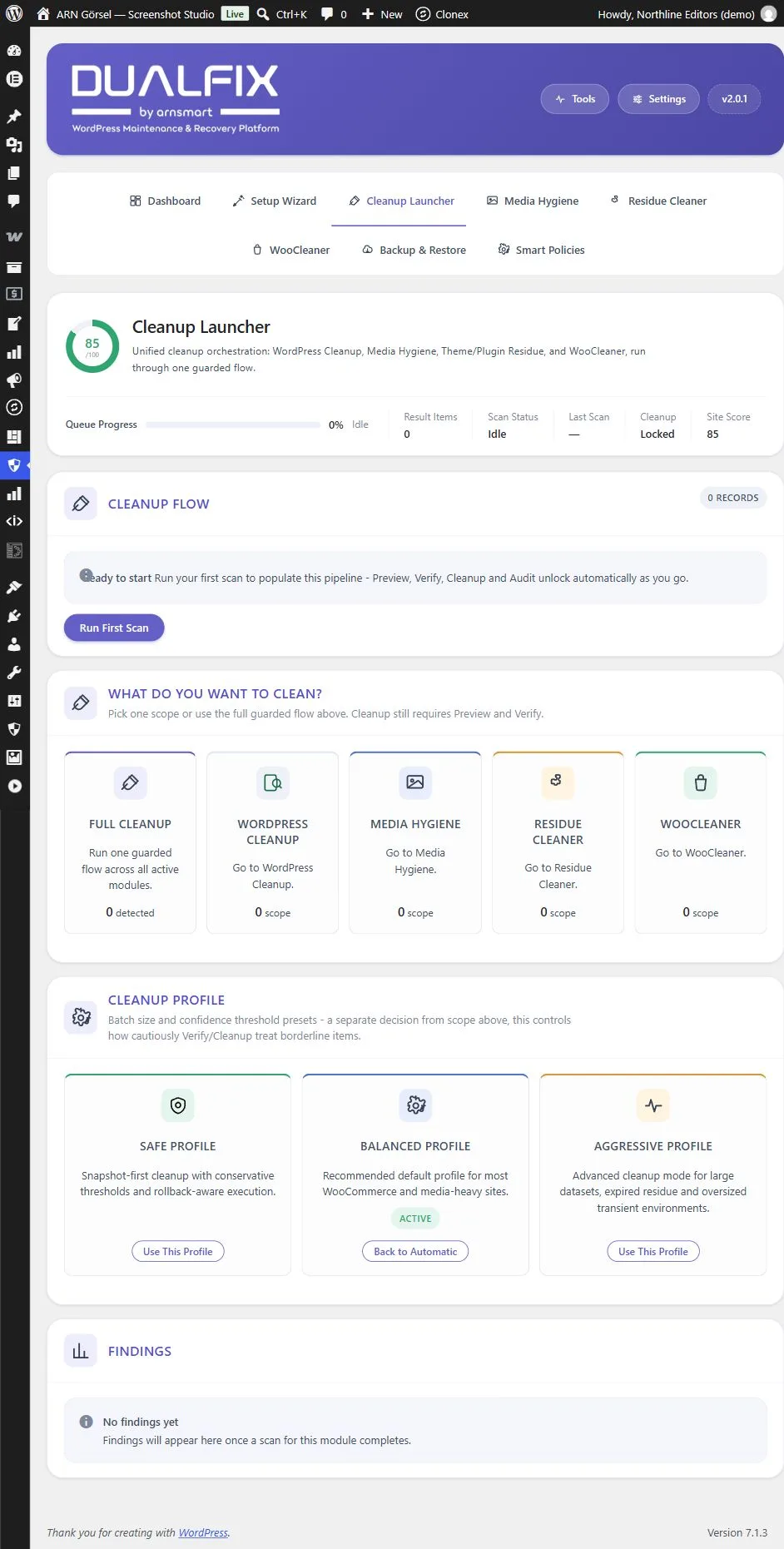
The Cleanup Profile cards at the bottom of the Cleanup Launcher fill Batch size and Confidence threshold in one step. A profile is a settings change, not a cleanup.
| Profile | Batch size | Confidence threshold | Safe mode |
|---|---|---|---|
| Safe Profile | 25 | 95% | On |
| Balanced Profile | 50 | 85% | On |
| Aggressive Profile | 150 | 70% | Off |
- Click Use This Profile on a card and confirm the message. The card of the profile in use shows Active.
- To return to the defaults, click Back to Automatic on the active card. Both fields become Automatic again and Safe mode is turned on.
When no profile is in use, the section says that both values are Automatic. Use the Aggressive Profile only after you have reviewed its effect on the specific site.
After an update from DualFix Pro 2.0.0
DualFix Pro 2.0.0 saved these fields without applying them. After the update to 2.0.1, Batch size and Confidence threshold (%) start as Automatic. Enter your values again if you want them. A configuration export made by 2.0.0 is imported the same way.