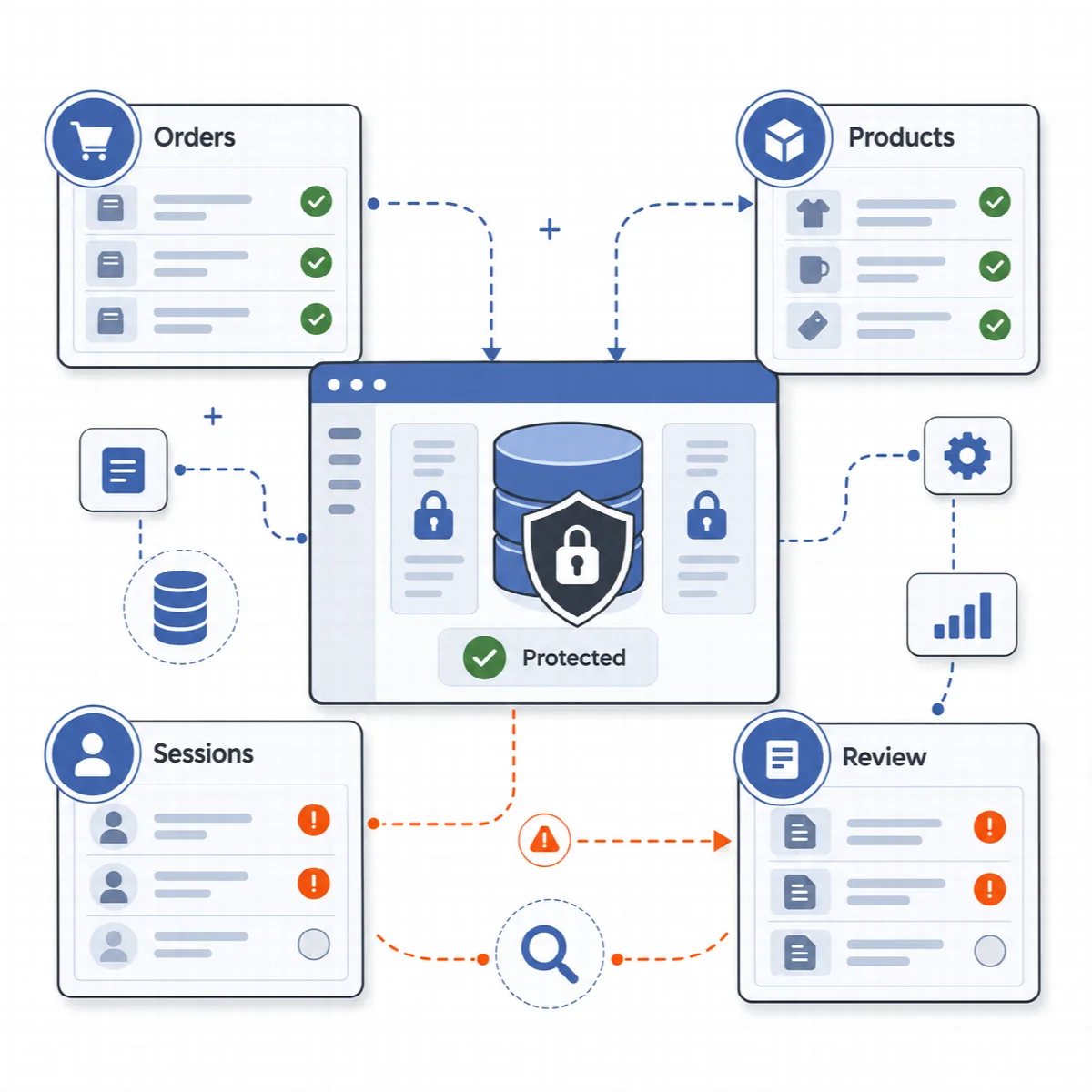
Store data is commerce data, so the WooCommerce scope is conservative by design. WooCleaner reads the store first, cleans only clearly expired, abandoned or orphaned rows, and leaves existing orders, products and customers out of reach.
Where to find it: ARN DualFix → WooCleaner (Pro). It needs an active WooCommerce installation. The page has the WooCleaner Operation Flow and the tabs Store Profile, Products & Variations, Orders Protection, Sessions & Transients and Scan Results.
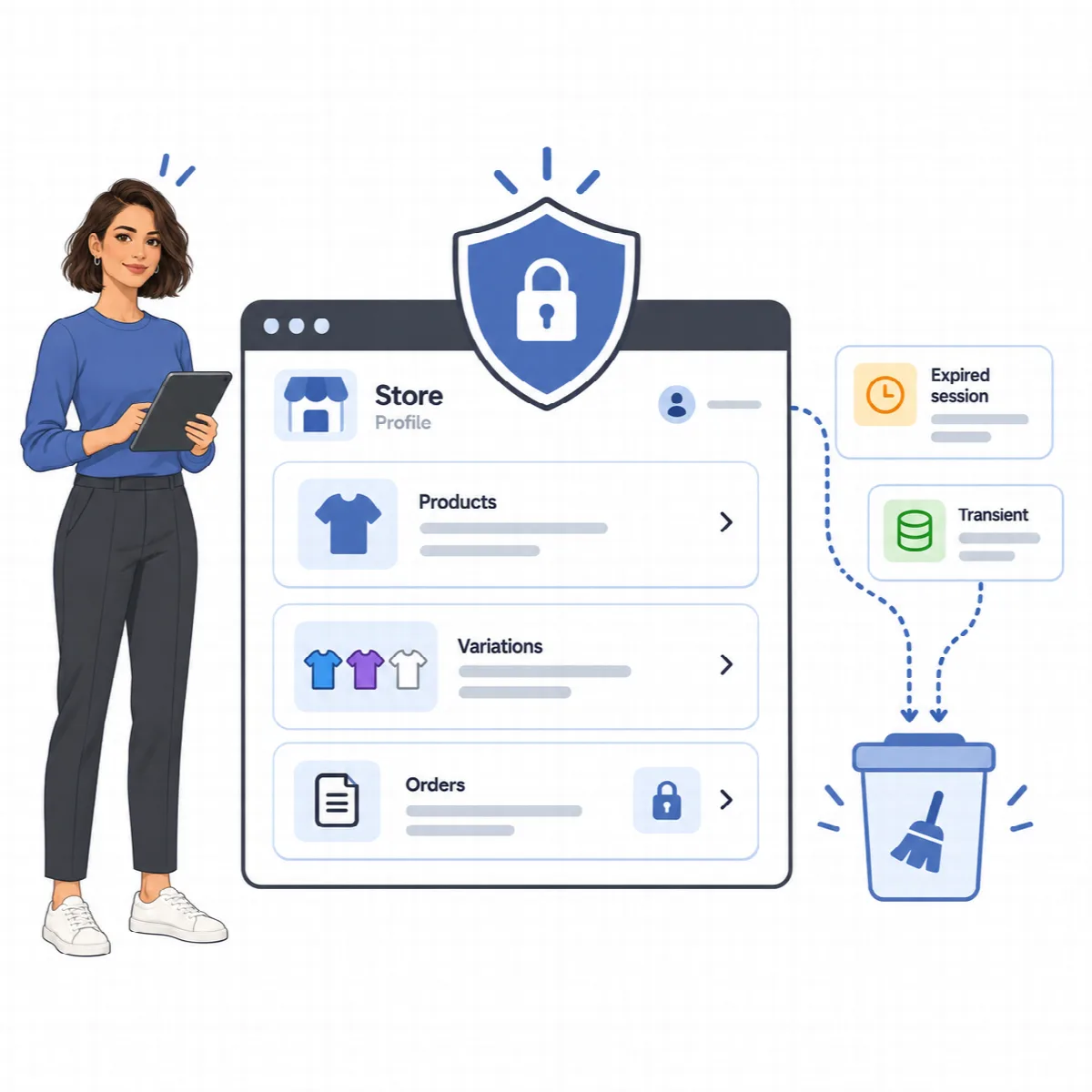
What can be cleaned
| Store data | Eligible for cleanup |
|---|---|
| Expired customer sessions | Yes, after verification |
| Expired WooCommerce transients | Yes, after verification |
| Orphaned rows in the product lookup table | Yes, after verification |
| Product meta whose product no longer exists | Yes, after verification |
| Abandoned carts: the saved cart of a customer who has not been active for the Abandoned cart age and has no open session | Yes, after verification |
| Leftovers of deleted orders: line items and their meta, Analytics rows and HPOS order rows of an order that exists in neither order storage (HPOS or posts) | Yes, after verification |
| Orphaned variations: a variation whose parent product no longer exists and that has not changed for a day, with its meta, shipping class and lookup rows | Yes, after verification |
| Action Scheduler history: completed and canceled actions older than 30 days and failed ones older than 90 days, with their logs | Yes, after verification; up to 2,000 actions per cleanup |
| Integrity findings: a variation whose parent is in the trash, a draft or another post type, duplicate product meta, missing lookup rows, reserved stock, download permissions, customer lookup, subscriptions, marketplace vendor data | No, manual review only |
| Existing orders, live products and their variations | No, protected by rule |
| Order notes and the tax and coupon lookup rows of orders | No, never touched |
| Pending and running scheduled actions and subscription actions | No, never touched |
| Customers, payments, refunds and subscriptions | No, protected |
| Downloadable product files | No, protected so that purchased downloads keep working |
DualFix has no cleanup step that removes an existing order or a live product, whatever the settings. Every eligible item passes Verify, is kept in the Safety Snapshot and comes back with Restore Snapshot. Integrity findings are reported for you; DualFix does not rebuild or delete live store data.
Abandoned carts
Set Abandoned cart age (days) in Settings → General: 30 by default, from 7 to 365. A cart is abandoned when its customer has not been active for that many days and has no open session. A customer without an activity date keeps the cart. When you restore the snapshot, a cart is not put back if the customer has a newer one.
Scheduled actions
Action Scheduler history follows the retention that Action Scheduler uses on your site. Pending and running actions and subscription actions are never included.
Auto Mode and the store
While Safe mode is on, which is the default, Auto Mode does not delete WooCleaner items; they wait for you to confirm the cleanup on the WooCleaner page.
The store profile
Before any store cleanup, DualFix reads the store, read-only. The Store Profile tab shows the store type and the number of products, variations and downloadable or virtual products. The store type sets which protection rules apply. Orders, customers, payments, refunds and subscriptions stay protected regardless of the store type.
Protect orders and customer data
Protect WooCommerce orders/customer data in Settings → General is on by default. While it is on, orders, customers and payments are in the protected data of every preview, also when WooCommerce was installed after the Setup Wizard profile was confirmed. Keep it on. Existing orders are never cleaned; WooCleaner removes the leftovers of orders that no longer exist also while this setting is on.
If you add WooCommerce to a site later, run the Setup Wizard again so the store step can read it.
Clean the store
- Create a current backup and check that it is restore-ready.
- Open WooCleaner and check the Store Profile.
- Click Run Scan in the WooCleaner Operation Flow and read the findings on Scan Results.
- Click Create Preview and Run Verify. Read every blocked or protected item.
- Click Confirm Cleanup. DualFix takes a Safety Snapshot first, as in every scope.
- Test product pages, the cart, checkout, customer accounts and a few existing orders.
Old or inactive store data is not the same as disposable data. Historic orders and their relations can still matter for your business.