
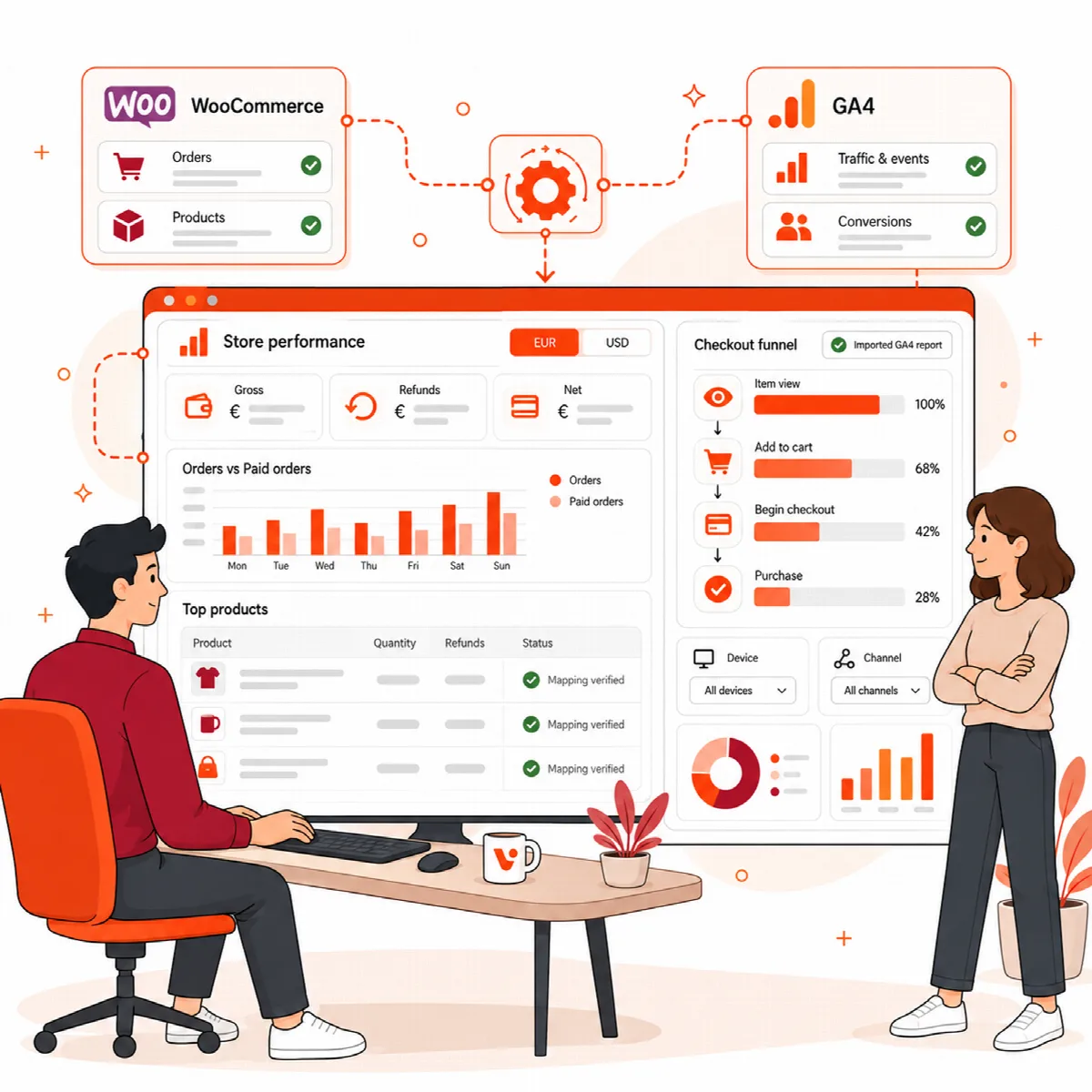
The Commerce analyst tab shows your store's evidence for the selected completed periods. WooCommerce records and Google Analytics events are always shown separately: Visioix never adds them together, never combines currencies and never invents a missing value.
Where to find it: ARN Visioix → Growth Intelligence → Commerce analyst. Choose the Completed period at the top first.
Before you start
- WooCommerce is needed for order and product cohorts.
- Google Analytics e-commerce events (
view_item,add_to_cart,begin_checkout,purchase) and a connected Google Site Kit are needed for the GA4 sections. - An empty period means there was no eligible data for that period, not a complete analysis of your store.
WooCommerce order cohorts
Orders are grouped by their creation date in the site time zone, separately for each currency.
| Column | What it shows |
|---|---|
| Period / currency | The period and the order currency |
| Orders / paid | All orders and paid orders |
| Gross / refunds / net | Paid order totals including shipping and tax, lifetime refunds of these orders and the net amount |
| Statuses | The order statuses included |
Refunds include those recorded after the period. Each period is capped at 5,000 orders, and an incomplete period is marked as such.
Paid order product lines
Product and variation IDs come directly from the WooCommerce order lines.
| Column | What it shows |
|---|---|
| Period / product / currency | The product or variation and its currency |
| Quantity / refunded quantity | Units sold and refunded |
| Line gross / refunds / net | Line amounts after discounts, without shipping, fees and tax |
Up to 1,000 product and currency pairs are collected per period, and the first 50 are shown. These amounts do not equal whole-order totals.
GA4 commerce event coverage
This table checks whether the four e-commerce events are present in Google Analytics, with the event count and the distinct users for each. These are totals per event, not a funnel: a missing event can point to missing tracking or a limited report, and Visioix does not calculate an abandonment rate from it.
Map GA4 items to WooCommerce products
GA4 product evidence & explicit mapping lists the GA4 items with viewed, added-to-cart, checkout and purchased units and the purchase-to-view user rate.
GA4 item IDs and WooCommerce product IDs are not joined automatically. To link them:
- Enter the Observed GA item ID and the Woo product or variation ID.
- Select I verified this item ID in my tracking configuration. Use this mapping only with this exact saved GA report.
- Click Save verified mapping.
Items without a verified mapping stay separate, even when their names look alike. Analyze this saved commerce evidence with AI explains the saved evidence.
Import a sequential checkout funnel
GA4 event totals do not show how many visitors moved from one step to the next. For that, import a closed funnel from the Google Analytics runFunnelReport API:
- The funnel must contain
view_item→add_to_cart→begin_checkout→purchase, in this order, with at most 24 hours between steps. - Paste the aggregate request and response JSON (up to 250 KB) under Aggregate request/response JSON and click Validate and import. The export must cover the exact periods shown.
The funnel table shows each transition with entered and completed users, abandonment and sample, by period and segment such as device or acquisition channel. Explain this funnel with AI adds an explanation.
A high loss between two steps shows where to investigate. It does not prove, for example, a shipping-price or technical problem. The origin of an import is entered by you and is not verified independently.
Read commerce results carefully
- Compare periods with the same statuses and currencies.
- Use a difference between WooCommerce and GA4 to check tracking or mapping, not to decide that one source is wrong.
- Internal link clicks are never treated as sales.