
Visioix collects answers and, when visitors choose to, contact details. This guide covers the tools that keep that collection explicit and protected: the consent checkbox, the built-in spam protection and the limits under Limits & Proxy.
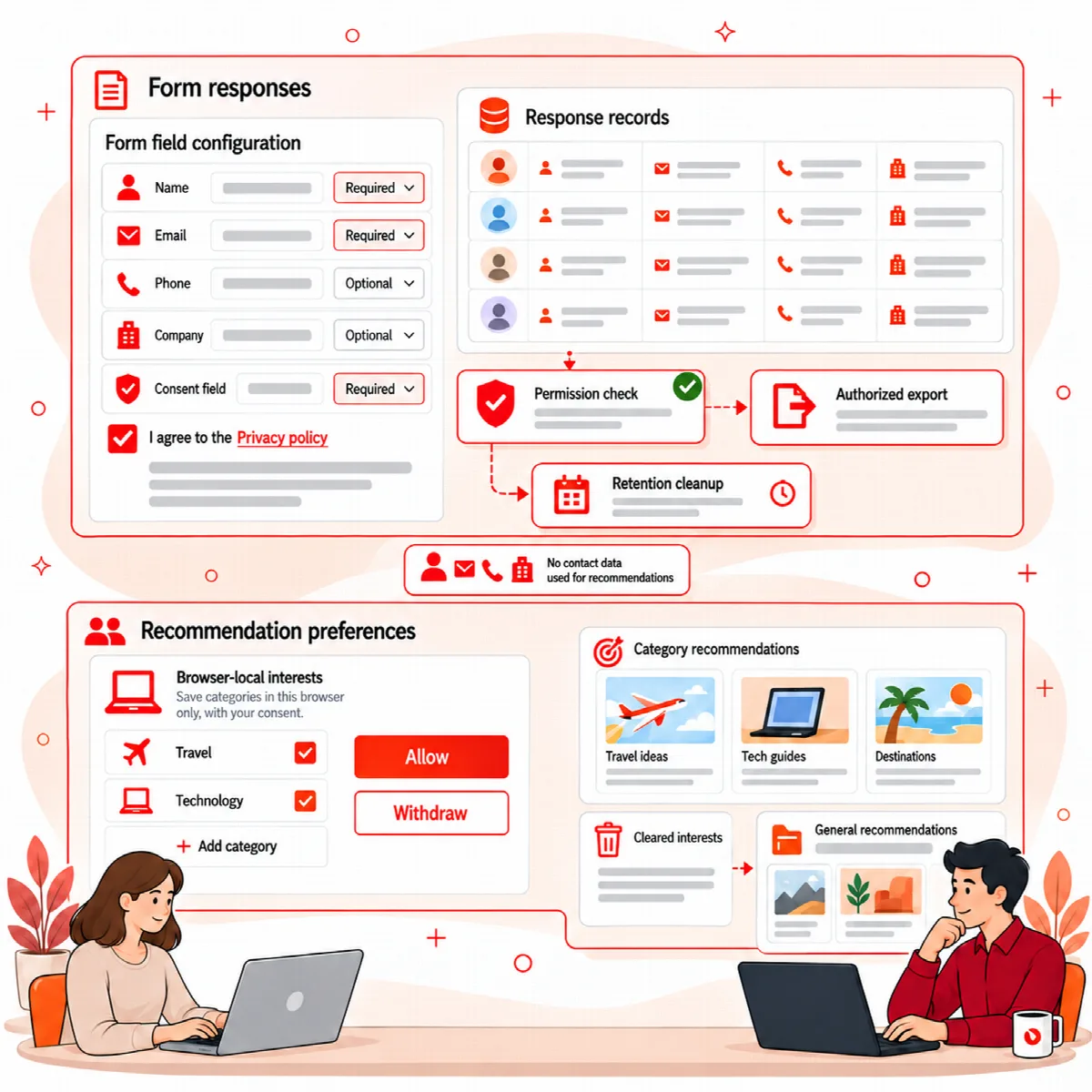
Add a consent checkbox
Open Settings → Privacy & Consent and select Enable consent.
| Setting | Default | What it does |
|---|---|---|
| Consent label | Privacy Policy | The link text that opens your policy |
| Consent text | I have read and agree to the processing of my personal data. | The text next to the checkbox |
| Required before submit | On | Visitors cannot submit without ticking the box |
| Select page | None | Your WordPress privacy or data-processing page |
| Open method | Modal | Modal shows the page content without leaving the form; Same page and New tab open the page |
Only the acceptance status is stored with the response; it also appears in the CSV export. The consent tools help you ask clearly, but you remain responsible for configuring them according to the rules that apply to your site, such as GDPR.
If AI Insights is on, the AI Processing Notice from Settings → AI Insights is shown below the form, so visitors know that selected answers may be analysed by your AI provider.
How submissions are protected
Both editions protect the form without extra plugins:
- A hidden honeypot field and a security token stop simple bots.
- Each submission uses a single-use ticket with size limits, and there are per-network and per-session quotas.
- A response is refused if an answer to a choice question is not one of the options the form offers.
Visitors who submit too often see an error and can try again later. Their earlier responses are kept.
Set the limits
Open Settings → Limits & Proxy.
| Setting | Default | Range | What it limits |
|---|---|---|---|
| Responses per visitor network every 10 minutes (Free) / to one form every 10 minutes (Pro) | 20 | 1–1000 | Responses from one visitor network; in Pro all forms together accept three times this number |
| Notification emails per day | 200 | 1–100000 | Response notification emails |
| AI analyses of responses per day | 200 | 1–100000 | Background AI analyses of responses |
Visitor activity events (views, opens, clicks) are limited to 300 requests per visitor network every 10 minutes. Further events are ignored without an error.
Responses are always saved. Once a daily limit is reached, no more notification emails are sent, or no more responses are analysed, until the next day (site time). Responses that were not analysed show the AI status "Skipped". In Visioix Pro, integrations and automations are not affected by these daily limits.
Visitors who share one connection, such as an office, a school or a mobile carrier, share the response limit. Raise it if many of them use your forms at the same time.
Sites behind a proxy or CDN
By default Visioix reads the visitor address from the direct connection (REMOTE_ADDR). Behind a reverse proxy or a CDN such as Cloudflare, that is the proxy's address, so all visitors would share one limit.
- Under Visitor IP Address, set Where visitor addresses come from to Behind a proxy or CDN.
- Choose the Header set by the proxy: X-Forwarded-For, X-Real-IP, CF-Connecting-IP (Cloudflare) or True-Client-IP.
- Under Trusted proxy addresses, enter your proxy's or CDN's IP addresses or CIDR ranges, one per line.
- Click Save Settings.
The header is read only for requests that come from a trusted proxy address; every other request uses the direct connection. If you choose Behind a proxy or CDN without entering any trusted address, Visioix shows a warning and keeps using the direct connection.