
Display rules decide on which pages and for which visitors the bar appears. Triggers decide when it appears on those pages. Use both to ask your question at a moment that makes sense instead of interrupting every visitor.
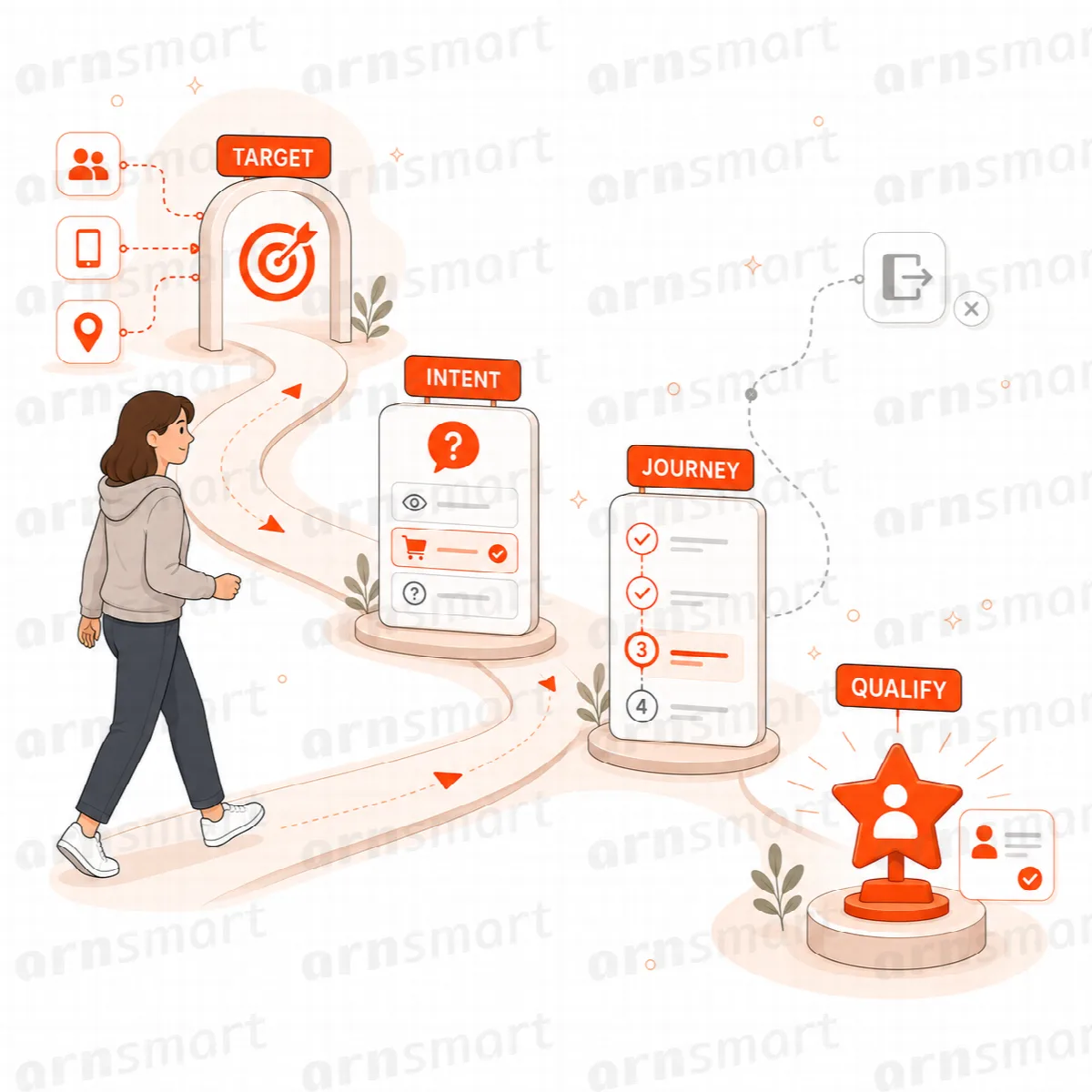
Display rules in Visioix Free
Open Visitor Intent → Settings → Display Rules. Enable display rules is on and set to the home page. If you turn it off, the bar appears on every page of the site.
| Setting | Options | Notes |
|---|---|---|
| Base display scope | Entire site, Homepage only (default) | The starting point for the rules below |
| User status | All visitors, Logged-in only, Logged-out only | |
| Device | Mobile and desktop, Mobile only, Desktop only | |
| Visit type | First and returning visitors, First visit only, Returning visitors only | |
| Include Pages | Pages you select | With Entire site, the bar then appears only on these pages; leave empty to use the base scope |
| Exclude Pages | Pages you select | Always hidden, even when included by another rule |
| Post Types | Public post types you select | Limits the bar to these post types; leave empty to allow all |
Display rules for each form (Pro)
In Visioix Pro, every form has its own display rules. Open ARN Visioix → Forms and click Display Rules next to a form.
| Setting | Options |
|---|---|
| Display scope | Sitewide, Homepage only, Selected pages only |
| Priority | 0–1000; the higher priority wins when several forms match a page |
| Include pages | Used with Selected pages only |
| Exclude pages | The form never appears on these pages |
| User state | Everyone, Logged in, Logged out |
| Device | All devices, Desktop, Mobile |
| Visitor | All visitors, First visit, Returning |
Click Save Display Rules. The Forms list shows where each form is displayed.
- Only one form is shown on a page: the active form with the highest priority whose rules match.
- Publish Changes makes a form active at once. A new form has no display rules yet, which means it can appear on every page once it is published. Set its display rules before you click Publish Changes. Visual Builder shows this warning under its header with an Open Display Rules link.
- The Settings → Display Rules tab is used once, to create the rules of the first form, Original Visitor Intent Form. After that, use the form's own display rules.
Triggers
Open Settings → Triggers. Enable custom triggers is off by default, so the bar appears as soon as the page loads. Turn it on, then turn on one or more triggers:
| Trigger | Setting | Default |
|---|---|---|
| After X Seconds | Show after (seconds), 0–3600 | 2 |
| After Scroll | Show after scrolling (%), 1–100 | 50 |
| Exit Intent | Show when the visitor is about to leave | Uses upward mouse movement on desktop; ignored on touch-only devices |
| After Page Views | Show after page views, 1–100 | 2 |
| After Time on Site | Show after total time on site (seconds), 1–86400 | 30 |
The bar appears when the first enabled trigger fires. If you enable custom triggers but no individual trigger, the bar opens only from a button or script (see below). Triggers apply to the whole site; in Visioix Pro they apply to every form.
Open the panel from a button or script
Shortcode. Add [arnvisiox_visitor_intent] to a page to show a button that opens the panel. Add label="Open Survey" to change the button text.
JavaScript. Call window.ARNVisitorIntent.open(); from your own button or script. The JavaScript API also provides show(), close() and dismiss().
Both work on pages where the display rules allow the bar.
Let visitors see the bar again
A visitor who answered or closed the bar does not see it again for the number of days set under Settings → General. This is stored in the visitor's browser.
Under Settings → Data & Cache → Visitor Display Cache:
- Manual Reset Display Cache lets the bar appear again for everyone, for example after you changed your question.
- Auto Reset Display Cache with Reset Display Cache after (days) does the same on a schedule (30 days when turned on).
Resetting the display cache does not delete any responses.
Troubleshooting: the bar does not appear
- Check Settings → General → Enable the visitor intent bar.
- In Visioix Pro, check that the form is Active and has a published version, and that its display rules match the page. Another active form with a higher priority may win.
- Check the audience rules: a rule for logged-out visitors hides the bar while you are logged in.
- Check whether a trigger is still waiting, or whether custom triggers are on without any trigger enabled.
- Open the page in a new private window: you may have answered or dismissed the bar in your browser.
- Clear your page cache and CDN cache.