
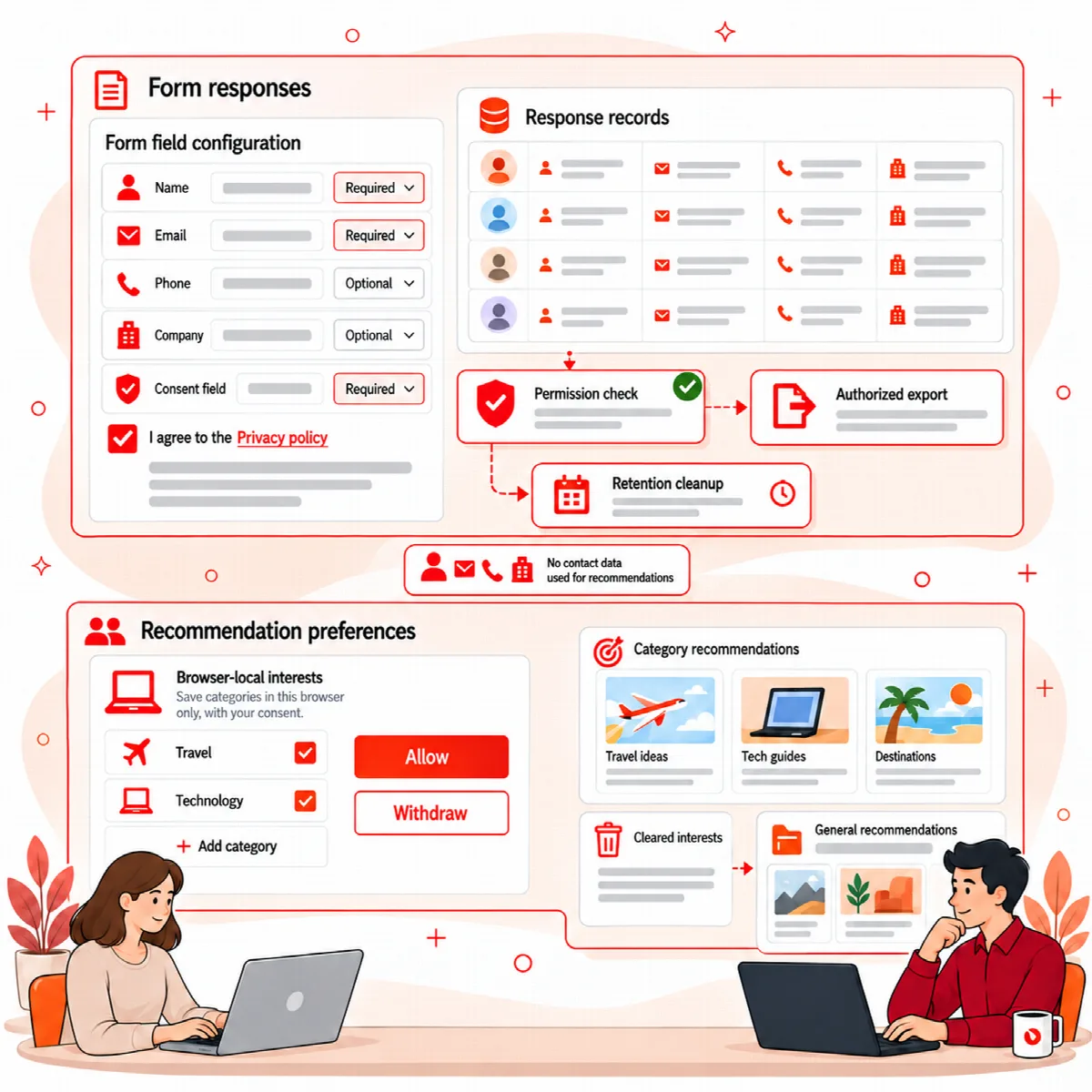
The Recommendations block shows a short list of your posts under the heading "Recommended reading". Every visitor sees a general list. Visitors who allow it get a list based on the categories they read, stored only in their own browser. It is included in Visioix Free and Visioix Pro.
Add the block
- Block editor: add the Visioix Recommendations block where you want the list.
- Shortcode: add
[arnvisiox_recommendations count="4"]to shortcode-compatible content.
count sets the number of posts, from 1 to 8 (4 by default). By default the list shows your latest published posts and leaves out the post being read.
The first version of the list in the page HTML is the general list, so it is safe for page caches. Personalised results load afterwards, only for visitors who allowed them. The block makes no AI request in the visitor's browser and changes nothing else on the page.
What visitors can choose
Below the list, visitors see a short permission text and two buttons:
- Allow personalized recommendations stores the categories of the posts they read in their browser, for up to 30 days.
- Turn off and clear preferences withdraws the permission, deletes the stored interests and brings back the general list.
In Visioix Pro, the same permission also allows measuring views and clicks of the internal links that Visioix inserted; withdrawing it stops that measurement too. See Add internal links with Smart internal links.
What is stored
| Situation | What happens |
|---|---|
| Visitor has not chosen | Nothing is stored; the general list is shown |
| Visitor allows | Interest categories are kept in the browser's local storage, and a consent cookie (arnvisiox_growth_consent) is set for 30 days |
| Visitor withdraws | Stored interests are cleared; the general list returns |
| Logged-in users | Always see the general list |
| Global Privacy Control is on in the browser | Personalisation is turned off |
No Google Analytics profile, account identity or browsing history is used, and recommendation interests are never stored with form responses.
Connect a consent manager
If your site uses a consent manager, it can set the permission with window.arnvisioxGrowthConsent(true) or withdraw it with window.arnvisioxGrowthConsent(false).
Test it
Test allowing, declining and withdrawing in a private window, and check that the visible list matches the choice. You find the same instructions in Growth Intelligence → Recommendations & consent.