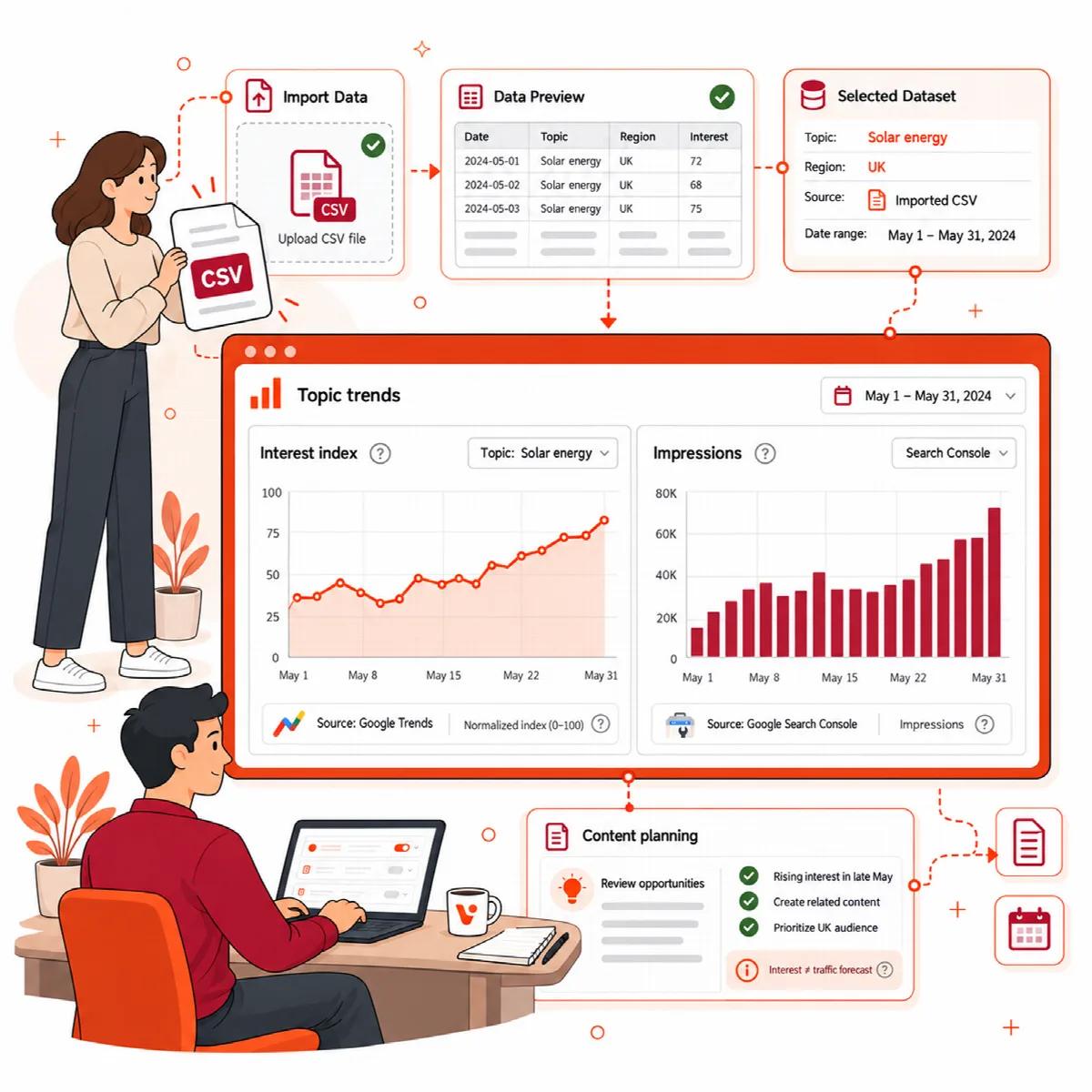
The Trends & community tab brings two outside signals into Growth Intelligence: topic-interest data you import, and the approved comments on your site. Both are context for an editorial decision, not forecasts.
Where to find it: ARN Visioix → Growth Intelligence → Trends & community.
Import external topic trends
You can import an export from a trends source that gives a normalised interest index from 0 to 100 per date.
- Prepare a CSV with two columns,
date,value. It needs 4 to 366 dated observations from one consistent export, with unique, valid dates and numeric values from 0 to 100. Leave out "less than" values until you know what they mean. The file can be up to 100 KB. - Fill in the Source HTTPS URL, the Topic and the Region / geography.
- Paste the data and click Import source observations.
Visioix compares earlier and later windows of equal length and shows the mean index for each. Under Matching site evidence & content ideas, it puts your own Search Console evidence next to the imported topic, and Suggest an article angle with AI drafts an idea.
Keep in mind:
- The source details are entered by you and are not verified against the provider.
- An index is not search volume, a traffic forecast or a competitor's performance.
- Check that a topic matters to your own audience and content before you plan an article.
Analyse approved comments
Comments are never sent to AI automatically. You prepare and approve the exact sample first.
- Click Prepare a reviewable sample. Visioix selects up to 50 recent approved public comments. Names, email addresses, IP addresses and author details are left out; URLs, email addresses, phone-like numbers and handles in the text are redacted.
- Read the sample. Automatic redaction can miss personal details inside sentences: exclude comments or remove further details, then click Save reviewed selection.
- Check the Exact provider sample, which is exactly what will be sent.
- Select I reviewed this sample and approve sending it to the configured AI provider. and click Analyze reviewed comments.
The result describes the topics and sentiment of that sample. It does not represent every reader or rate individual people, and it should not be used for automatic moderation or publishing decisions. The language is taken from the site locale, so mixed-language comments may be read less reliably.