
Visitor Analytics shows what visitors did with the bar, the panel and the contact widget. Visitor Intelligence turns those numbers into written findings. Both read only the data Visioix collects on your site.
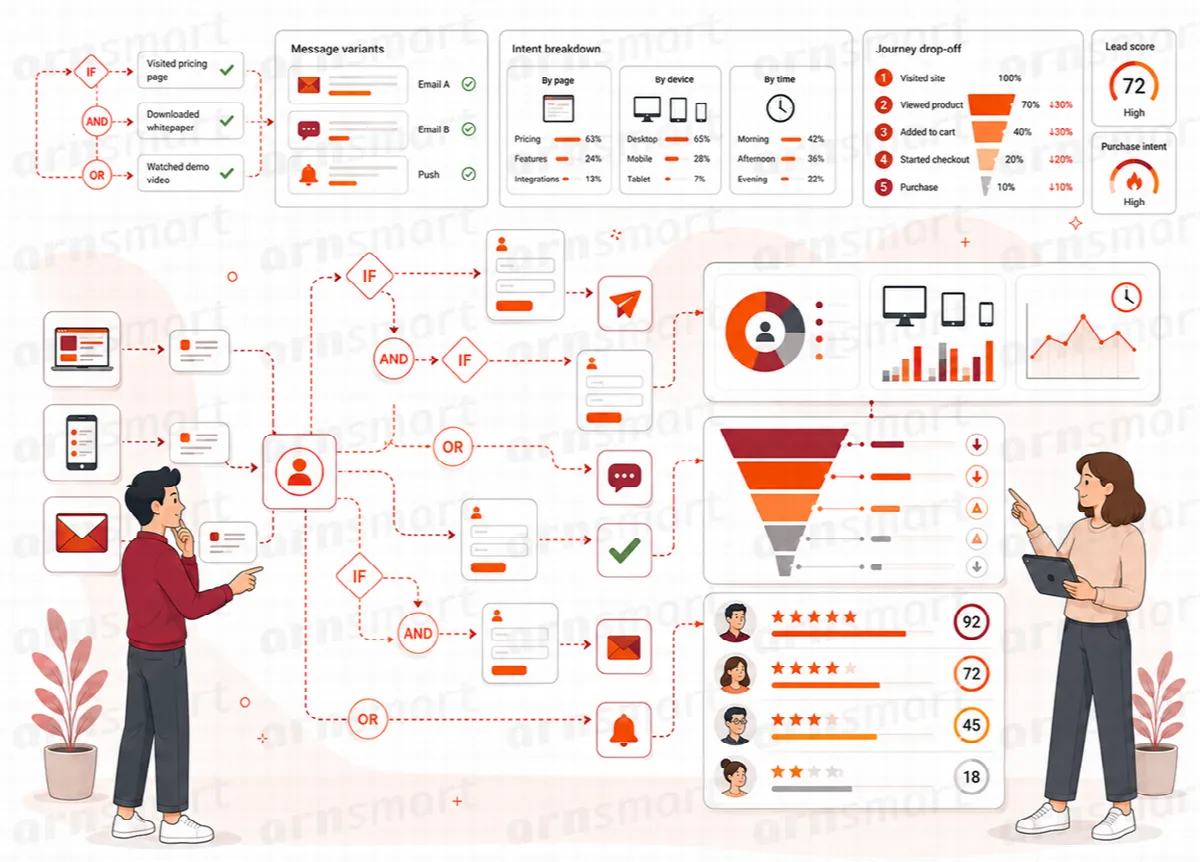
The steps Visioix measures
| Measure | What it counts |
|---|---|
| Impressions | The bar was displayed |
| Panel Opens | A visitor opened the panel |
| Responses | A visitor submitted an answer |
| Contact Leads / Anonymous | Responses with or without contact details |
| Dismissals | A visitor closed the bar |
| Contact Opens | A visitor opened the contact widget |
| Call Clicks, Email Clicks, WhatsApp Clicks | A visitor clicked a contact button |
Keep the steps apart when you explain results: a panel open is not a response, and a contact click is not a completed conversation or sale.
Visitor Analytics in Visioix Free
Open Visitor Intent → Visitor Analytics. You see the cards above with their rates (open rate, conversion, dismissal rate), a Last 30 Days chart of impressions and responses, the Visitor Intent breakdown of the choices visitors made and the Recent Responses.
Visitor Analytics in Visioix Pro
Open ARN Visioix → Visitor Analytics. Choose 7 Days, 30 Days or 90 Days at the top, and use Export CSV to download the responses.
| Tab | What it shows |
|---|---|
| Overview | The cards above, plus Visitors (unique anonymous sessions), Top Intent, Top Contact Method, Most Active Day, Most Active Hour (site time zone) and Contact Rate |
| Summary | Performance summaries for the period |
| Trends | Period comparisons of visitor metrics |
| Segments | Results by segment, with a comparison of two segments |
| Intent | Which choices visitors make on which pages, and with or without contact details |
| Contact | Contact behaviour and contact channels |
| Triggers | Which triggers lead to opens and responses |
| Time | Activity by day and hour |
| Funnel | The steps from impression to response, and where visitors drop off |
| Behavior Pro | Behaviour analysis across the period, segments and comparisons |
| Lead Intelligence | Lead and contact scoring with the inputs behind each score |
| Recommendations | Suggested next steps based on behaviour and leads |
Detailed event analytics are available from the date Visitor Intelligence tracking was enabled. Stored responses from earlier dates are included, but missing event history cannot be rebuilt.
Visitor Intelligence
Open Visitor Intelligence in the Visioix menu and choose 7 Days, 30 Days or 90 Days.
- Overview and the topic tabs show findings about intent, contact behaviour, triggers, pages, time periods and funnels. Built-in, rule-based findings work when AI is off.
- AI Insights creates an AI analysis of the period on request, when AI Insights is turned on. See Set up the AI connection.
- AI Queue lists the background AI analyses of individual responses and lets you retry failed ones.
- Cost & Usage shows token use and estimated cost.
- In Visioix Pro, History keeps earlier analyses, and A/B Testing opens Visitor A/B Testing. See Run title experiments and A/B tests.
When AI Insights is on, each response also gets Response Intelligence: a summary of what the visitor submitted and an insight about what it may mean for your business.
Lead scores (Pro)
Visioix Pro scores leads and contacts from the available signals and shows a Lead Score column in Visitor Responses. A high score is an assessment, not a confirmed purchase intention. Read the answers and the scoring context before you decide whom to contact first, and keep what the visitor actually wrote separate from what is inferred.
Read results carefully
- Compare the same period length and the same configuration. A change in your question or choices can change results even when your audience has not changed.
- Low numbers give unstable percentages. Wait for enough responses before drawing conclusions.
- Use a finding to choose one specific change, for example a clearer choice or a different trigger, then compare a later period.