
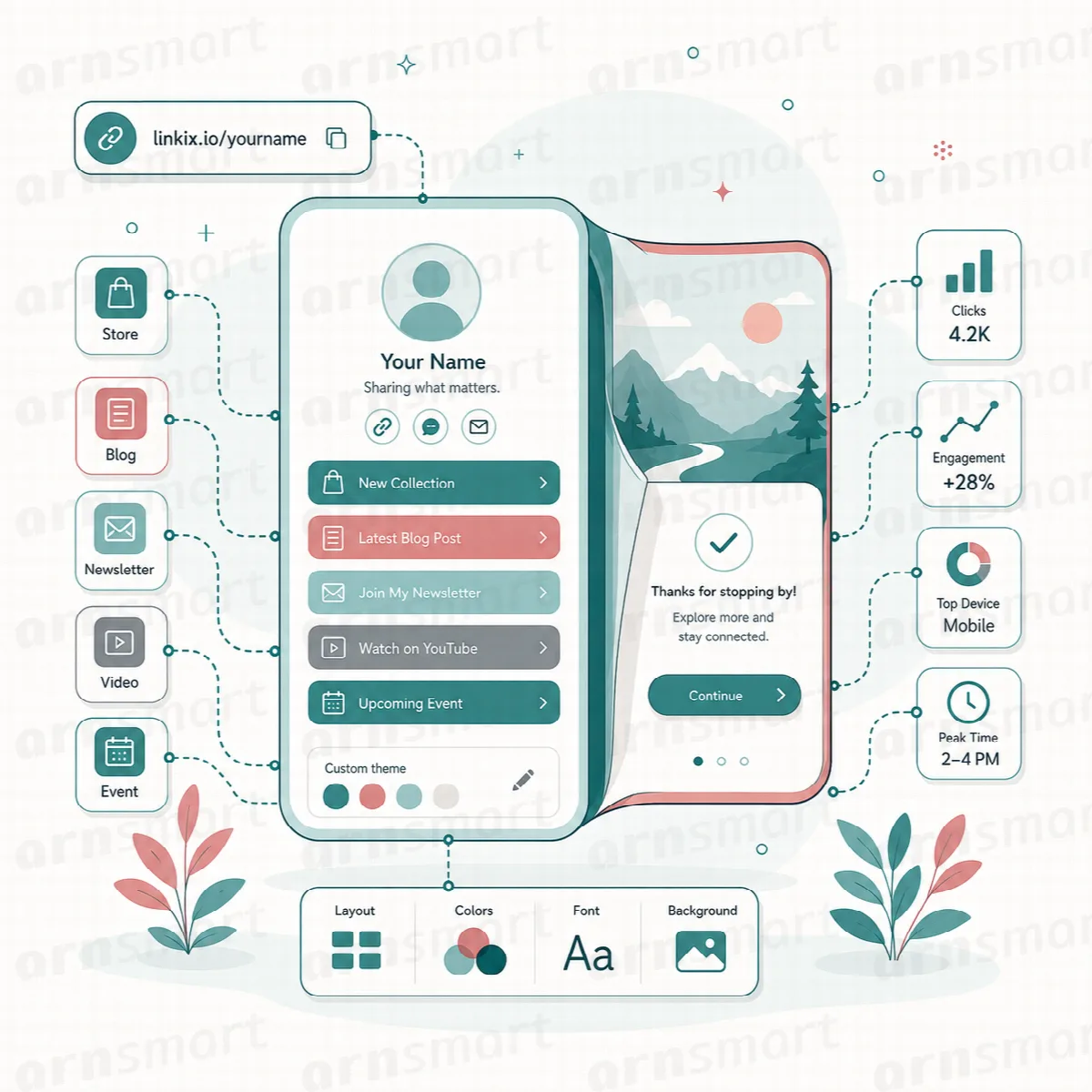
Most social profiles allow a single link. A Linkix bio page is a simple page on your own site, such as example.com/bio/your-name/, that lists several destinations, so one profile link can lead to your store, latest article, newsletter and event.
Where to find it: Bio Pages in the Linkix menu. Linkix Free includes one bio page. Linkix Pro creates as many bio pages as you need and adds splash pages (see Splash pages and marketing pixels (Pro)).
Create the page
- Open Bio Pages.
- On the General tab, keep Page type on Bio Page and fill in the identity fields (see the table below).
- On the Buttons & Social tab, add your buttons and social links, one item per line.
- On the Visual Settings tab, set the look.
- Click Save Bio Page.
| Field | What to enter |
|---|---|
| Title | The name shown at the top of the page. Required. |
| Slug | The last part of the address, for example your-name. If you leave it empty, Linkix makes one from the title. |
| Description, Intro text | Short texts shown under the title |
| Image or logo URL | An image address, or click Choose image to pick one from the media library |
| Buttons | One button per line: a label, a vertical bar and the address |
| Social links | One link per line: a platform name, a vertical bar and the address |
For example, the Buttons field can contain:
Our menu | https://example.com/menu/
Book a table | https://example.com/booking/
and the Social links field:
Instagram | https://instagram.com/example
X | https://x.com/example
A bio page needs at least intro text, one button or one social link. Linkix tells you when something is missing ("Please add at least intro text, one button, or one social link.").
Use Linkix short links as button addresses when the destinations may change. You can then change a destination in Linkix without editing the bio page.
Visual settings
| Setting | What it does |
|---|---|
| Primary color, Button color, Text color | The colors of the page, its buttons and its text |
| Background mode | Solid or Gradient, with Background color 1 and Background color 2 |
| Font family | The page font. Linkix Free offers System, Inter, Roboto, Open Sans, Lato and Poppins and does not load fonts from another server; the visitor's device shows the font if it has it. Linkix Pro offers Google Fonts, with a Language subset to filter them by language. The public page serves the font from your own site, so visitors do not connect to Google; see below |
| Effect | An entrance effect: None, Fade, Side Fade, Up Fade, Glow or Heart Storm (Heart in Free) |
| Custom background CSS (optional) | Your own CSS background, for example a gradient. It overrides the background colors |
| Title font size, Description font size, Intro font size | Text sizes (title 20 to 64, the others 11 to 32) |
| Logo width | Width of the image or logo (56 to 220) |
Fonts on Linkix Pro bio and splash pages. Your server downloads the chosen Google Font once, when you save the page or open the Bio Pages screen, and keeps it in wp-content/uploads/linkix/fonts. The public page loads the font from there. If the download fails, the page opens with the system font and Linkix tries again later. After updating from Linkix Pro 2.0.0, open the Bio Pages screen once so existing pages get their local font. The Live Preview of a font you have not saved yet still loads it from Google Fonts in your browser.
Check the page before you share it
- Linkix Free shows a phone-style preview of the saved page next to the form, and Open public preview opens the page in a new tab. Save your changes, then refresh the preview.
- Linkix Pro shows a Live Preview that updates while you edit. Choose the Preview Type (Bio Page or Splash Page) and the Preview Device from phone and tablet mockups of Apple, Samsung, Google, Huawei, Oppo, Xiaomi and other devices. Public preview opens the page in a new tab.
Check the order of the links, the text and every destination. Most bio page and QR visitors arrive on a phone, so check the page on a phone as well.
Share the page
The Library lists your bio pages with their type, Views and Clicks, the QR code and the Public URL with a Copy button. Each page has Edit, Open, QR PNG and Delete buttons; Linkix Pro also has QR SVG, and the button of the Default QR format comes first.
- Put the Public URL in your social profiles. On a site with Plain permalinks, the address is a query such as
example.com/?linkix_bio_slug=your-name. - Use QR PNG (or, in Pro, QR SVG) to download the page's QR code for print.
Views, clicks and safe clicks
Linkix counts the page's views and button clicks and shows them in the Library. The counts are kept in their own table and updated in one database statement, so simultaneous visits are not lost. Counts from earlier versions are carried over when you update.
A click on a bio page goes only to one of the buttons or social links saved on that page. Any other address added to the click link is ignored.