
A redirect rule connects a source path on your site, such as /old-offer/, to a target URL. When a visitor opens the source path, Linkix sends them to the target. Redirect rules are part of both editions.
Where to find it: Redirects in the Linkix menu.
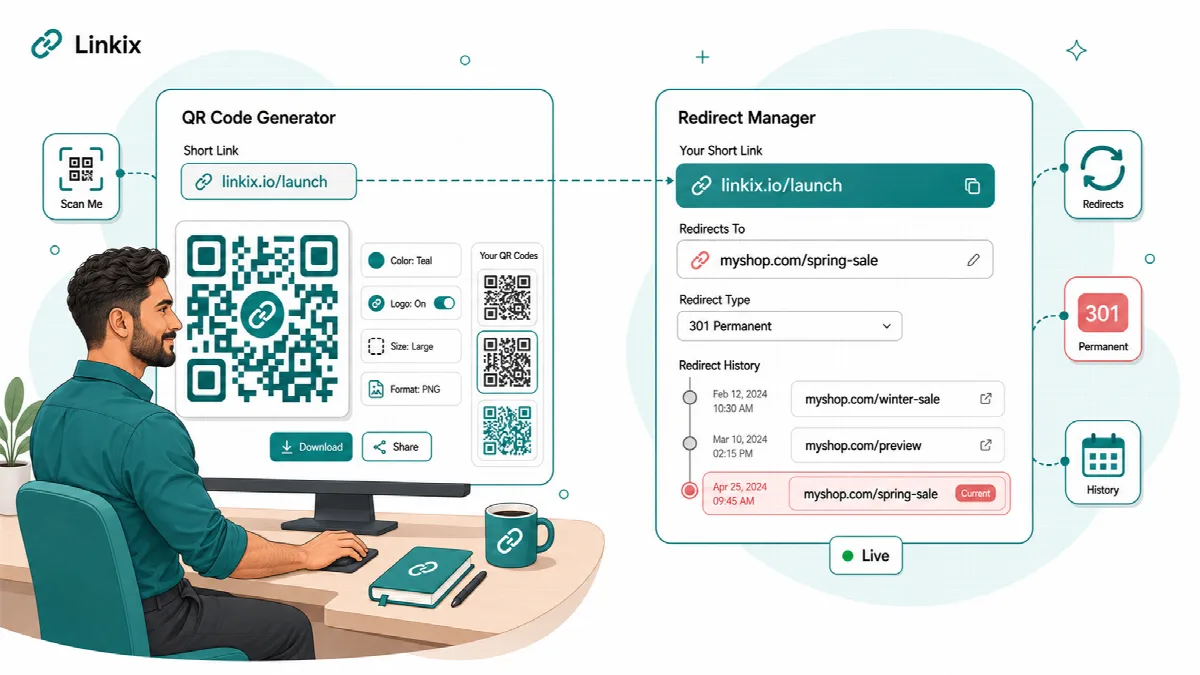
Short link or redirect rule?
| Use | When |
|---|---|
| Short link | You need a new, short address to share, such as example.com/s/spring-sale/. Short links always answer with 302. |
| Redirect rule | Visitors still arrive at an existing or old path on your site, such as the address of a deleted page, or you want a campaign path without the short link prefix. |
Choose 301 or 302
| Type | Meaning | Typical use |
|---|---|---|
| 301 Permanent | The content has moved for good | The old address of a deleted or renamed page |
| 302 Temporary | The move is temporary; the old address stays the one to use | Campaign paths, rotating offers and any destination you expect to change |
Browsers and search engines may remember a 301 redirect. Choose 302 Temporary for destinations that will move again.
Create a redirect rule
- Open Redirects.
- In Source Path, enter the path on your site without the domain, for example
old-offer. - In Target URL, enter the full destination, starting with
https://orhttp://. It can be a page on your site or on another website. - Choose the Redirect Type: 301 Permanent (the default) or 302 Temporary.
- In Linkix Pro, leave Status on Active. A rule saved as Inactive is not used until you switch it on with Activate in the rules table.
- Click Add redirect (Save Redirect in Linkix Free).
- Open the source path in a private browser window to test the rule.
Each source path can be used by one rule only. A second rule for the same path is refused with a message ("This Source Path is already in use."). An inactive rule keeps its path; a deleted rule releases it, so the path can be used again.
On a site in a subfolder, such as example.com/blog or a subfolder site of a network, the source path is relative to the site: enter summer-sale for /blog/summer-sale (Linkix Pro 2.0.2 and Linkix Free 1.1.2 and later). Rules saved earlier with the full path keep working; if both exist for the same address, the rule relative to the site is used. The site's home page is never redirected by a rule.
Redirect rules also work when WordPress has no page at the source path, so the old address of a deleted page can still lead somewhere useful. Every redirect is counted on the rule (Hits) and in Analytics.
The visitor is sent to the target exactly as you saved it: capital letters, file names such as Menu.pdf and query parameters such as ref and utm_source stay as they are.
Edit or delete a rule
Linkix Free: the Redirect Records list shows the 100 most recent rules, with Edit and Delete buttons for every rule. Click Edit, change the rule and click Update Redirect.
Linkix Pro: the All redirects table lists every rule with its source, rule type, target, type (301 or 302), status, hits and creation date, 20 rules per page. The search box searches all rules: source paths, every target (including device, fallback and rotation URLs), the rule type, the status and 301 or 302. Each row has these buttons:
- Edit opens the rule in the form at the top of the screen, including its Advanced Rules. Change it and click Update redirect. Hits and the creation date stay. Create new empties the form again.
- Activate or Deactivate switches the rule on or off.
- Delete removes the rule after you confirm.
The Created column shows the site's time (Settings → General). Rules added on this screen before Linkix Pro 2.0.1 keep the UTC date they were saved with.
To stop every redirect rule at once, switch off Redirects under Settings → General → Module control.
How Linkix checks destinations
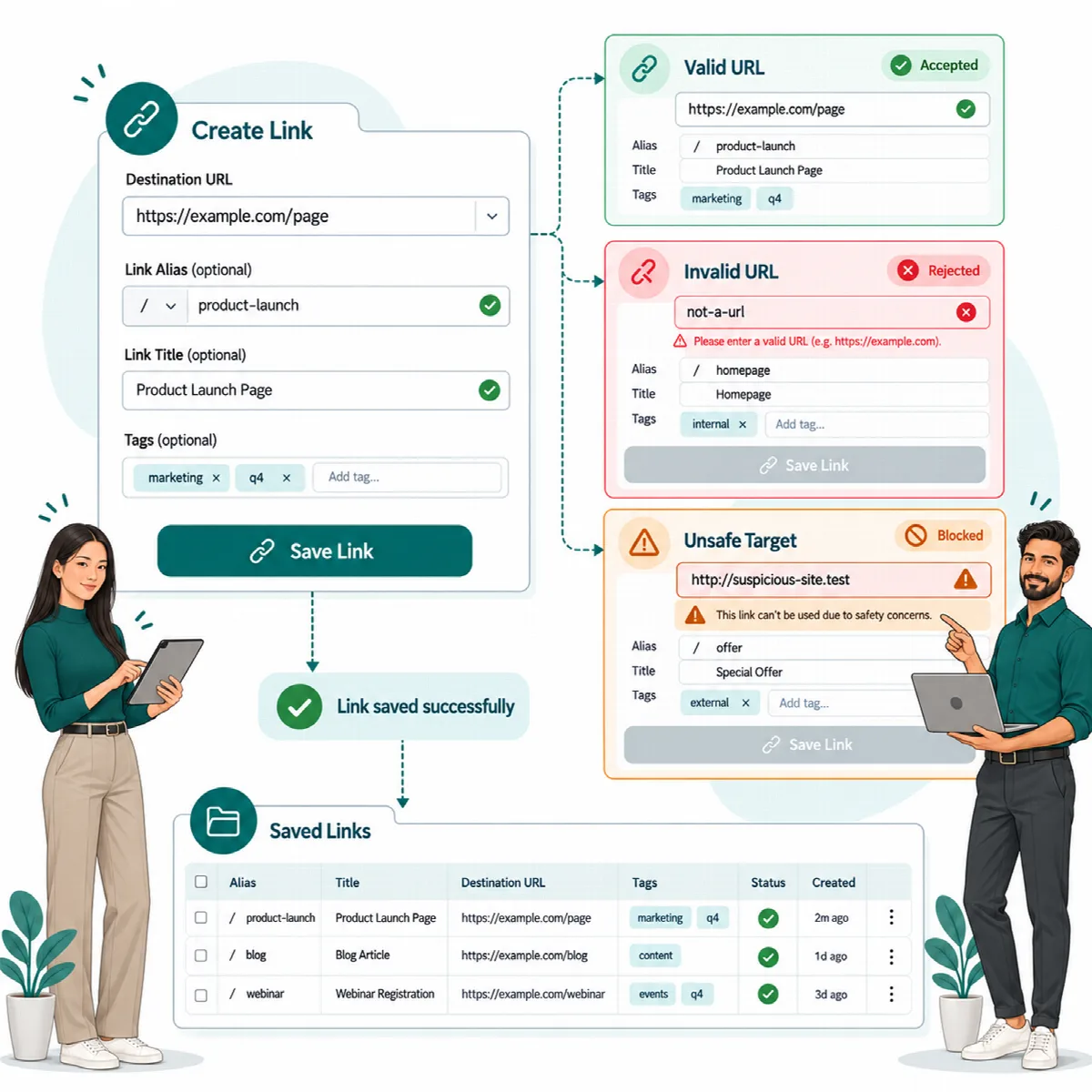
Linkix checks every destination before it is saved and again before a visitor is sent there.
- A target that is not a valid web address is refused with a message on the screen.
- Only
httpandhttpsdestinations are accepted. - If a stored destination is no longer valid, the redirect rule does not redirect, and a short link answers "not found" instead of sending the visitor elsewhere.
- A rule whose target is the same path as its source is ignored, so it cannot loop.
- A click on a bio page goes only to one of the buttons or social links saved on that page.
Version notes
- Linkix Free applies the 301 or 302 type you choose and sends visitors to targets on other websites. Linkix Free 1.1.0 and earlier answer every rule with 301 and only to addresses on your own site.
- A rule keeps its 301 or 302 type when the site moves between Linkix Free and Linkix Pro.
- Requests for
/favicon.icoand/robots.txtare left to WordPress and are not checked against redirect rules.
Troubleshooting: a redirect does not work
- In Linkix Pro, check that the rule's status is Active and that the licence is active.
- Check that the source path is entered without the domain and matches the address visitors open.
- Check that Redirects is switched on under Settings → General → Module control.
- Test in a private window. Browsers may have remembered an earlier 301 redirect.
- Clear your page cache and, if you use one, your CDN cache.