
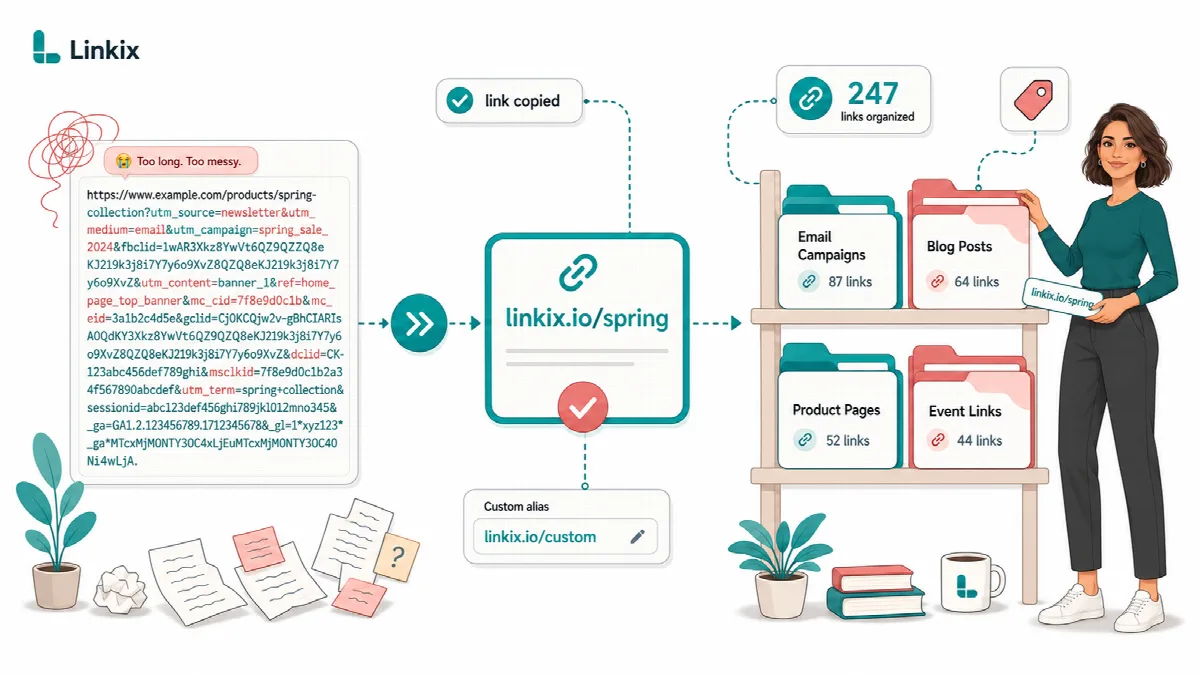
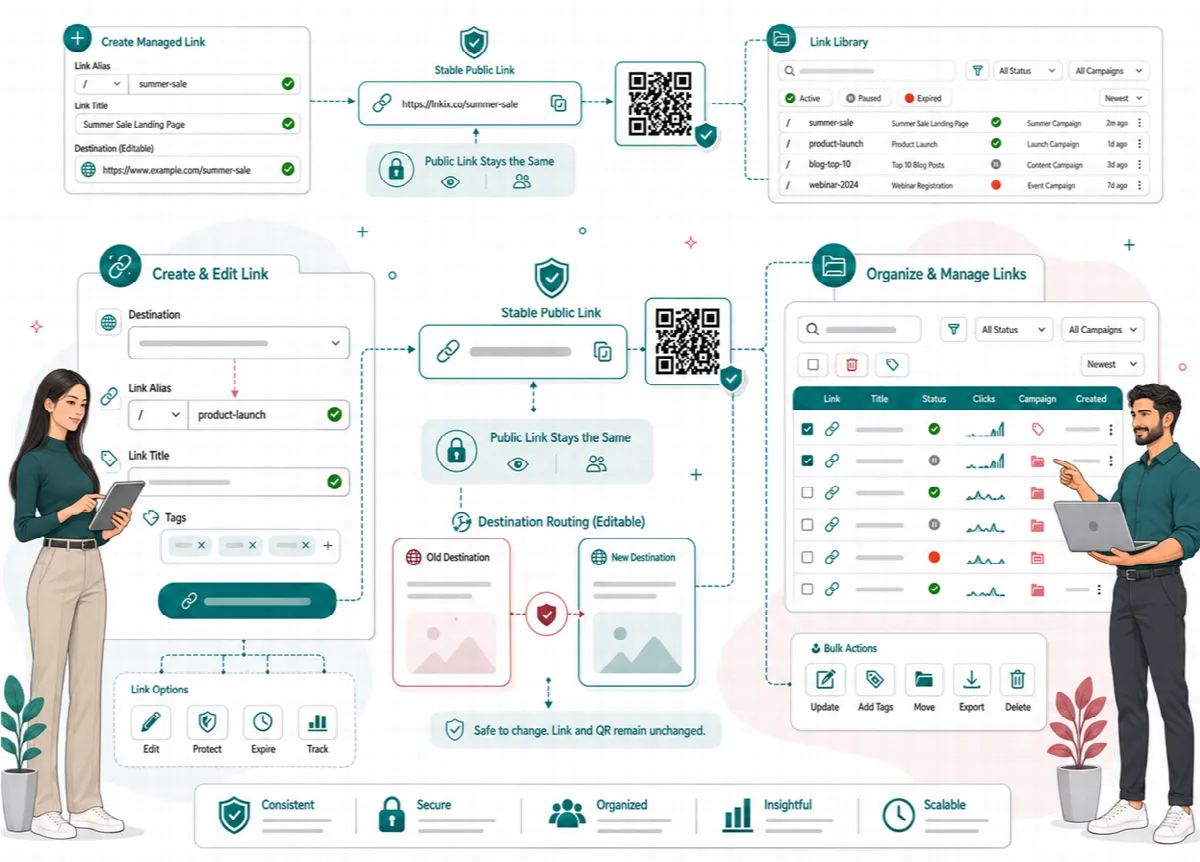
A Linkix short link is a short address on your own domain, such as example.com/s/spring-sale/, that sends visitors to a destination you choose. The public address stays the same while you can change the destination at any time.
Where to find it: Short Links in the Linkix menu (ARN Linkix in Pro, ARN Smart Linkix in Free). Short links are part of both editions.
Create a short link
- Open Short Links.
- In Short Slug (optional) (Short slug (optional) in Free), enter the alias: the part after the prefix, such as
spring-sale. Leave it empty to get a random five-character alias. - In Target URL, enter the full destination, starting with
https://orhttp://. - Leave Status on Active.
- Click Add short link.
The Type field shows manual for links you create on this screen. Links created from the post editor show the post type, for example post or page.
A few rules apply to aliases:
- Linkix turns the alias into a clean slug: lower case, with spaces and special characters replaced.
- If the alias is already in use, Linkix adds a number, for example
spring-sale-2. - Short links created with an empty alias, and short links created from the post editor, get a random five-character alias. See Use the Linkix URL Panel in the post editor.
Choose a readable alias for links that people type or see in print, such as flyers and QR cards. A random alias is fine for buttons and links that are only clicked.
Change the destination
- On Short Links, find the link (the search box finds a link by slug or target) and click Edit.
- Change Target URL and click Update short link.
Every copy of the short link that is already shared, including printed QR codes, follows the new destination on the next click. Short links always answer with a temporary (302) redirect, so browsers do not keep an old destination.
Short links for posts and pages. A short link created from the post editor belongs to that post. While the post is published, the short link follows the post's current address, so a changed slug or (Pro) a custom permalink does not break it.
Pause or delete a short link
- Pause: click Edit, set Status to Disabled and click Update short link. A disabled short link answers with a "not found" page until you set it back to Active.
- Delete: click Edit, then Delete short link, and confirm. A deleted link can no longer be opened, and its printed QR codes stop working.
Prefer pausing to deleting when a link may already be printed or shared.
The short link list
The list shows the 120 most recent short links: each link's slug and public address, target, type, hits and status, with Copy, Open and Edit buttons. The search box filters the links shown in the list.
- Linkix Pro shows the list as a table (Shortlink records) with the totals Total Links, Active, Disabled and Total Hits above it.
- Linkix Free shows each link as a card with its QR preview, hits, QR status and a Download PNG button. The status filter shows All statuses, Active or Disabled links.
For QR codes of several links at once, see Create QR codes and use QR Studio.
Change the short link prefix
The prefix is the path between your domain and the alias. The default is s.
- Open Settings → General.
- Change Shortlink prefix and click Save Settings.
- In Linkix Pro, also save the WordPress permalinks once (Settings → Permalinks → Save Changes) so the rewrite rules refresh.
Set the prefix before you share links. Changing it changes every short link address: links and QR codes already distributed with the old prefix stop working.
Sites with Plain permalinks
When the WordPress permalink structure is Plain (Settings → Permalinks), Linkix builds its public addresses as queries, so they open on every web server:
| Address | With Plain permalinks |
|---|---|
| Short link | example.com/?linkix_slug=abc12 |
| Bio page and splash page | example.com/?linkix_bio_slug= followed by the page slug |
| Smart App Link (Pro) | example.com/?linkix_smart_app_slug= followed by the link slug |
QR codes use these addresses too. Redirect rules and (Pro) custom permalinks are paths, so with Plain permalinks they do not work on Apache servers. Choose any other permalink structure if you use them. The address Linkix shows and puts into QR codes depends on the permalink structure, so choose the structure before you print QR codes.
Query parameters (Pro)
In Linkix Pro, Settings → Routing & canonical → Shortlink parameter policy decides what happens to query parameters that a visitor's link carries, such as ?utm_source=newsletter:
- Pass through query parameters (default): the parameters are added to the destination.
- Ignore query parameters: the destination is used as saved.
The destination's host never changes.
Troubleshooting: a short link opens a "not found" page
- Check that the link's Status is Active.
- Copy the public address from the list instead of typing it, and check the prefix.
- If you changed the prefix, save the settings again (and in Pro the WordPress permalinks).
- Check that the Target URL is a valid
httporhttpsaddress. - In Linkix Pro, check that the licence is active.
- Clear your page cache and test again in a private window.