
WebPix converts new uploads in the background and processes your existing library through jobs that work in small batches. This keeps uploads fast, keeps progress visible and lets you match the work to your server.
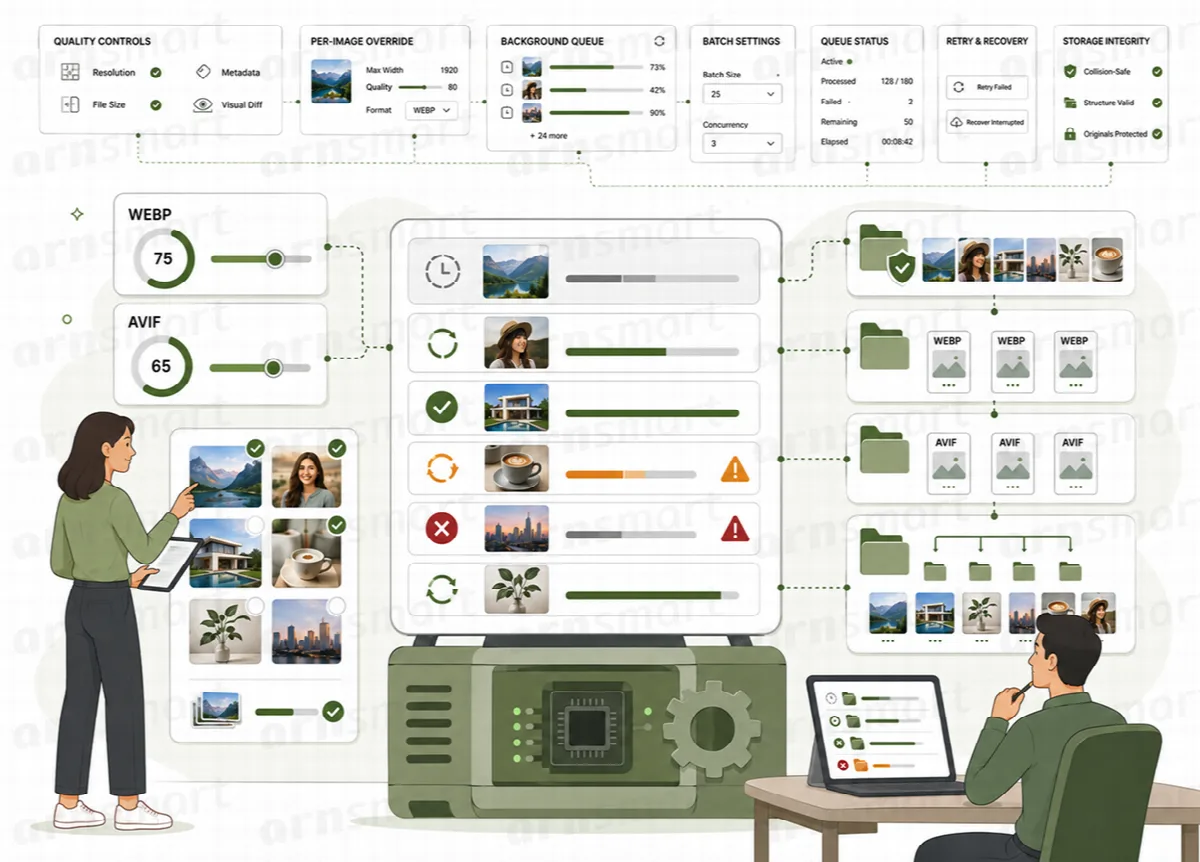
See where your library stands
WebPix Pro: ARN WebPix → Overview shows savings, converted images, images waiting to convert, errors in the last 30 days and a health summary. Library coverage shows how much of your library has every copy your settings ask for:
| Status | Meaning |
|---|---|
| Converted | Every copy exists |
| Partly | Some copies exist; a format or size is still missing |
| Not converted | No copies yet |
| Failed | Conversion failed |
Coverage reflects your selected formats and image sizes. "Saved" measures file-size savings, not a page-speed score. Coverage tells you what has been processed; to check what visitors actually receive, use Delivery & CDN → Check a page or Delivery health.
WebPix Free shows total media, convertible files, converted files, remaining files and a progress bar on its dashboard.
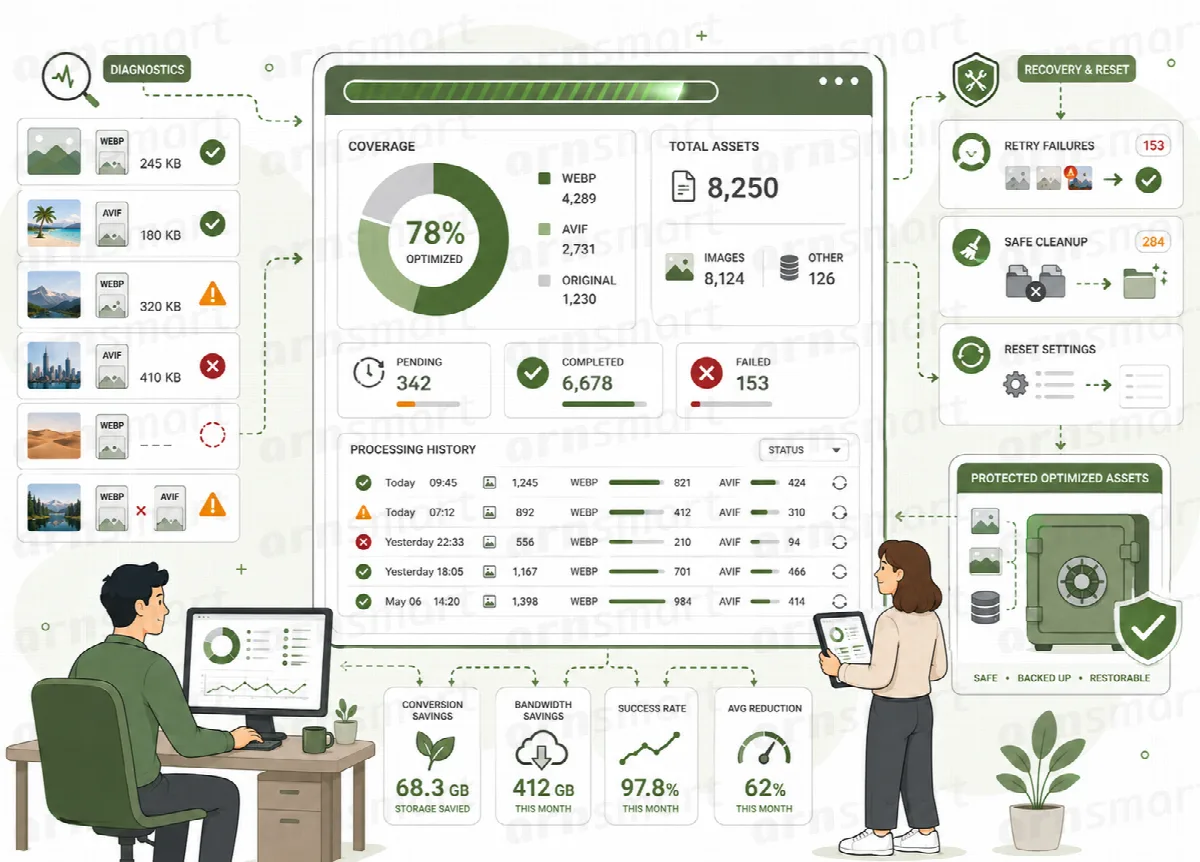
Run a library job (Pro)
Open ARN WebPix → Optimize.
- Check images waiting. If a library check is running, let it finish. Check library again starts a fresh scan; it does not convert anything.
- Check Output and Speed (change them in Settings), then click Start conversion. The button is disabled when nothing is waiting.
- Follow the job under Jobs. A running job has Pause and Cancel; a paused job has Resume and Cancel. Cancelling does not remove copies already created.
The Queue card shows Pending, Processing, Failed and Completed items, whether the background worker is on, when it runs next and whether new uploads are converted automatically.
Keeping the Optimize page open makes the job go faster. When you leave, the background worker continues, as long as WordPress scheduled tasks work. Large libraries and AVIF encoding take longer.
Other work also runs as jobs on this page: regenerating copies, compressing or restoring originals, importing copies from other optimizers, Media AI suggestions, watermarks, cloud uploads and delivery health checks.
Run a bulk conversion (Free)
On the ARN WebPix dashboard, in the Bulk Conversion card, click Start Bulk Conversion. Progress is shown live, and you can Pause, Resume or Cancel the job. The job continues in the background when you leave the page. The card shows the last run with converted, remaining and failed counts.
Work with single images
Media → Library (both editions): the WebPix column shows each item's status, and the bulk actions WebPix: convert and WebPix: regenerate copies queue the selected items. In an image's details, WebPix lists its copies with links to view and download them.
ARN WebPix → Library (Pro): search by title or file name and filter by Converted, Partial, Not converted, Failed, Skipped, Missing file, Low quality or Missing image sizes. Each row has the matching action:
| Status | Action |
|---|---|
| Not converted | Convert now |
| Partial | Complete creates only the missing copies |
| Failed | Retry |
| Converted | Regenerate recreates the copies |
A new upload may briefly show Converting… or Queued. Skipped is not always an error: the file type may be turned off, the image may be excluded or not supported, or it may already be WebP/AVIF.
Set automation (Pro)
Settings → Automation:
| Setting | Default | What it does |
|---|---|---|
| Convert new uploads | On | Converts images in the background right after you upload them |
| Background worker | On, every 5 minutes | Works through the queue on its own, even when nobody is in the admin. You can choose the Interval, from every minute to daily. |
| Convert missing sizes on page view | On | Queues an image when a page shows it without a copy; the visitor never waits |
| Smart worker | Off | For sites without a working cron: runs one small batch after a page was already sent to a visitor (needs PHP-FPM or LiteSpeed) |
Note: If WP-Cron is disabled on your site, WebPix shows a warning. Ask your hosting provider to add a server cron job that calls
wp-cron.php, or turn on the smart worker. Without either, the queue only moves while an admin page is open.
Set the speed (Pro)
Settings → Performance sets how hard WebPix works your server:
| Speed | What it does |
|---|---|
| Gentle | 2 images per batch with pauses. Best for shared hosting. |
| Balanced (default) | 5 images per batch, skipped while the server is busy. |
| Fast | Uses the advanced limits. For a VPS or dedicated server. |
Advanced limits:
| Limit | Default | Meaning |
|---|---|---|
| Images per batch | 10 | "Fast" speed only, 1 to 50 |
| Time per batch | 20 seconds | "Fast" speed only |
| Retry stuck items after | 15 minutes | When an item that stopped is tried again |
| Attempts per image | 3 | Then it is marked failed |
| Stop below free disk | 5 percent | Processing stops when free disk space falls below this |
If conversion slows down your site, switch to Gentle and click Save changes.
In WebPix Free, Batch Size (10 by default, up to 25) and Time Budget (seconds) (30 by default) in Optimization Settings control the batches.
Retry failed images
Optimize → Needs attention (Pro) lists failed conversions with the reason. Fix the cause first (for example a missing encoder, low memory or a missing file), then click Retry all. Single items can be retried on the Library page.
Retrying does not remove a hosting limit or recreate a missing source file. Use the failure reason to choose the fix, and check Support → Health for encoder support, memory and disk space.
(Pro) If a conversion, stylesheet copy, compression, watermark or cloud download stops halfway, the daily maintenance deletes the temporary files it left in the uploads folder once they are an hour old. Only WebPix's own temporary file names are touched.
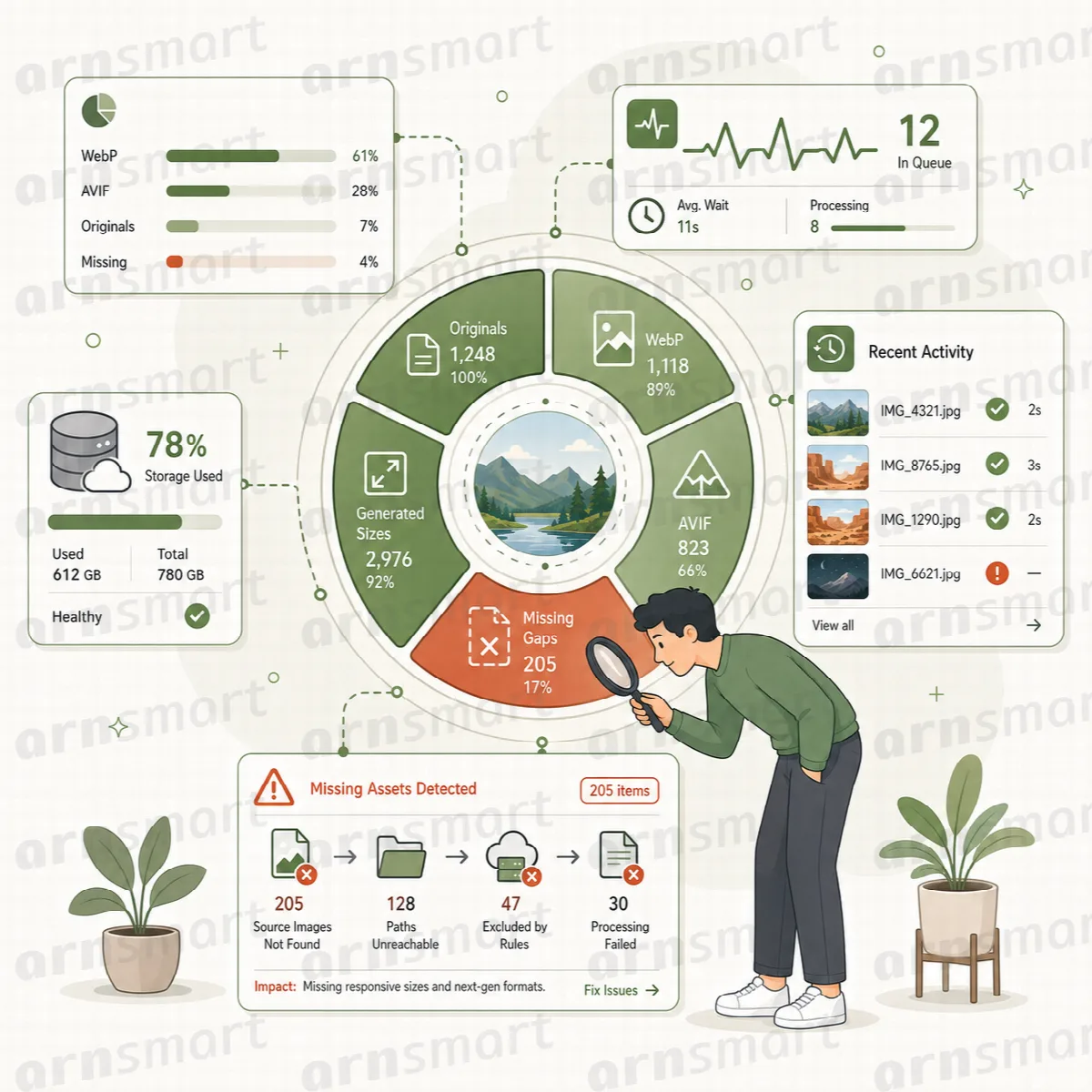
Media on hold until approval (Pro)
Another plugin can put a media item on hold until it is approved, for example the photos and videos of a customer review that waits for moderation in ARN Vendix. While an item is on hold, WebPix makes no WebP/AVIF copies, adds no watermark, does not upload it to cloud storage and does not send it to the AI, whatever starts the work.
- Library jobs leave held items out. A job started for selected media says how many items on hold were left out; if every selected item is on hold, the job does not start.
- A held item shows as Skipped, with a message that starts "This media item is on hold until it is approved."
- When the hold ends, the usual steps of a new upload run in the background: watermark, copies, cloud storage and Media AI suggestions.
- When an approved item is put on hold again, WebPix removes its WebP/AVIF copies and its files in cloud storage at once. The watermark stays.
For developers: the attachment meta _arn_webpix_hold holds an item while it has any value other than empty or 0. Plugins that decide with the arn_webpix_attachment_held filter call do_action( 'arn_webpix_release_attachment', $attachment_id ) when the hold ends.
No conversion limits
Neither edition caps the number of conversions. Processing depends on your server's CPU, memory, disk space and encoders.