
WebPix creates WebP and AVIF copies of your images and of every image size WordPress generated for them. This article explains the settings that decide what is converted and how small the copies get.
Where to find it:
- WebPix Pro: ARN WebPix → Settings (sections Format, Quality, Source files and Original files) and ARN WebPix → Optimize.
- WebPix Free: the Optimization Settings card on the ARN WebPix dashboard.
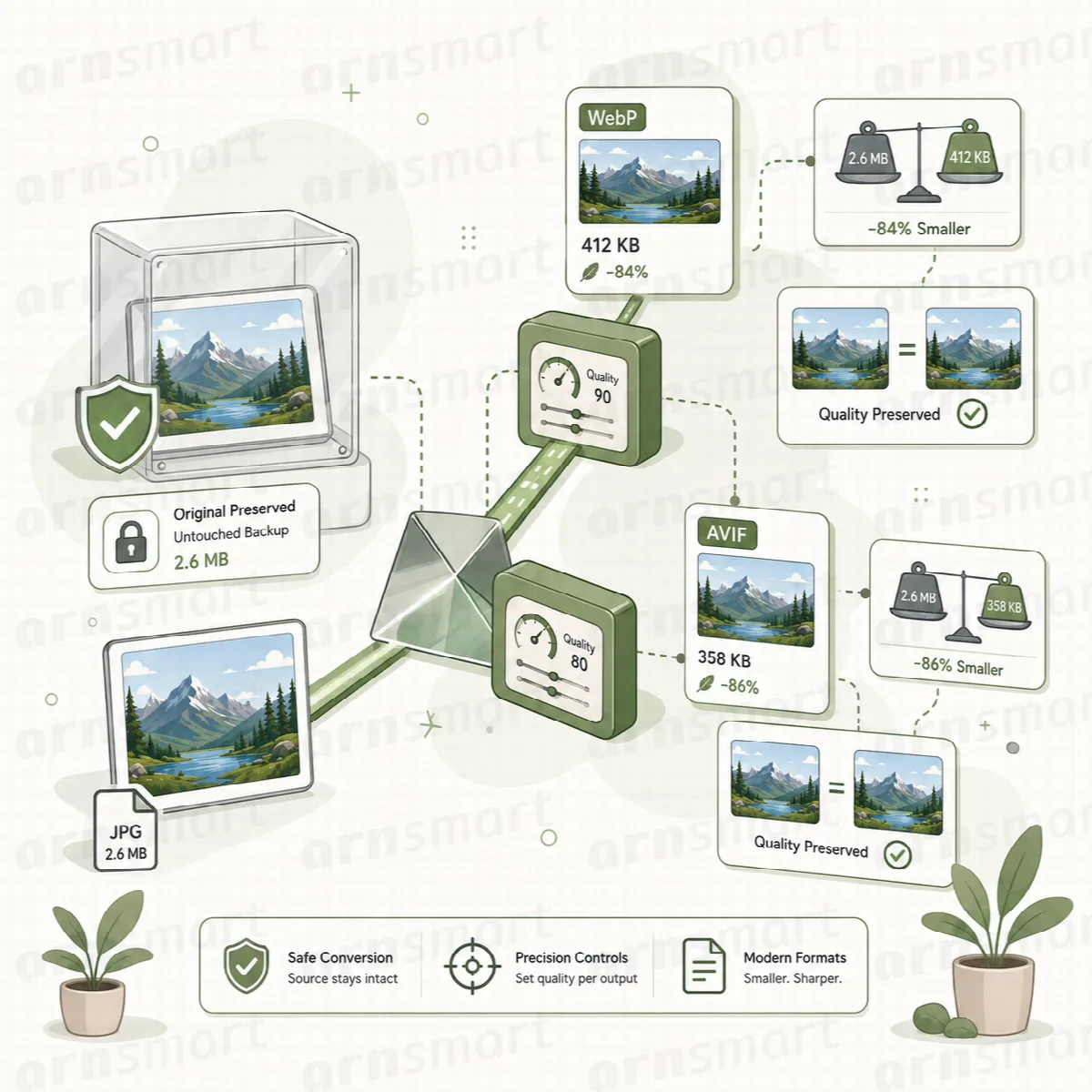
Originals stay as they are
Standard conversion never replaces your original file. Copies are stored separately, and pages fall back to the original whenever a suitable copy is not available. Only the optional tools for resizing and compressing originals (Pro) and watermarks (Pro) change the uploaded files themselves, and only when you turn them on.
Choose the output format
WebPix Pro (Settings → Format) offers three choices:
| Format | What it means |
|---|---|
| WebP (default) | The safe choice. Works in every browser in use today and encodes quickly. |
| AVIF | Usually smaller than WebP, but slower to create. |
| Both | Creates WebP and AVIF. Each image is served as the smaller of the two. Uses more disk space. |
A format your server cannot encode shows Not supported on this server. After you change the format, WebPix checks the library again. Existing copies stay; use Optimize → Start conversion to create the new ones.
WebPix Free offers WebP or AVIF, one format at a time.
Set the quality
Higher quality means larger files. Quality values control compression; they do not guarantee an identical look or a fixed saving, so judge them on representative images from your own site.
WebPix Pro (Settings → Quality) has presets and a custom mode:
| Preset | WebP / AVIF quality | Use it for |
|---|---|---|
| Smallest | 65 / 45 | The smallest files; visible softening on close look |
| Balanced (default) | 82 / 60 | Most sites |
| High | 90 / 75 | Photography and portfolios |
| Custom | Your values, 10 to 100 | Separate WebP and AVIF values under Custom values (WebP / AVIF) |
WebPix Free has an adjustable WebP Quality from 1 to 100 (82 by default). AVIF copies are made at a fixed standard quality.
Apply new quality settings to existing copies
Changing the quality only affects new copies. To update existing ones:
- WebPix Pro: Optimize → Regenerate copies recreates every WebPix copy with your current settings. To update single images, use Regenerate on the Library page.
- WebPix Free and Pro: select images in Media → Library (list view) and use the bulk action WebPix: regenerate copies.
To compare an original with its copy and see the real file sizes, use Optimize → Inspector → Pick an image from the media library (Pro).
Choose the source files (Pro)
Settings → Source files decides which originals WebPix converts.
| Source | Default | Notes |
|---|---|---|
| JPG / JPEG | On | |
| PNG | On | |
| GIF | Off | An animated GIF is converted from its first frame; the animation is not kept |
| BMP | Off | |
| TIFF | Off | |
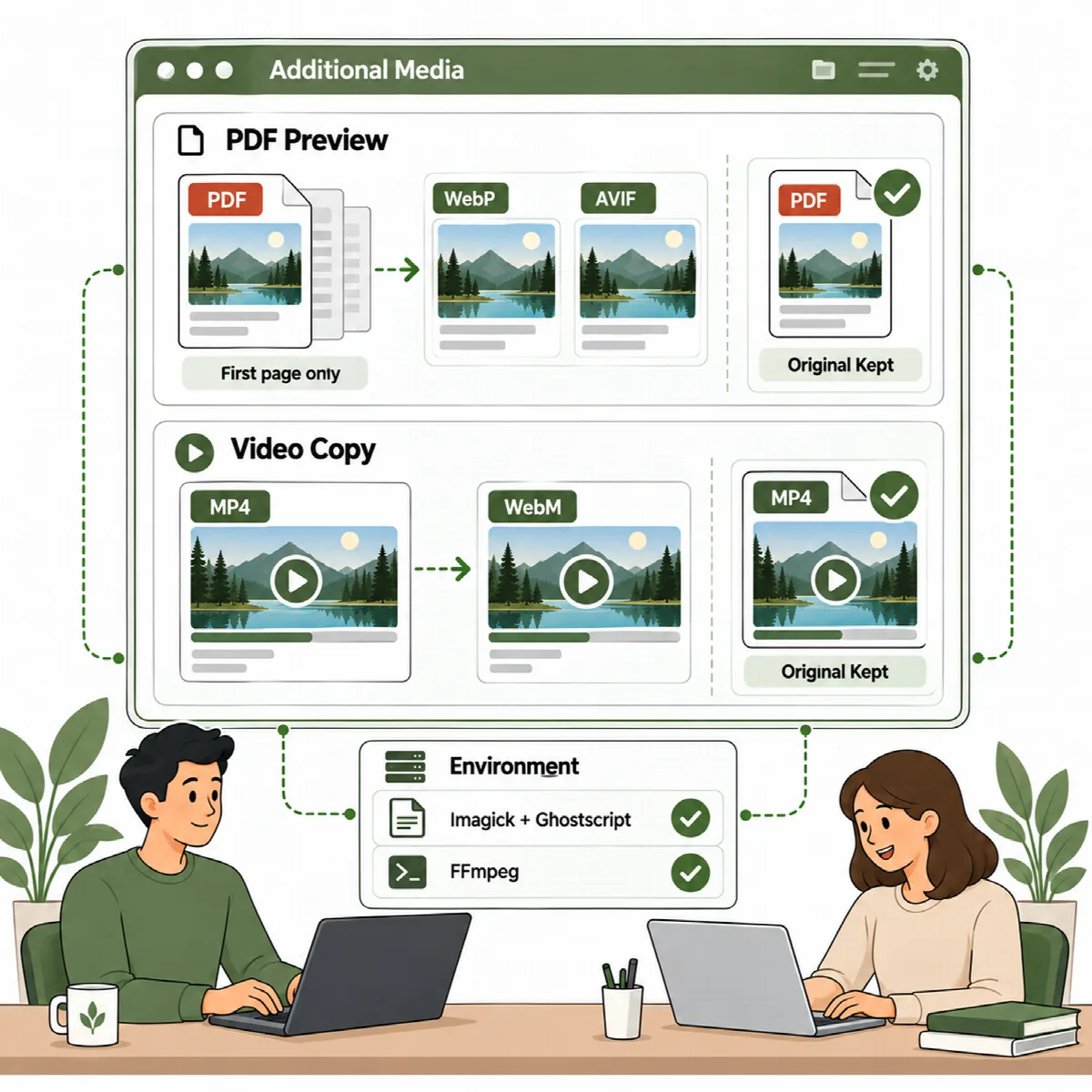
| PDF previews | Off | Creates an optimized image of the first page for PDF thumbnails. Needs Imagick with PDF support (Ghostscript). |
| Video (WebM) | Off | Creates a smaller WebM copy of uploaded videos; the original stays as the fallback. Needs FFmpeg. |
| Skip unused image sizes | On | No copies for image sizes that no theme or plugin uses any more |
An option your server cannot handle shows a note such as "Needs FFmpeg, which is not installed on this server".
WebPix Free converts JPG and PNG images only. Other media types are counted on its dashboard but not processed.
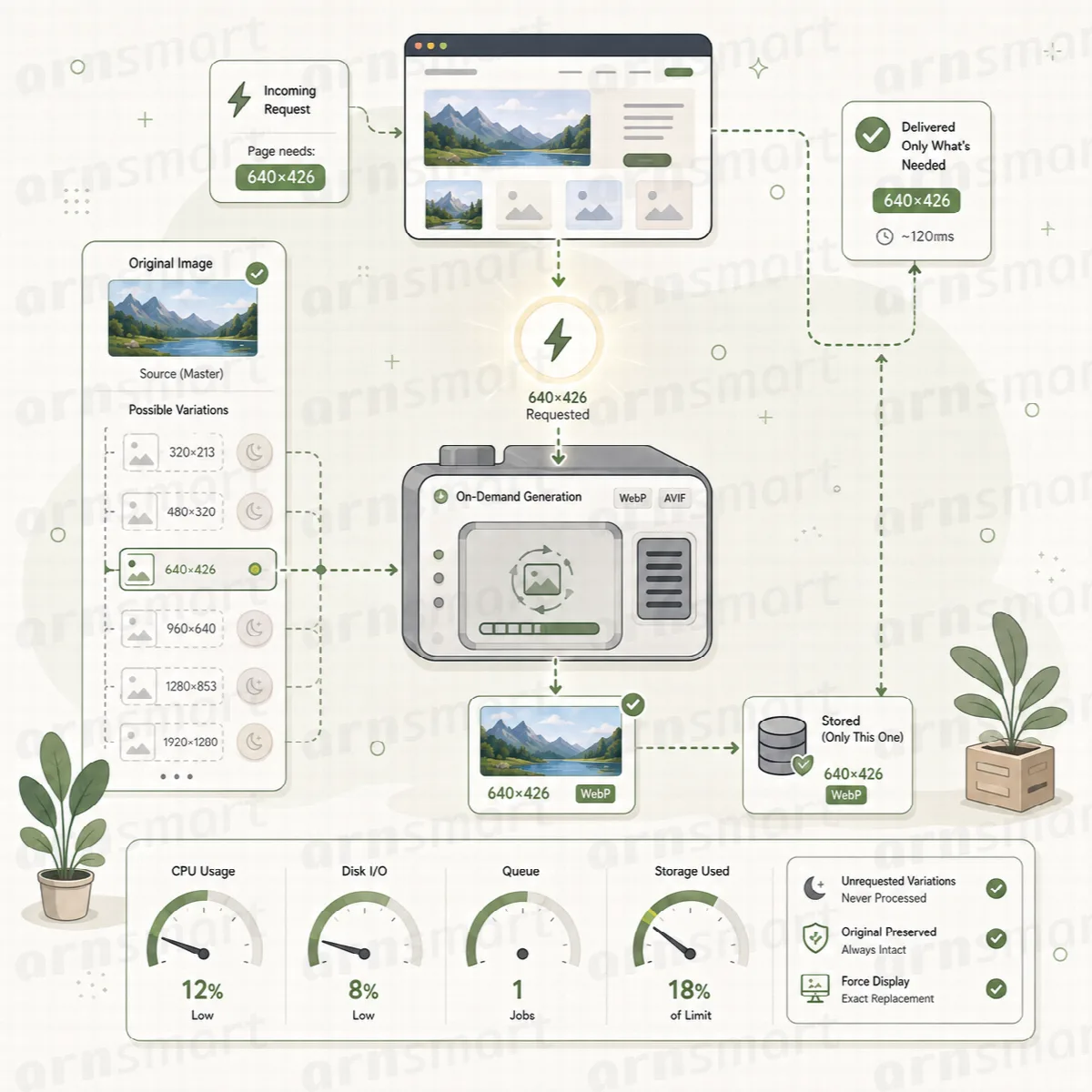
Convert missing sizes when a page needs them
A large library contains many image sizes that are rarely shown. Instead of converting everything up front, WebPix can convert a size when a page actually uses it.
- WebPix Pro: Settings → Automation → Convert missing sizes on page view (on by default). If a page shows an image without a copy, the image is queued and converted in the background. The visitor never waits: the current page keeps the original, and later page views get the copy.
- WebPix Free: missing copies seen on the site are converted later in the background in small batches. A file that fails is not tried again for 24 hours.
You can combine this with a library job: convert the library up front and let page views fill any gaps.
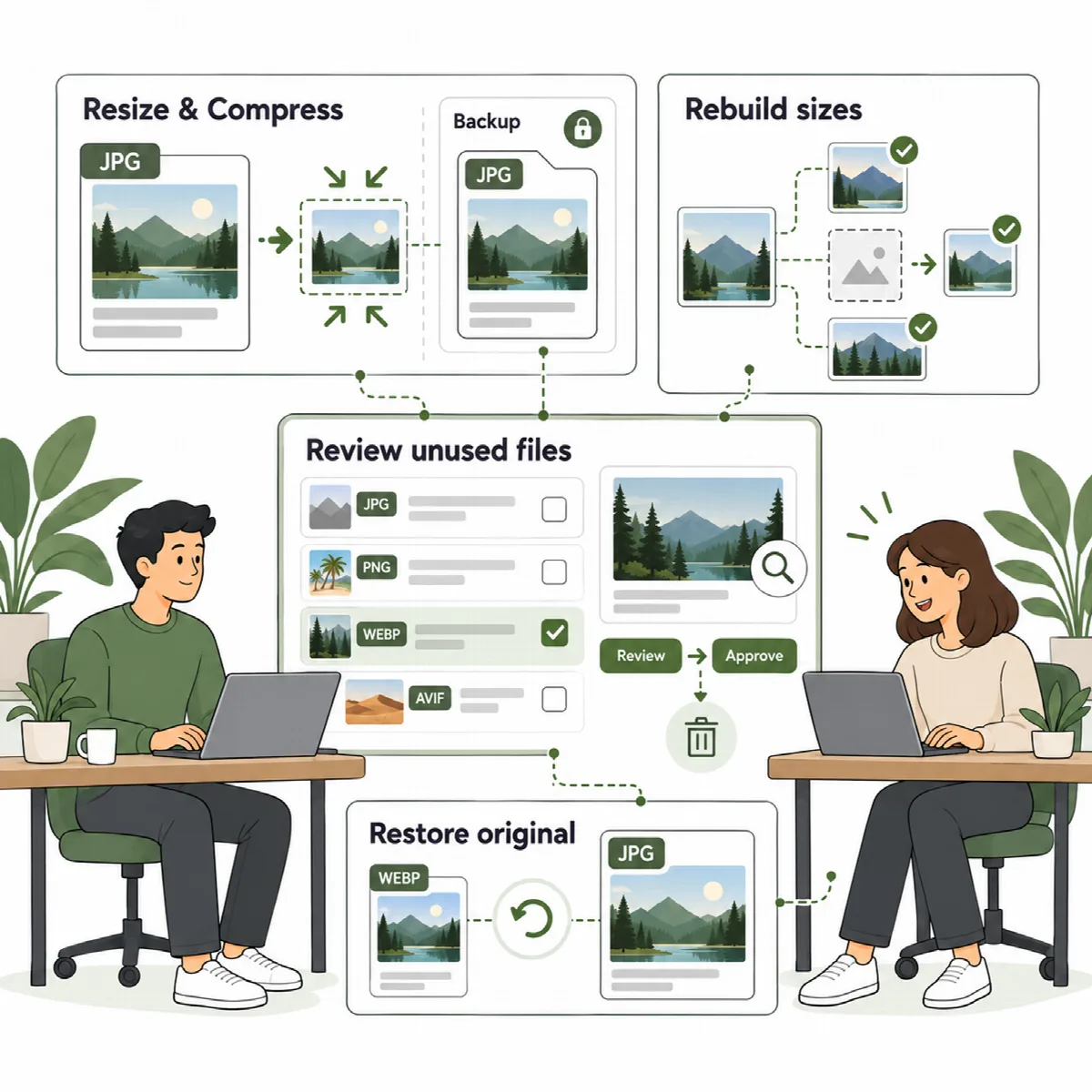
Shrink and compress originals (Pro)
Settings → Original files makes the uploaded files themselves smaller. These options are off by default because they change your uploads.
| Setting | Default | What it does |
|---|---|---|
| Shrink large uploads | Off | New JPG, PNG and WebP uploads wider or taller than the limit are scaled down before WordPress creates its sizes. Longest side in pixels: 2560 by default (800 to 10000). |
| Compress JPEG originals | Off | New JPG uploads are saved again at the JPEG quality you set (82 by default, 50 to 95). |
| Keep a backup of changed files | On | Copies each original to uploads/arn-webpix-backup before it changes. The backup folder uses disk space and is kept when the plugin is deleted. |
To work on the existing library, open Optimize → Original files:
- Compress … JPEGs saves the JPEG files in your library again at your quality. A file is replaced only when it becomes clearly smaller. JPEGs with an EXIF rotation are skipped. Existing images are not resized.
- Restore … originals puts the backed-up originals back, removes the backups and creates the WebP/AVIF copies again.
Note: Without a backup, shrinking and compressing cannot be undone. If you sell or print your original photos, leave both options off.
Limits
- What you can create depends on your server's encoders. AVIF, PDF previews and WebM copies are not available on every hosting account.
- A copy that is larger than its original is never served; visitors get the original instead.
- Neither edition caps the number of conversions. CPU, memory and disk space set the practical limits.