
WebPix Pro can copy your media to cloud storage and serve it from there, and it can send your WebP/AVIF copies through your CDN and purge changed files. Both are optional: WebPix works fully with local files.
Where to find it: ARN WebPix → Delivery & CDN, sections CDN and Cloud storage.
Where WebPix keeps its copies
WebPix stores its copies in a separate folder inside your uploads folder, in the same structure as the originals: uploads/arn-nextgen/<format>/… (WebPix Free uses uploads/arn-image-optimizer/). WebPix keeps track of which copy belongs to which original and image size, so regeneration, renaming, cleanup and cloud storage stay in step.
(Pro 3.0.4 and later) A copy keeps the full file name of its original, for example photo.jpg.webp for photo.jpg, so photo.jpg and photo.png in one folder get separate copies. After an update from 3.0.3 or earlier, WebPix gives the old copies (photo.webp) their new names once in the background. The old files stay, because cached pages may still name them; Library → Storage lists them as obsolete copies, and you delete them there. See Clean up storage and unused image sizes.
Cloud storage
Cloud storage copies your media (originals, image sizes and WebP/AVIF copies) to a storage service and serves it from there. Your files stay on this server unless you choose otherwise.
Supported services:
- Amazon S3
- Cloudflare R2
- Wasabi
- DigitalOcean Spaces
- Bunny Storage
- Other S3-compatible storage
You need your own storage account. Storage and transfer charges come from your provider. Files larger than 200 MB stay on this server.

1. Enter the connection
Open Delivery & CDN → Cloud storage and choose your service under Storage. Then fill in:
- Bucket, or for Bunny the Storage zone name.
- Access key ID and Secret access key, or for Bunny the Storage zone password.
- Region, where your service needs one (for Bunny: Storage region, empty for Falkenstein).
- S3 API endpoint for Cloudflare R2 and Other S3-compatible, as an
https://address. The endpoint may include its own port, such as:9000. - Public address: where visitors load the files. This is the bucket address, its custom domain or a CDN in front of it (R2: r2.dev or your domain; Bunny: the pull zone). While cloud storage serves the files, this address replaces the CDN address.
- Folder in the bucket (optional), for example one folder per site when several sites share a bucket.
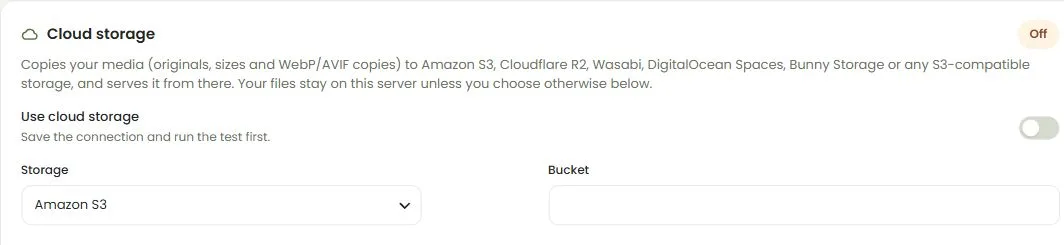
2. Test the connection, then switch it on
Save the settings and click Test connection. When the test succeeds, turn on Use cloud storage.
Keys are stored on this site only, encrypted with a key derived from your WordPress salts, and are never shown again. Leave a key field empty to keep the saved key. If your WordPress salts change, enter the keys again. (Pro 3.0.4 and later) A saved key is never sent to a new address: if you change the Storage service, the S3 API endpoint or the Region, enter the keys again in the same form, or saving stops with "The address changed: enter the saved keys again. A saved key is never sent to a new address." (Pro 3.0.5 and later) While some files are only in the bucket, another service, endpoint, bucket or folder is not saved; run Bring files back first.
3. Choose what happens to your files
| Setting | Default | What it does |
|---|---|---|
| Upload new media automatically | On | Uploads new media about a minute after the upload, when its WebP/AVIF copies exist. |
| Include WebP/AVIF copies | On | Visitors also get the copies from the bucket. |
| Serve files from the bucket | On | Pages, the media library and the REST API use the public address for files in the bucket. Off means the bucket is only a backup. |
| Delete local copies after upload | Off | Deletes WebP/AVIF copies and image sizes from this server once they are safely in the bucket. WebPix downloads them again when it needs them. |
| Delete the originals too | Off | Only together with the option above. The originals then exist only in the bucket. |
Note: If originals exist only in the bucket, other plugins that read image files from disk (backups, image editors, galleries) may stop working for those images. Keep a backup of your bucket. Change the deletion options only after you have checked that uploads and public delivery work.
4. Upload your existing library
Click Upload the library to send the media that is not in the bucket yet. The job appears on the Optimize page. The card shows how many media items and files are in the bucket.
Bring files back
To move away from cloud storage, click Bring files back. It downloads every file that is missing on this server and removes the media from the bucket.
Note: Files deleted from this server load only through WebPix. Before you deactivate or delete WebPix, run Bring files back and wait until it finishes.
Media on hold
Media that another plugin holds until it is approved (for example review photos in ARN Vendix) is not uploaded until it is approved. If an approved item is put on hold again, WebPix removes its files from the bucket at once; files that existed only in the bucket come back to the server first.
CDN
WebPix connects to your existing CDN. It does not include a CDN subscription.
Serve copies through a CDN address
Under Delivery & CDN → CDN, fill in CDN address for copies only if you use a separate CDN host for your files. WebP/AVIF addresses then use that host; the path stays the same. Leave it empty if your CDN proxies your whole site, as Cloudflare usually does.
Purge changed files
When a copy is created or regenerated, WebPix can purge its address from your CDN, in batches and in the background.
- Under Purge through, choose Cloudflare, Bunny CDN, KeyCDN, Fastly or Custom webhook.
- Enter the credentials: API token / key and the Zone ID (Cloudflare, KeyCDN), Pull zone ID (Bunny, used for "purge everything") or Service ID (Fastly). Save.
- Click Test connection.
- When the test succeeds, turn on Purge changed files automatically and save again. This option is off until you turn it on.
Purge everything clears the whole CDN cache. The card also shows the last purge and how many addresses are waiting.
Custom webhook
With Custom webhook, WebPix sends a JSON POST with the changed addresses to your Webhook URL, in the form {"event":"purge","urls":[…]}. An optional Signing secret adds the header X-ARN-WebPix-Signature: sha256=<HMAC>, so your endpoint can check that the request comes from your site.
Tokens and secrets are stored on this site only and never shown again. Leave a field empty to keep the saved value. (Pro 3.0.4 and later) If you change Purge through or the Webhook URL, enter the saved token or secret again in the same form.
Check the result
Run Delivery & CDN → Delivery health after you set up cloud storage or a CDN. It reports addresses that the CDN or the bucket does not deliver and can repair them. See Deliver images and verify delivery.