
Creating copies is only half the work: your pages also have to point to them. This guide explains how WebPix delivers copies, how to check that visitors really receive them and how delivery works with caches, CDNs and page builders.
Where to find it: ARN WebPix → Delivery & CDN (Pro). WebPix Free delivers automatically and has no delivery settings.
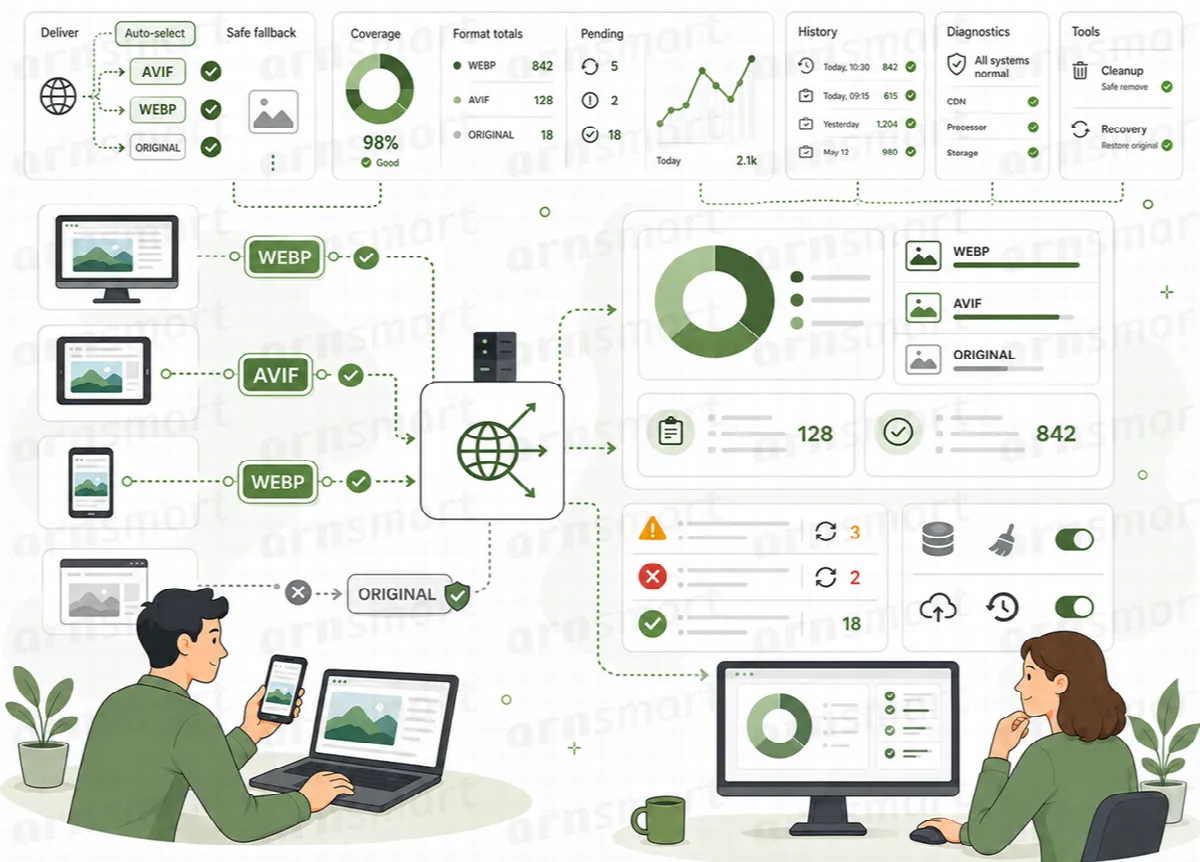
How delivery works
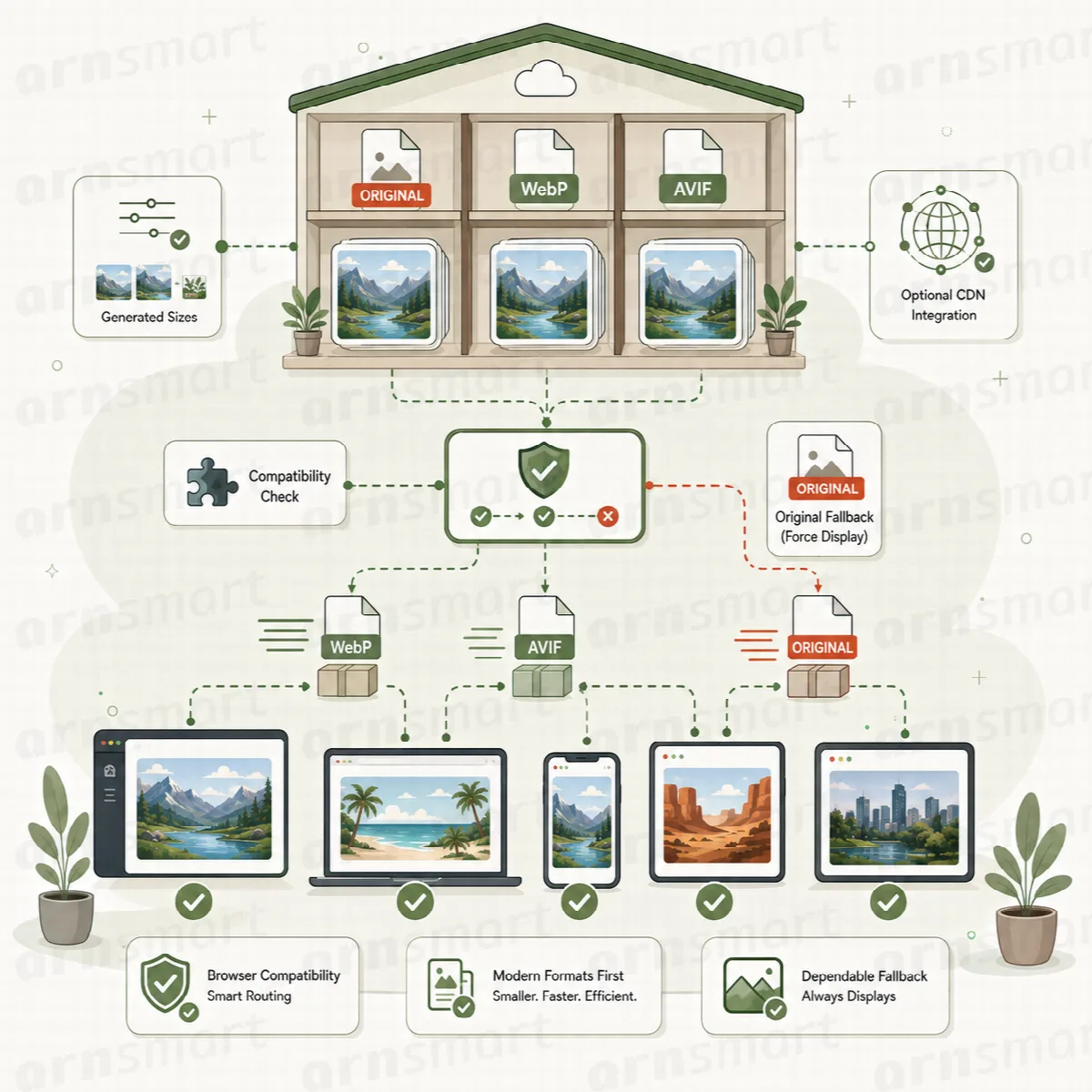
When WordPress builds a page, WebPix looks at the images on it and points each one to its WebP or AVIF copy, if a suitable copy exists. This covers image tags, responsive srcset references and common lazy-load attributes, and every image size is served from its own copy.
- If a copy is missing, the page keeps the original image. With Convert missing sizes on page view on (Pro), the missing copy is queued for later.
- If a copy is larger than its original, the original is served.
- WebPix never sends a
Vary: Acceptheader, so page caches keep one version per page and work as usual.
WebPix Free replaces image addresses on the whole page in this way. It has no other delivery method.
Choose the delivery method (Pro)
Open Delivery & CDN → Delivery method:
| Method | What it does | When to use it |
|---|---|---|
| Replace image URLs (default) | Pages point straight to the WebP/AVIF copy. With both formats, each image points to the smaller copy. | Recommended. Works with every page cache and CDN and adds no extra markup. |
<picture> with fallback | Wraps images in a <picture> element with AVIF and/or WebP sources and the original as the last fallback. | When you need a fallback for older browsers. Adds markup; some themes style images in ways that break inside <picture>. |
| Off | Copies are still created, but pages keep the original images. | When another plugin or the server delivers the copies. |
Note: Safari on iOS before version 16 cannot show AVIF. If you create AVIF copies with Replace image URLs and those devices matter to you, choose
<picture>with fallback and check your theme's appearance.
After you change the method, clear your page cache and, if you use one, your CDN cache. Cached pages still contain the previous image addresses.
Speed up image loading (Pro)
Delivery & CDN → Page speed makes small changes to the page HTML so that images appear sooner. All three options are on by default and only apply while the delivery method is not Off.
| Setting | What it does |
|---|---|
| Background images in stylesheets | Page builders such as Elementor keep background images in their own CSS files. WebPix loads a copy of those files with the WebP/AVIF images in place. The builder's files are never changed. |
| Load the main image first | The first large image on a page gets high priority and loses lazy loading, and with Replace image URLs it is preloaded. Logos and icons are skipped. |
| Add missing image dimensions | Adds width and height to images that have none, so the page does not jump while images load. Turn it off if your theme stretches images that carry a height. |
Copies of new or changed builder stylesheets are prepared in the background through WordPress scheduled tasks. Until a copy is ready, the page loads the builder's own stylesheet. An unchanged copy is not written again, so browsers keep their cached file.
These options address how images load. Overall page speed still depends on your theme, scripts, hosting, caching and page content.

Check a page (Pro)
Delivery & CDN → Check a page loads one page like a visitor and counts the images that arrive as WebP/AVIF.
- Enter the address of a page on your site that contains images.
- Click Check.
- Read the result, for example "8 of 8 library images on this page are served as WebP/AVIF."
The check covers images from your media library on that one page. Check your home page, a post and, if you have a shop, a product page.
Check delivery health (Pro)
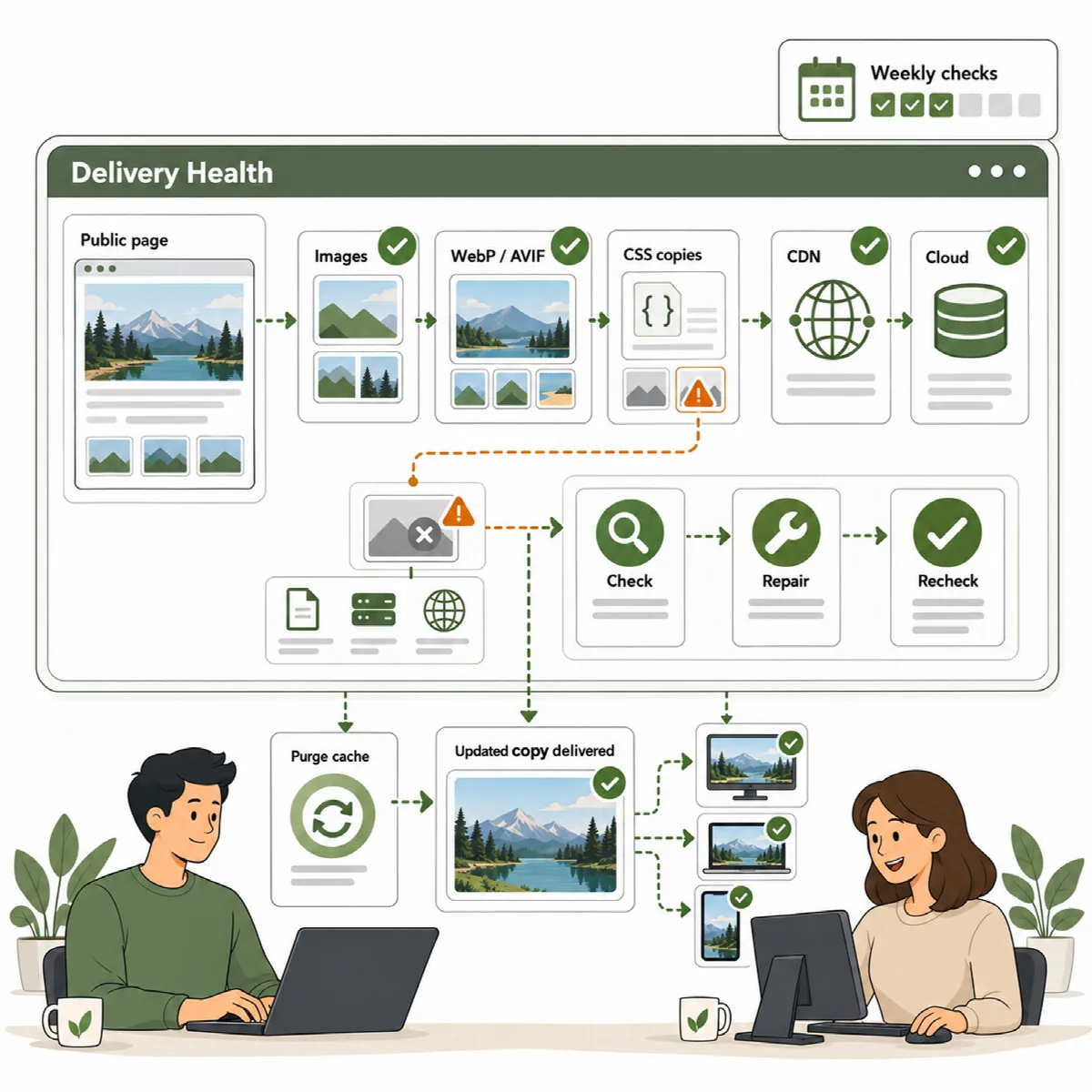
Delivery & CDN → Delivery health loads your home page and the most recently changed posts and pages like a visitor, and checks that every file WebPix serves really loads: images, WebP/AVIF copies, rewritten stylesheets, and CDN and cloud storage addresses. Files of themes and other plugins are not checked.
- Click Check now. The check runs in the background; you can follow it on the Optimize page.
- Read the result: pages loaded, addresses checked and how many are broken. Addresses the server itself cannot reach are listed as not reachable and are not counted as broken.
- Review the list of broken files, then click Repair. Media items are converted again and, with cloud storage, uploaded again in the background. The list is checked again when the repair is done.
Each broken file has a type that tells you what Repair does:
| Type | What it means |
|---|---|
| WebP/AVIF copy | The copy is missing. Repair makes it again. |
| Stylesheet copy | Rebuilt on the next page view after Repair. |
| CDN | The file is fine on your server, but the CDN does not deliver it. Repair purges these addresses. |
| Cloud storage | Missing or not public in the bucket. Repair uploads the media item again. |
| File missing | Image sizes are rebuilt from the original. A missing original needs a new upload with Replace file. |
Check every week is on by default. It runs the same check in the background at the gentle speed, and a notice appears on the WebPix screens when something is broken. These checks cover the addresses WebPix manages; they do not replace general monitoring of your whole site.
Page builders and content loaded later
WebPix Pro is built to work with page builders and dynamic content:
- Builder editors and previews keep the original addresses. This applies to Elementor, Beaver Builder, Divi, Oxygen, Bricks, Thrive Architect, WPBakery Page Builder and the WordPress Customizer preview, and to Brizy, Zion Builder, SiteOrigin Page Builder, Visual Composer Website Builder and Themify Builder. Builders therefore do not save WebP/AVIF addresses into your content.
- Content loaded after the page (modals, tabs, "load more" sections) is delivered with copies too.
- Content loaded through the REST API is rewritten only for GET requests that read it for display, not for
context=edit. Answers fromadmin-ajax.phpare not rewritten for logged-in users who can edit content. Visitors still get the copies. - WooCommerce product images are delivered like any other library image.
To leave a page completely unchanged, add it under Settings → Exclusions → Pages. See Switch from another optimizer and set exclusions.
Other optimizers, caches and image CDNs (Pro)
Only one product should rewrite your image addresses. WebPix Pro flags overlapping plugins under Support → Health and tells you what to change under Optimize → Switching from another optimizer?. For example:
- LiteSpeed Cache: turn off Image WebP Replacement under Image Optimization.
- WP Rocket: turn off Enable WebP caching under Media; it is not needed with WebPix's default delivery.
- Jetpack Site Accelerator and Autoptimize image optimization serve images from their own CDN, so WebPix copies are not used. Turn one of them off.
Troubleshooting: visitors still see JPG or PNG
- Make sure the delivery method is not Off (Pro).
- Make sure the images are converted. Check the Library page (Pro) or the dashboard (Free).
- Clear your page cache and CDN cache, then run Check a page again (Pro).
- Remember that copies larger than their originals are not served, and images outside your media library or on another server are not converted.
- Check whether another plugin also rewrites image addresses.
To compare a page with its original images, add ?arn_webpix_off=1 to its address (Pro). WebPix then leaves the image addresses of that request unchanged.