
Over time a media library collects files nobody sees: copies of originals that were deleted outside WordPress, and image sizes left behind by themes and plugins you no longer use. WebPix helps you find and remove them, and nothing is deleted until you choose.
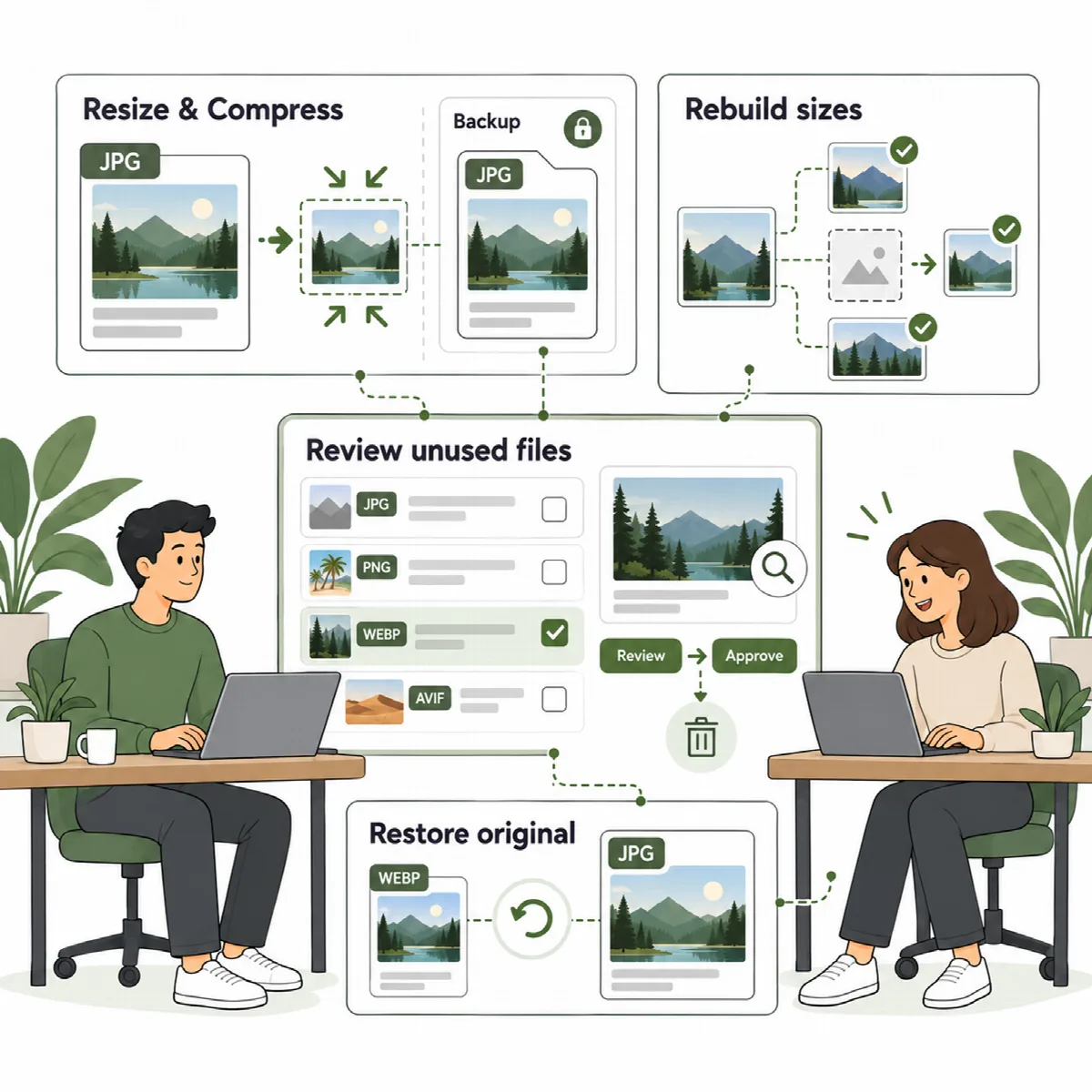
Check storage and copies without an original
Both editions include a storage check. It shows how much disk space the WebP/AVIF copies use and finds copies whose original no longer exists, for example because the original was deleted or renamed outside WordPress. (Pro 3.0.4 and later) In WebPix Pro it also lists obsolete copies: copies with the name WebPix Pro 3.0.3 or earlier gave them (photo.webp instead of photo.jpg.webp), which WebPix no longer uses.
Where to find it: ARN WebPix → Library → Storage (Pro) or the Storage card on the ARN WebPix dashboard (Free). In WebPix Free the check also runs once a day on its own.
- Click Check storage.
- If files are listed as without an original (Pro: obsolete or without an original), click Review and delete.
- Untick anything you want to keep. Only ticked files are deleted; originals are never touched.
- Click Delete selected.
The list shows up to 1,000 files at a time. Delete those, then check storage again for the rest. If the check stops after its time limit, run it again to continue.
Remove unused image sizes (Pro)
Themes and plugins register image sizes. When you switch one off, its sizes stay on disk. WebPix Pro finds these sizes and shows how much space they use.
Where to find it: ARN WebPix → Library → Unused image sizes.
- Click Check image sizes. Nothing is deleted yet. On a large library, use Continue check until the check has covered the whole library.
- Click Review and delete to see the unused sizes, with their file and image counts.
- Tick the sizes to delete, click Delete selected and confirm.
The files of those sizes, their WebP/AVIF copies and their metadata entries are removed. Originals and sizes still in use are never touched, and files shared with a size in use are kept.
Note: This cannot be undone. A page that links to one of these files directly (for example in custom HTML) would show a broken image. Check how your site uses older images before you delete.
To avoid creating copies for such sizes in the first place, keep Settings → Source files → Skip unused image sizes on (the default).
Rebuild missing image sizes (Pro)
If image tiles look empty or an image size is missing from disk:
- Open Library. When images have sizes whose file is missing, a warning at the top says how many. The filter Missing image sizes lists them.
- Click Rebuild missing sizes in the warning. WebPix regenerates the missing WordPress sizes from the original in a background job and then creates their WebP/AVIF copies.
If the original file itself is missing, restore it from a backup or upload it again with Replace file.
Regenerate copies
When you change the quality or a copy needs to be recreated:
- WebPix Pro: Optimize → Regenerate copies deletes the WebP/AVIF copies WebPix made and creates them again with your current settings. Originals are not touched. If the page shows copies made at a very low quality by an earlier version, Fix them recreates only those.
- Both editions: select images in Media → Library (list view) and use the bulk action WebPix: regenerate copies.
WebPix and ARN DualFix
While WebPix Pro is active and licensed, ARN DualFix leaves unused image sizes and missing size files to WebPix, so the two plugins never clean the same files.