
If you used another image optimizer before, WebPix Pro can reuse the WebP and AVIF files it made instead of converting everything again. Exclusions let you keep folders, images or pages out of WebPix.
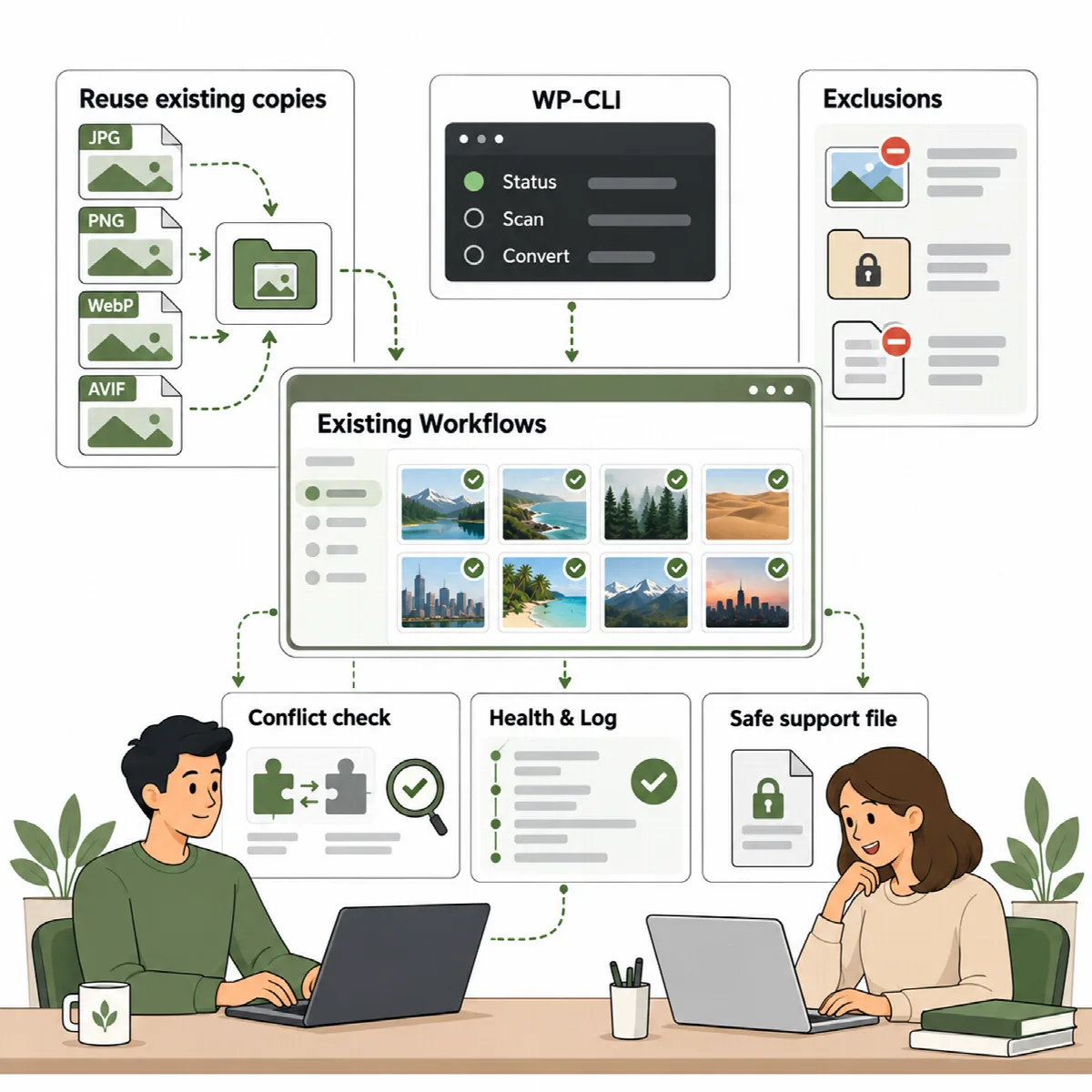
Import copies from another optimizer
Where to find it: ARN WebPix → Optimize → Switching from another optimizer?
WebPix can reuse WebP/AVIF files made by:
- EWWW Image Optimizer
- ShortPixel Image Optimizer
- Imagify
- Smush and Smush Pro
- WebP Express
- Converter for Media
- LiteSpeed Cache
- WebPix Free (ARN Smart Image Optimizer)
The card lists the optimizers installed on your site, whether they are active, and how many of your latest images already have a copy from another plugin. Even if the old plugin is no longer installed, WebPix can still look for its files.
A file is imported only when it is a real image of that format, is newer than the original and is smaller than it. Not every existing file can be imported, and the other plugin's files are left in place.
- Read the notices in the card.
- Click Import existing copies. The import runs as a job on the Optimize page.
- When the import has finished, deactivate the previous plugin. WebPix offers a Deactivate button for it.
- Start a conversion for any images that still need copies.
Note: Import first, then deactivate. If two plugins convert and deliver the same images at once, pages can end up with broken or doubled image addresses.
Avoid two plugins rewriting the same images
Only one product should change your image addresses. When another active plugin also replaces images with WebP/AVIF (for example an image optimizer or Optimole), WebPix warns you: import its files, then turn off its WebP feature or deactivate it.
WebPix also recognizes the image features of cache and CDN plugins and tells you what to turn off:
| Plugin | What WebPix advises |
|---|---|
| LiteSpeed Cache | Turn off Image WebP Replacement under Image Optimization |
| WP Rocket | Turn off Enable WebP caching under Media; it is not needed with WebPix's default delivery |
| Jetpack | Site Accelerator (image CDN) serves its own copies; turn one of them off |
| Autoptimize | Its image optimization serves images from its own CDN; turn it off to use WebPix copies |
With any page cache plugin, clear the cache after changing the delivery method so visitors get the new image addresses. Support → Health also reports when another plugin changes image URLs.
Set exclusions
Where to find it: ARN WebPix → Settings → Exclusions.
Write one rule per line and use * as a wildcard for any characters. Rules are not case-sensitive. Excluded files are not converted and always load as the original.
| Field | What to enter | Examples |
|---|---|---|
| Folders | Folders relative to the uploads folder, including everything below them | 2024/05, woocommerce_uploads/* |
| Images | File names or paths relative to the uploads folder. A rule for an image also covers its generated sizes: photo.jpg also covers photo-300x200.jpg. | logo.png, icons/*, *-banner.jpg |
| Pages | Page addresses without the domain. Images on these pages are not replaced. A rule without * matches that one page only. | /checkout/* |
Click Save changes after editing the rules.
Exclusions control conversion and delivery. To keep images away from the AI, use Never send to AI instead. See Describe images with Media AI.
Moving from WebPix Free to WebPix Pro
WebPix Free is in the import list. Import existing copies takes the WebP and AVIF copies WebPix Free made (in uploads/arn-image-optimizer/) into WebPix Pro's own folder, with the same checks as for other optimizers, and WebPix Free's files stay in place. WebPix Free does not rewrite images while WebPix Pro is active and licensed, because it pauses itself, so WebPix shows no conflict warning for it. In Pro 3.0.0, WebPix Pro does not import WebPix Free's copies and creates its own. See FAQ about editions, licences, removal and support.