
With AI connected, the ticket screen offers an AI assistant for agents and administrators. Everything it produces is a suggestion: the agent reads it, edits it and decides what to apply or send.
Where to find it: the AI assistant card and the reply toolbar on the ticket screen.
Before you start
- An administrator has connected a provider and allowed AI requests. See Connect AI and set AI limits.
- Agents can use AI only when Agents can use AI on the tickets they can open is on (it is on by default). Otherwise the card says AI is not available for your account.
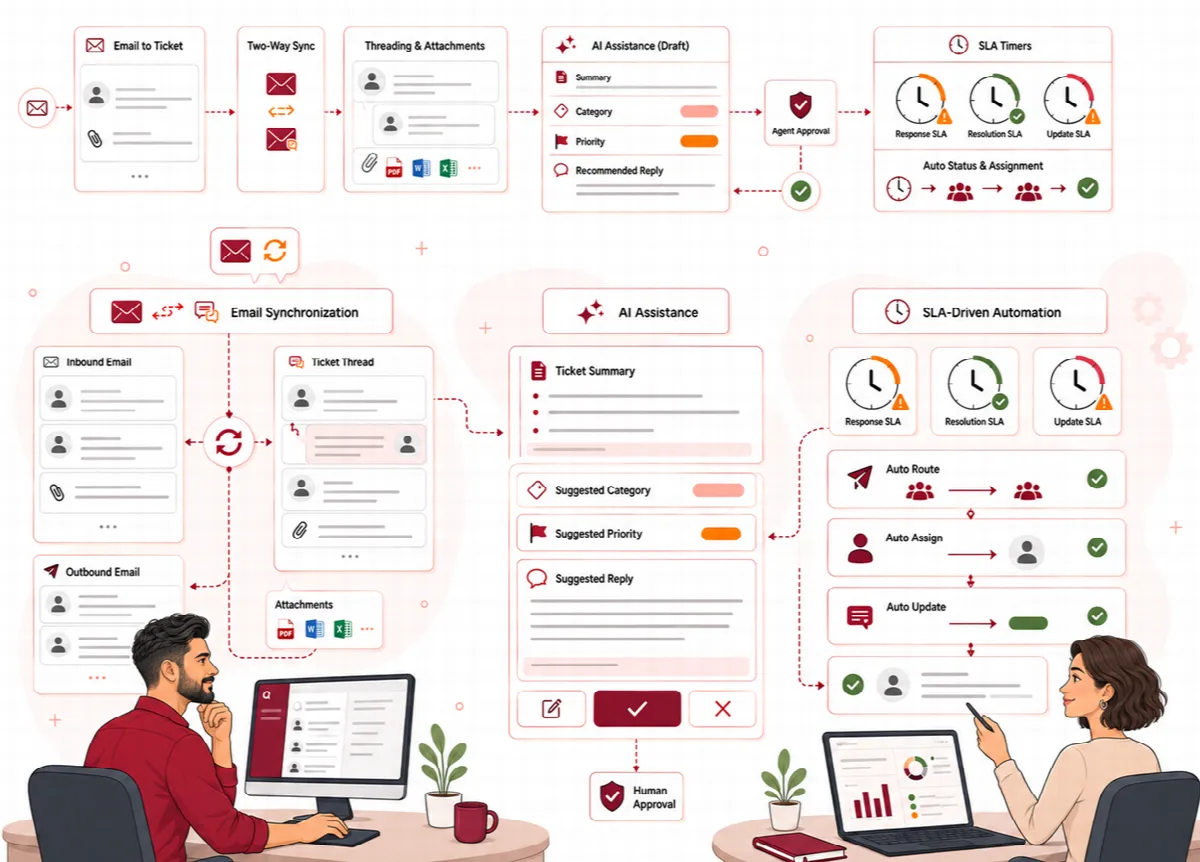
Summarize a conversation
- In the AI assistant card (marked Suggestions only), click Summarize.
- Read the summary: Customer goal, Current status, Next step and Open questions, in your interface language.
- To hand the ticket over, click Copy to handoff summary. The summary is copied into the handoff form.
If the conversation has not changed, Ticketix shows the saved summary again without a new AI request.
Translate customer messages
Click Translate under a customer message to read it in your language. Translations are kept per message and language. Nothing is sent to the customer.
Draft and improve replies
The reply toolbar has four AI actions:
| Action | What it does |
|---|---|
| Draft reply | Drafts a reply from the recent conversation, up to three published public Knowledge Base articles that match the ticket and the three closest canned replies |
| Ask for info | Drafts a question that asks the customer for the details the ticket still lacks |
| Translate to customer | Translates the reply you wrote into the customer's language |
| Fix tone | Corrects tone and spelling; Undo brings back your text |
Under Draft options you can choose the Tone (Formal or Friendly), the Length (Normal or Short), the Reply language (Customer's language by default) and an Instruction for AI, for example "explain the refund steps".
Ticketix chooses the articles from the product of the ticket: when the Knowledge Base has a top-level category whose address is the product key (for example helpdesk), only the articles of that category and its sub-categories are used, so a question about one product is not answered from the article of another. Tickets of a product without such a category use the whole Knowledge Base. The product keys are listed under Setup → Support → Products.
When the editor already has text, Ticketix asks what to do with the draft: Replace, Add to end or Discard. A draft lists the articles it used under Sources:. Review every draft before you click Send reply; nothing is sent automatically, and generated text passes the same HTML cleaning as customer messages. A strong model may need up to 90 seconds for a longer draft.
Review triage suggestions
When an administrator sets Triage on new tickets to Suggest, new tickets (and, if enabled, customer replies) receive suggestions in the AI assistant card:
| Suggestion | What you review |
|---|---|
| Category, Priority, Product | Only values that exist in your installation; Now: shows the current value |
| Add tags | Up to five tags |
| Sentiment | Calm customer, Neutral tone, Tense customer or Angry customer |
| Signals | SLA risk, Churn risk, Legal or complaint language |
| Spam likelihood | A percentage for guest tickets |
Each suggestion shows its reason after Why:. Click Apply or Dismiss for each one, or Apply all suggestions. Triage never changes a ticket by itself, and applied suggestions are recorded on the timeline.
The ticket list adds the views Angry customer, Escalation risk and AI suggestion pending while triage is on.
Limits
AI requests count against the monthly caps of the installation and of each task, and against the hourly limit per agent. When a limit is reached, the request fails with a message and you continue without AI.