
Ticketix has one search for customers in the portal and a wider search for staff. Each result links straight to its article, topic, ticket or customer, and results always follow permissions. Search covers every article and topic, however large the Knowledge Base and the community grow.
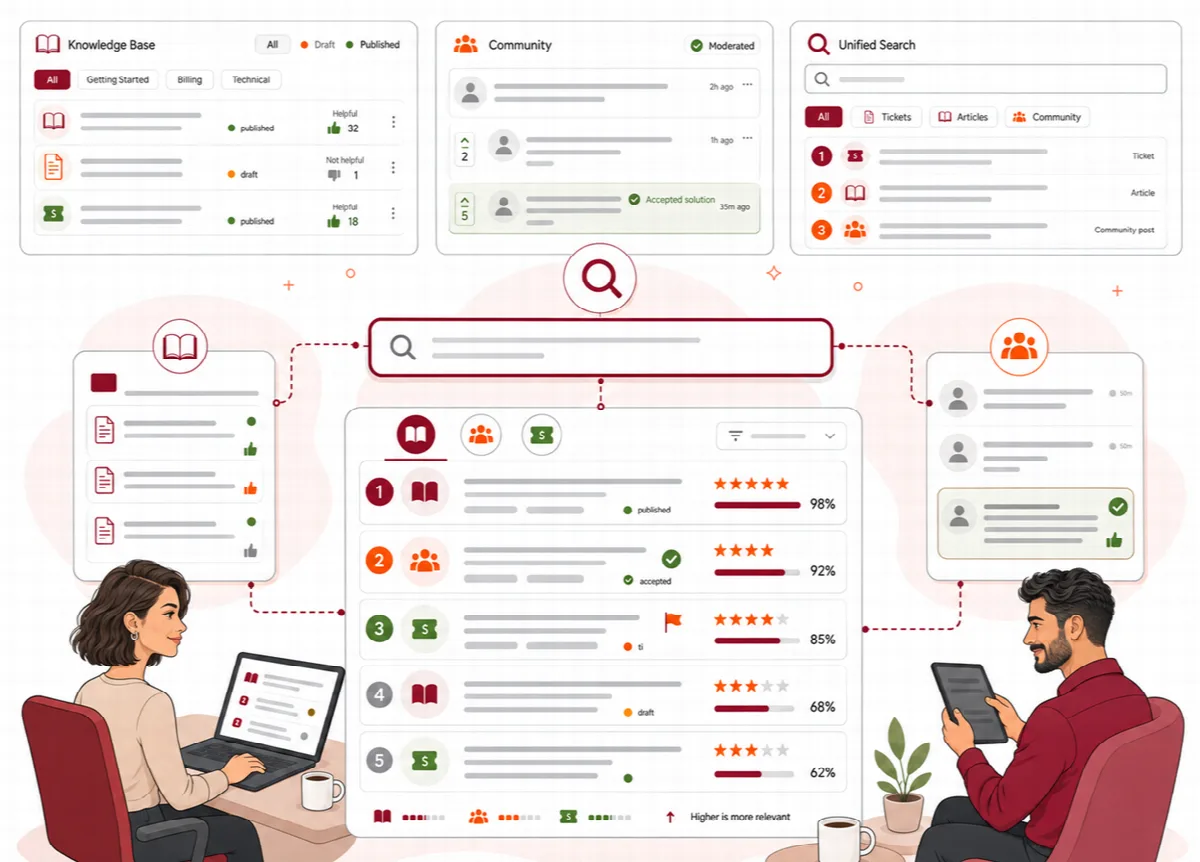
What each search covers
| Search | Where | Covers | Extras |
|---|---|---|---|
| Portal search | The search field on the portal homepage, and Search in the header (Ctrl K or / on any page) | Published articles, community topics and replies | Suggestions while typing, a preview of an article in a side panel, actions such as Submit a ticket; Show all results opens the search page with filters for content type, category and Solved topics only, and popular articles when nothing matches |
| Knowledge Base search | Search the Knowledge Base on the Knowledge Base pages | Published articles | Browsing by product and category |
| Community search | Search topics and answers on the community page | Community topics and replies | The community lists and category filter |
| Ticket form suggestions | The Subject of the ticket window | Published articles | Up to three articles after the first four letters |
| Staff search window | The search field at the top of the administration, or Ctrl K | Tickets, Knowledge Base articles, community topics, customers and setup screens | Results grouped by type; move with the arrow keys and open with Enter; All results, the last row, opens the full staff search with the words you typed |
| Full staff search | All results in the staff search window; for administrators also Setup → Portal → Search | Tickets, replies and notes, customers, attachments, articles and topics | Result types, product and category filters, Saved searches, the Search index and Searches without results; administrators also keep Synonyms and Rebuild the index |
Customers never see tickets in search. An agent sees only the tickets they may open.
The portal search and the ticket form suggestions find articles in the visitor's language, otherwise in English, and show each article once. Community results come from the visitor's language unless Language on the search page chooses All languages or another one. See Languages and translated content.
How queries are matched
- Exact title matches and whole-phrase matches.
- Partial matches inside titles, bodies, tags and categories.
- Several words in any order.
- Case, punctuation and Turkish letters (ç, ğ, ı, ö, ş, ü) are normalized, so a word matches with and without its accents.
- Common English and Turkish filler words are ignored.
- In the full staff search: synonym groups that administrators maintain (for example "invoice" and "bill") and tolerance for a one-letter typo in longer words in titles.
Word stemming is not applied. In the full staff search, administrators add a synonym group under Synonyms (Term and Same meaning) to cover different word forms.
How results are ranked
| Signal | Effect |
|---|---|
| Title | An exact title or a title that contains the query scores highest |
| Body | Matches in the body count less |
| Tags and categories | Matching tags and categories add to the score; a selected tag filter adds more |
| Solved topics | Solved community topics and solution replies rank higher |
| Helpful votes | Articles with more helpful than not-helpful votes rank higher |
| Popularity | Frequently viewed content rises, up to a limit |
| Freshness | Content updated in the last week gets a small boost |
| Query intent | How-to questions favour articles; problem descriptions favour solved discussions |
The weights are built in. You influence the results through good titles, tags, helpful articles, accepted solutions and, in the full staff search, synonyms.
Keep search healthy
- Reports → Content gaps lists, week by week, the searches that found nothing, with Write article to start an article with that title. The dashboard card Knowledge Base health counts them for the current week. See Reporting, recurring problems and exports.
- The full staff search shows Searches without results and the state of the Search index; administrators can Rebuild the index there.
- Setup → System → Tools, panel Search, shows the index records and pending queue items. Rebuild the search index rebuilds the index of Knowledge Base, community and ticket content; Process the search queue processes waiting index jobs. Click Run next to each. These tools are for administrators.