
Ticketix reporting shows how much work comes in, how fast it is answered and resolved, how customers rate it, which questions customers solve themselves and where problems repeat. Figures follow ticket access: an agent's figures cover the tickets that agent may open, and administrators see the whole operation.
Where to find it: Insights → Reports, with the tabs Overview, Content gaps, Saved reports and, for administrators, Roles and departments. The Dashboard shows a short summary; see The dashboard, search and staff notes.
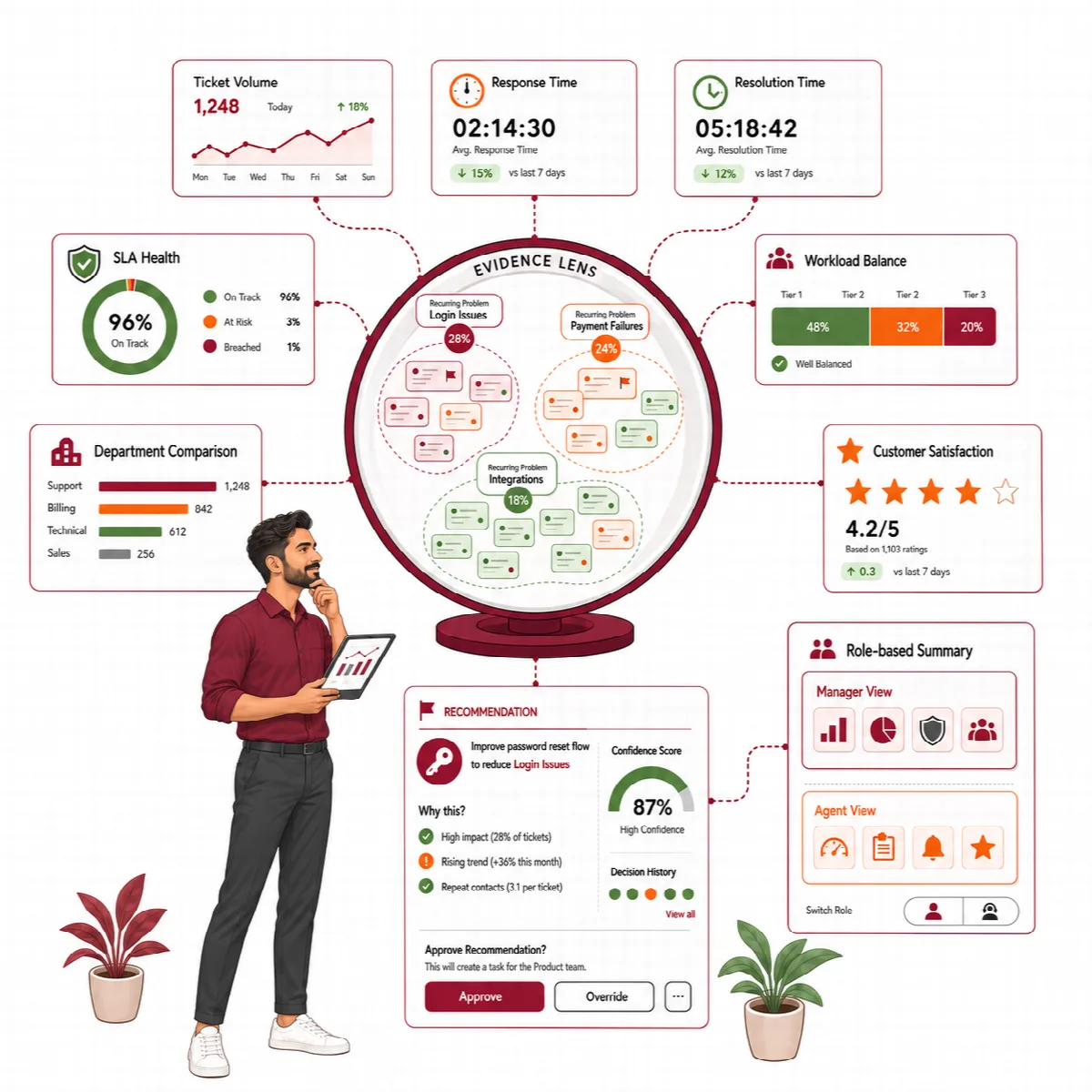
The Overview tab
- Template: Executive, Manager, Agent, Technical, Accounting or Sales, each with its own grouping and focus metrics.
- Period: the last 7, 30 or 90 days, or a custom period under More filters (From (UTC) and To (UTC)) of up to one year. Select Compare with the previous period to show the previous value next to each figure.
- Group by: agent, team, department, role, product, version, module, category, channel, customer, status or priority. Grouping by customer is for administrators. Channel groups use the channel names of the interface language, such as Manual, Portal, Email and Guest.
- Product and Category filters. Click Apply.
The page shows the main figures, New tickets per day, the Age of open tickets, the figures per group, Data quality (tickets without a first reply or a version), All metrics with their sample size, and Resolution quality signals. Every figure lists the tickets it was calculated from. Ticket volume excludes spam and unverified guest tickets.
Metrics
| Metric | What it shows |
|---|---|
| Volume and backlog | Tickets created in the period, tickets still open, and a daily created-versus-open trend |
| First response | Minutes from creation to the first public agent reply; the agent and manager views show the median, and the table also keeps the average |
| Next response | Minutes from a customer follow-up to the next agent reply |
| Resolution | Minutes from creation to resolution or closure |
| Business minutes | First response and resolution counted only in working hours, for tickets under an SLA business calendar |
| Reopen and transfer rate | Share of tickets reopened or handed over at least once |
| First-contact resolution | Resolved tickets with one agent reply, no reopen and no handoff |
| SLA risk | Open tickets at risk of, or past, an SLA target |
| CSAT average and response rate | The average 1 to 5 star rating and the share of resolved tickets that were rated |
The median first reply leaves out tickets that have no reply yet. Each metric shows its sample size and definition.
Questions solved without a ticket
The Self-service card counts, for the period, the questions Solved without a ticket, the Tickets created and the Share of all questions solved without a ticket. A question counts as solved without a ticket when the customer chose This solved my problem on a suggested article in the ticket form. The card follows the product filter and counts all tickets of the period. See The customer portal and guest tickets.
Tickets after a release
For each release dated in the period, Tickets after a release compares the tickets of its product in the 7 days after the release date with the same number of days before, and shows the change. For a release that is less than 7 days old, it compares the days so far. Each row opens the report and the tickets of those days. Release dates come from the release notes under Setup → Support → Release notes; see Announcements and release notes. The card counts all tickets.
Content gaps
The Content gaps tab shows seven days at a time:
- Searches without a result, grouped by search and sorted by how often they were made. Write article starts a new article with that title.
- Articles marked not helpful in that week, with their not-helpful and helpful votes. A row opens the article's feedback.
Previous week and Next week move back up to 12 weeks. Under Weekly e-mail, an administrator chooses the staff members who receive the list of the last seven days once a week (Send to, then Save). A week without any gap sends nothing.
Customer satisfaction
Customers rate a closed ticket once, from the link in the Ticket closed email, with one to five stars and an optional comment. A rating of 1 or 2 notifies the manager of the ticket's department, or the first active administrator when there is no department manager. See Email templates and the ticket-closed email.
Reader votes on Knowledge Base articles are counted separately.
Recurring problems and team comparison
These views are for administrators:
- Roles and departments: read-only evidence per group: tickets, complex tickets (high priority, reopened or transferred), unresolved and reopened tickets, SLA risk, first reply and resolution times, and the Recorded contributors (tickets touched, public replies, internal notes and handoffs received per person). It does not rank agents.
- Problem Registry: problems that collect tickets with a shared cause, ranked by the summed resolution time of their tickets. See Connect AI and set AI limits.
Saved and scheduled reports
- Open the Saved reports tab.
- Under New report, enter the Name and choose the Template, Group by, Schedule (Manual, Weekly email or Monthly email), Period, Product and Category.
- Click Save report. Your reports are listed under My reports with their schedule and next run.
- Click Run now to run a report at once. Run history keeps each run with CSV and PDF downloads.
Scheduled reports cover the previous week or month and run with the scheduled task. When a run is ready, the owner of the report receives an email with a sign-in link.
Export tickets
| Export | Where | Format |
|---|---|---|
| Selected tickets | Work → Tickets: select tickets and choose Export as transcript | Chat transcripts |
| All tickets | Export in the ticket list (Work → Tickets), or Setup → System → Export; card Ticket export | Transcripts (TXT), JSON, or a ZIP with transcripts, data and attachments; an agent gets the tickets they can open |
| Full package | Setup → System → Export, Full package (administrators only) | Settings, tickets, customers, mail queue, agents, transcripts and uploaded logos as ZIP or JSON |
The full package is useful for backups and handovers. Store it like any other backup: it contains customer data.