
AI in Ticketix is optional and stays off until an administrator connects a provider with the organization's own API key and allows AI requests. AI only suggests: it never sends customer replies, closes, deletes, merges or assigns tickets by itself.
Where to find it: Setup → AI in the menu, or Setup → Automation → AI in the setup sub-menu (administrators only). The AI settings screen has four tabs: Connections, Task profiles, Automation and permissions and Usage. It also links to AI support intelligence and the Problem Registry.
Before you start
- Get an API key from your AI provider: OpenAI, Anthropic, Google Gemini, DeepSeek or an OpenAI-compatible server.
- Review your provider's data policy. Ticketix sends only a limited, masked excerpt of the ticket, but automatic masking cannot guarantee that every personal detail is removed.
- Make sure the scheduled task runs. Queued AI work, such as automatic triage, runs with it.
1. Add a connection
- Open Connections.
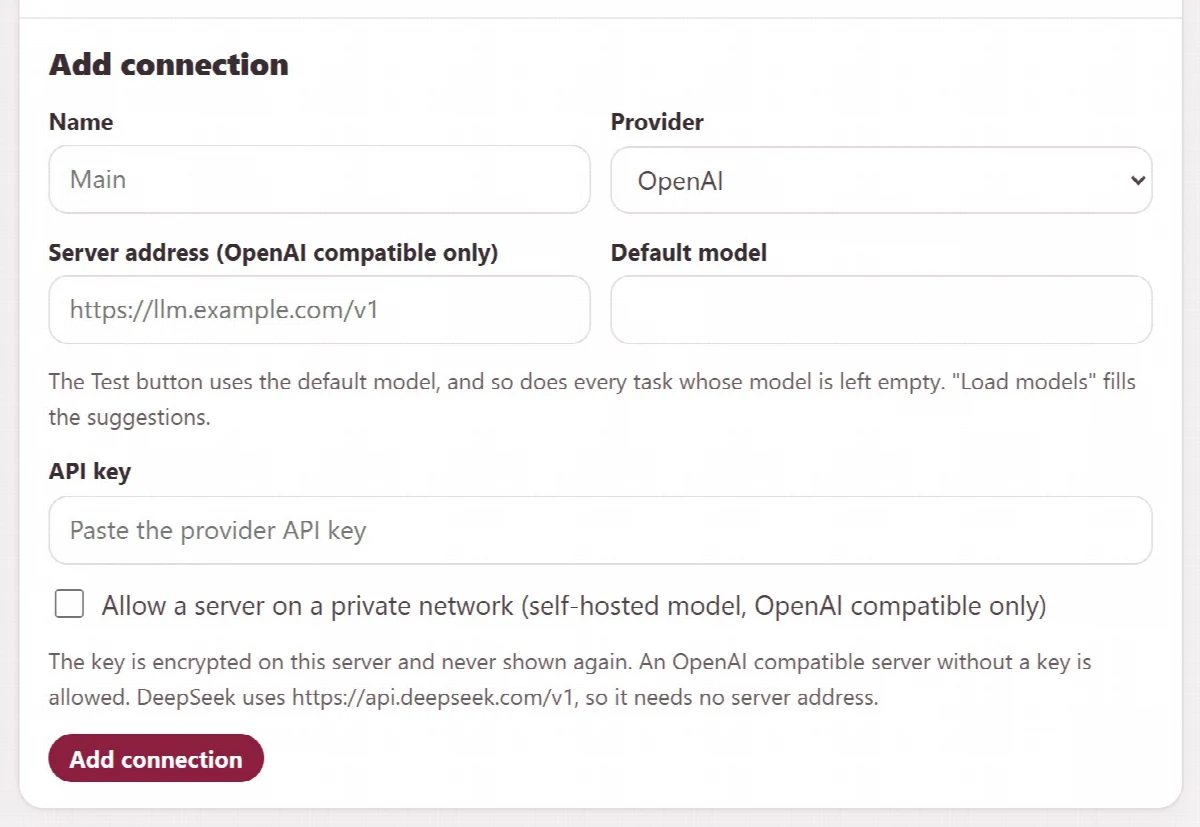
- Enter a Name, choose the Provider and paste the API key.
- For an OpenAI-compatible server, enter the Server address (OpenAI compatible only). A server on your own network is accepted only when you select Allow a server on a private network (self-hosted model, OpenAI compatible only). An OpenAI-compatible server without a key is allowed. DeepSeek needs no server address: Ticketix uses
https://api.deepseek.com/v1. - Enter the Default model, for example
deepseek-v4-pro. You can leave it empty at first and choose it after loading the model list. - Click Add connection.
- In the list, click Load models to fetch the model list, then Edit to pick the Default model from the suggestions if you have not entered one, and Save connection.
- Click Test. The test sends one small request with the default model. Until a default model is set, Test is not available and the list shows "Not set — choose one in Edit".
The Default model is saved with the connection (Ticketix 2.0.2 and later). The Test button uses it, and so does every task whose model is left empty in Task profiles. If you change the provider or the server address of a connection, its default model is cleared; choose it again in Edit.
The key is encrypted on your server with storage/ai-secret.key and never shown again. You can add several connections, for example a fast model for triage and a stronger one for reply drafts.
Connections that were set up for DeepSeek before 2.0.2 with OpenAI compatible and https://api.deepseek.com/v1 keep working as they are.
2. Choose a model for each task
Open Task profiles. Each task has its own Connection, Model, On switch, Output tokens, Effort, Monthly requests and Monthly tokens. Leave Model empty to use the default model of the connection; the empty field shows it as "Connection default: …". A task can be turned on only when it has a model of its own or its connection has a default model.
| Task | Used for |
|---|---|
| Triage | Category, priority, product and tag suggestions for new tickets |
| Reply draft | Draft replies on the ticket screen |
| Summary | Conversation summaries |
| Translate and tone | Translating messages and replies, and fixing tone and spelling |
| Analysis and insights | Structured ticket analysis and problem insights |
Effort applies to Anthropic models that support it. Monthly limits of 0 use only the general limits. Click Save task profiles.
3. Allow AI requests and set limits
Open Automation and permissions:
| Setting | Default and meaning |
|---|---|
| Allow external AI requests | Off until you turn it on; no AI request is made without it |
| Monthly request cap, Monthly token cap | Limits for the whole installation (requests 1 to 100,000; tokens 12,000 to 1,000,000,000) |
| Triage on new tickets | Off by default; Suggest adds suggestions to new tickets |
| Triage again when the customer replies | Runs triage again on customer replies |
| Agents can use AI on the tickets they can open | On by default |
| Include internal notes in reply drafts and summaries | Off by default; internal notes are not sent to AI |
| Requests per agent per hour | A per-agent rate limit |
Click Save AI settings.
Before text goes to the provider, Ticketix masks email addresses, links, IP addresses, phone numbers and password or key strings.
A strong model may need time for a longer answer. AI requests wait up to 90 seconds on the ticket screen and up to 120 seconds in the background jobs of the scheduled task, for example for ticket analysis and automatic triage.
4. Follow usage and cost
Usage shows Requests this month, Input tokens, Output tokens and the Estimated cost, with requests, failures, tokens and cost per Task, User and Model. Provider calls lists recent calls with their task, model, status, tokens and latency; search them by model.
- To estimate cost, enter the Input, USD per 1M tokens and Output, USD per 1M tokens of a Model under Model prices and click Save price. Estimates use your prices; they are not the provider's invoice. "Partial" means some models have no price yet.
- Drafts created and Drafts sent, with the share of drafts that were sent and how much of them was kept, show how useful reply drafts are. A draft counts as sent when the agent sends a reply that started from it; "kept" is how similar the sent reply is to the draft.
AI analysis and the problem registry
These tools are for administrators:
- Ticket analysis: choose the Ticket and click Queue analysis. A background job processes it with the Analysis and insights profile; asking again for an unchanged ticket reuses the queued job, and an analysis that failed, for example after a timeout, runs again. The AI history of the ticket lists intent, category, confidence, product, module, version, platform, impact, complexity, skills and the messages and fields it is based on. Review it with Accept or Reject. No ticket field is changed. On a ticket screen, AI analysis under Ticket Detail opens the same view.
- Similar tickets: subject matches from search. They are not verified duplicates.
- Problem Registry: problems with a pattern, severity and owner, linked tickets, candidates to review, root-cause hypotheses with evidence, and confirm or reject decisions. Use New problem to add one.
- AI support intelligence: AI interpretations, recommendations for a problem that you accept, reject, defer or turn into an owned task, assignment shadow comparisons, golden labels, the automatic assignment gate, and trust figures such as category drift and provider latency.
AI assignment of tickets has its own quality gate. See Departments, teams and assignment.