
The customer portal is the public side of Ticketix. Customers search for answers, open and follow their tickets, read the Knowledge Base and take part in the community. It is separate from the staff area, which has its own sign-in at /admin/.
Where to find it: the address of your installation, for example https://support.example.com/.
The portal homepage
The homepage starts with How can we help? and a search field that suggests articles while the visitor types. Below it:
- Quick actions: by default Login, Sign up, Submit Ticket and Track a Ticket. Each opens a window on the same page: Sign in, Create account, Submit a ticket and Track a ticket. The ticket card is the main one.
- Links to the Knowledge Base, the Community and other pages that an administrator added, for example the staff area.
- Browse by product: a card for each product with its guides.
- Popular articles and Common questions from the FAQ sections of the Knowledge Base.
- Still need help? with Submit a ticket and Track a ticket.
Administrators choose which quick actions and links show, in which order and with which text for each language. A hidden quick action still opens from its direct link, such as index.php?tab=login. See Branding, portal content and languages.
Every portal page has a header with Knowledge Base, Community, Search, Submit a ticket and Sign in, or for a signed-in customer My tickets and Sign out. Ctrl K or / opens a search window from any page. See Portal search and staff search.
Announcements
When your team publishes an announcement, for example a known issue or planned maintenance, it appears as a band at the top of every portal page while it is active. A customer can hide it in their browser; it appears again when its text changes. An announcement for a product can also appear on the ticket form when that product is chosen. See Announcements and release notes.
Customer accounts
- Create account: a visitor enters a Name, Email, Password and Confirm password. The portal opens after the customer confirms the verification email.
- Invitation: staff invite a customer from Work → Customers. The customer sets a password from the invitation link, which is valid for 72 hours by default.
- Sign in: customers sign in with their email address and password. Staff accounts cannot sign in here; they use
/admin/. - Forgot password?: customers request a one-time reset link by email. See Two-factor authentication and password reset.
- Account security: in the menu of a signed-in customer, customers can turn on two-factor authentication for their own account. It is optional for customers.
Open a ticket
Submit a ticket opens the ticket window for everyone. Signed-in customers use the same window.
- Guests enter their Full name and Email.
- Choose the Product and the Priority. The fields of the product's form appear without reloading the page.
- Enter the Subject. After the first four letters, Ticketix shows up to three Knowledge Base articles under "These articles may answer your question".
- Write the Message: what happens, what was expected and the steps that lead to it. Add Attachments if needed.
- Click Submit a ticket.
The window reminds customers never to send passwords or licence codes. If something is wrong, the window shows the error and keeps what the customer wrote.
When an article answers the question
A suggested article opens in a side panel. Under it:
- This solved my problem closes the form without opening a ticket and shows "Glad it helped. No ticket was opened." Ticketix counts the question as solved without a ticket in the reports.
- No, back to my ticket returns to the form with everything the customer wrote.
The customer ticket area
Signed-in customers see their own tickets only.
- My tickets: the lists All, Open, Waiting for you and Closed, with how many tickets wait for the customer's answer. A ticket opens with its conversation in a window. Your account shows the email for replies, two-factor authentication and notifications.
- Ticket page: the conversation, the Ticket summary (ticket number, priority, created, last update and the customer's rating), the answers to the form fields and the attachments. Technical details that an application sent appear under the first message. The customer replies under Your reply and attaches files on the same page, or replies to the ticket emails.
Customers never see internal notes. A reply to a closed ticket reopens it.
Rating the support
When a ticket closes, the customer receives the Ticket closed email with a rating link. The link opens Rate your support, where the customer chooses one to five stars and adds an optional comment. Each ticket can be rated once. A rating of 1 or 2 notifies the manager of the ticket's department, or the first active administrator when the department has no manager.
Guest tickets
Anyone can open a ticket without an account.
- The guest fills in the ticket window and clicks Submit a ticket. The window confirms with Ticket received.
- Ticketix sends the Guest ticket verification email. Its link opens the ticket directly and confirms it on the first visit; the link works for 7 days. Until then, the ticket waits in Pending verification.
- The same email contains the ticket number and a tracking password as a backup.
Spam checks run on every guest submission: a hidden form field, a spam score and submission limits per address. A high score sends the ticket to Spam; a doubtful one to Manual review.
A guest ticket sent with the email address of a registered customer does not change that customer's account or portal access.
Track a ticket
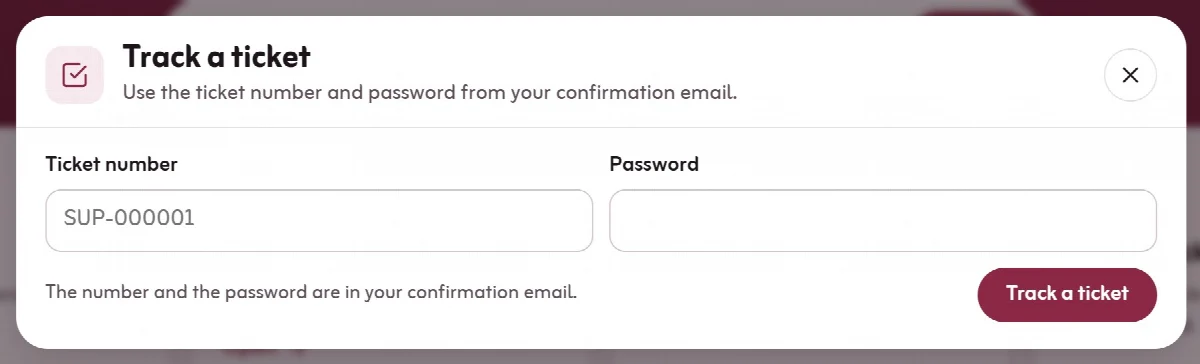
Track a ticket opens a ticket with its Ticket number and Password from the confirmation email. The conversation opens in the window, where the guest can also reply. Track another ticket starts again. The private ticket link in Ticketix emails works the same way.
From the ticket link of a verified ticket, a guest can choose Create an account: they set a password and click Complete account to follow all their tickets in one account.
Products and release notes
Each product has its own page in the Knowledge Base with its guides, frequently asked questions and the latest community topics. When your team keeps release notes, the product page shows the current version and the latest versions with their changes.
Languages, theme and layout
- The portal is available in English, Arabic, Turkish, Japanese and German. Visitors choose the language with the language menu (🌐) at the top of the page. Arabic uses a right-to-left layout.
- Administrators choose the default language and which languages the portal shows under Setup → Portal → General.
- Knowledge Base articles appear in the visitor's language when a translation exists, otherwise in English with a note. See Languages and translated content.
- Visitors choose the Theme at the bottom of the page: System, Light or Dark.
- Interface translation never changes the words in customer messages or ticket subjects.
- The portal uses a responsive layout and works on phones, tablets and desktops. It runs in the browser; it does not install as an app.