
Ticketix reads incoming mail and sends replies from your own addresses. New messages become tickets, replies are matched to their ticket, and attachments are added to the ticket.
Where to find it: under Setup → Mail: Sending and receiving for the main connection, Mailboxes for more addresses, Email templates, and Mail center for the queue and diagnostics. These screens are for administrators only.
For the first setup, see Connect email (SMTP and IMAP).
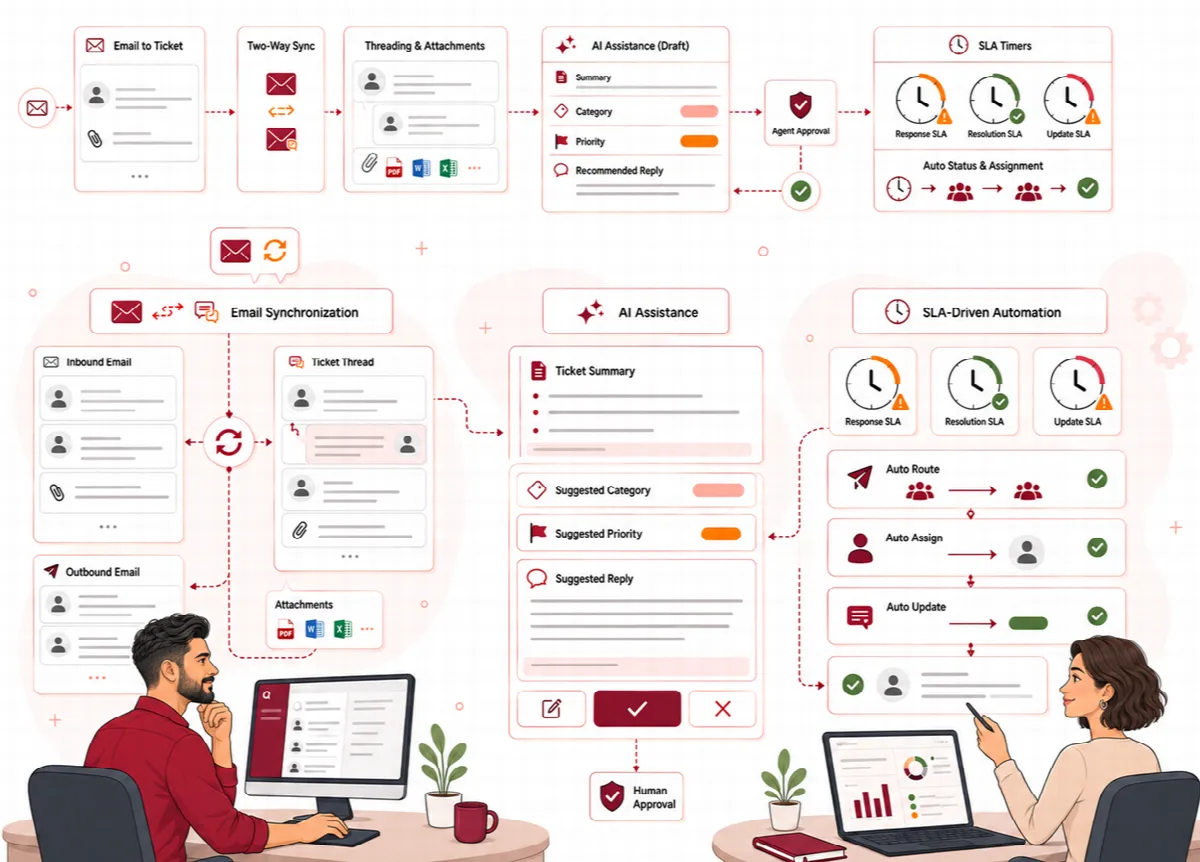
How incoming mail is handled
| Situation | What Ticketix does |
|---|---|
| A message without a known ticket reference | Opens a new ticket with the channel Email and sends the Ticket created email |
| A reply to an existing ticket | Adds the message to that ticket when it comes from the ticket owner or a contact of the same customer, or keeps the ticket's [ARN:…] reference in the subject. The ticket number alone, from another address, opens a new ticket |
| A message from the ticket owner or another known contact of the same customer | Recognizes the sender |
| A sender who is not a customer yet | Creates the customer with the display name of the sender, for example "Ayşe Yılmaz" from Ayşe Yılmaz <ayse@example.com> |
| An automatic reply (for example an out-of-office message) | Recognizes it as automatic |
| The same message fetched twice | Imports it only once |
| HTML or plain text, also from Outlook and Microsoft 365 | Separates the parts of the message, decodes them and cleans the content for safe display |
| Turkish, Arabic and other non-English letters | Keeps them in the subject, in the sender's name and in the text; text without a declared character set keeps Turkish letters |
Mail is fetched and processed when the scheduled task runs. On a ticket screen, Check for new mail now fetches new mail right away.
Tickets and customers created before Ticketix 2.1.4 keep the text, name and channel they were saved with. Change a customer name on the customer page under Work → Customers.
Inbound modes
Under Setup → Mail → Sending and receiving, card Inbound connector, choose the Inbound mode:
- IMAP (recommended): Ticketix fetches mail from the mailbox.
- Webhook (advanced): your mail service posts messages to
/mail/inbound.php. - Email pipe (advanced): your mail server pipes messages to
/mail/pipe.php.
Webhook and pipe deliveries must carry the Inbound secret. Leave the field empty to keep the current secret, or to have Ticketix generate a secure one; a secret you enter must have at least 32 characters. Click Save changes.
Add more mailboxes
Use Setup → Mail → Mailboxes when you receive support mail at several addresses.
- Click New mailbox.
- Fill in Key, Label, Main address and any Other receiving addresses, and keep Active selected.
- Under Connection, enter Server, Port, Security, User name, Password (needed for IMAP), Folder and Search query. Keep Check the TLS certificate and Mark processed mail as read selected.
- Under Routing and sender, choose the routing for new tickets from this mailbox: Product (or Customer default), Category (or Automatic), Default agent, Department key and Language, and the sender details for replies: Sender name, Reply-to and Signature.
- Click Save changes.
The mailbox list shows the last successful fetch and the last error of each mailbox. Without additional mailboxes, the IMAP settings of Sending and receiving still fetch mail.
Under Sender identities, set a From address, Sender name, Reply-to and Signature for a mailbox or a department (Scope and Scope key: the mailbox number or the department key) and click Save identity. A mailbox identity comes first, then a department identity. Your SMTP server must allow the chosen From address.
The Mail Center
Setup → Mail → Mail center shows how mail is flowing. Check all mailboxes fetches all mailboxes added under Mailboxes right away.
| Section | What you can do |
|---|---|
| Mail queue | See incoming and outgoing mail records with their status; search by number, ticket, address, subject or message ID, filter by direction, status and mailbox, and delete selected records |
| Queue health | See the oldest ready message and the last run of each queue |
| Blocked recipients | Stop all mail to an address with a Reason and Stop sending |
| Background jobs | See waiting, running, failed and dead jobs with their attempts; use Retry safely for eligible jobs |
| Delivery events | See recorded delivery problems |
| Mail folders | See the folders Ticketix uses for mail files |
Troubleshooting
- No new tickets from email: check that the scheduled task runs, that Fetch mail with IMAP is on and that the Search query matches your messages (
UNSEENfetches unread mail only). The Mail card on the dashboard shows the last fetch and the last run of the scheduled task. - A mailbox shows an error: the list under Setup → Mail → Mailboxes shows the last error. Check the server, port, security and password.
- Customers do not receive replies: use Send a check mail under Setup → Mail → Sending and receiving, then look at the Mail queue and Blocked recipients.
- Logs: Setup → System → Tools, panel Logs, shows the
mailandcronlogs.
Email also depends on your mail provider's rules, the message format and attachment limits.