
The Knowledge Base holds your help articles. Customers browse and search them in the portal, the ticket form suggests them while a customer types, agents link them from tickets, and AI reply drafts can use published public articles as sources.
Where to find it: Content → Knowledge Base (administrators and agents). Customers open Knowledge Base in the portal header.
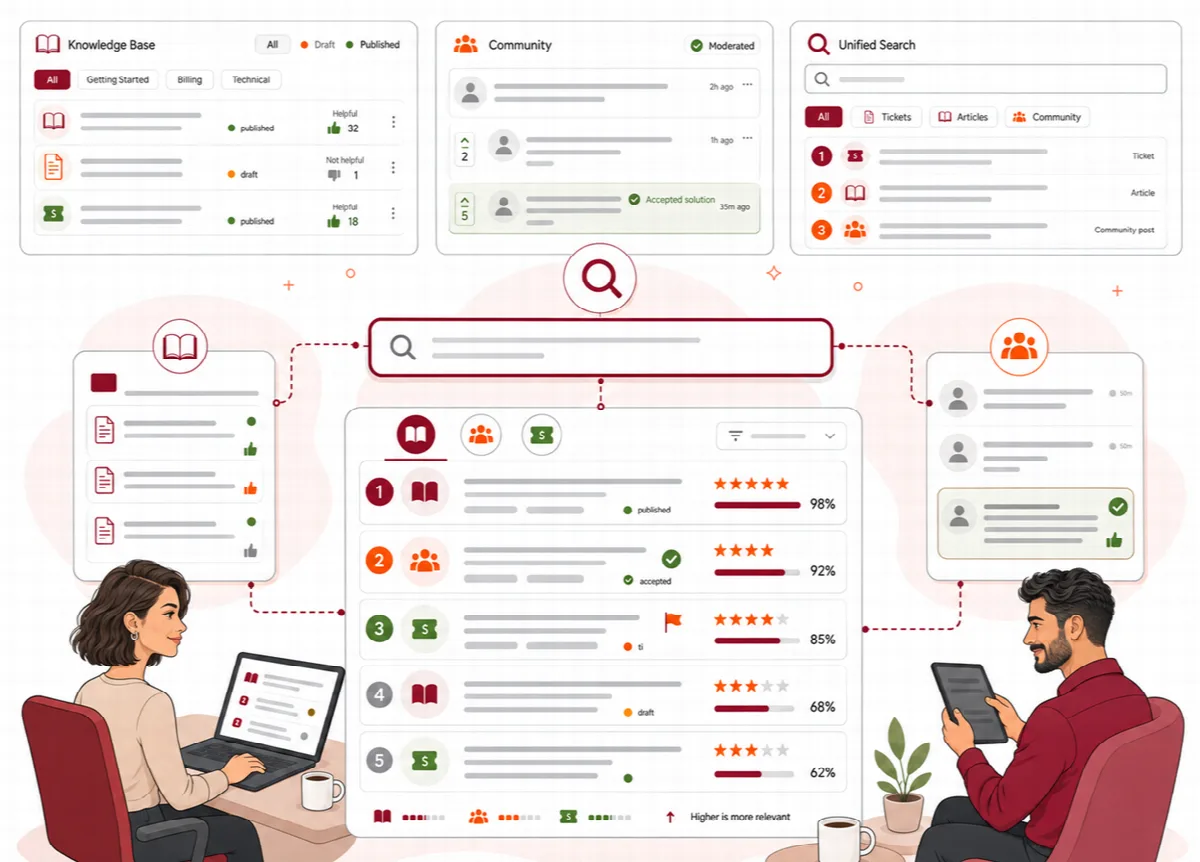
The Knowledge Base screen
- Articles: the products and their categories as a tree beside the article list, with All articles and the number of articles in each. Search by title or slug and filter by Language, Status, Visibility, Owner and Health: Past review date or Mostly “Not helpful”. The list shows the language, the translations, the category, status, owner, last update, views and helpful votes. By default it shows the English originals with a badge for each translation.
- Bulk actions: select articles and choose Publish, Move to category, Set owner, Change language or Archive. Archived articles leave the portal and stay in the list.
- Categories: the tree of products and their categories.
- New article, Import documents (administrators) and Record a knowledge gap at the top.
Build the category tree
Products are the top-level categories, for example a product with its sections such as Getting Started, Features and FAQ.
- Open the Categories tab and click Add product, or Sub-category next to a product.
- Enter the Name. Leave Address (slug) empty to make it from the title.
- Choose where it belongs under Inside, or Top level (a product).
- Add an optional Description. Under Translations, add the name and description in other languages if you need them.
- Click Save.
Give the top-level category of each product the product key as its Address (slug), for example helpdesk. AI reply drafts of a ticket then use only the articles of the ticket's product.
Change the order with Move up and Move down. Edit changes a category; Delete asks for confirmation, and its articles become uncategorized.
Write an article
Click New article. Each article has a page of its own:
- Enter the Title. Leave Address (slug) empty to make it from the title.
- Write the Article text in the editor. Headings, lists and bold text keep their formatting.
- Write the Excerpt, the summary shown in lists and search results. Left empty, it is taken from the text.
- On the right, choose the Status, Language, Category, Visibility, Readers, Owner and Reviewer (see below), add Tags and set the Order in category (lower numbers come first).
- Optional: select Featured on the portal home page, and write a Change note that describes the change.
- Click Create article, later Save changes. Open on the portal shows the article as customers see it.
The language tabs above the article (EN, AR, TR, JA, DE) open its translations; Create translation starts a draft in another language from the English text. See Languages and translated content.
To add an image while writing, place the cursor in the article text, click Image in the editor toolbar and choose a PNG, JPEG, GIF or WebP file of up to 5 MB. Ticketix stores the image itself and inserts it where the cursor was (Ticketix 2.0.2 and later). Image URL inserts an image from an https:// address instead. Images of a whole documentation set come with Import documentation into the Knowledge Base.
Status, visibility and schedule
| Setting | Options |
|---|---|
| Status | Draft, Review, Scheduled, Published and Archived. Review needs a reviewer; a published article with a future publish time waits as Scheduled |
| Reviewer | Required for review; only that reviewer or an administrator approves an article in review |
| Visibility | Public, or Staff only (agents and administrators) |
| Readers | Everyone who can see it, or the customers of one product |
| Publish at, Expires on | Publish and archive the article at a set time; the scheduled task does this |
| Review by | Warns the owner when the article needs checking; it then appears under Past review date |
Times are in your own time zone and saved as UTC. Only published articles inside their publish window appear in the portal and in search. Drafts, articles in review and archived articles stay hidden from customers.
Archive article on the article page takes an article out of the portal; its text and history stay.
Article details
Below the article, Article details has four tabs:
- History: every saved change as a numbered revision with its change note. Choose two revisions and click Compare to see the title, excerpt and text before and after. Restore as draft brings an older revision back as a new draft; the article leaves the portal until it is published again.
- Feedback: the Helpful votes (yes and no), Views, and when the article was created and updated.
- Links: link the article to a ticket or community topic (Link a ticket or topic, search by number or title, then Link) or to a problem (Link a problem).
- Attachments: drop a file or choose one: PDF, PNG, JPEG or text, up to 10 MB. Attachments are served only to readers who may see the article.
What readers see
- The products, their categories and articles in their sort order, with a breadcrumb at the top of each article, the reading time and the date of the last update.
- On this page: a table of contents for articles with several headings.
- Previous and Next links to the neighbouring articles of the same category, and Related articles.
- Was this article helpful? with Yes and No, and Still stuck? with Submit a ticket and Ask the community.
- A page title, description and canonical address for search engines, and links to the translations of the article.
- The article in the reader's language; without a translation, the English article with a note.
Reader feedback and knowledge gaps
- Each article records its views and helpful votes. Articles with more helpful than not-helpful votes rank higher in search.
- Mostly “Not helpful” lists the articles that readers voted down most.
- Record a knowledge gap: choose a ticket that needed a new or better article and click Record gap. The gap shows up in the reports.
- Reports → Content gaps lists, week by week, the searches that found nothing and the articles marked not helpful. See Reporting, recurring problems and exports.
- Solved community topics can become article drafts with Turn into article. See Community discussions and moderation.
Reader votes are separate from the support rating customers give when a ticket closes.