
Ticketix shows the customer portal in the visitor's language and keeps a translation of each Knowledge Base article under the same address as its English original. Community topics carry their own language. Translated content is available from Ticketix 2.3.1; this page describes Ticketix 2.3.2.
Visitor and staff languages
| Area | Languages |
|---|---|
| Customer portal, Knowledge Base, community, ticket form and account pages | English, العربية (Arabic), Türkçe (Turkish), 日本語 (Japanese) and Deutsch (German), in this order in the language menu |
| Administration | English, Turkish and Arabic |
Arabic uses a right-to-left layout. A staff member who chooses Japanese or German in the portal sees the administration in the site's default language.
The language menu
Visitors change the language with the language menu at the top of every portal page. Closed, it shows 🌐 and the name of the current language, for example 🌐 English. Open, it lists the portal languages by their own names.
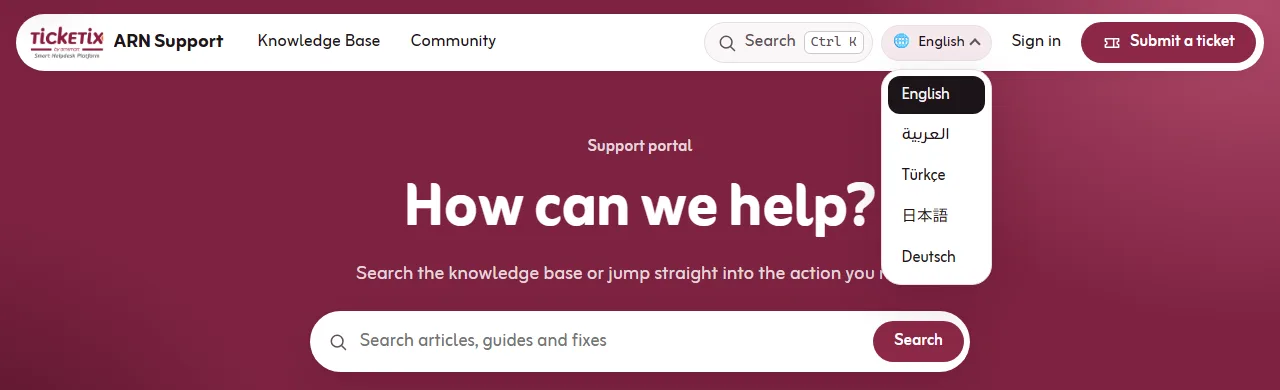
- It works with the keyboard: Enter or Space opens it, the arrow keys, Home and End move through the languages, and Escape closes it. Screen readers announce it as Language.
- On narrow screens it is in the menu; on the account pages it is in the top bar.
- It works without JavaScript, and in Arabic it reads right to left.
Under Setup → Portal → General:
- Default language is English, Türkçe or العربية. It is used where no other language is chosen.
- Portal languages lists the five visitor languages. Clear a language to hide it from the language menu; its articles and topics are then not shown either.
After updating to 2.3.2: if the saved Portal languages of a site had English, Turkish and Arabic, the update adds 日本語 and Deutsch once. If one of these three was hidden, the list stays as it is, and Setup → Portal → General shows "New visitor languages are available" until the page is saved; select the languages you want under Portal languages and click Save changes. A site that never saved the list shows every language. A language you remove later stays removed.
The words of the interface can be changed for each language under Setup → Portal → Languages. See Branding, portal content and languages. Interface languages never change what customers write in tickets or topics.
Translated articles
Each article has one address (slug) and can have a translation in every visitor language. The English article is the original: a translation takes its address, category and order, and these are changed only on the original.
What visitors see
- Each article is shown in the visitor's language. When it has no translation in that language, the English article is shown, and when there is no English article either, the article in the site's default language. No article disappears from a list because it is not translated.
- An article shown in another language carries the note "This article is not available in … yet; the … version is shown." In lists such articles have a small language badge.
- Languages of this article on the article page lists its published translations. Each one opens the address with
&lang=, for exampleknowledge.php?article=ticketix-install&lang=de, and also switches the portal to that language. - For search engines, each article page names its translations with
hreflanglinks, plusx-defaultfor the address without a language. The canonical address of a translation is its own&lang=address; a page shown in the fallback language points to the English article. - Lists, counts, Previous and Next, search results and the article suggestions of the ticket form show one article per address, in the same order of languages.
A translation that is a draft or for staff only does not count: visitors see the fallback language instead.
Manage translations
Open Content → Knowledge Base:
- The article list shows the English originals by default (Language: Originals with translations), with a Translations column that has a badge for each language. A badge opens that translation, or the form for a new one.
- Filter by Language: All languages, a single language, or Translation missing: and a language to see which originals still need one.
- The bulk action Change language gives the selected articles another language. An article whose address already has an article in that language is skipped with a message.
On the article page, the language tabs (EN, AR, TR, JA, DE) open each translation with its status. A language without a translation shows Create translation: it opens a new draft with the English title and text, so you translate and publish it without English text going out under another language. A translation shows "This is a translation: its address, category and order follow the English original and are changed there."
Archiving an original leaves its translations as they are; the page tells you how many it has.
Translated categories
A category keeps one address in every language. In the category form, open Translations and enter a Name and Description for each language. Without a translated name, the category's own name is shown.
Community topics
- The community lists the topics in the visitor's language first. Language filters the list: Topics in … (the visitor's language), All languages or another language. When there are no topics in the visitor's language yet, the topics in other languages are shown with a note.
- A new topic takes the language of the interface. The writer can choose another one under Topic language. A guest's topic keeps its language while it waits for approval.
- Under Content → Community, the topic list and the moderation queue have a language column and a language filter. A moderator corrects the language with Topic language on the topic screen, or in the moderation queue before approving a guest's post.
See Community discussions and moderation.
Search and AI reply drafts
- The portal search and the ticket form suggestions find articles in the visitor's language, with the same fallback to English, and show each address once. Community results come from the language chosen in the search filter, by default the visitor's language.
- New and changed articles, topics and replies reach the search through the scheduled task, so keep it running. See Set up the scheduled task (cron).
- AI reply drafts use the articles in the chosen Reply language, and the English articles where a translation is missing. See Use the AI assistant and triage on tickets.
Import translations
A translation ZIP is imported with Import documents, like the English documentation. The language of each file comes from its lang: front matter line, otherwise from its language folder (for example tr/ or de_DE/), otherwise from the Default language chosen in the import window. Articles are matched by address and language, so an import never changes the English articles. See Import documentation into the Knowledge Base.
After updating to 2.3.1
Articles and topics that existed before the update get the site's Default language. If your content is in English but the default language is Turkish or Arabic, select those articles in the list and use Change language to set English.