
Customers and agents write in one conversation per ticket. Agents also have internal notes, staff notes, followers, handoffs and links between tickets, so several people can work on a ticket while one agent stays responsible.
Where to find it: open a ticket under Work → Tickets.
Reply to the customer
The Reply box stays beside the conversation while you read it.
- Write your answer in the editor. Formatting such as headings, lists and bold text is kept.
- To insert prepared text, choose an answer under Canned reply….
- Click Attach to add files if needed.
- Under Status after sending, choose Send and wait for the customer, Send and set Answered, Send and close or Send and keep Open.
- Click Send reply.
The reply is sent to the customer by email with your signature and the ticket reference, and it appears in the portal. When the customer answers by email, through the portal or through the ticket link, the answer joins the same conversation. A reply to a closed ticket reopens it.
Ticketix keeps a draft while you type ("Draft saved") and brings it back if you leave the page ("Draft restored").
With AI turned on, the reply box also offers Draft reply, Ask for info, Translate to customer and Fix tone. See Use the AI assistant and triage on tickets.
Canned replies
Canned replies are shared, titled answers grouped by category. Administrators and agents manage them under Content → Canned Replies:
- Search by title or text and filter by category.
- Add canned reply: enter the Title, a Category and the Reply text, then click Save changes.
- Open a reply to change it, or use Delete canned reply.
Your signature
Each agent keeps a personal signature under My Profile in the user menu (Signature, then Save profile). It is added under your ticket replies. Administrators can also set it under Setup → Team → Agents and roles.
Attachments
Customers and agents can attach several files to a ticket, a reply or an internal note.
- Up to 10 MB per file. The web server's own upload limit can be lower and then applies first.
- Accepted types: JPEG, PNG, WebP, PDF, ZIP, plain text, Word (DOC, DOCX) and Excel (XLS, XLSX).
- JPEG, PNG, PDF and plain-text files can be previewed in the page.
- Ticketix checks the real file type, and only people who can open the ticket can download the file. Attachments that arrive by email follow the same rules.
Live updates and notifications
- The ticket screen loads new messages, notes and events without a full reload.
- Check for new mail now fetches new mail right away.
- How often an open ticket checks for new mail is set by an administrator under Setup → Portal → General → Ticket refresh (seconds): 60 seconds by default, up to 900, or 0 to turn automatic checks off.
- The bell at the top shows in-app notifications, for example assignments, mentions, customer replies, SLA alerts, low ratings, notes assigned to you and note reminders. On a phone, the list opens over the full width of the screen.
Internal notes and mentions
Internal notes are visible only to administrators and agents. Customers never see them, in the portal or by email.
Under Internal Notes, write in New internal note, attach files if needed and click Save note.
Delete message removes a message from the ticket after you confirm. Only an administrator deletes a customer message or a reply that was sent; an agent deletes only their own internal notes. Every deletion is kept in the audit log with a fingerprint of the text, not the text itself.
To ask a colleague for help, mention them: write @[agent-id] or the colleague's email address in a note or reply. The colleague gets a notification.
Staff notes linked to the ticket
Notes linked to this ticket lists the staff notes that point to this ticket, for example a reminder to call the customer back. Add note creates one with this ticket already linked. Staff notes have their own visibility, an assignee and a reminder date; see The dashboard, search and staff notes.
Additional agents and followers
- Under Ticket Detail, the Assigned agent owns the ticket and stays the mail owner. Add colleagues under Additional agents and click Save assignment; they can then open the ticket and work on it together.
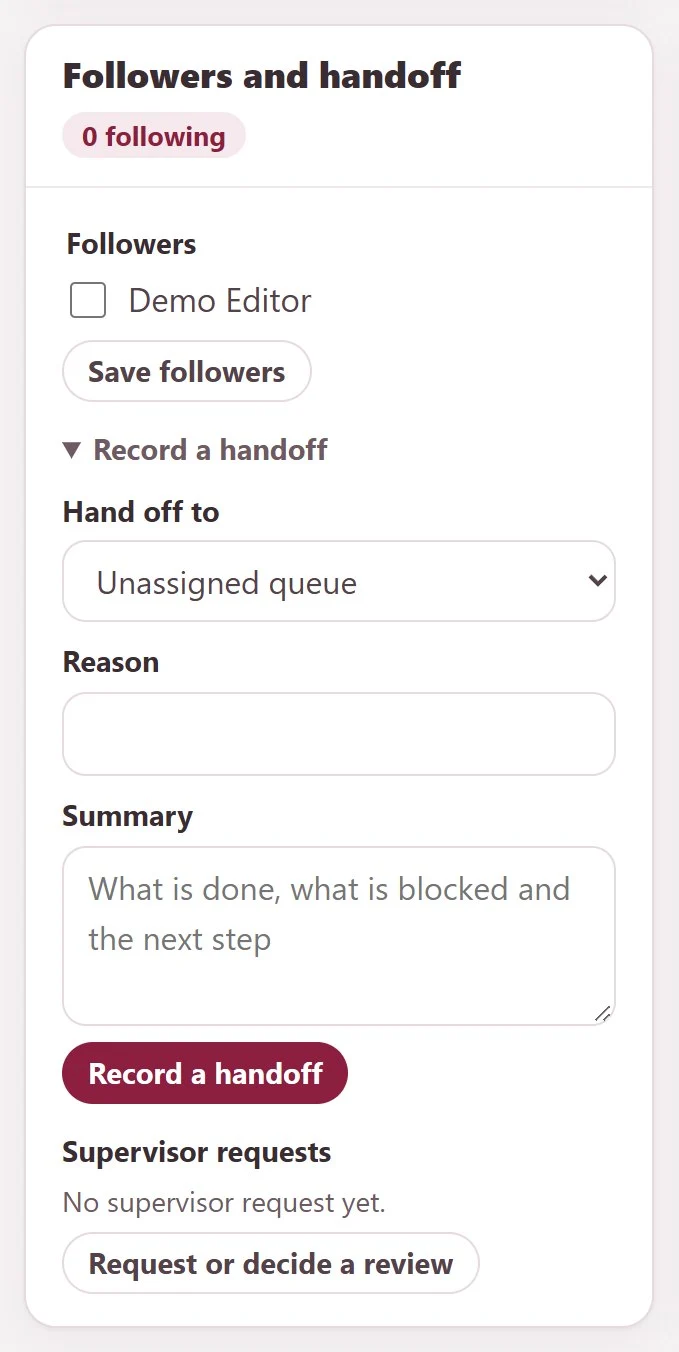
- Under Followers and handoff, choose colleagues under Followers who should be notified of changes and click Save followers.
Hand a ticket over
- In Followers and handoff, open Record a handoff and choose the colleague under Hand off to, or Unassigned queue.
- Enter a Reason and a Summary: what is done, what is blocked and the next step.
- Click Record a handoff.
The handoff is recorded in the activity. With AI turned on, Copy to handoff summary fills the summary from the AI conversation summary.
Supervisor review
Supervisor requests lists the reviews of this ticket. Click Request or decide a review to ask a reviewer to approve or reject a step. The reviewer gets access to that ticket and decides with Approve or Reject. See Departments, teams and assignment.
Related, duplicate and merged tickets
Under Related tickets, find the other ticket by number or subject, choose the Relationship and click Link ticket:
| Relationship | Result |
|---|---|
| Related | Links the two tickets |
| Duplicate of the chosen ticket | Marks this ticket as a duplicate of the other one |
| Merge into the chosen ticket | Merges this ticket into the other one without deleting its conversation (administrators only) |
Similar tickets you can open lists tickets with a similar subject that you may open.