
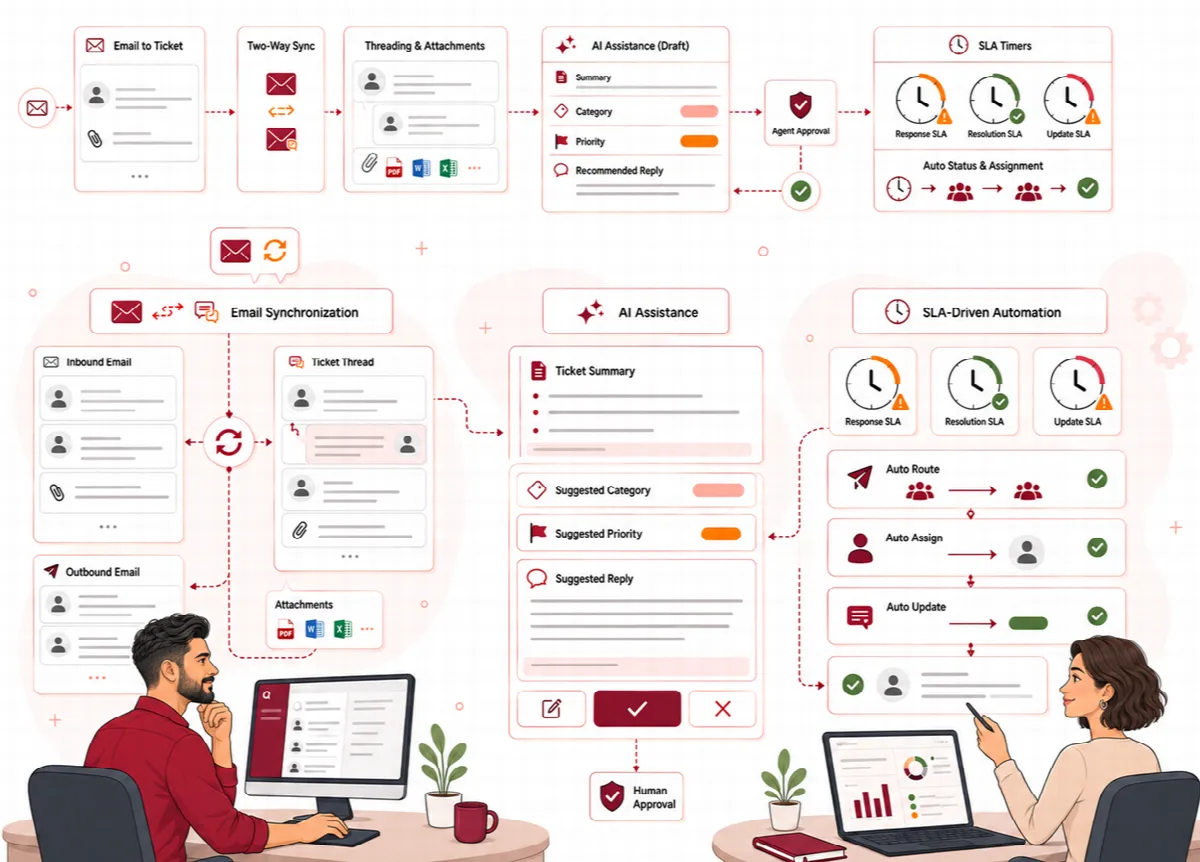
SLA targets tell your team how fast a ticket should be answered and resolved. Ticketix tracks first-response, next-response and resolution deadlines, pauses the clock while you wait for the customer, and alerts agents and managers before and after a target is missed.
Where to find it: Setup → Team → SLA targets for the default targets per priority, and Setup → Team → SLA and calendars for policies and calendars (administrators only). In the menu, Setup → Team and SLA opens the team screens.
Default targets per priority
When no SLA policy matches a ticket, Ticketix uses the targets per priority under Setup → Team → SLA targets:
| Priority | First reply | Resolution |
|---|---|---|
| Critical | 1 hour | 8 hours |
| High | 4 hours | 24 hours |
| Normal | 24 hours | 72 hours |
| Low | 72 hours | 168 hours |
Change the First reply (hours) and Resolution (hours) and click Save changes. New and recalculated tickets use the new values. The first reply is met when an agent sends the first public reply; resolution is met when the ticket is closed.
Create a business calendar
A business calendar makes SLA targets count only working time.
- Open Setup → Team → SLA and calendars and click New calendar under Business calendars.
- Enter the Name and the Time zone, for example
Europe/London. - Set Opens and Closes and choose the Working days.
- Click Save calendar.
- Under Add holiday, choose the Calendar, enter the Date and the Holiday name, and click Add holiday.
Create an SLA policy
- Under SLA policies, click New policy and enter the Name.
- Set the Order (lower runs first): when several policies match a ticket, the one with the lower number applies.
- Choose the Calendar, or 24 × 7.
- Choose which tickets the policy applies to under Applies to: All tickets, or a field such as priority, product, category, department or customer number with its Value.
- Set First response (minutes), Next response (minutes) and Resolution (minutes).
- Set At risk from (%) (80 by default) and optional Escalation at (%), for example
90,100. - Keep Active selected and click Save policy.
How the SLA clock works
- First response runs from creation to the first public agent reply; next response from a customer follow-up to the next agent reply; resolution from creation to resolution or closure.
- The clock pauses while the ticket is Waiting on customer or On hold and resumes with the remaining time.
- At the at-risk percentage, at each escalation percentage and at breach, Ticketix sends an alert. The assigned agent is notified; a breach also notifies the manager of the team or department.
- The dashboard shows SLA at risk (first reply due within 2 hours), and the ticket list has the view SLA risk.
- On the ticket screen, Key dates shows the due dates, the policy and whether the clock runs or is paused, and Recent SLA activity lists policy changes, pauses and alerts. Manage SLA opens the SLA screen.
SLA monitoring runs with the scheduled task. See Set up the scheduled task (cron).
Simulate or override a deadline
On Setup → Team → SLA and calendars:
- SLA simulator and timeline: choose a ticket and click Simulate to see which policy matches it and its first response, next response and resolution deadlines. Nothing on the ticket changes.
- Override deadlines: choose the ticket, enter a new First response due and Resolution due and a Reason, then click Save override. The override is recorded, and the ticket screen shows "SLA changed by hand" with the reason.