
Departments and teams organize your agents. Each team assigns tickets round robin or to the least loaded agent, and each agent's availability, skills and workload limit decide who can receive a ticket.
Where to find it: Setup → Team → Departments; in the menu, Setup → Team and SLA. Administrators manage departments, teams, agents and goals; agents request and decide supervisor reviews from the ticket screen.
Departments
- Under Departments, click Add department and enter a Name and a Key (for example
technical-support). - Choose the Manager. The manager receives SLA breach alerts and alerts about low customer ratings for the department.
- Keep Active selected and click Save department.
Mailbox routing, SLA policies, email template variants, form templates and reports use the department key.
Teams
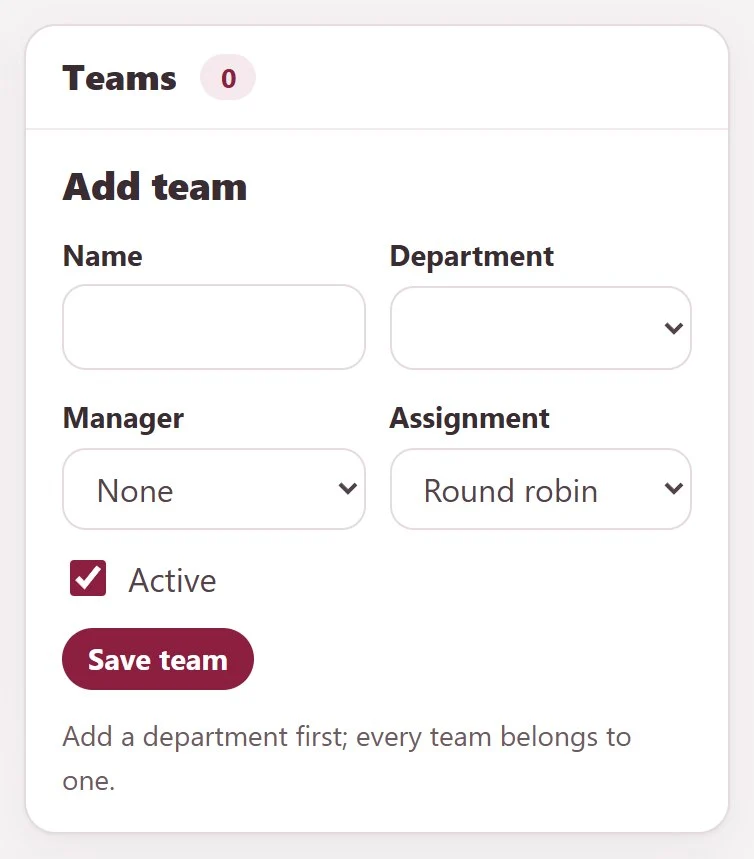
Every team belongs to a department, so add a department first.
- Under Teams, click Add team, enter a Name and choose the Department and the Manager.
- Choose the Assignment: Round robin gives tickets to the eligible team members in turn; Least loaded gives each ticket to the eligible member with the fewest active tickets.
- Keep Active selected and click Save team.
Agent availability and workload
For each agent, under Agent availability and workload:
| Field | Meaning |
|---|---|
| Department, Team | Where the agent works |
| Availability | Available, Away or Offline |
| Skills (comma separated) | For example billing, network |
| Away until | When an away agent is back |
| Active ticket limit (0 = no limit) | The workload limit |
Click Save agent. Only available agents below their limit are eligible for assignment.
Assign a ticket to an eligible agent
Under Assign by team, choose the Ticket and the Team, optionally enter Required skills and click Assign an eligible agent. An available agent of the team with the required skills gets the ticket. If nobody is eligible, Ticketix tells you so.
Workflow rules can do the same with the action Assign to team. See Automation rules.
Supervisor review
- Under Request a supervisor review, choose the Ticket and the Reviewer, choose the Request (Review or Approval) and describe under Reason what should be checked and which decision is expected.
- Click Send request. The reviewer gets access to that ticket.
- The reviewer finds it under Review requests, adds an optional Decision note and decides with Approve or Reject.
On the ticket screen, Request or decide a review leads to the same place. Agents can request a review only for tickets they can open.
Goals and workload
Under Goals and workload, a goal applies to a role, a department or a team:
- Choose what it Applies to: Role, Department or Team.
- Choose the Measure: Active ticket limit, First response minutes or Resolution minutes.
- Choose the Period (Weekly or Monthly), enter the Target and click Save goal.
The workload table groups agents and active tickets by department, team and role.
AI assignment (optional)
With AI connected, an administrator can let AI propose a team and agent next to the human assignment. This starts in shadow mode: proposals are only compared with the human choice under AI support intelligence (on the AI settings screen).
Automatic AI assignment can be turned on only when all quality gates pass:
- at least 50 reviewed shadow cases with at least 90% agreement and at most 5% transfers;
- at least 30 golden routing cases at or above the threshold with at least 90% accuracy;
- for each product, at least 20 shadow cases and 10 golden routes with the same quality;
- a minimum model confidence of at least 0.90.
Live agent availability is checked again before each assignment. Automatic assignment returns to suggestion mode by itself when quality or drift gates fail. See Connect AI and set AI limits.