
Ticketix separates staff and customers. Staff are Administrators or Agents and sign in at /admin/. Customers sign in only to the portal.
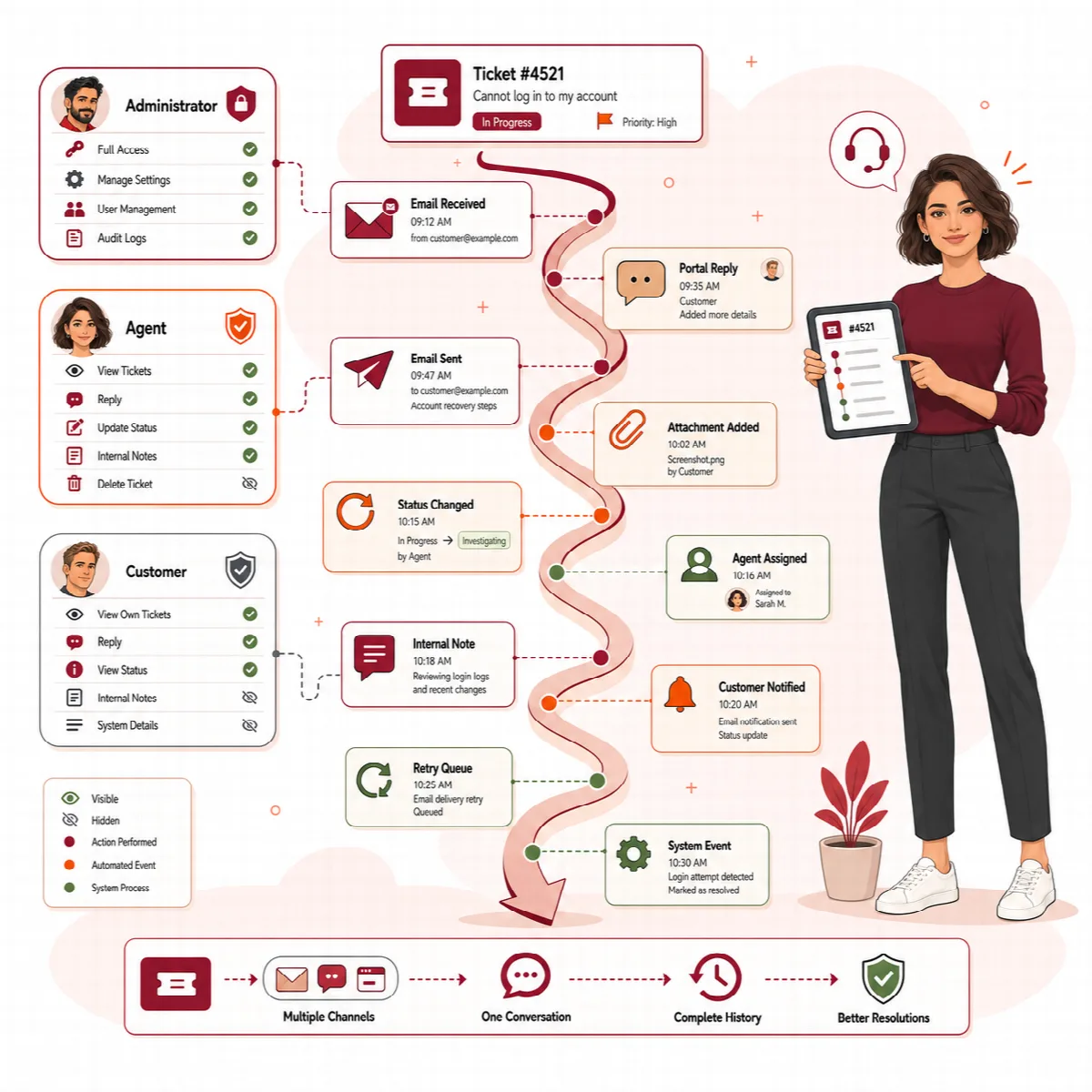
The administration menu
| Group | Administrators see | Agents see |
|---|---|---|
| Work | Dashboard, Tickets, Customers | Dashboard, Tickets, Customers |
| Content | Knowledge Base, Community, Canned Replies, Announcements | Knowledge Base, Community, Canned Replies |
| Insights | Reports | Reports |
| Setup | Settings, Forms, Mail, Team and SLA, Automation, AI, Tools and updates | — |
Everyone has My Profile, Two-factor authentication, Theme and Logout in the user menu at the top right. While the licence is not active, the menu shows only License.
What each role can do
| Action | Administrator | Agent |
|---|---|---|
| Open tickets | Every ticket | Tickets assigned to them, shared with them (additional agent) or sent to them for review |
| Reply, add internal notes, assign, use bulk actions, link tickets, follow and hand over | Yes | Yes, on the tickets they can open |
| Open tickets for customers with New Ticket | Yes | Yes |
| Close tickets | Yes | Yes |
| Set Pending verification or Spam | Yes | No |
| Merge tickets | Yes | No |
| Delete tickets permanently | Yes | No |
| Delete customer messages and sent replies | Yes | No |
| Delete internal notes | Yes | Only their own |
| Staff notes on the dashboard | Yes | Yes |
| Knowledge Base articles and community moderation | Yes | Yes |
| Import documents into the Knowledge Base | Yes | No |
| Canned replies | Yes | Yes |
| Announcements | Yes | No |
| Invite customers and add customer context | Yes | Yes |
| Reports, ticket transcripts and the ticket export (Export in the ticket list) | Yes, all tickets | Yes, for the tickets they can open |
| Full staff search (All results in the search window) | Yes, with Synonyms and Rebuild the index | Yes, without synonyms and rebuilding the index |
| Content gaps | Yes, and chooses who gets the weekly email | Yes |
| Full package export, Roles and departments | Yes | No |
| Settings, Forms, Mail, email templates, application keys, release notes, Tools, Updates, License | Yes | No |
| AI settings, SLA policies, routing rules, workflows, departments and teams | Yes | No |
| Use the AI assistant on tickets | Yes | When the administrator allows it |
| Request or decide a supervisor review | Yes | Yes |
| Merge customers, reset two-factor authentication of others | Yes | No |
Manage staff accounts
Open Setup → Team → Agents and roles. The list shows every administrator and agent with Role, Status, Two-factor and Last sign-in.
- Add user: choose the Role (Agent or Admin), enter Display name, Email or login, Password and Signature, then click Add user.
- Open a user to change the Display name, Email or login, Role, Status (Active or Disabled), New password (leave it empty to keep the current one) or Signature, then click Save changes. A disabled account is signed out at its next request.
- Reset password gives the user a new temporary password and shows it once after saving. Give it to the person; they change it under My Profile.
- Reset two-factor authentication removes the second factor of a staff member who lost their phone. They set it up again at the next sign-in.
Staff sign in with their email or display name, their password and a code from their authenticator app. Two-factor authentication is required for every administrator and agent. See Two-factor authentication and password reset.
Manage customers
Open Work → Customers (administrators and agents).
- The list shows invited and self-registered customers with their company, contact, products, number of tickets, status and the date they became customers. Search by company, contact, email or product, and filter by status and product.
- Invite customer: enter Company, Contact and Customer Email, choose the Allowed products and click Send invite. The customer receives the Customer invitation email and sets a password from the link. The link is valid for 72 hours by default (
invite_expiry_hoursinconfig.php). - Open a customer to see their Tickets, Customer notes and Details (products, last sign-in, customer since). Under Context, add Customer tags, a Custom context (JSON) and a New internal note, then click Save. Agents see this context on the ticket screen.
- Possible duplicates: Merge here combines a duplicate customer record into the open one (administrators only). The source stays as an audit record.
- Reset two-factor authentication: removes a customer's second factor after you have confirmed the customer's identity (administrators only).
Customers can also create an account themselves in the portal and confirm their email address.
Security measures
- Every form carries a security token, and sign-in, password reset and public forms are rate limited.
- Passwords are stored hashed. Changing or resetting a password, or changing the second factor, ends the other sessions of the account.
- Status changes, rule changes, SLA overrides, two-factor changes and other sensitive actions are written to an audit record in the database.
The organization that operates Ticketix remains responsible for access permissions, customer-data policies, retention and mailbox security.