
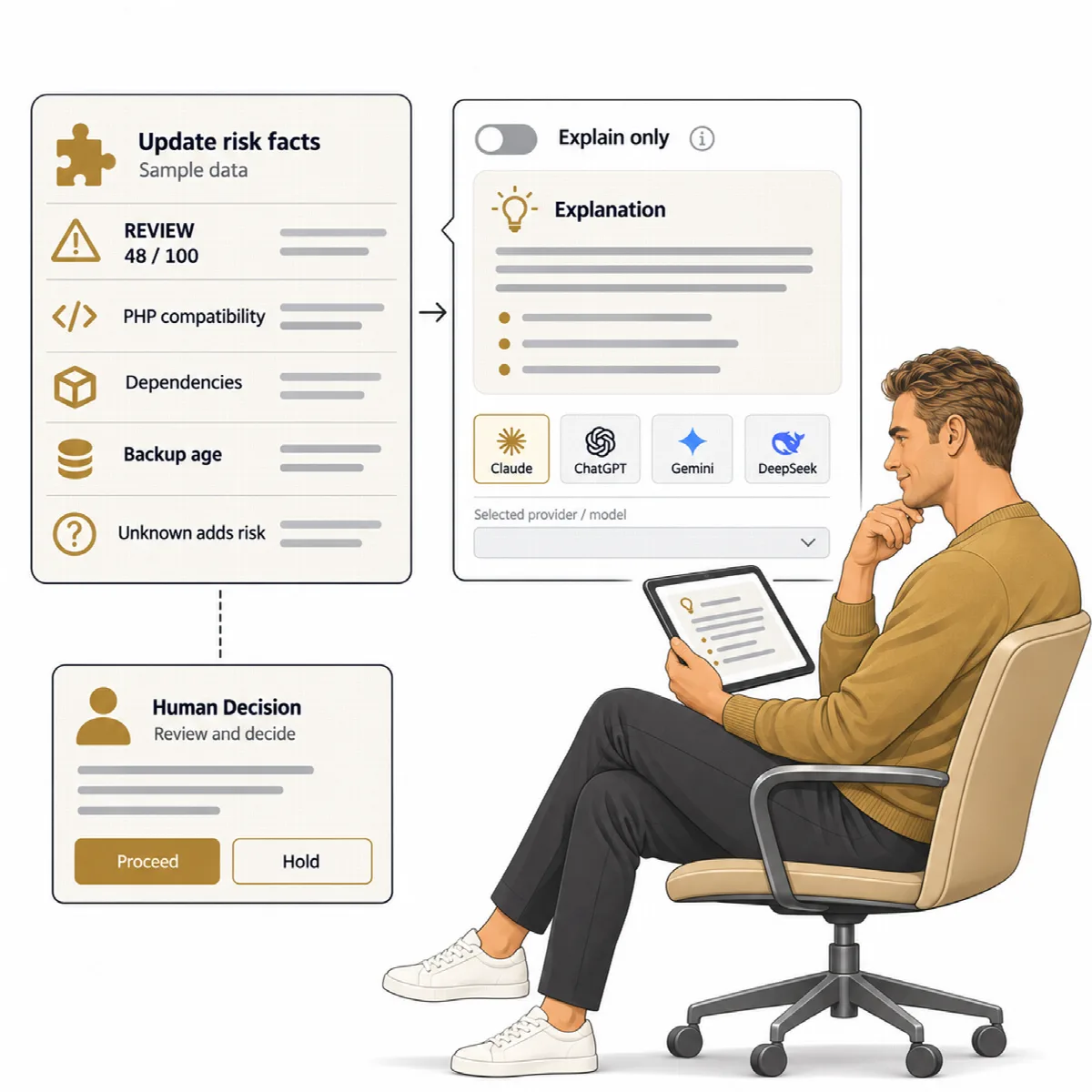
AI assistance is optional and off by default. Every feature of ARN Connect works without it. When you turn it on, AI can explain a risk result and summarize a site in plain language. Deterministic rules still decide risk and health; AI only explains them.
Where to find it: Settings → Integrations → AI explanations.
Set up a provider
| Provider | Company |
|---|---|
| Claude | Anthropic |
| ChatGPT | OpenAI |
| Gemini | |
| DeepSeek | DeepSeek |
- Open Settings → Integrations and find AI explanations.
- For each provider you want to use, tick Use for that provider, enter the API key from your account with that provider, and keep or change the Model. You can type any model ID the provider offers; the list only suggests some.
- Click Test. A working key shows which model answered and how fast.
- Choose the Default provider and, optionally, a Fallback order. When the default provider fails (an error, a time-out or a rate limit), the others are asked in this order.
- Click Save AI settings.
API keys are stored encrypted on your computer and never shown again. Remove key deletes a stored key. Requests go only to the provider's own address.
What AI does
- Explain a risk result. In the details of an update's risk (Why?), Explain with AI explains the result in plain words.
- AI summary of a site. On a site page, AI summary puts the next steps in priority order: first what can lose data or access, such as no recent backup, PHP errors shown to visitors or a certificate close to expiry, then availability, performance against the site's own 7-day median and waiting updates. When no recent backup exists, it advises a backup before any update.
- Share with the client. Share on the AI summary asks the AI to write the same facts again as a short note for the site's owner, in the client's message language and without technical terms. The share dialog names the provider and model, and you edit the note before you send it. Check every sentence before sending.
Every answer names the provider and model that wrote it. AI never changes a status, never approves an update and never acts on a site.
What is sent to the provider
Only engine facts are sent: versions, risk factors, health reasons and event titles. For a site summary, ARN Connect also sends backup times and backup plugins, users per role as counts, Site Health titles, PHP error counts, days left on the TLS certificate, response times against the site's 7-day median, the locale, the time zone and the names of waiting updates.
Site addresses, user names, email addresses, file paths and site content are never sent, and neither are your keys.