
ARN Connect backs up WordPress sites to the computer it runs on, when you ask for it. After the first backup, it downloads only the database and the files that changed, and it checks every part against its SHA-256 checksum.
Where to find it: open a site and go to its Backups tab; settings in Settings → Backups.
Before you start
- Check the Backup folder in Settings → Backups. The default is
Documents\ARN Connect Backups, with one sub-folder per site; an installation set up before the rename keepsDocuments\ARN Operations Backups. Keep it private: a backup contains the site's database andwp-config.phpwith the database password. - Backups need the Owner connection, or a Full connection with backup permission. See Several connections and levels.
Take a backup
- Open the site's Backups tab and click Backup now.
- Under Include, keep Database and Files ticked, or untick one of them.
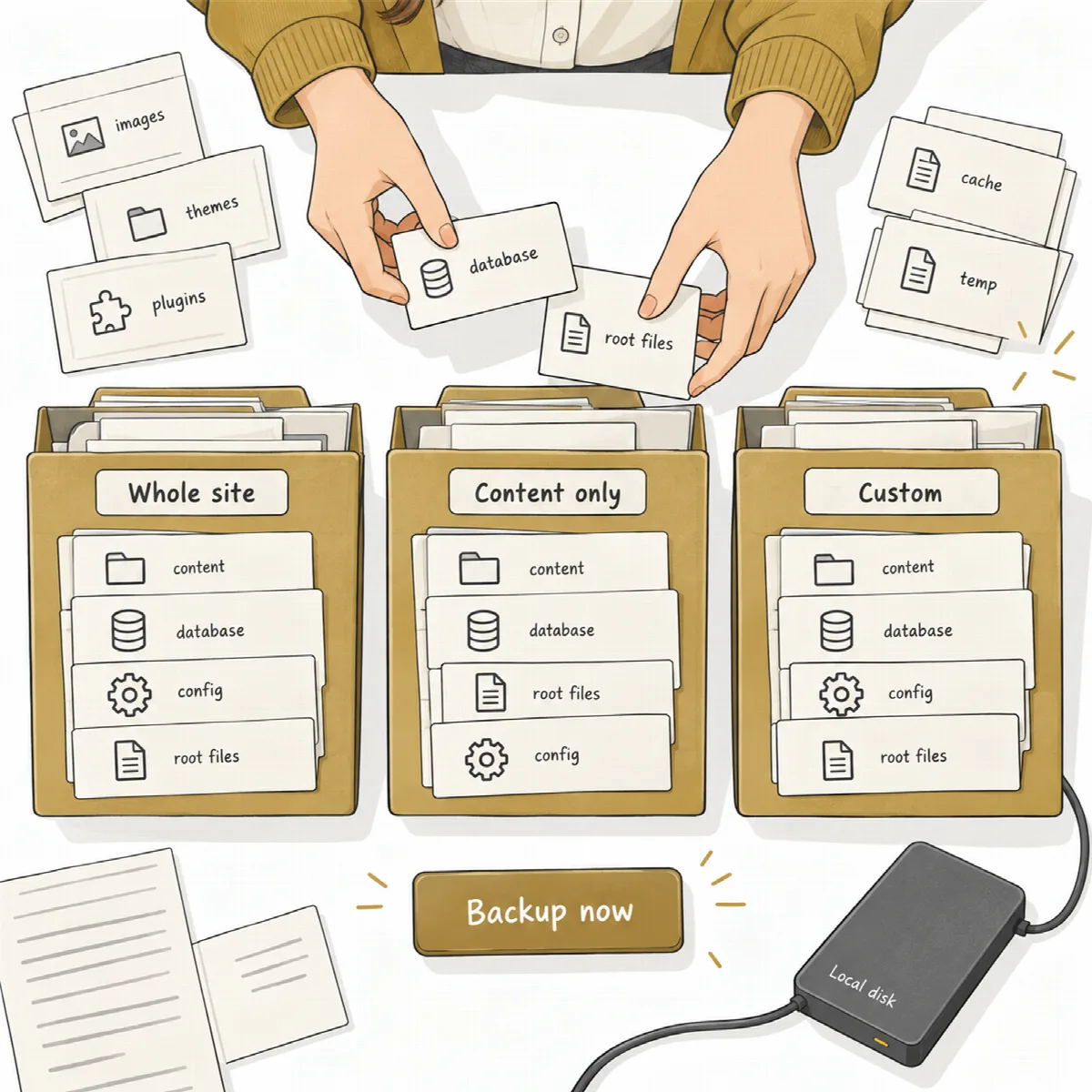
- Under Files to back up, choose Whole site, Content only or Custom. For Custom, list the paths to Leave out, one per line, relative to the WordPress folder.
- Click Start backup.
To back up several sites, tick them on the Sites list and click Back up…. They are backed up one at a time, each with the scope it remembers, and a notification says when the batch is finished.
Neither ARN Connect nor the Agent starts a backup on its own; there are no scheduled backups. The scope you choose is remembered per site. Cancel backup stops a running backup.
| Scope | What is included |
|---|---|
| Whole site | The database and all WordPress files |
| Content only | Everything except WordPress core (wp-admin, wp-includes and the core files in the root). wp-config.php, .htaccess and every other root file are kept, and the WordPress version and its download link are recorded. |
| Custom | All files except the paths you exclude |
Other backup plugins' folders, cache folders, WordPress's temporary update folders, .git, node_modules, and mailbox and system folders in a hosting home folder are always left out. The database is saved as compressed SQL for MySQL and MariaDB, or as a consistent copy for SQLite.
Smart incremental backups
The first backup of a site is full. Later backups take the database and only the files that are new or changed:
- new or changed uploads are taken;
- a plugin or theme is taken again as a whole when its version or any of its files changed, so hand-patched code is kept;
- with Content only, only the active theme and its parent or child theme are included;
- on MySQL and MariaDB, unchanged tables can be skipped;
- every 7 days by default, the site checks every file again by its checksum (Check every file again every (days), 1 to 90).
If a backup cannot continue from the previous one, a full backup is made automatically and the reason is shown.
Restore points and the single-copy store
On your computer, every file is stored once per site, yet every backup is a complete restore point. Files that no kept backup uses any more are removed.
| Setting in Settings → Backups | Default |
|---|---|
| Smart backups kept per site | 10 (1 to 50) |
| Format 1 backups kept per site | 3 (full copies from sites with an old Agent) |
| Check every file again every (days) | 7 |
The Backups tab lists every backup with its scope, size, database engine, file count and whether it is Verified, with Open folder and Delete.
Speed and safety
- The site creates the backup in short steps of up to 20 seconds when PHP allows it, so it works within normal hosting time limits. Free disk space is checked first.
- Finished parts are downloaded while the site is still archiving, and every part is checked against a signed SHA-256 list.
- Every part is encrypted on the site with a new key for each backup before it can be downloaded. Only your computer can decrypt it, right after the download.
- The copy on the site is kept in a folder with a random name that denies web access. It is deleted after the download, when the connection is removed or the plugin is uninstalled, and in any case after 24 hours, even if ARN Connect never contacts the site again.
- One backup per site runs at a time.
- If ARN Connect closes during a backup, the backup ends cleanly after 5 minutes without progress and partial files are removed.
Note: The encryption protects the parts only while they wait on the site and travel. The copy on your computer is not encrypted, so it stays restorable with standard tools. Use disk encryption on the computer that runs ARN Connect.
Export a full backup and restore by hand
ARN Connect does not restore sites from inside the application. To restore, or to give a client a copy of the site, export a restore point:
- On the site's Backups tab, click Export full backup next to the backup.
- ARN Connect writes
site-files.zip, the database asdatabase.sql.gzordatabase.sqlite, and aREADME.txtwith the restore steps into the site'sexportsfolder, then reads the export back to verify it. - Click Open folder to find the files.
To restore, install WordPress in the version recorded in README.txt, upload the files and import the database.

A rollback copy made before an update is not a backup: it holds only one plugin or theme folder for 48 hours. See Run verified updates.