
An update in ARN Connect is finished only after the site has been checked. The installer's own success message is never accepted as proof.
Where to find it: Updates in the sidebar, the Updates tab of each site and the Operations page.
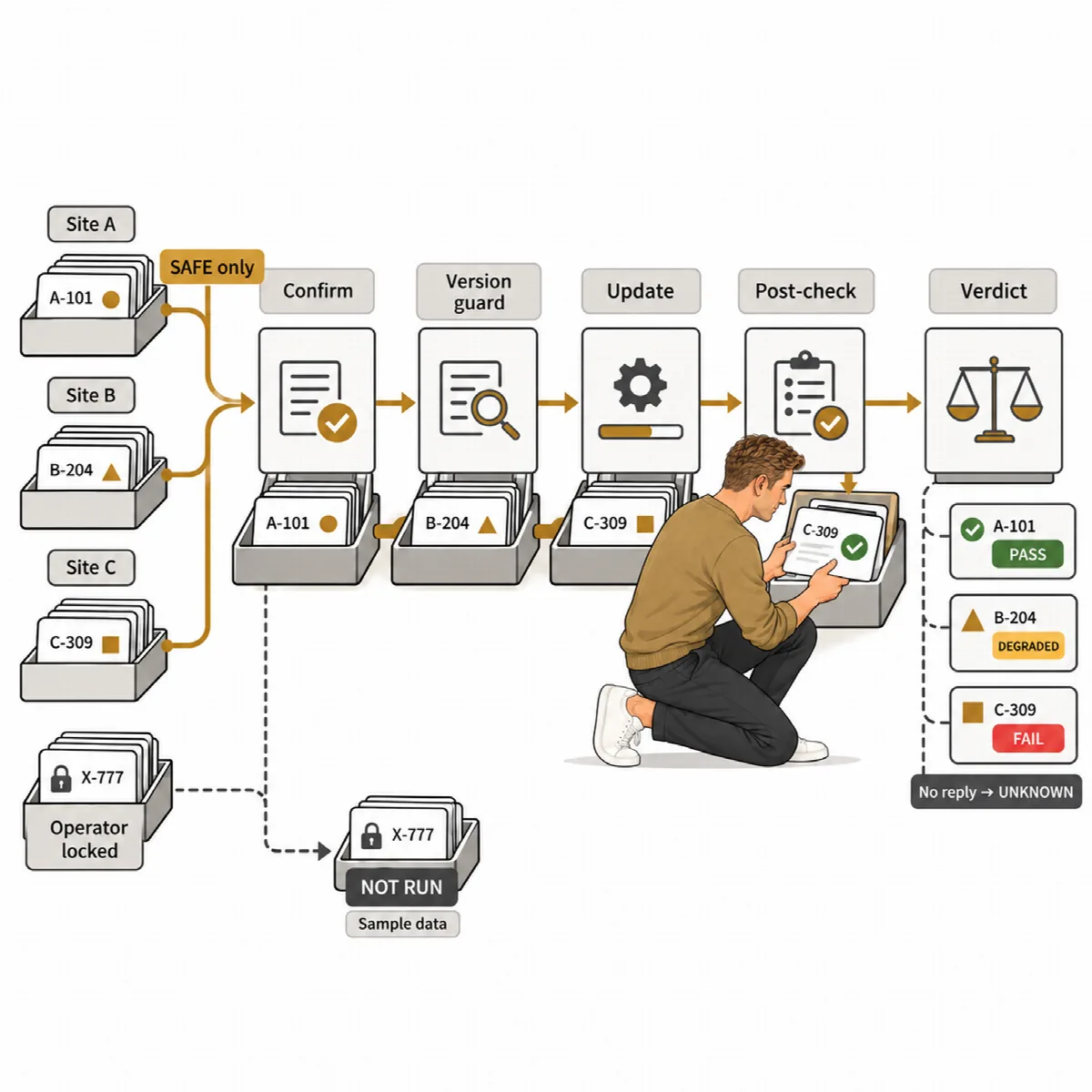
What happens during an update
- You confirm the action. The dialog shows the site, the component and the versions.
- The site is checked before the update.
- A version guard confirms that the installed and offered versions are exactly the expected ones.
- A signed command asks WordPress to install the update with its own updater and from the source WordPress found.
- The object cache and known page caches are cleared.
- The post-checks cover the homepage, your critical URLs, the REST API, new PHP fatal errors, WordPress health, maintenance mode, the Agent connection, the response time, and the version and active state of the component.
- Before and after are compared, and the operation gets its verdict.
| Verdict | Meaning |
|---|---|
| SUCCESSFUL | Every check passed |
| SUCCESSFUL WITH WARNINGS | The update is installed, but a check got worse (Degraded) |
| FAILED | The update or a post-check failed |
| RESULT UNKNOWN | The answer from the site was lost; ARN Connect checks the site to find out what happened |
| NOT RUN | The update did not start, with the reason |
When the answer is lost (from ARN Connect 0.13.0, Agent 0.6.0). ARN Connect first asks the Agent what became of that same command, without sending it again. If the command is still running, it waits for up to 10 minutes. A command the site never received ends as NOT RUN (nothing was changed); a finished, failed or refused command is judged as such, and the result says that the answer was lost. With an older Agent, the checks after the update decide, as before.
Package digest (from ARN Connect 0.13.0, Agent 0.6.0). For a plugin from wordpress.org, ARN Connect downloads the offered package in the background and signs SiteWatch's digest of its files together with the update. On a site with SiteWatch 2.1.0 or later, the update is installed only when the package WordPress downloaded has exactly these files. The operation's details show under Package digest whether it was sent, and if not, why: the Agent is older than 0.6.0, the plugin updates from another source, or the package was not checked yet (a few minutes after the update appears) or could not be checked. Without the digest, the update runs as before.
Rollback copies
Every update dialog has Keep a rollback copy on the site for 48 hours (plugin or theme folder only; database changes are not undone). It is ticked by default; change the default in Settings → General → Updates → Keep a rollback copy by default.
- Before a plugin or theme update, the Agent keeps a copy of that one folder in a protected folder on the site.
- If the installation fails, the Agent puts the old folder back itself. If the post-check ends FAILED, ARN Connect sends the roll back at once and checks the site again.
- Within 48 hours, the Rollback copies card on the site's Updates tab offers Roll back, which runs as a verified operation.
- WordPress core updates and single-file plugins get no copy, and a SUCCESSFUL WITH WARNINGS result is not rolled back. If the site cannot make the copy (too large, not enough space), the update is not run and says why.
- A Full connection can roll back its own copies; the Owner can roll back every copy.
A rollback copy is not a backup: it contains only one plugin or theme folder.
Update all SAFE
Update all SAFE runs every SAFE update as one queue of verified updates. It is on the Updates page, and Update all SAFE on this site is on each site group.
- REVIEW and HIGH RISK updates stay out of the queue, and locked items are skipped.
- One operation runs per site at a time, two sites in parallel per batch and at most three operations overall.
- Every operation runs in its own process, so one failure does not stop the others.
- Stuck operations are detected, and operations that are still queued can be cancelled.
Update selected
Tick updates on the Updates page or on a site's Updates tab, then click Update selected. They run as one controlled queue in the same way. Locked, already queued, not installable and blocked updates cannot be ticked. When the selection contains REVIEW or HIGH RISK updates, a second confirmation lists them.
Test site first
When the same plugin, theme or WordPress version is updated on two or more sites, it runs on one test site first. The other sites follow only after a SUCCESSFUL result there; any other result stops them as NOT RUN with the reason, and the rest of the queue goes on.
Choose the test site in Settings → General → Updates → Test site, or keep Choose automatically: ARN Connect then picks a local, development or staging site from the selection, otherwise the first site by name.
When another installation is busy
If another ARN Connect installation connected to the same site is working on it (a change, a backup, an Agent update or a maintenance window), the site page says so. Queued updates wait and are tried again every minute by themselves, until their authorization expires; then they end as NOT RUN.
Follow and share results
The Operations page shows every queue and every operation with its checks and verdict; click a row for details. Each result can be shared with the client. See Share with clients and create reports.
If an update breaks the site without a rollback copy, or after a WordPress core update, restore the site from a backup. See Back up sites to your computer.