
Before an update runs, ARN Connect rates how risky it is. The rating is deterministic: the same facts always give the same result, and every assessment is stored with the engine version and its input. Optional AI can explain a result in plain words, but it never decides.
Where to find it: Updates in the sidebar, and the Updates tab of each site.
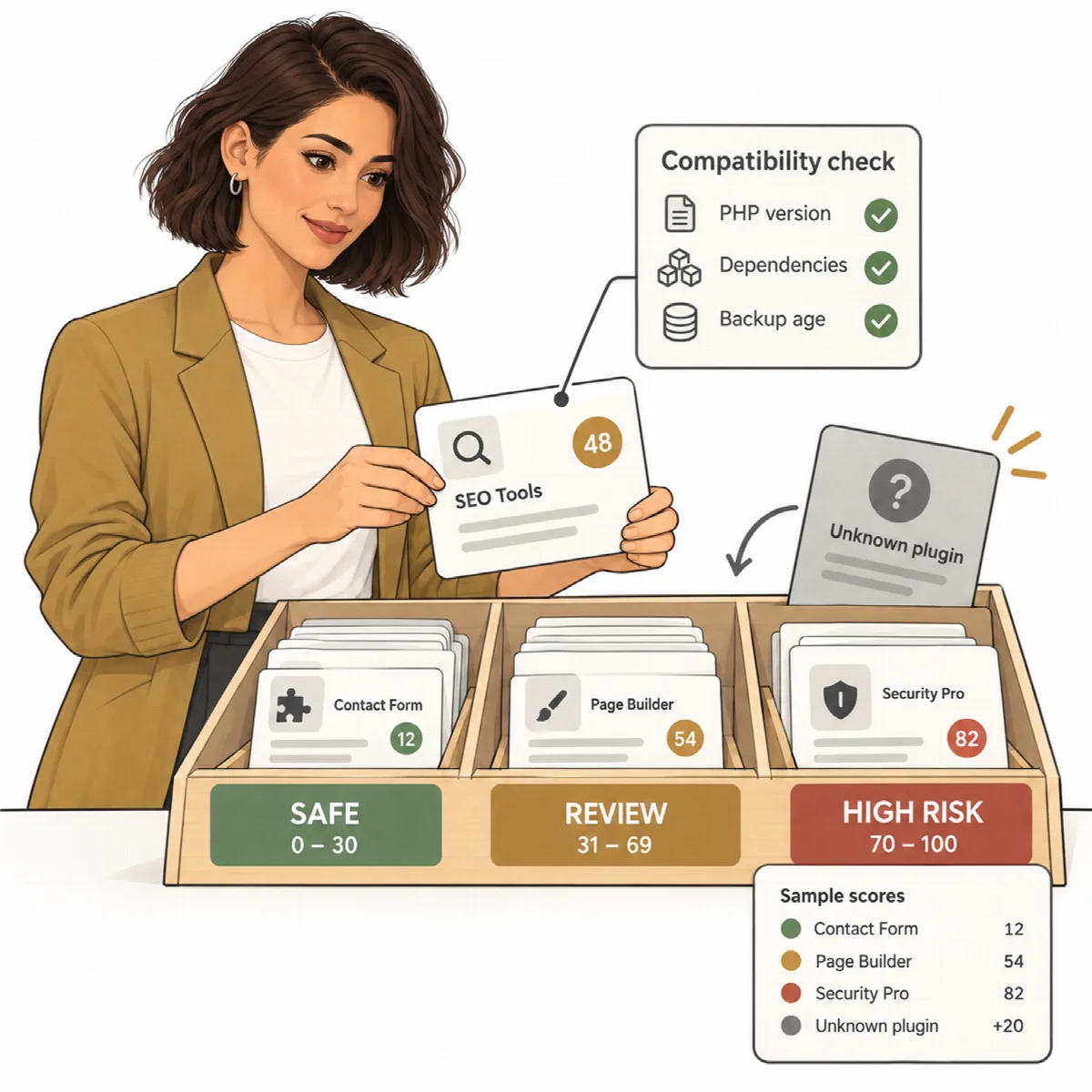
Scores and results
Every available plugin, theme and WordPress update receives a score from 0 to 100 and one of three results:
| Result | Score |
|---|---|
| SAFE | 0–30 |
| REVIEW | 31–69 |
| HIGH RISK | 70–100 |
- Missing data adds weight. Unknown information is never treated as safe.
- Some conditions set HIGH RISK directly, for example a new version that needs a newer PHP than the site runs.
- Every reason is shown with its weight. Click Why? next to an update to read them.
What the engine checks
- PHP and WordPress requirements of the new version;
- the "tested up to" version;
- the size of the version jump (patch, minor or major) and the age of the release;
- plugins that depend on the component, and WooCommerce template overrides in themes;
- current errors on the site and WordPress Site Health;
- PHP memory;
- the age of the latest backup: the newer of the one backup plugins report on the site and the latest verified backup ARN Connect downloaded to your computer;
- earlier results for the same component.
Plugin data comes from wordpress.org. From ARN Connect 0.13.0, when that data is new or changes (requirements, tested up to, release date), the waiting updates of the plugin are assessed again on every site at once. If WordPress has no download package for an update (for example a commercial plugin that needs its licence or the vendor's updater), the update cannot be installed remotely and the reason says so.
Work through the Updates page
The Updates page groups waiting updates By site by default, with the riskiest site first. Each group can be collapsed and has its own Update all SAFE on this site button.
- By risk groups the same list by risk level.
- By plugin/theme shows one row per component and target version, with the number of sites and Update on all N sites.
- The chips All, High risk, Review and Safe, the client filter and the search work in every view.
Locked items show Locked by operator and cannot be updated. Updates that cannot be installed show why.
A practical update round
- Open Updates and start with the riskiest site.
- Read the reasons behind each REVIEW and HIGH RISK result.
- Take a backup of sites with important changes, and keep the rollback copy option ticked.
- Run Update all SAFE and wait for the verdicts.
- Update REVIEW items one by one after checking their reasons.
- Lock components that must stay on their current version, with a note.