
ARN Connect manages WordPress sites without storing their passwords. Sites are paired with a one-time key, every command is signed and limited to a fixed list, the Agent stays passive, and the key that changes your sites is bound to your Windows account.
Where to find it: Settings → Security & data in ARN Connect, and Settings → ARN Connect on each site, the Agent's screen in wp-admin.
Signed commands
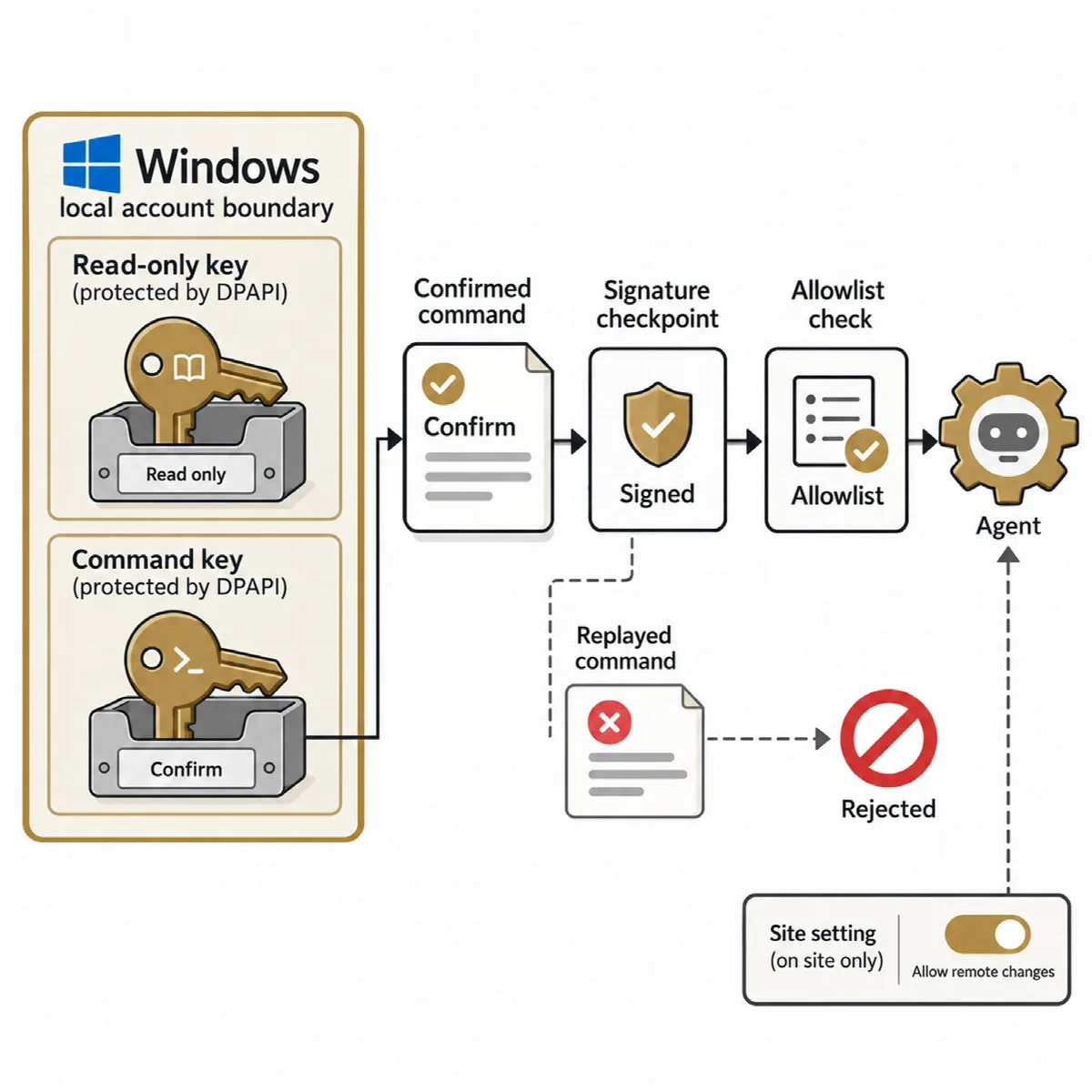
Every request to a site is signed with Ed25519, a modern digital signature method, and every answer from the site is signed by the Agent. Old or repeated requests are rejected by a time window and one-time numbers, and every request without a valid signature gets the same short answer.
| Type | Commands |
|---|---|
| Read | Health check, inventory sync, diagnostics |
| Write | Plugin update, activation and deactivation; theme update; WordPress core update; clear caches; run due cron events; maintenance mode; start a backup; update lock; roll back a plugin or theme |
| Owner only | Manage the other connections; update the Agent with an official signed release |
The list of allowed commands is compiled into the Agent. ARN Connect never sends code, files, URLs or packages, with one exception: an official Agent release signed with the ARN release key and sent by the site's Owner connection. Arbitrary PHP, shell commands, SQL, and user or role changes are not possible. Plugin, theme and WordPress updates are installed by WordPress with its own updater and from the source WordPress found.
Signed Agent updates. An Agent release is installed only when two separate secrets agree: the ARN release key, which ARN Smart keeps offline, signs the release, and the Owner's command key sends it.
A key bound to your Windows account
ARN Connect has no master password. The command key is protected by your Windows account through Windows DPAPI, the data protection built into Windows.
- Anyone signed in as you can use it; a copied data folder, a backup or a stolen disk cannot.
- Monitoring uses a separate read-only key. The command key is used only for an action you have just confirmed; background checks never use it.
- On a new computer or after reinstalling Windows, sites must be paired again for remote changes. Monitoring keeps working.
Settings → Security & data → Command key shows how the key is protected and its key ID. Because the key follows your Windows account, a strong sign-in, a screen lock and disk encryption matter.
A passive Agent
The Agent never starts a connection itself, runs no scheduled work except one clean-up, and adds nothing to the front end of the site. If ARN Connect is closed, the sites are not affected.
- It sends no requests of its own. When ARN Connect asks for fresh update data, WordPress checks wordpress.org as it normally does.
- Its code runs only for its own REST routes and its admin screen. On other requests it only registers fatal error capture, notes the time of plugin, theme and WordPress changes, and checks once whether a clean-up is due.
- One WordPress cron event deletes expired backup files and rollback copies, so nothing sensitive stays on a site that ARN Connect no longer contacts. Settings → ARN Connect lists the files waiting on the site, with Delete now.
Audit log
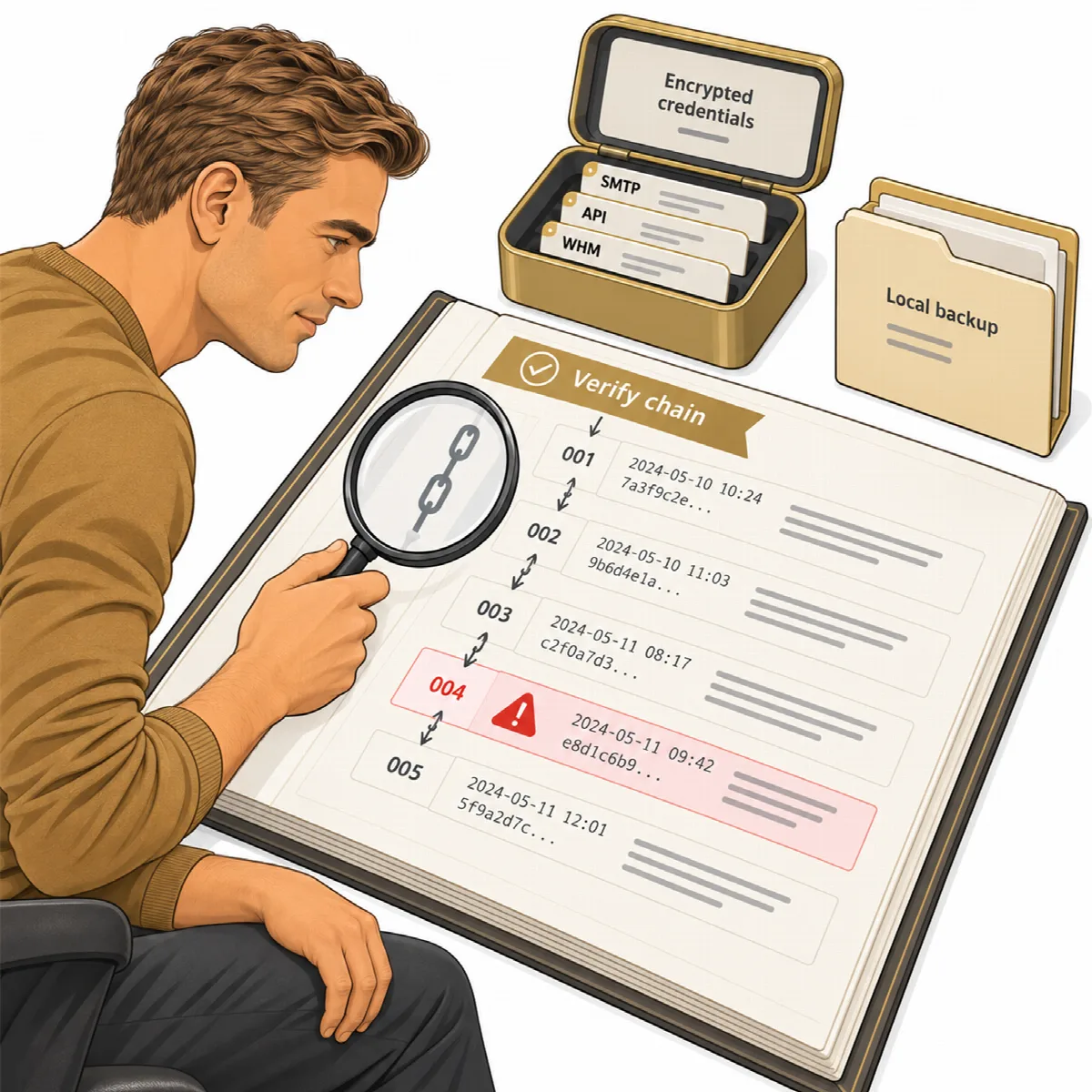
Every important action is written to an append-only log protected by a hash chain: remote actions, hosting actions, invoices, quotations, connection changes and sent messages. Messages are recorded with their recipient and subject, never their text.
Open Settings → Security & data. The Audit log card verifies the chain and shows, for example, that the chain is verified and how many events were checked. A change inside the log is detected and named.
Where your data is kept
Monitoring data, client records, invoices, quotations, reports and backups are kept in your own installation on your computer. ARN Connect does not send them to ARN Smart's servers.
- The Agent reports configuration facts, component names and versions, counts and cleaned error records only. User names, email addresses, content and visitor data are not read or sent, except inside a backup you ask for.
- Domain registrant data is not stored.
- SMTP passwords, AI keys and WHM tokens are stored encrypted and are never shown again on screen.
- Reports and backups stay on your computer. Backups on your computer are not encrypted; protect the backup folder with disk encryption.
The local server. ARN Connect's internal server listens only on this computer and is protected by a session token, strict cookies, a host check, a special request header and a strict Content Security Policy.
Outbound connections. Only HTTPS is used, except for sites and servers you mark as local or test; certificate checks are always on, and private network addresses are blocked unless you allow them for a test site.
Your data folder. Settings → Security & data → Data folder shows where the database and keys are. Back up that folder, database and keys together, while ARN Connect is closed, and never share it.
A practical security setup
- Turn on disk encryption and a screen lock on the computer that runs ARN Connect.
- Install the Agent and pair each site with a new connection key.
- Allow the
ARN-ConnectUser-Agent in the site's firewall if requests are blocked. - Turn Allow remote changes off on sites that should only be monitored.
- Give every other connected installation the lowest level it needs, and allow backups only to installations you trust like a site administrator.
- Look at the audit log verification from time to time.