
Every WordPress site you manage with ARN Connect needs the Agent plugin, ARN Connect Agent in WordPress. You connect ("pair") the site once with a connection key. No WordPress password is asked for or stored.
Before you start
- Check the site requirements.
- Get the Agent ZIP from ARN Connect: click Download Agent in the + Add site window, or open Settings → Integrations and use the ARN Connect Agent card. Keep it as a ZIP file; do not extract it.
- Sign in to the site's wp-admin as an administrator (on Multisite, as a network administrator).
1. Install the Agent plugin
- In wp-admin, go to Plugins → Add Plugin → Upload Plugin. Depending on your WordPress version, the button may say Add New Plugin or Add New.
- Click Choose File, select the Agent ZIP and click Install Now.
- Click Activate Plugin.
On Multisite, upload the ZIP under Network Admin → Plugins and network-activate it.
The Agent adds one screen: Settings → ARN Connect (on Multisite Network Admin → Settings → ARN Connect). If the screen shows a warning about the sodium functions or about AUTH_KEY and SECURE_AUTH_KEY, fix that first; the site cannot be connected until then.
2. Create a connection key on the site
- Open Settings → ARN Connect.
- In Name, enter a name for this connection, for example your company name.
- In Level, keep Owner for the first connection of the site. The Owner can do everything, including Agent updates and managing other connections.
- Click Create connection key.
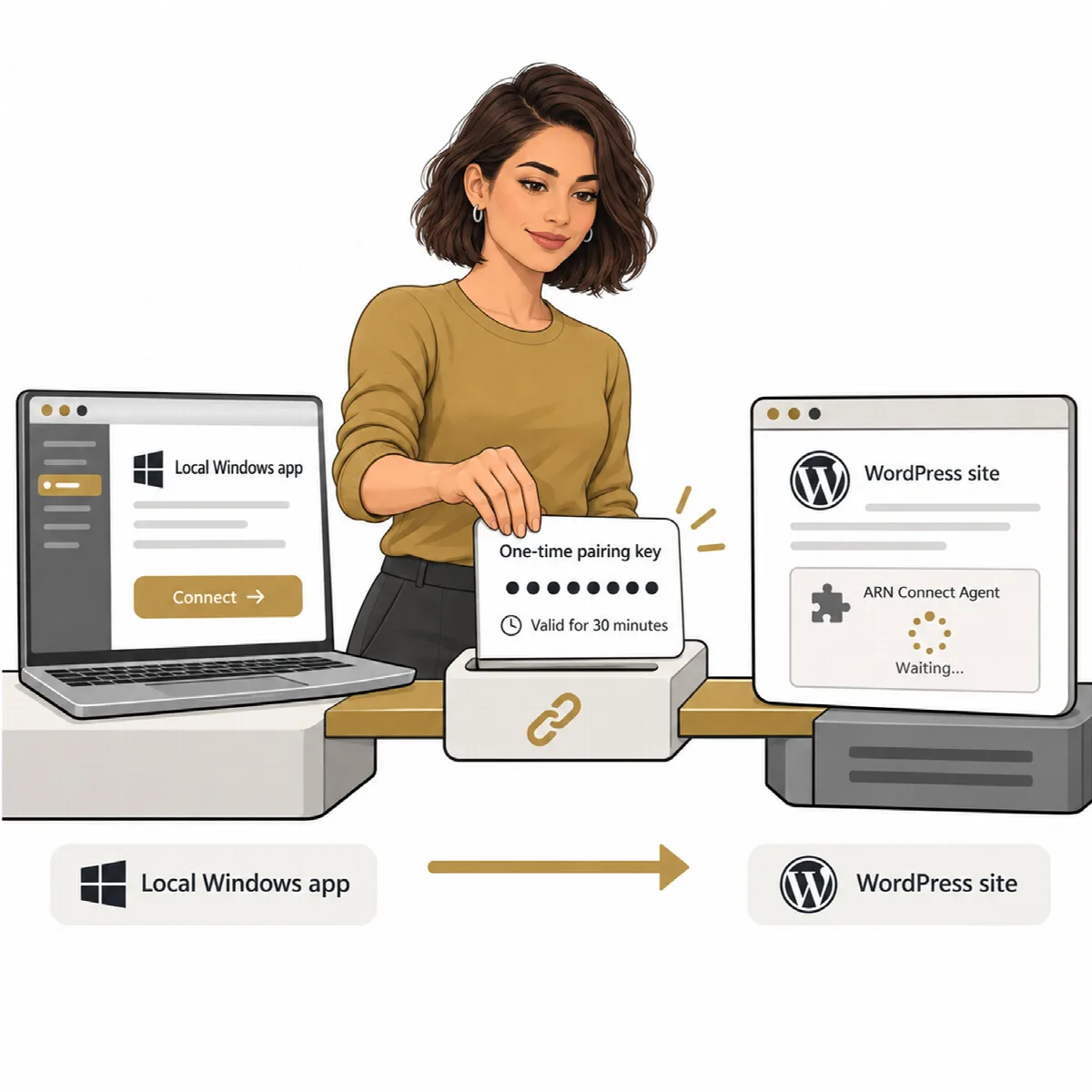
- Click Copy. The key is shown only once and is valid for 30 minutes.
3. Add the site in ARN Connect
- In ARN Connect, click + Add site at the top of the window.
- Paste the key into Connection key.
- Optionally enter a Display name.
- Tick This is a local or development site only for a test site that uses
http://or a private network address. Never tick it for a public site. - Click Connect site.
ARN Connect connects only to the address inside the key and checks that the site reports the same address. The site page opens, and the first checks and the inventory follow within a few minutes. Until the Agent has answered, the site is shown in grey.
About connection keys
- A key works once and expires after 30 minutes or after 20 failed attempts.
- At most three keys can wait on a site at the same time, and at most five ARN Connect installations can be connected to one site.
- A waiting key cannot be shown again. If you lost it, click Revoke next to it and create a new one.
- Connecting the same ARN Connect installation again replaces its previous connection.
To connect a second installation, for example a reseller's, with a lower level, see Several connections and levels.
If the site cannot be connected
- The key expired or was used. Create a new key and paste it within 30 minutes.
- The site address uses
http://. Public sites needhttps://with a valid certificate. - A firewall blocks the requests. Allow the User-Agent
ARN-Connectfor/wp-json/arn-ops/v1/(or/?rest_route=/arn-ops/v1/). The User-Agent also carries(ARN-Operations), so rules written for the earlier name keep working. - The security keys of the site changed. If
AUTH_KEYorSECURE_AUTH_KEYinwp-config.phpchanged, the Agent cannot read its keys; connect the site again with a new key.
Disconnect a site
- In ARN Connect: open the site and click Disconnect. ARN Connect asks the Agent to forget this installation and stops monitoring the site. The history stays in ARN Connect and the plugin stays installed. If the Agent could not be reached, click Disconnect on the site's Settings → ARN Connect screen as well.
- On the site: click Disconnect next to one connection, or Disconnect all, on Settings → ARN Connect.
- Uninstalling the plugin deletes all Agent data, backup files waiting on the site and rollback copies.
Deactivating the plugin is not a disconnection: it removes backup files, rollback copies and its must-use plugins, but keeps the connections, so a reactivated Agent is reachable again.
To remove a site and its history from ARN Connect completely, use Delete. See Manage your sites.