
ARN Connect tracks the expiry date, registrar, name servers and mail servers of your domains and reminds you, and optionally your client, before a domain expires. A domain does not need a WordPress site to be tracked.
Where to find it: Domains in the sidebar; default reminder days in Settings → Domains.
Add domains
One domain:
- Click + Add domain.
- Enter the registered Domain, for example
example.com. Internationalized names, such as names with Turkish letters, are accepted. - Optionally choose a Client and add Notes.
- Under Expiry reminders, keep the default days, choose Own days for this domain and enter them, or choose Off.
- Optionally tick Also email the client on reminder days. This uses the client's contact email and needs a mail server in Settings → Notifications → Email (SMTP).
- Click Add domain.
Several domains: click Add several, paste a list (one domain per line; commas and spaces also separate), optionally choose one client for all, and click Add domains. Up to 500 domains can be added at once. They get the default reminders. Invalid names, repeats and domains already in the list are skipped with the reason.
What ARN Connect reads
| Data | Source |
|---|---|
| Expiry date, registration date, last registry update, registrar | RDAP, the registry's structured lookup service; WHOIS for extensions without RDAP, such as .tr |
| Name servers (NS) and mail servers (MX) | DNS |
Registrant and contact data are never read into ARN Connect or stored. Every change is kept in the domain's History.
When domains are checked. Every domain is checked once a day in the background. In the last 48 hours before expiry, after expiry and after a failed lookup, it is checked every 6 hours. Check now checks one domain; Check all checks every domain.
Alerts. A change of name servers or mail servers, or three failed lookups in a row, creates an alert.
Expiry reminders
| When | How often |
|---|---|
| On the reminder days before expiry (default 60, 30, 14, 7, 3 and 1) | Once per day in the list |
| In the last 7 days | Every day |
| In the last 48 hours and after expiry | Every 6 hours |
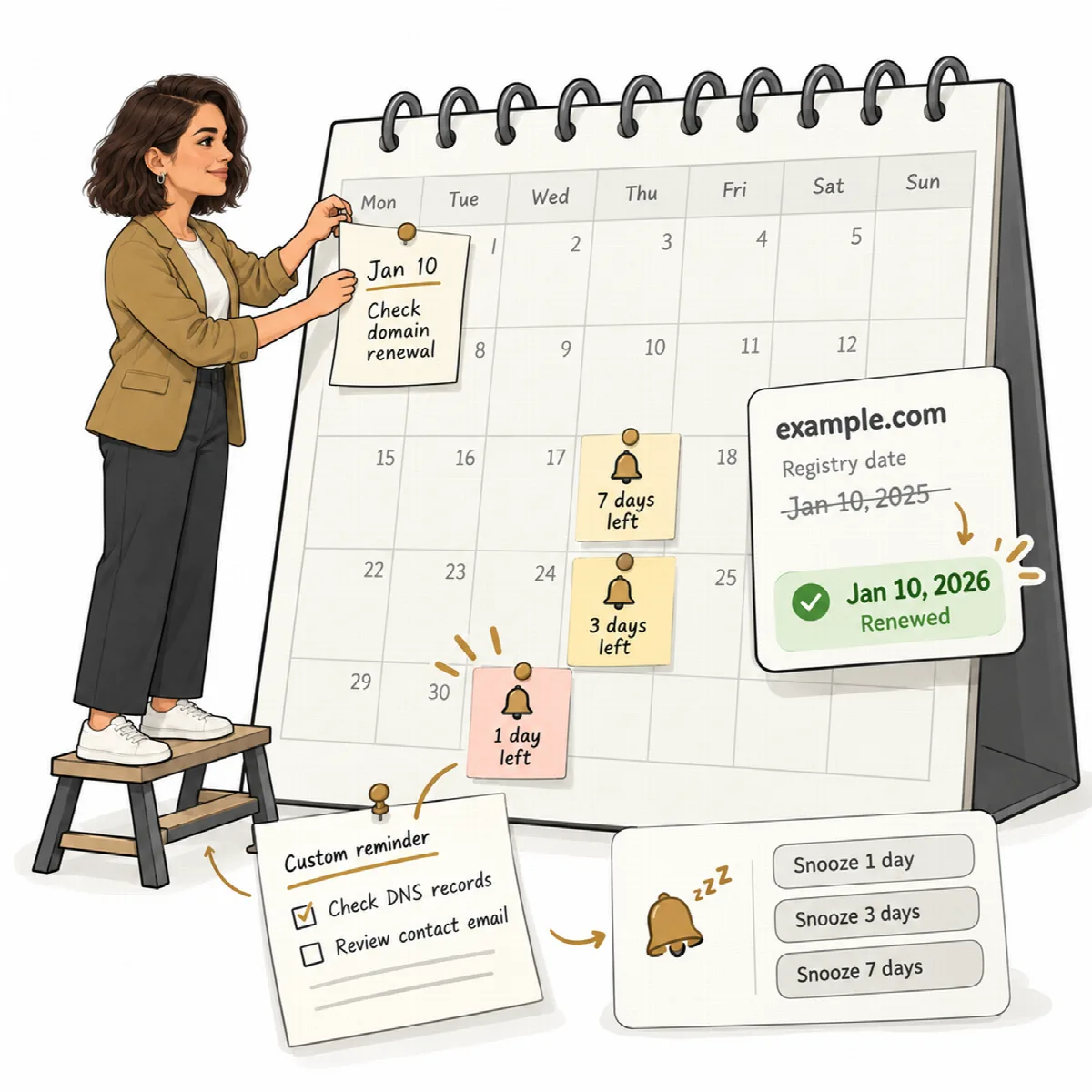
Reminders continue until the renewal appears in the registry, until you click Renewed, or while you snooze them with Snooze… for 1, 3 or 7 days.
- Reminders appear on the Domains page under Reminders and in Needs attention on the Overview, as Windows notifications (type Domains) and, when email is set up, at the alert addresses of Settings → Notifications.
- With Also email the client on reminder days, the reminders on the reminder days also go to the client, written in the client's message language (English, Arabic or Turkish).
- No reminder is sent twice, also after ARN Connect restarts.
Renewals
ARN Connect does not renew domains. Renew the domain at your registrar; ARN Connect detects the renewal in the registry.
- When the registry shows a new expiry date, open reminders close, the schedule starts again for the new date and one "Domain renewed" message is sent.
- Renewed checks the registry at once. If the new date is not visible yet, the reminders pause for one day and the registry is checked again.
Your own reminders
On a domain's page, use + Add reminder for dates the registry does not know, such as contract dates, DNS changes or a planned transfer. Each reminder has a date, an optional time, a note and a repeat: none, every month or every year. Mark it Done, snooze it, edit, share or delete it.
Bill domain renewals
On a domain's page, Bill this domain adds a recurring service that follows the registry expiry date. See Products, recurring services and draft invoices.