
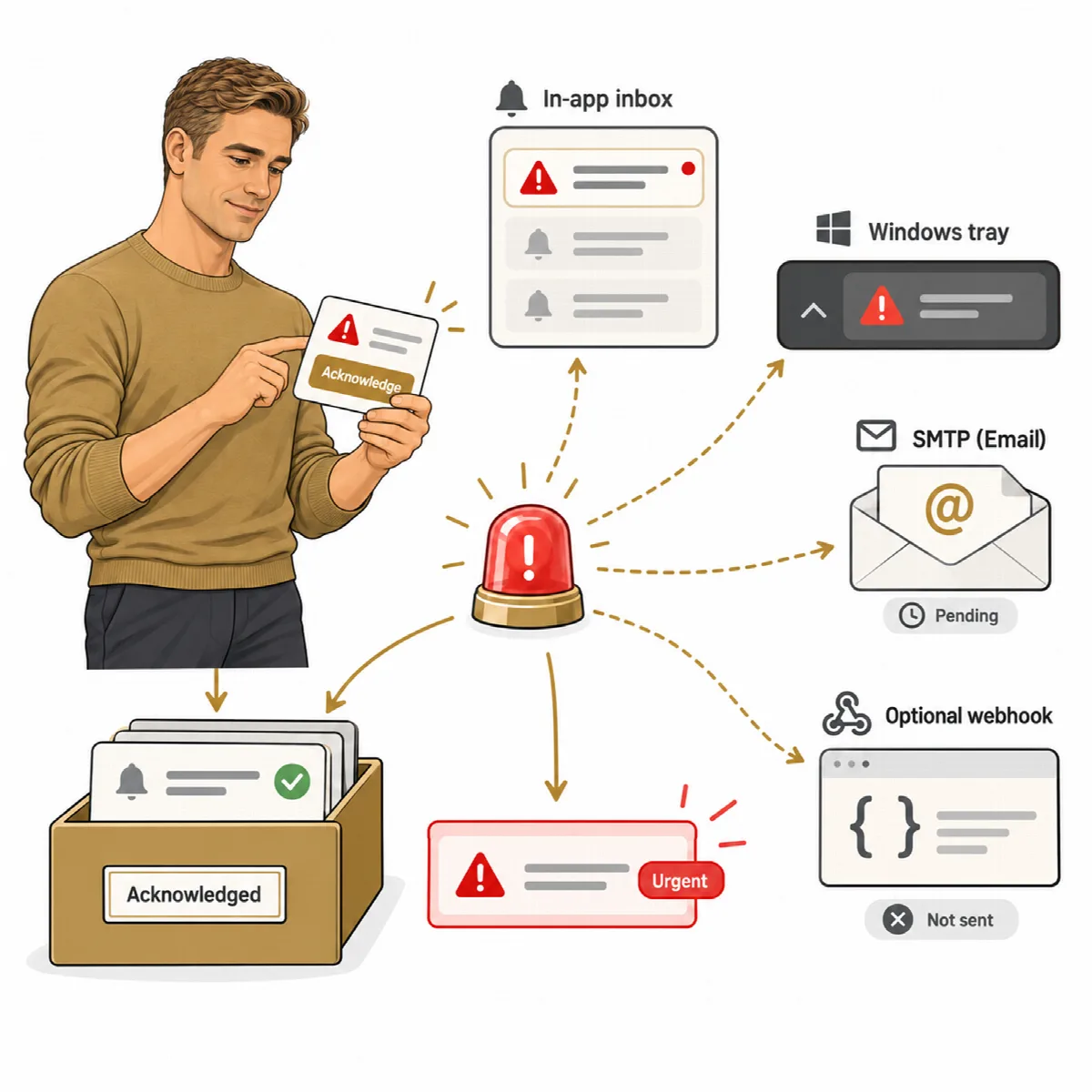
ARN Connect creates an alert only when something needs action. A normal available update, for example, never creates an alert. This article explains incidents, alerts and the channels that deliver them.
Where to find it: Alerts in the sidebar; settings in Settings → Notifications.
Incidents
An incident is a problem that lasts. ARN Connect opens incidents for downtime, TLS certificate problems, PHP fatal errors, a disconnected Agent, a failed update and performance degradation. At most one incident of each type is open per site at a time.
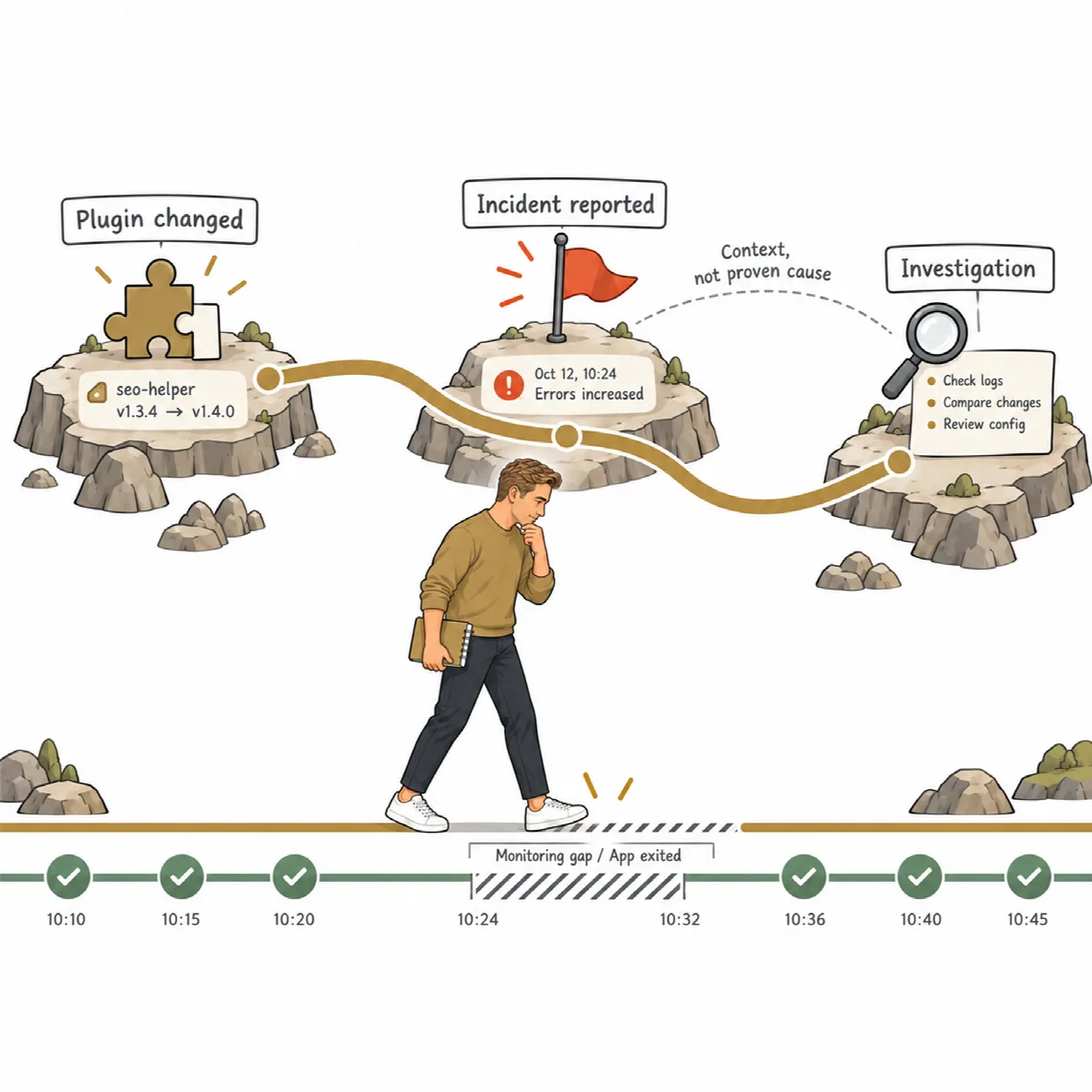
What changed before. When a problem starts, ARN Connect shows the site changes recorded shortly before it, for example a plugin update before a fatal error. This is context for your investigation; it does not prove the cause.
PHP fatal errors. The Agent keeps the newest 50 fatal errors with file paths shortened and personal data removed. They appear on the site's Errors tab. On the site's Settings → ARN Connect screen (the Agent's screen), the optional Early error capture also records errors from plugins that load before the Agent.
Performance warning. A TTFB warning opens only for a clear slow-down: the median of the last hour must be at least 2 seconds above the site's median of the previous 7 days. You can change the margin in Settings → Notifications (Performance warning when TTFB is above normal by (seconds), from 0.5 to 30). The warning ends when the rise falls below half of that margin; its end is recorded without a notification. Smaller rises stay visible on the site's Monitoring tab.
Timelines and activity
- The Timeline tab of a site keeps its events in order.
- The Activity page shows everything that changed across all sites.
- The Operations page shows every change and remote action with its checks and verdict.
Alerts
Alerts are created for:
- incidents, and failed or unknown operations;
- new high-risk updates;
- an Agent that stays disconnected for more than one hour;
- changes of a domain's name servers or mail servers, and failed domain lookups;
- hosting problems: disk quota, an unreachable WHM server, SSL certificates that AutoSSL did not renew;
- overdue invoices.
The Alerts page lists critical and warning alerts. Acknowledge each one when you have handled it, or use Acknowledge all.
Notification channels
| Channel | How to set it up |
|---|---|
| In the app | Always on: the Alerts page and the Needs attention widget |
| Windows notifications | Settings → Notifications → Windows notifications |
| Settings → Notifications → Email (SMTP) and Email alerts to in Alerts | |
| Webhook | Webhook URL (HTTPS) in Settings → Notifications → Alerts |
Windows notifications
Windows notifications come from the tray icon, also while the window is closed. Clicking one opens the site or the operation.
- Show Windows notifications turns them on or off.
- Problems to show: Critical only or Critical and warnings.
- Types: availability, Agent connection, PHP errors, SSL certificate, performance, updates and high risk, operation or backup results, batch updates, domains, hosting and billing.
- Sites: untick a site to mute it.
Click Save notifications.
- In Email (SMTP), enter the Mail server, Port, Encryption (STARTTLS, SSL/TLS or None for a mail server on the same computer), User name, Password, Sender name and Sender address. The server certificate is always verified, and the password is stored encrypted and never shown again.
- Click Save email settings, then Send test email.
- In Alerts, enter one or more addresses in Email alerts to (separated by commas) and choose Email alerts from: Critical only or Warning and critical.
The same mail server sends reports, invoices, quotations, domain reminders and payment reminders.
Webhook
Enter an HTTPS address in Webhook URL (HTTPS), for example a Slack, Microsoft Teams or Discord webhook, choose Send alerts from and click Save alerts. Send test posts a test message. The message contains only the severity and the title of the alert.