
Where to find it: Billing → Quotations and the client pages; settings in Settings → Billing → Quotations and Settings → Billing → Payment reminders.
Quotations
Quotations use the invoice template (language, logo, colours and company) with the title TEKLİF, QUOTATION or عرض سعر, depending on the document language. They have their own numbers, TKL-YYYY-NNNN by default, and a validity date.

Create and send a quotation
- Open Billing → Quotations and click + New quotation, or use New quotation on a client page.
- Add lines from your Products or write them by hand. Each line has a billing cycle or is one-time.
- Send it with the share dialog (email with the PDF attached, or a WhatsApp text), or click Mark sent.
| Status | Meaning |
|---|---|
| Draft | Not sent yet |
| Sent | Sent to the client; it expires by itself after its validity date |
| Accepted | Marked with Mark accepted |
| Rejected | Marked with Mark rejected |
| Expired | The validity date passed |
A few days before a sent quotation expires, a Billing notification reminds you. Download PDF and Duplicate are always available. A Pending quotations widget on the Overview keeps open offers visible, and every step is recorded in the quotation's history.
Convert a quotation to an invoice
Click Convert to invoice. ARN Connect creates the draft invoice in one step and can turn product lines into recurring services of the client, linked to a hosting account or domain, whose first period the invoice bills.
Quotation settings
In Settings → Billing → Quotations:
| Setting | Default |
|---|---|
| Number prefix | TKL |
| Next number in the current year | The next free number |
| Valid for (days) | 15 (1 to 365) |
| Notify before expiry (days) | 3 (0 turns it off) |
| Show the bank accounts on quotations | On |
Payment reminders
ARN Connect can email clients a polite reminder for each sent invoice that is still unpaid on set days after its due date. The email is written in the invoice's language and includes the PDF and your bank accounts.
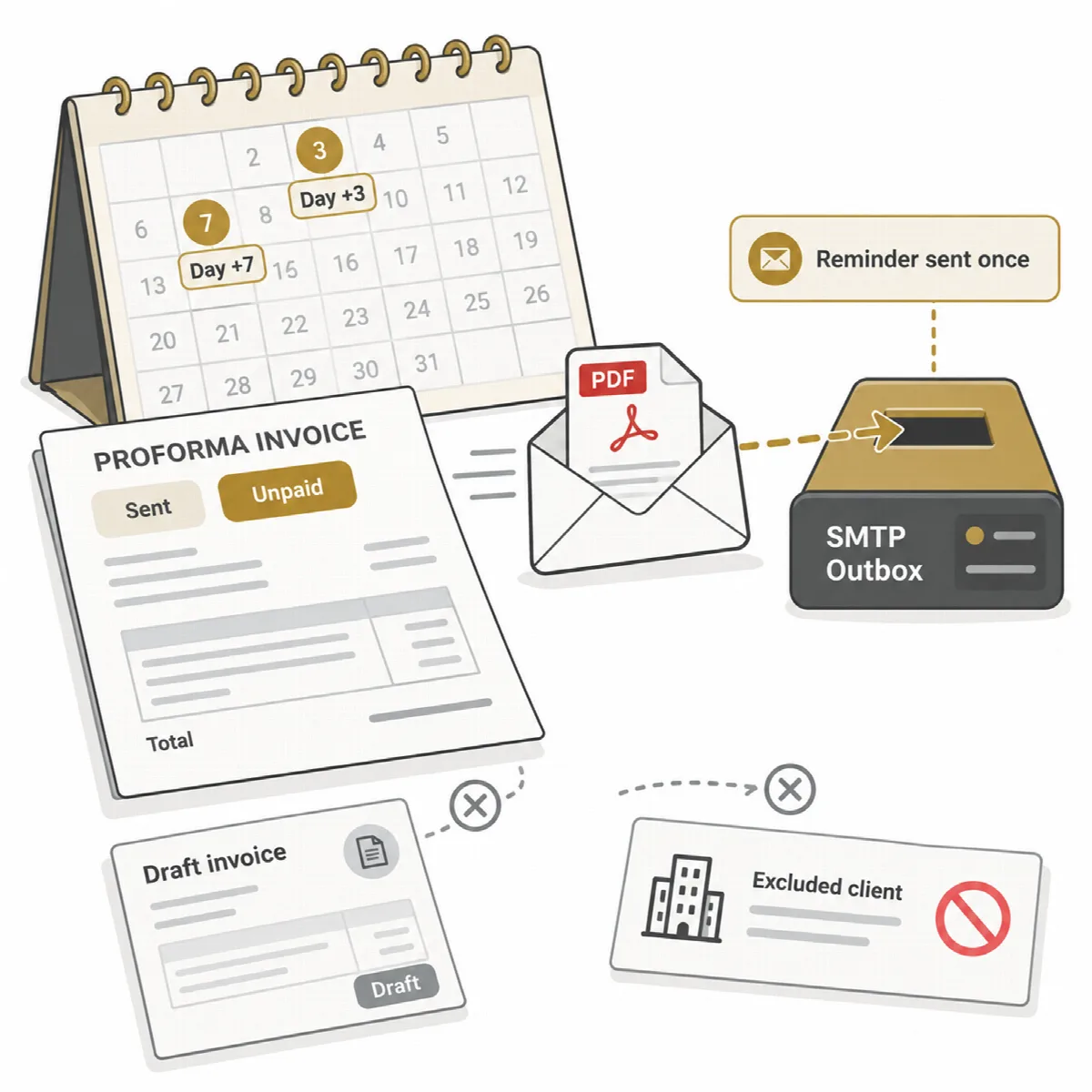
In Settings → Billing → Payment reminders:
- Send payment reminders automatically is on by default.
- Days after the due date is
3, 7by default; enter 1 to 5 days, separated by commas.
How reminders behave:
- Drafts never get reminders, and each reminder is sent only once, also after a restart.
- A reminder day missed while the computer was off is still sent up to 5 days later, not afterwards. Old invoices therefore do not get a burst of emails when you turn reminders on.
- To exclude a client, untick Email automatic payment reminders for overdue invoices on the client's Edit form.
- Send reminder on an overdue invoice sends one at once. The invoice page shows the reminders sent and the invoice's history.
Payment reminders need a mail server in Settings → Notifications → Email (SMTP).